Perfex Client Hub documentation
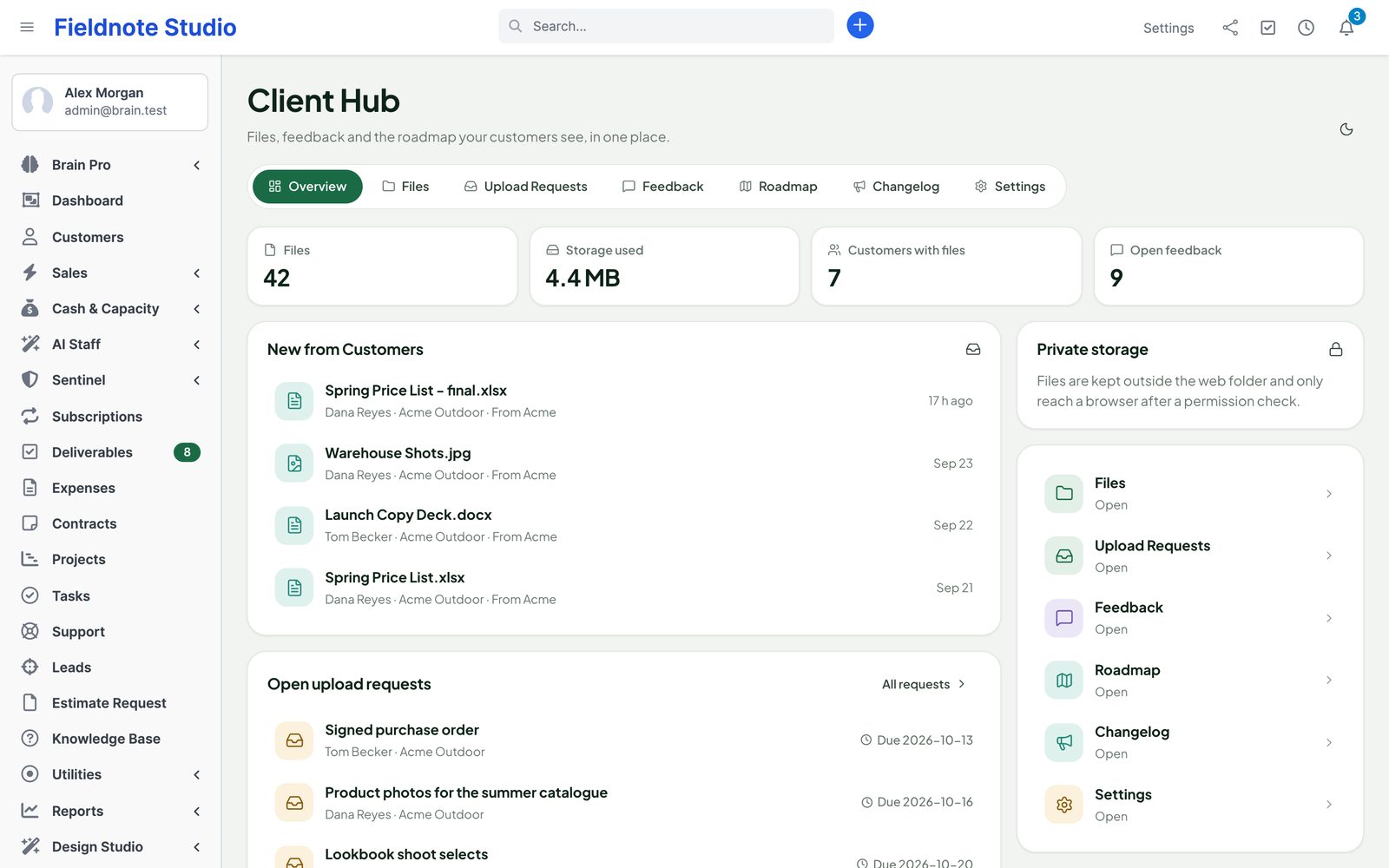
Perfex Client Hub adds a client-facing hub to Perfex CRM with two parts. Client Files is a private file hub for every customer and project: folders, uploads of any size, versions, previews, tags, per-folder access, share links, upload requests and storage quotas. Feedback & Roadmap gives your customers boards for ideas, bug reports and questions, with voting, comments, statuses, a public roadmap, a changelog and an embeddable widget.
Both parts show up for your customers in the Perfex client portal, and the public pages (share links, upload links, roadmap, changelog, boards) work without an account. You can switch each part, each public page and each customer on or off.
Installation
Requirements
- Perfex CRM 3.4 or newer. Tested with Perfex 3.4.1.
- PHP 8.0 or newer with the
fileinfoextension; MySQL or MariaDB. - Perfex's cron job running (emails, summaries, reminders, scheduled changelog entries, trash clean-up).
- Recommended: the PHP GD extension (thumbnails) and ZipArchive (folder downloads as ZIP).
- A folder the web server can write to, outside the web root if possible (see Storage and quotas).
- Perfex AI Staff, Deliverables, Document Studio, Design Studio, Brain Pro and Sentinel are optional.
Install
- Back up the CRM database and files.
- Extract the download
perfex-client-hub-1.0.0.zipon your computer. Inside are the installableperfex_client_hub-1.0.0.zip, this documentation, the changelog and the licenses. - In Perfex, open Setup › Modules, upload the inner
perfex_client_hub-1.0.0.zip, then install and activate Perfex Client Hub. - Open Client Hub in the sidebar. The Overview shows where files are stored and whether that folder is private.
Permissions
Staff rights are set in Setup › Staff › Roles (or per staff member). Administrators can do everything.
| Feature | Capability | Allows |
|---|---|---|
| Client Hub — Files | View (global) | Files of every customer and project. |
| View own customers and projects | Files of customers they are customer admin of and projects they are a member of. | |
| Upload and create folders | Upload files and new versions, create folders. | |
| Edit | Rename, move, tag, describe, change folder access. | |
| Delete | Move to trash, delete for good. | |
| Share links and upload requests | Create and revoke share links, send upload requests. | |
| Client Hub — Feedback | View | Read every board, post and internal note. |
| Post and vote for customers | Post, vote on behalf of a customer, reply in public. | |
| Moderate, change status, merge | Statuses, merging, moderation queue, links to tickets, tasks and projects, edits. | |
| Manage boards, roadmap and changelog | Boards, statuses, the changelog, the widget, feedback settings. | |
| Client Hub — Settings | Change settings | The settings page, customers' quotas and switches, the activity log export. |
Customer contacts: with Settings › General › Contacts set to All contacts, every active contact can use the parts that are on. Set it to By contact permission to use the two contact permissions Client Hub files and Client Hub feedback on each contact's profile. Project folders also need Perfex's own Projects contact permission.
Files and tables
| Where | What |
|---|---|
modules/perfex_client_hub/ | The module, with its interface font and the Lucide icons. Nothing is loaded from a CDN. |
perfex-client-hub-storage/<key>/ next to the Perfex folder (default) | Uploaded files under random names (blobs/), unfinished uploads (tmp/) and thumbnails (cache/, safe to delete). <key> is different for every installation and database. |
Tables pch_* | Folders, files, versions, tags, access entries, share links, upload requests, boards, posts, votes, comments, statuses, changelog, subscriptions, notifications, activity and settings per customer. |
First steps
- Open Client Hub › Settings. Check Storage (the folder should be private), set the largest file, the quota per customer and the file types you accept.
- Open Files, pick a customer and create its first folders — for example Contracts (customer can view) and From the client (customer can upload).
- Upload a few files. Contacts of that customer see them under Shared Files in the portal and get an email.
- Open Upload Requests and ask a contact for files.
- Open Feedback › Boards, adjust the board "Feature Requests" or add a public one, and share its address. Turn on the public roadmap and changelog in Settings › Public Pages when you are ready.
Client files
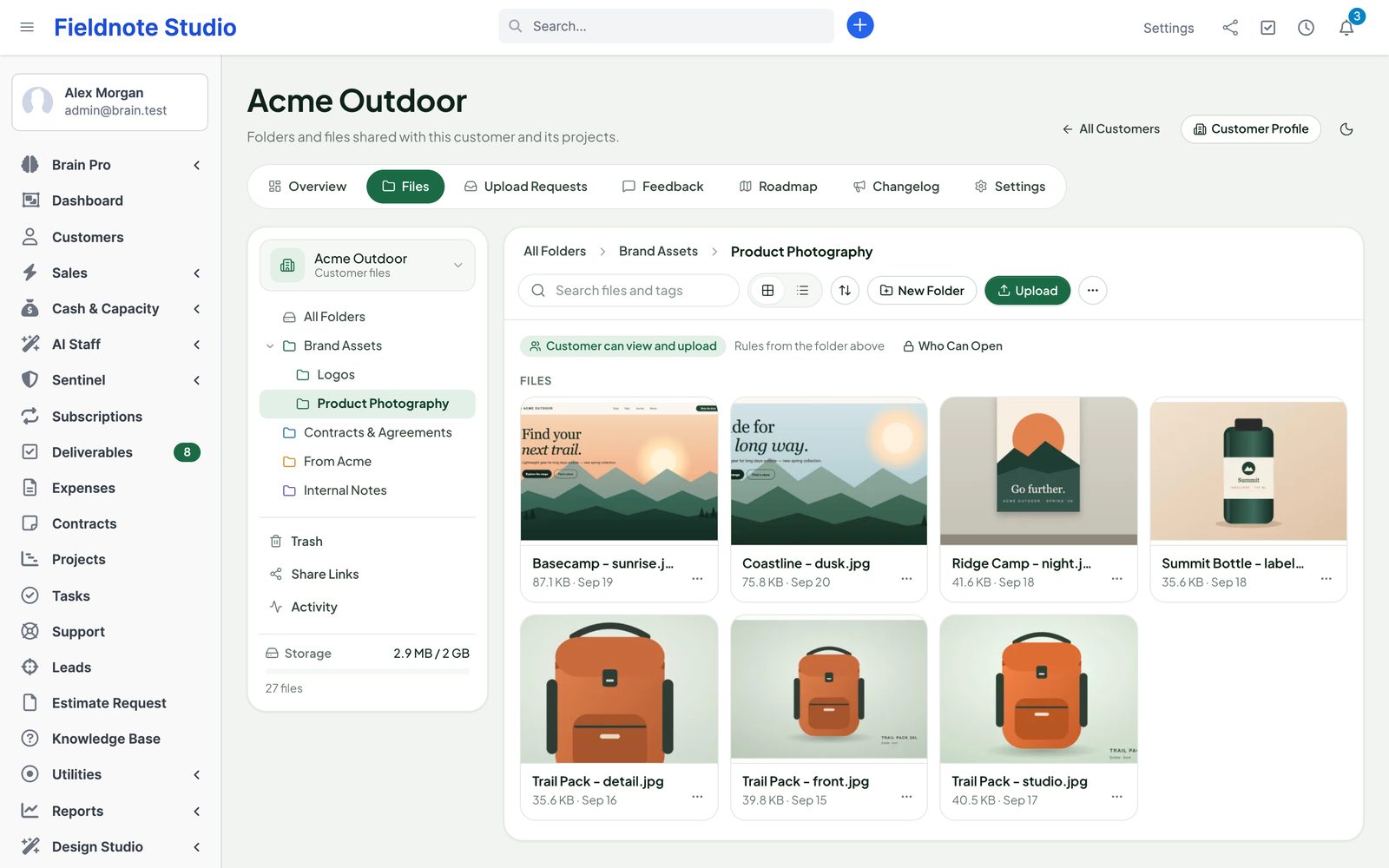
Client Hub › Files lists the customers you may see; open one to see its files. Every customer has a customer space, and every project a project space (switch at the top of the folder tree). The same view is on the customer profile and in the project as a Files tab.
- Folder tree on the left with Trash, Share Links, Activity and the storage bar; breadcrumbs, search, grid or list, sorting, New Folder and Upload on top.
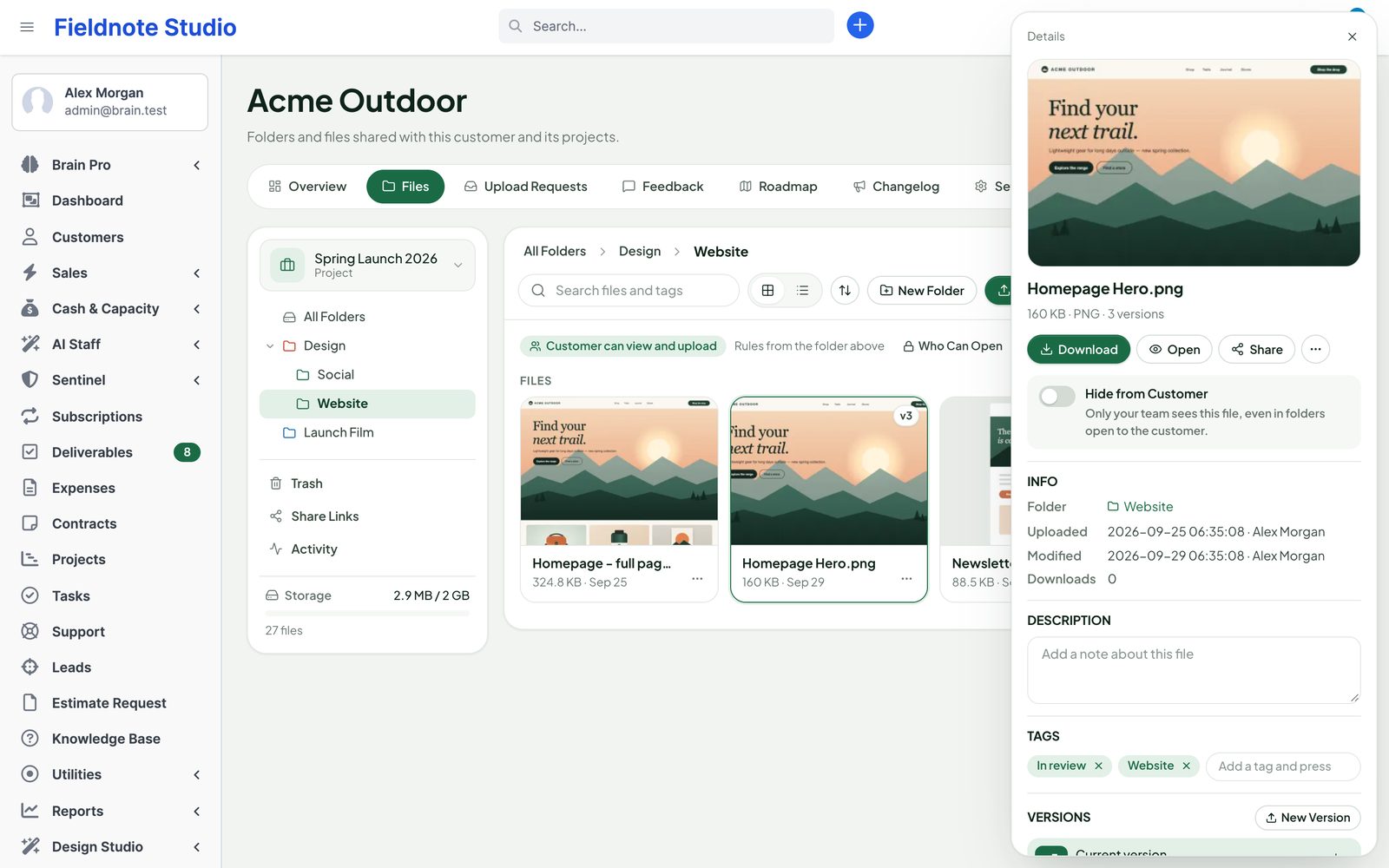
- Click a file to open its details: preview, size, who uploaded it, versions, tags, description, share links and actions. The ⋯ menu of a file or folder has Rename, Move, Copy, Download (folders as ZIP), Share, Access, Trash.
- Select several items for bulk move, download and trash.
- Search finds file and folder names, tags and descriptions in the whole space.
- Hidden from customer keeps a file in an open folder staff-only.
- Trashed files and folders stay in Trash for 30 days (setting), then they are deleted with their bytes.
Uploading
- Drag files — or whole folders, sub-folders included — onto the page, or press Upload.
- Files are sent in parts (8 MB by default), so PHP's
upload_max_filesizedoes not limit them. A dropped connection is retried, and the upload continues where it stopped. - Each file is checked by its content after upload. Program and script files are refused (also
name.php.jpg), SVG files with scripts are refused, and a file whose content does not match its extension is refused. - Accepted types by default: images (JPG, PNG, GIF, WebP, BMP, TIFF, HEIC, SVG, ICO), PDF, office files (Word, Excel, PowerPoint, OpenDocument, RTF, Pages, Numbers, Keynote), text and CSV, video, audio, design files, fonts, CAD, archives, email files and code. Settings › Files › Accepted file types can narrow the list.
Versions and previews
- Upload a new version from the file's details (New Version), or drop a file with the same name while Same name: add a new version is chosen in the toolbar menu. Add a note; the card shows v2, v3…
- Every earlier version can be downloaded or restored (restoring makes it the newest version). Settings › Files › Versions to keep limits how many are kept.
- Previews: images, PDF, video, audio and text open in the page. Office and other files show their type with a download button.
Folder access
Who Can Open on a folder sets its rules. Sub-folders follow the folder above unless you give them their own rules.
| Rule | Options |
|---|---|
| Customer contacts | No one (staff only), All contacts or Chosen contacts, each at Can view and download, Can upload or Can edit. A chosen contact can get more than the rest. |
| Staff | Everyone who may see the customer or project (by their Files rights), plus staff members or roles you add, at view, upload, edit or manage. Only the people listed makes a folder private to administrators and the listed staff. |
New root folders start with Settings › Files › New folders (open to all contacts, view only, by default). Contacts can trash files they uploaded themselves when they may upload to that folder; they never manage folders. Staff without access get "not found", so folder names are not revealed.
Share links
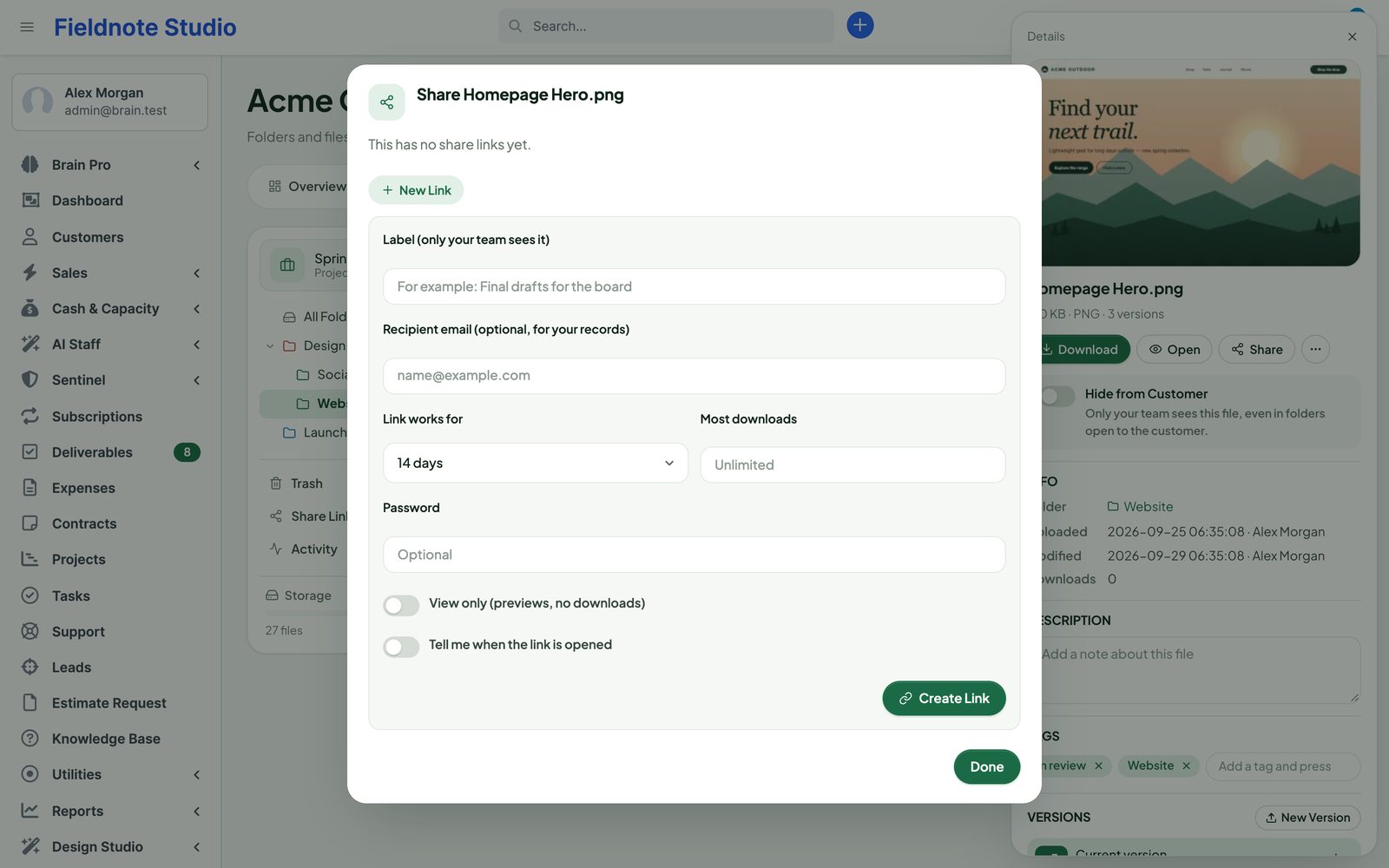
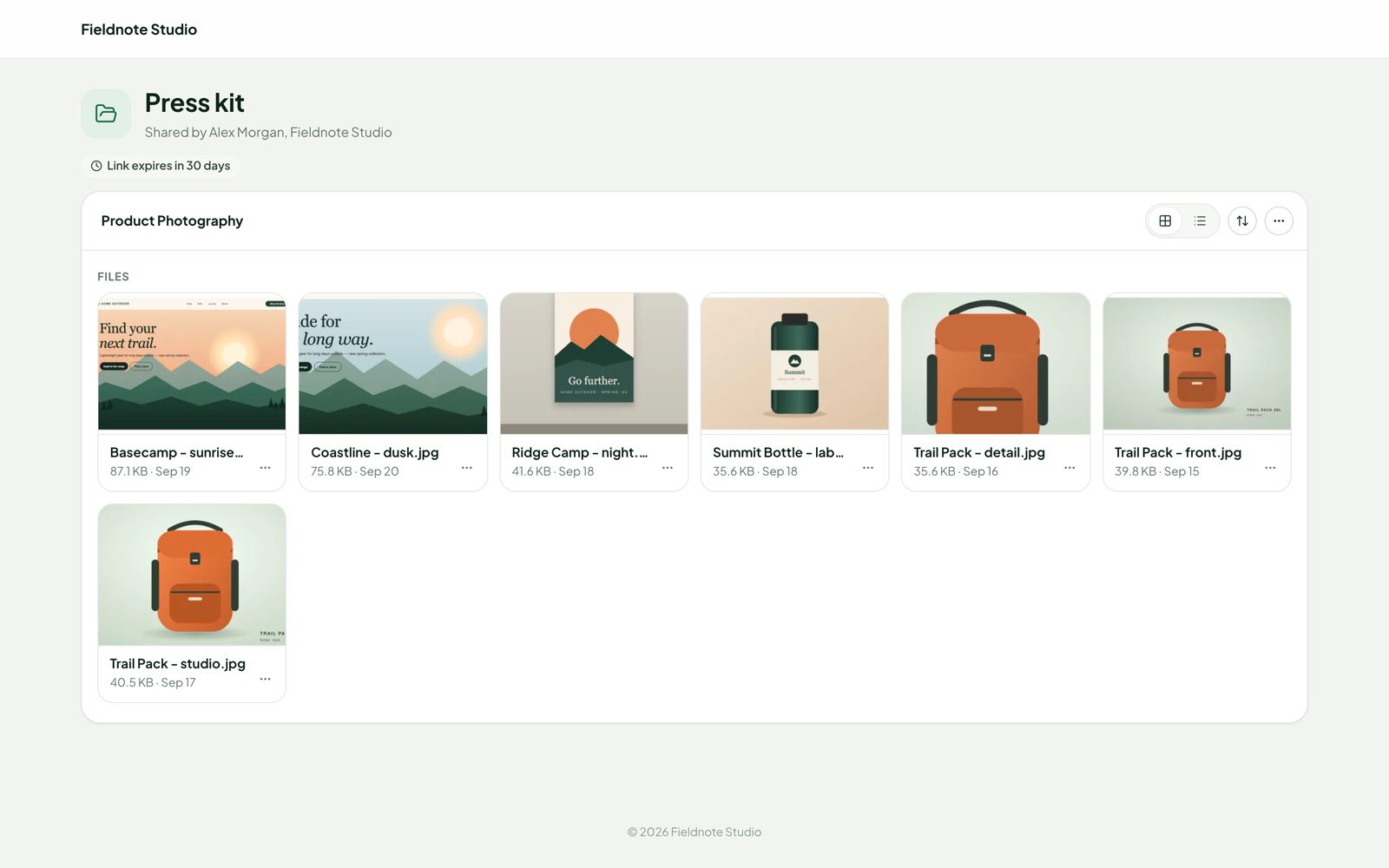
Share a file or a folder with anyone: Share in the file's details or the ⋯ menu.
- Expires after a number of days (default 14, at most Settings › Sharing › Longest link).
- Password (can be required for every link), download limit, view only (no download button), a label and the recipient's email for your records.
- Folder links can also accept uploads into that folder.
- Tell me sends you a bell when the link is opened, downloaded or used for an upload.
- The link page shows only the shared file or folder (and its sub-folders that follow the same rules), with previews and a ZIP download. Wrong passwords are limited and logged.
- Share Links in the folder tree lists every link of the customer with its state, views and downloads; Revoke stops a link at once.
Upload requests
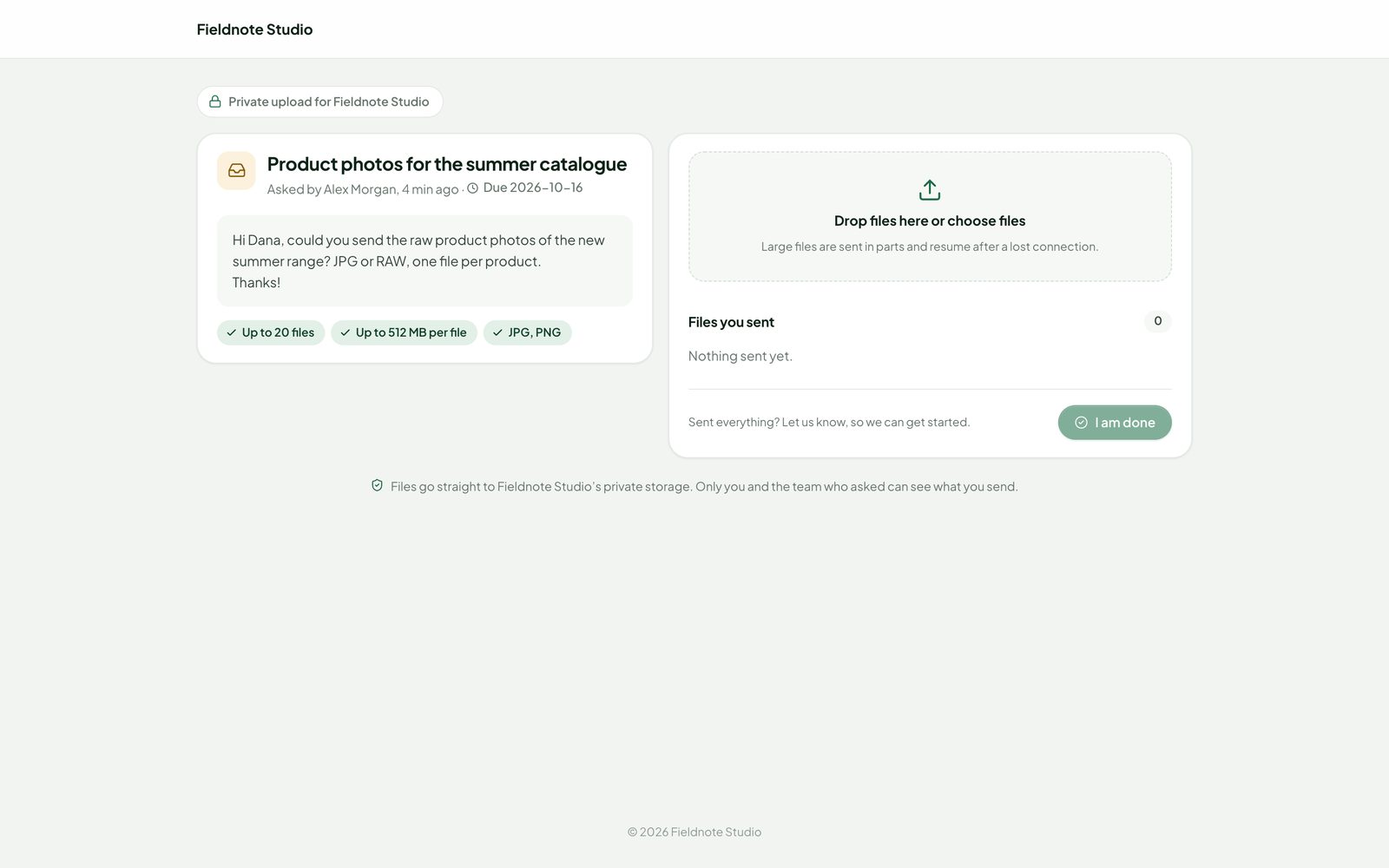
Ask a customer for files: Upload Requests › New Request, or Request files in a folder's toolbar.
- Choose the folder (or let the hub make a "From the client" folder), the contact — or any email address — a title, a message and optionally a due date, a number of files, a size limit and accepted types.
- The contact gets an email with a link and sees the request on the portal home. People without an account upload through the link.
- Uploaded files land in the folder; you get a bell (and, if you like, an email). The client presses I am done when finished, or the request closes itself when the number of files is reached.
- Reminders go out two days before and one day after the due date (at most two, switch in Settings). Remind sends one by hand; Close stops the link.
- The upload page shows who asked and the files sent through the link — never folder names or other files.
Storage and quotas
Where files are kept
define('PCH_STORAGE_PATH', '/home/acme/hub-files');inapplication/config/app-config.php— your choice (a sub-folder per installation is added).- Otherwise
perfex-client-hub-storage/in the folder above Perfex — outside the web root on most hosts. - If neither can be written,
uploads/perfex_client_hub/with an unguessable name,.htaccessandweb.configdeny rules. On nginx add the rule shown in Settings › Storage:
location ^~ /uploads/perfex_client_hub/ {
    deny all;
}
Settings › Storage shows the folder, whether it is inside the web root, free space and how to move it. Downloads can be handed to the web server with X-Sendfile (Apache) or X-Accel-Redirect (nginx) for very large files.
Quotas
- Largest file (512 MB by default, up to 20 GB).
- Storage per customer and for the whole hub (0 = unlimited). Every kept version and the trash count. A customer's own quota can be set in Settings › Customers.
- Uploads stop with a clear message when a quota or the free disk space would be exceeded; open uploads count as well.
Client portal
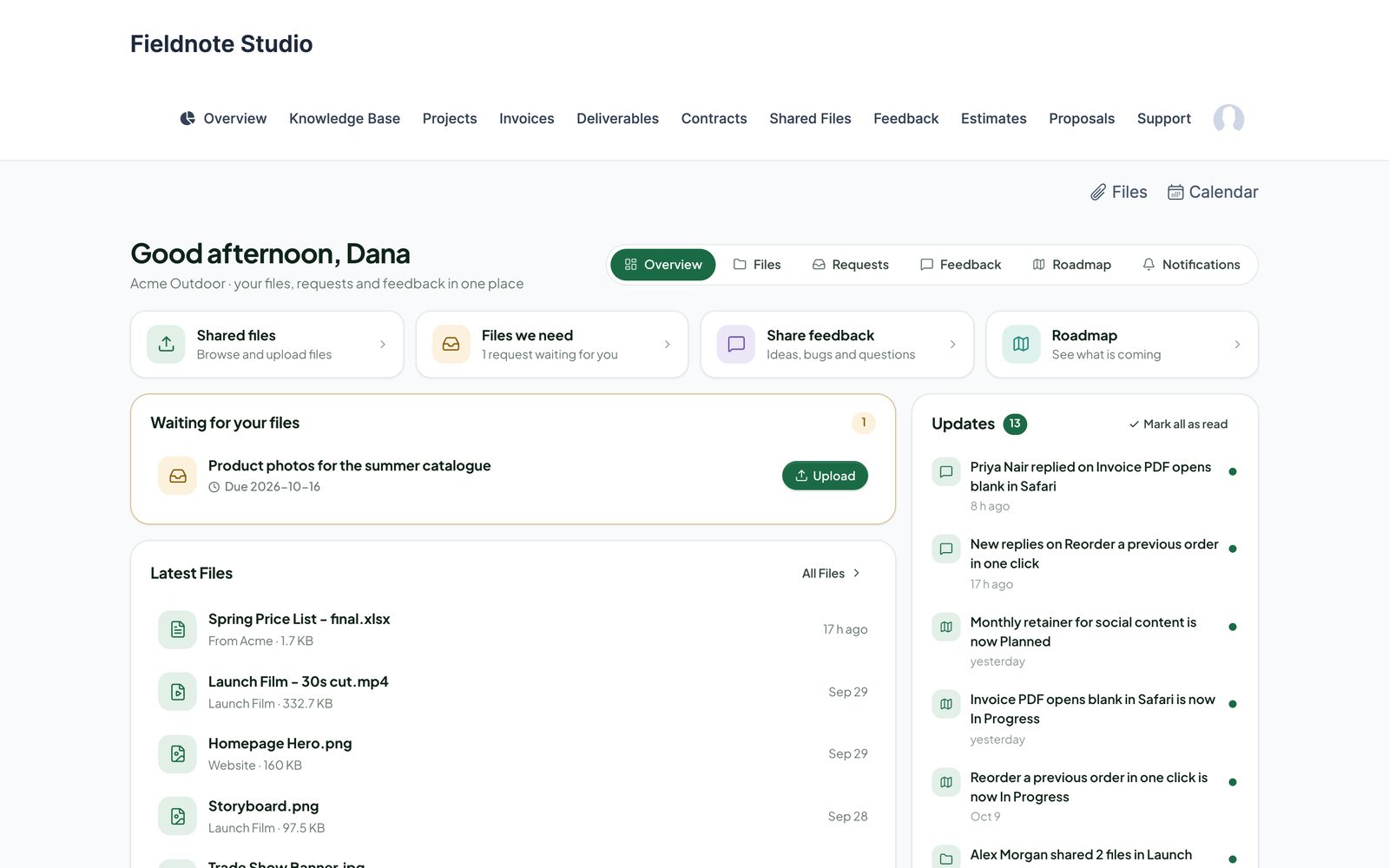
Contacts find the hub in the customer menu — as Shared Files and Feedback, or one Client Hub item (Settings › Notifications & Portal).
- Overview: a greeting, shortcuts, requests waiting for them, latest files, their feedback, recent activity and Updates (new files, replies, status changes).
- Files: the folders of their customer (and of projects they may see) that are open to them, with previews, versions, search, upload and ZIP download.
- Requests, Feedback (boards, posting, voting, comments), Roadmap and Notifications (their email choices).
- Pages follow Perfex's customer theme, or Perfex Design Studio's portal theme when it is on, in light and dark, and work on phones.
Notifications and emails
- 16 Perfex email templates of type Client Hub (Setup › Email Templates), in every Perfex language: new files, upload request and reminder, feedback status, new comment, changelog, subscription and vote confirmation, summaries, and the staff versions.
- Emails leave with Perfex's cron. Files added in one folder within 10 minutes (setting) are grouped into one email.
- Contacts choose per kind of event: email right away, in a daily or weekly summary, or not at all. Every email has a signed link to stop it.
- Staff get Perfex bells, and choose their own emails in My Hub Notifications (link on the overview).
Feedback boards
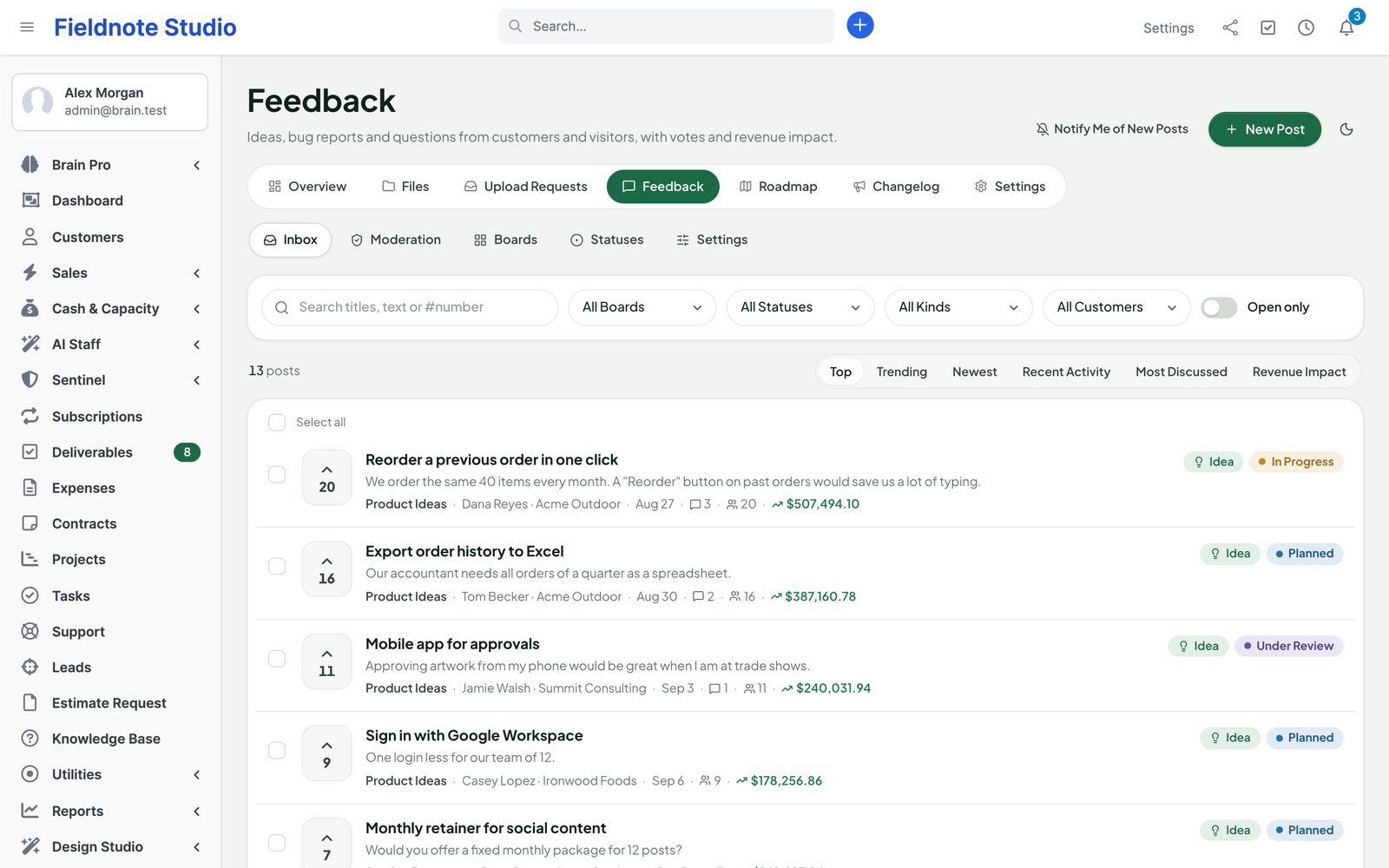
Client Hub › Feedback has the Inbox, Moderation, Boards, Statuses and Settings.
| Board visibility | Who sees it |
|---|---|
| Public | Everyone, also signed out (when Feedback is on). Posting can be open to anyone, contacts or staff only. |
| Customers | Signed-in contacts with feedback access — all customers, or one customer only. |
| Private | Staff only (an internal ideas board). |
Each board has a name, description, icon and colour, the kinds it accepts (idea, bug report, question), categories, extra fields per kind, votes and comments on or off, whether it appears on the roadmap, moderation (none, visitors, everyone) and the widget.
Posts and bug reports
- Ideas, bug reports and questions with a title, text and attachments (contacts and staff). Bug reports ask for browser, system and steps; a board can keep bug reports private to the author's customer.
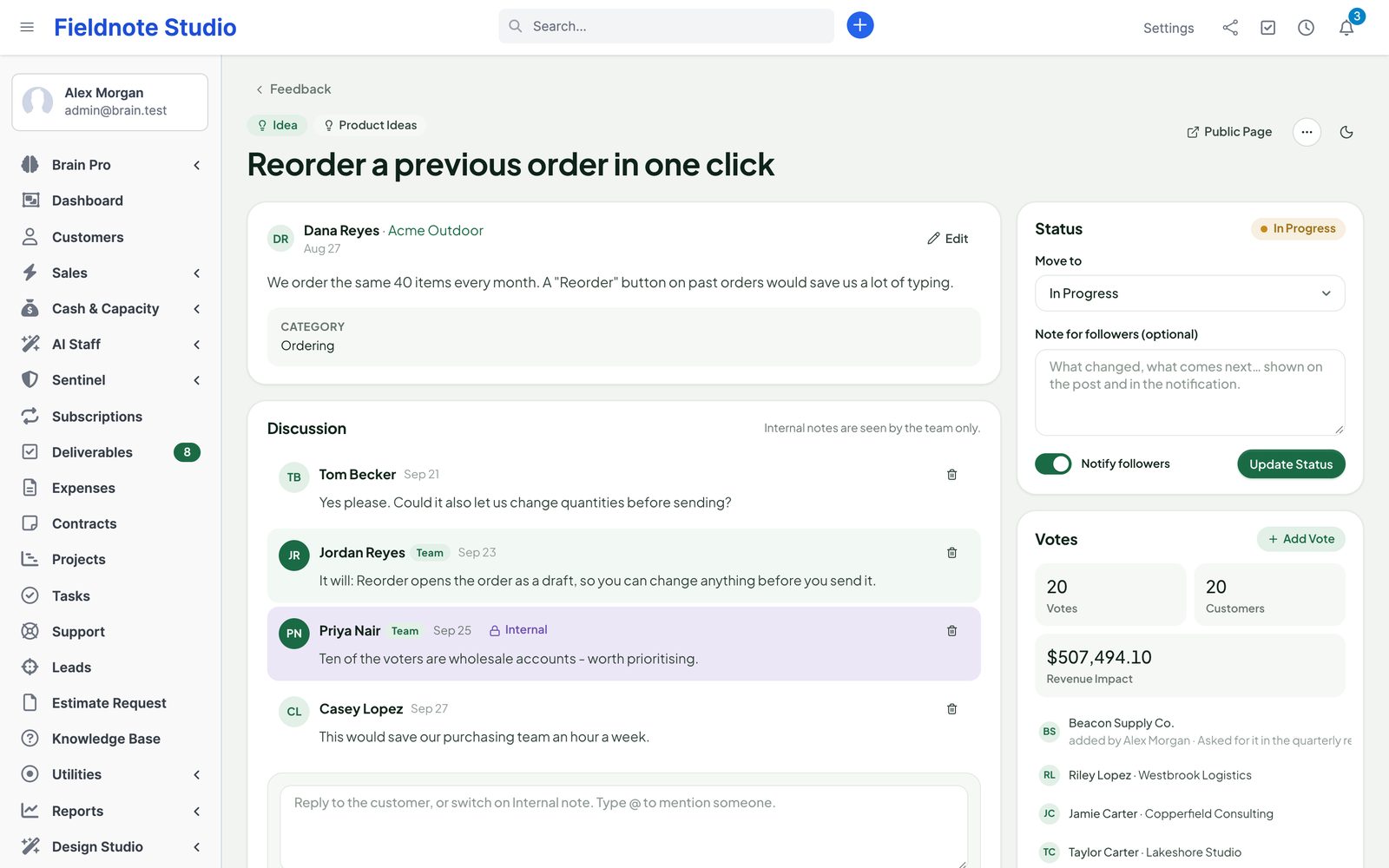
- The inbox filters by board, status, kind, customer, tag and text, and sorts by top, trending, newest, recent activity, most discussed or revenue impact (payments of the voting customers in the last 12 months; shown only to staff who may see invoices or payments).
- Comments with @mentions; Internal note for staff only. Followers get updates.
- Links to Perfex tickets, tasks and projects, or Create Task / Create Ticket from the post.
- Staff can post for a customer (New Post).
Voting
- Contacts vote once per post. Staff can Add Vote for a customer or contact with a note ("asked in the quarterly review").
- Signed-out visitors can vote on public boards when Visitors may vote is on: by email (the vote counts after they confirm the link) or anonymously, with limits per hour.
Statuses and merging
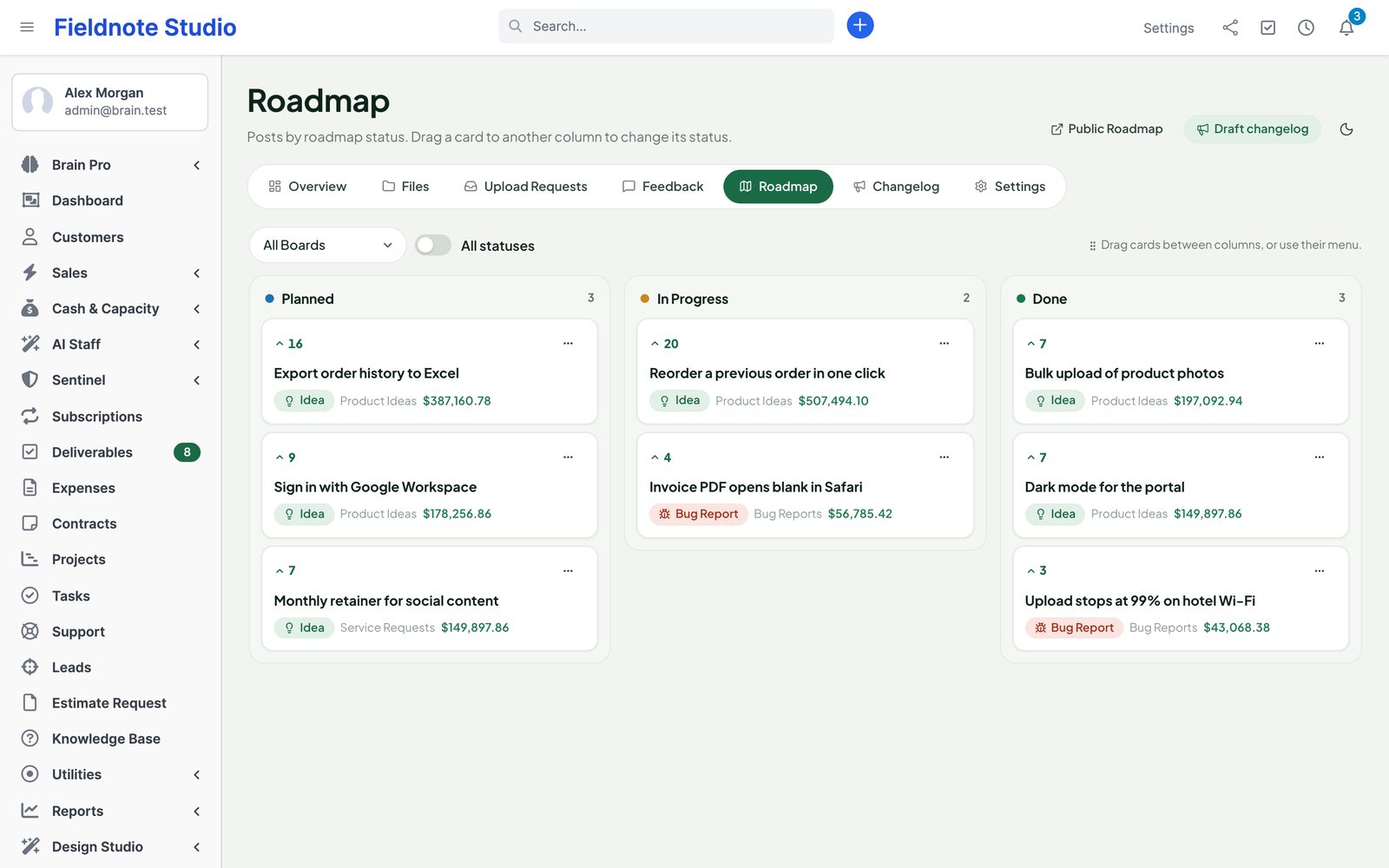
- Five statuses come with the hub: Under Review, Planned, In Progress, Done, Declined. Add your own with a colour, a stage and whether it shows on the roadmap.
- A status change can carry a public note and notifies the author, voters and followers. The history stays on the post.
- Merge a duplicate into another post: votes and followers move, the duplicate points to the main post. Undo splits them again.
Moderation and spam
- Posts that need approval wait in Moderation: approve, reject or edit.
- Limits per hour for posts, comments and votes; a minimum time to fill the form; a hidden honeypot field; a list of blocked words; links per post. All in Feedback › Settings.
- Visitors never comment; their posts can be moderated.
Roadmap
- Client Hub › Roadmap: the posts of roadmap statuses as columns. Drag a card to change its status (or use its menu). Filter by board.
- Contacts see the roadmap of the boards they may see in the portal.
- The public roadmap at
/perfex_client_hub/roadmapshows public boards only (switch in Settings › Public Pages), in your brand, light or dark. - Let search engines index the roadmap and changelog, or keep them out of search results (default).
Changelog
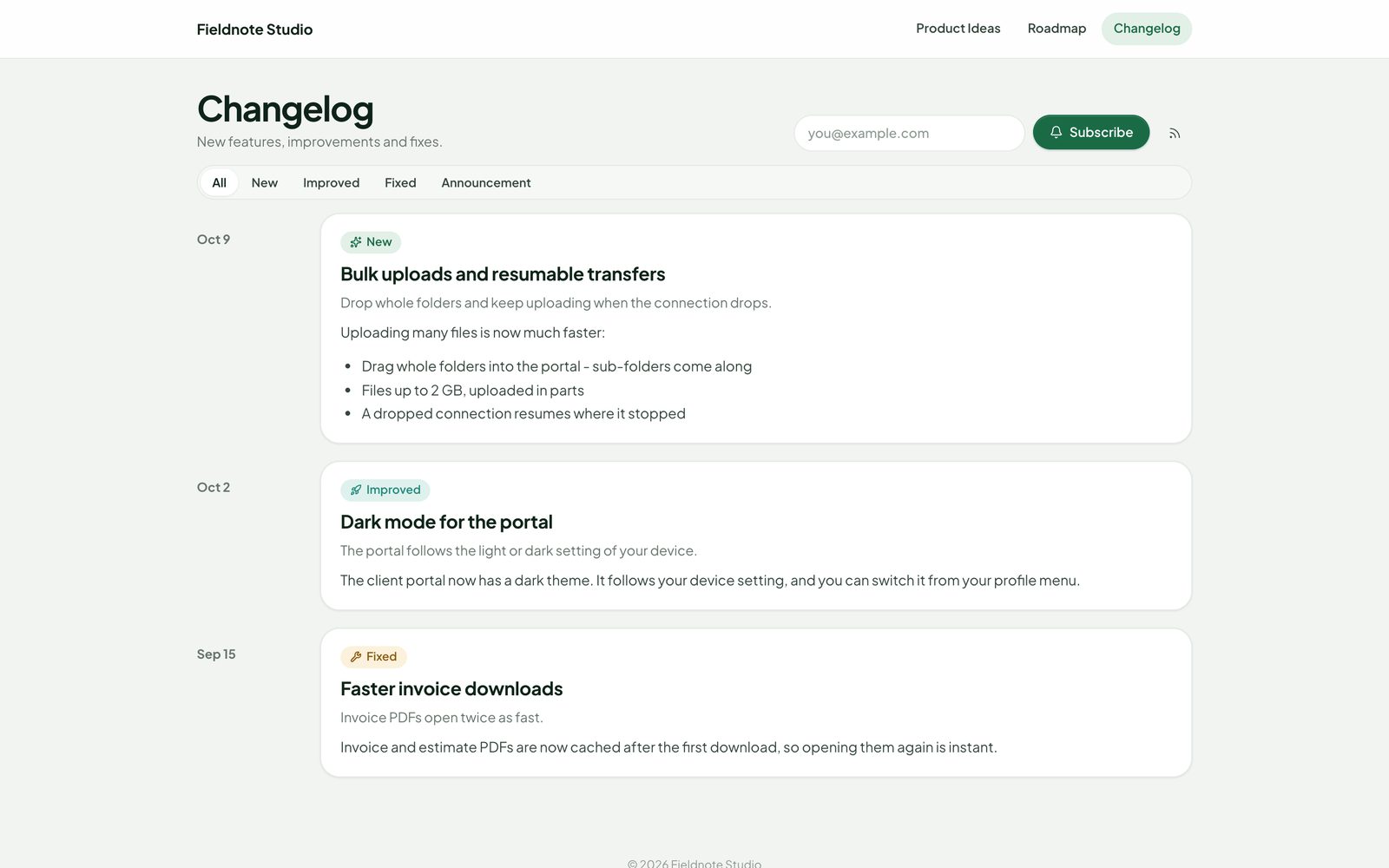
- Client Hub › Changelog: entries with a title, summary, body (headings, lists, links, images from your own site), category (New, Improved, Fixed, Announcement) and visibility (public or customers).
- Save as draft, schedule for later or publish. Link the posts the entry answers; they can be marked Done on publish, and their voters and followers get an email.
- Public page
/perfex_client_hub/changelog, an Atom feed at/perfex_client_hub/changelog/feed, and email subscriptions with a confirmation link. - Draft changelog on the roadmap collects posts that are Done but not announced yet.
Widget
Show a public board on your own website: open the board in Feedback › Boards, switch on the widget, list the websites that may show it (for example https://www.example.com) and copy the snippet:
<script src="https://crm.example.com/perfex_client_hub/widget/js/YOUR-KEY" async></script>- A feedback button opens a panel with the top ideas, voting and a form; similar posts are suggested while the visitor types.
- The widget always acts as a signed-out visitor, works for public boards only and follows the visitor rules of the board (voting, posting, moderation).
- Requests carry a signed token, are checked against your website list, and are rate limited. New Key stops the old snippet.
AI helpers
With Perfex AI Staff active and Settings › Integrations › AI helpers on, Client Hub uses AI Staff's provider, budgets and usage log. AI only proposes; staff press Apply or Dismiss, and Apply checks the staff member's own rights.
- Duplicates: new posts are compared with open ones (also automatically by the cron); a proposal offers a merge.
- Summarise a long thread; Suggest tags and Suggest status (from linked tasks and tickets).
- Draft changelog from posts that shipped — created as a draft, never published.
- Suggest tags for files from their names and folders.
- What is sent: post titles and texts with email addresses, phone numbers and links removed. Never author names or emails, never file contents.
- Without AI Staff (or with AI off) the same buttons use built-in rules: word overlap for duplicates, existing tags found in the text, statuses from linked records, a short extract as summary.
Integrations
- Perfex Deliverables: File into Client Hub on the Deliverables board copies the approved files of a project into a "Deliverables" folder, one sub-folder per deliverable; later versions become versions. Automatic files them when they are approved. Contacts can see that folder or not (setting).
- Invoices and estimates: Save PDF to Client Hub in the invoice or estimate More menu files the PDF in the customer's "Invoices & estimates" folder; saving again makes a new version. With Perfex Document Studio active, its design is used. Drafts are saved hidden from contacts.
- Perfex Brain Pro: seven widgets — storage by customer, files added, files from customers, open share links, open feedback, top voted posts, roadmap progress.
- Perfex Sentinel: share links, downloads (optional), access changes, board visibility and deletions go to the audit log, with ids only.
- Perfex Design Studio: portal pages follow its portal theme, light and dark.
Settings
| Section | What |
|---|---|
| General | Files and Feedback on or off, in the portal or not, which contacts may use them, the default theme of staff pages. |
| Files | Largest file, upload part size, accepted types, quotas, versions to keep, trash days, access of new folders, X-Sendfile. |
| Sharing | Share links and request links on or off, default and longest link, password required, uploads through links. |
| Storage | Where files are, whether the folder is private, free space, moving it, nginx rules. |
| Customers | Usage per customer, own quota, files or feedback off for one customer. |
| Public Pages | Public roadmap and changelog, widget, visitor votes and posts, blocked words, requests per minute, search engines. |
| Branding | Name, logo, accent colour, footer and theme (light, dark, automatic) of public pages. |
| Notifications & Portal | Customer menu, summary day and hour, email grouping, request reminders, email templates. |
| Integrations | AI helpers and automatic duplicate checks, Deliverables filing, invoice and estimate PDFs, Sentinel downloads. |
| Data | Activity log with filters and CSV export, how long activity and AI proposals are kept. |
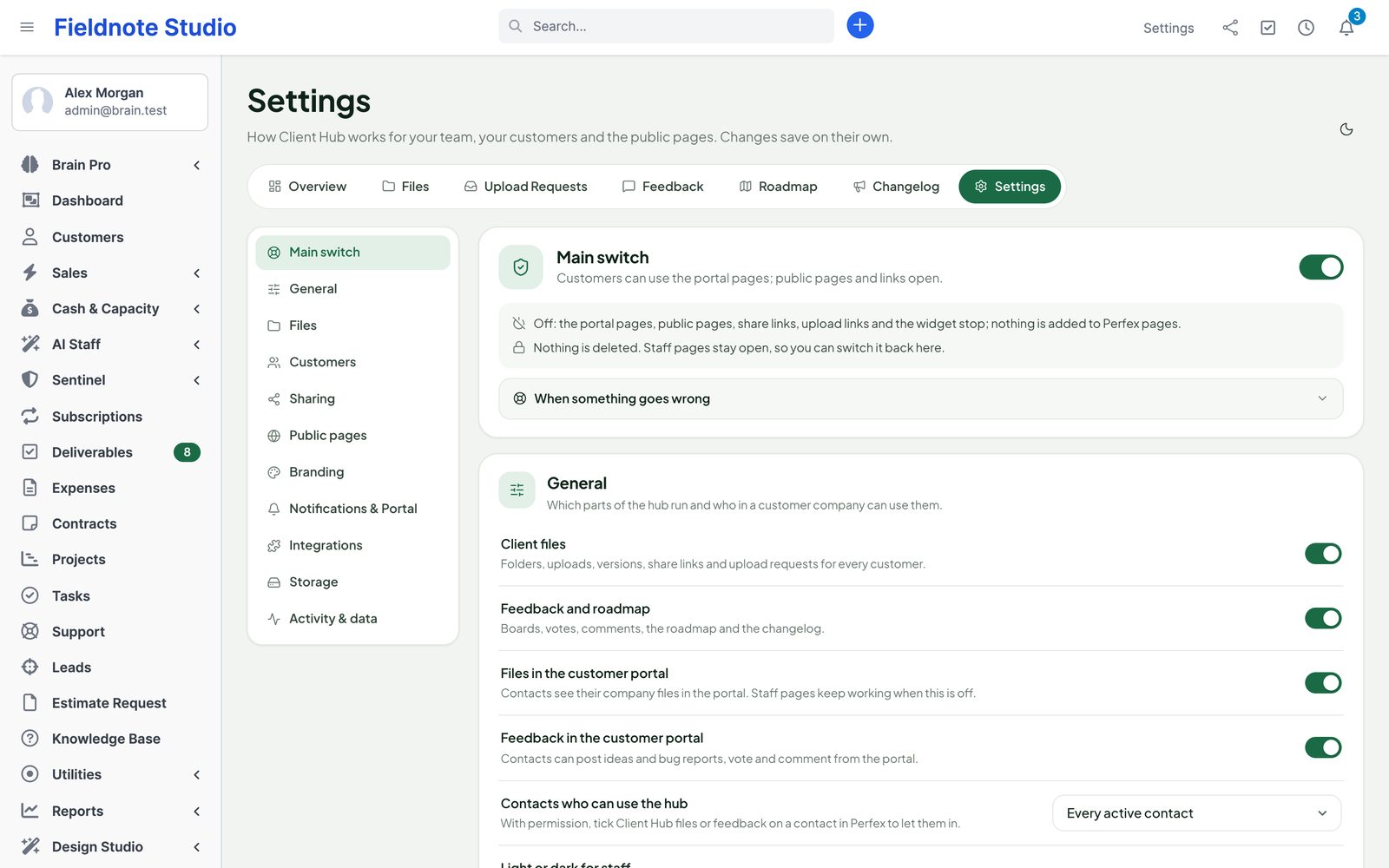
| Recovery | The main switch and the ways back (below). |
Each section saves on its own. Feedback limits and visitor rules are also on Feedback › Settings.
Safe mode
Turning the client side off hides the portal menu, answers portal pages with "unavailable", closes every public page and stops the cron. Staff pages stay open (with a notice) so you can switch it back. Files and data are kept.
| Switch | How |
|---|---|
| One part | Settings › General: Files or Feedback off; per customer in Settings › Customers. |
| One kind of public page | Settings › Sharing / Public Pages: share links, request links, roadmap, changelog, widget. |
| Main switch | Settings › Recovery › Turn off Client Hub. |
| DISABLE file | Create an empty file modules/perfex_client_hub/DISABLE; delete it to switch on again. Works without signing in. |
| Constant | define('PCH_SAFE_MODE', true); in application/config/app-config.php. |
| Deactivate | Setup › Modules › Deactivate: menu items, tabs, bells and public pages are gone at once. |
Security and storage notes
- Files are never served by their address. A download or preview is streamed by a page that checked the staff member's rights, the contact's customer and folder, or the share link (token, expiry, password, limit).
- Files are stored under random names with no extension, readable by the web server only (0640). Unfinished uploads expire.
- Downloads send
Content-Dispositionwith the original name,X-Content-Type-Options: nosniff, a content security policy (sandboxed),Referrer-Policy: no-referrerand private caching. Only images, PDF, audio, video and plain text open in the browser; SVG and everything else download. - Uploads are checked by content; executable and script types are refused whatever their name.
- Share and request tokens are random 256-bit values stored only as keyed hashes; share passwords are hashed; wrong passwords are limited and logged.
- Public pages send a strict content security policy, are not framed (the widget only on your listed websites), are rate limited per visitor and are not indexed unless you allow it for the roadmap and changelog. They never show private posts, internal notes, guest email addresses or other folders.
- Visitor IP addresses are never stored — only a keyed hash for limits.
- Every change is a POST with Perfex's CSRF token and a permission check; the widget API uses signed form tokens. No secret reaches the browser.
- Feedback text is stored as plain text and escaped; changelog HTML is cleaned to an allow-list.
SaaS
With a multi-tenant module that gives each tenant its own database, every tenant has its own data and its own storage folder (the folder name carries a key per tenant and database, so a copied site never reads or deletes the original's files). The shared-database mode of some SaaS modules is not supported: Client Hub stays off inside such tenants.
Deactivate and uninstall
Deactivating removes the menu items, tabs, portal pages, public pages and the hub's bells at once. Data and files are kept; activate again to continue.
Uninstalling (after deactivating) deletes all hub data: the pch_ tables and settings, the pch-* email templates, the contact and staff permissions, and this installation's storage folder with every file. Download what you want to keep first (folders as ZIP).
Troubleshooting
| Symptom | Check |
|---|---|
| No Client Hub in the sidebar | Module active; the role has a Client Hub right; not a shared-database SaaS tenant. |
| "The file storage is not writable" | Settings › Storage: make the folder writable for the web server, or set PCH_STORAGE_PATH. |
| Contacts do not see Shared Files | Files on and in the portal; contact access (all or the contact permission); the folder is open to contacts; project folders need the Projects permission; the customer's files are not switched off. |
| Uploads stop | Largest file and quotas in Settings; free disk space; accepted types. A proxy that limits request size must allow the part size (8 MB). |
| No emails | Perfex cron runs (at least every 5 minutes); the pch-* template is active; the contact's choice is not Off or Summary. |
| Public roadmap shows "not available" | Settings › Public Pages: roadmap on; at least one public board on the roadmap; no safe mode. |
| Widget does not appear | Widget on (board and Settings); your website is in the board's list, with https and without a path. |
| Large downloads are slow or cut | Use X-Sendfile / X-Accel-Redirect in Settings › Files. |
FAQ
Does it replace Perfex's own customer files?
No. They stay as they are; the hub has its own folders.
Can a customer see another customer's files?
No. Contacts only see folders of their own customer that are open to them; everything else answers "not found".
Can I move the files to another server or disk?
Yes. Settings › Storage explains it: copy the folder, set PCH_STORAGE_PATH, check the page.
Do share links work after the file gets a new version?
Yes. A link points to the file, so it always gives the newest version.
Is it translated?
Yes: English, Spanish, Portuguese (Brazil), French, German, Italian, Dutch, Turkish and Russian.
How do I get support?
Send the module, Perfex and PHP versions and a screenshot through SellMyCode support — never passwords.
Changelog
Current version 1.1.2 (17 Oct 2026). Release notes of every version, newest first: perfexcrm.app/client-hub/changelog/.
1.0.0 — 2026-10-12
- Client files: customer and project spaces, folders, resumable uploads with folder drag and drop, versions, previews, tags, search, trash, ZIP downloads, per-folder access for staff, roles and contacts, activity log.
- Share links with expiry, password, download limits, view-only and upload folders; upload requests with due dates, file rules and reminders; storage quotas.
- Client portal: hub home, files, requests, feedback, roadmap and notification choices, on Perfex's customer theme and Design Studio's portal theme.
- Feedback: public, customer and private boards, ideas, bug reports and questions, voting (also by visitors), comments, internal notes, statuses, merging, links to tickets, tasks and projects, moderation and spam protection.
- Roadmap, changelog with subscriptions and Atom feed, embeddable widget.
- 16 email templates, bells, summaries; AI helpers through AI Staff; Deliverables, invoice and estimate PDFs, Brain Pro, Sentinel and Design Studio integrations; safe mode.
The full list is in changelog.txt in the download.