Perfex Inbox All-in-One documentation
Perfex Inbox All-in-One adds one shared team inbox to Perfex CRM. Email (IMAP/SMTP, Gmail and Microsoft 365), WhatsApp, a live chat widget, web forms, SMS and Instagram or Messenger arrive as conversations that your team assigns, discusses in internal notes, answers and closes — each one linked to the Perfex contact, customer or lead it belongs to.
Rules, teams, business hours and SLA timers keep the queue moving; saved replies, signatures and keyboard shortcuts make answering fast; reports show how quickly you really respond. AI helpers through Perfex AI Staff are optional and only ever propose.
Installation
Requirements
- Perfex CRM 3.4 or newer. Tested with Perfex 3.4.1.
- PHP 8.0 or newer (2.0 is tested on PHP 8.1) with the
curl,openssl,sodiumandfileinfoextensions; MySQL or MariaDB. The PHP IMAP extension is not needed: the inbox talks IMAP itself and sends with PHPMailer, which ships with Perfex. - Perfex's cron job running every minute (Setup › Settings › Cron Job shows the command). Mail is read, replies are sent and timers run in the background through it.
- HTTPS on a public address for Google and Microsoft sign-in, for webhooks from Meta (WhatsApp, Messenger, Instagram), Twilio and Telnyx, for the softphone's microphone and for one-click unsubscribe.
- For Voice only: your own Twilio or Telnyx account and a server where a background worker can run all the time (systemd or Supervisor).
- A folder the web server can write to, outside the web root if possible (see Security notes).
- Perfex AI Staff, Flow Studio, Connect, Brain Pro, Sales Growth, Client Hub, Sentinel and Deliverables are optional.
Install
- Back up the CRM database and files.
- Extract the download
perfex-inbox-2.0.0.zipon your computer. Inside are the installableperfex_inbox-2.0.0.zip, this documentation, the changelog and the licenses. - In Perfex, open Setup › Modules, upload the inner
perfex_inbox-2.0.0.zip, then install and activate Perfex Inbox All-in-One. - Open Inbox in the sidebar. With no channel yet, the inbox shows how to connect one.
Permissions
Staff rights are set in Setup › Staff › Roles (or per staff member). Administrators can do everything.
| Feature | Capability | Allows |
|---|---|---|
| Inbox — Conversations | View (Global) | Every conversation of the channels they may use; read, mark read or unread, follow. |
| View own (assigned to them, and unassigned) | Their own conversations, the ones they follow and — with Settings › General › View own also sees unassigned — the ones nobody has yet. | |
| Reply and add notes | Reply, internal notes, status, snooze, priority, labels on a conversation; take an unassigned conversation. | |
| Assign to others | Assign to any colleague who may open that channel. | |
| Supervise Dialer Queues | Calls › Supervisor: every agent's dialer queue and progress. | |
| Manage | Labels, shared saved replies, bulk changes, spam, merge, block a sender. | |
| Delete | Move conversations to the trash and restore them. | |
| Inbox — Administration | Connect and edit channels | Channels, email apps, WhatsApp templates. |
| Settings, rules and SLA | Settings, rules, teams, business hours and SLA policies. | |
| View reports | The Reports page, CSAT and Lead ROI. | |
| Inbox Outreach (Cadences And Campaigns) — new in 2.0 | View (Global) · View own | All cadences and campaigns, or only their own. |
| Create · Edit · Delete | Build and change cadences and campaigns. | |
| Switch on cadences, launch campaigns | Start sending. | |
| Suppression list | See and add to the list (removing an address: administrators). |
Calls need Reply plus access to the number's channel. Leads pages follow Perfex's own lead permissions.
Each channel adds a second check: Everyone with inbox access, or Only the people below (staff, roles or teams). Colleagues mentioned in a note can read that conversation even without channel access, but cannot reply without the reply right.
Files and tables
| Where | What |
|---|---|
modules/perfex_inbox/ | The module, with its interface font and the Lucide icons. Nothing is loaded from a CDN. |
perfex-inbox-storage/<key>/ next to the Perfex folder (default) | Attachments under random names without extension (blobs/), downloads in progress (tmp/). <key> differs for every installation and database. |
Tables pinb_* | Channels, conversations, messages, participants, labels, saved replies, rules, SLA, teams, business hours, activity and the rest. |
Options pinb_* | Settings. Passwords, tokens and client secrets are stored encrypted with your installation's key. |
Upgrade from 1.x
2.0 is a free upgrade for everyone who bought Perfex Inbox: download it from your sellmycode.net account with the same purchase code.
- Back up the database and files.
- Upload the new
perfex_inbox-2.0.0.zipin Setup › Modules (or replacemodules/perfex_inbox/), then press Upgrade Database for Perfex Inbox. This also works while the module is inactive, from 1.0.0, 1.1.0, 1.1.1 or 1.1.2. - Every channel, conversation, message, attachment, rule and setting is kept. The new areas start off, CSAT included (administrators see a one-time notice offering to turn it on); turn on what you need in Settings › Features.
- For calls, set up Voice and the voice worker; for cadences and campaigns, fill in Sending Rules.
First steps
- Check that Perfex's cron runs every minute. Inbox › Channels shows when the background sync last ran.
- Open Inbox › Channels and connect your first channel — usually the support mailbox (IMAP, Gmail or Microsoft 365). The first sync imports the last 14 days.
- In Setup › Staff › Roles, give your team the Inbox rights.
- In Inbox › Settings, add a team, your business hours and an SLA policy; in Inbox › Rules, switch on a rule that shares new conversations in turn.
- In Inbox › Saved Replies, save the answers you write most often and add your signature.
- Optional: turn on Voice, Leads, Cadences or Campaigns in Settings › Features.
Channels
Inbox › Channels lists every connected channel with its status (Working, Paused, Failing, Needs reconnecting), the last sync, open conversations and its webhook address where it has one. Sync now reads a mailbox at once; the ⋯ menu has Edit settings, Test connection, Pause/Resume and Remove (keep its conversations as history, or delete them too). Add a channel below the list opens the setup page of each kind; every setup page has a How to connect guide.
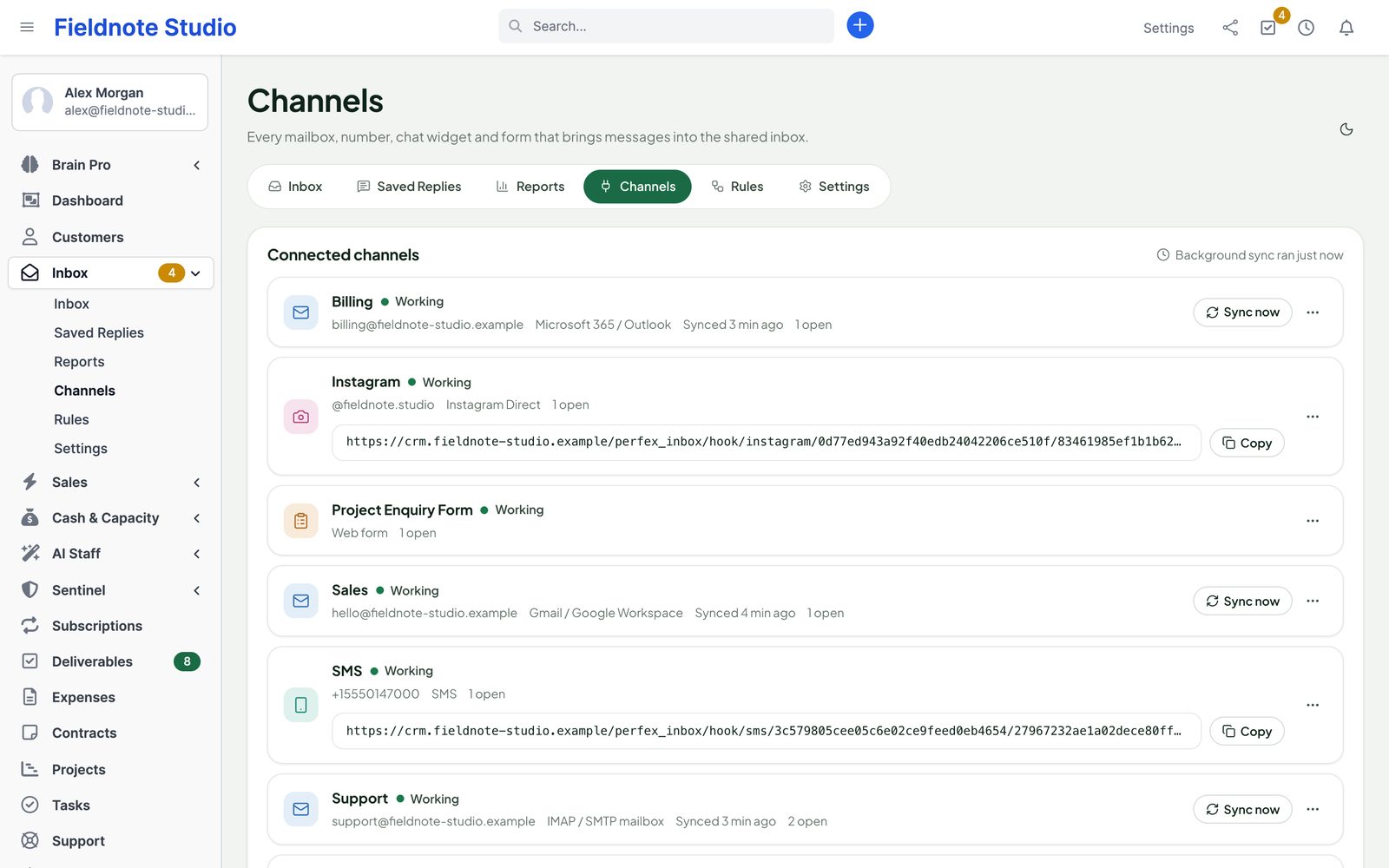
Settings every channel has: a name for your team, who may use it, the person new conversations go to when no rule assigns them, and for email the sender name, signature and how often it is read (every 2 minutes by default).
Gmail / Google Workspace
Gmail mailboxes sign in through an OAuth app you create once in your own Google Cloud project. Mail is read with the Gmail API and replies leave from the same mailbox, in the same Gmail thread. No password is stored and no other company sees your mail.
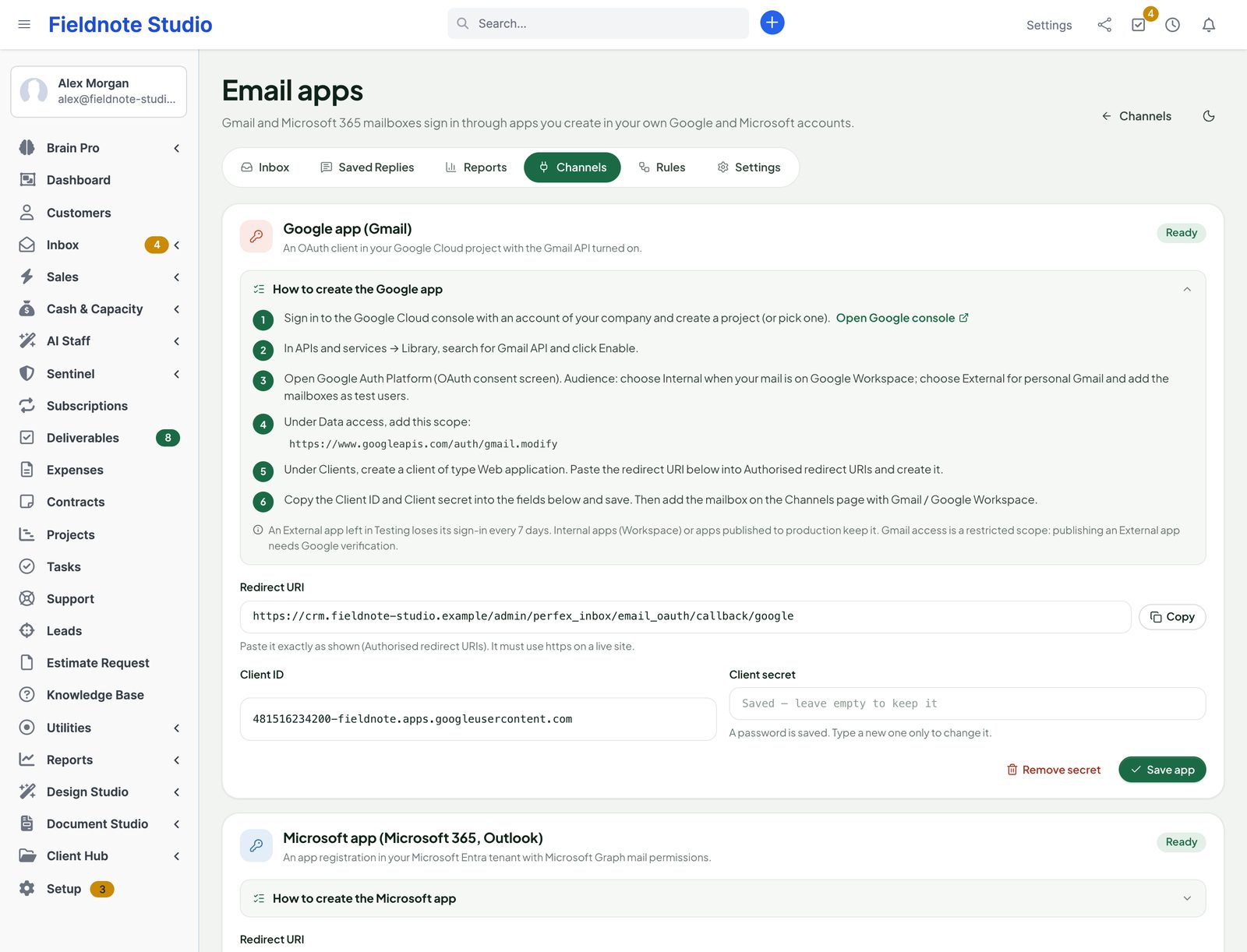
1. Create the Google app (about 10 minutes, once). Open Inbox › Settings › Email apps (or Channels › Email apps) and expand How to create the Google app; the page shows your redirect URI with a Copy button.
- Sign in to the Google Cloud console with an account of your company and create a project (or pick one).
- In APIs and services › Library, search for Gmail API and click Enable.
- Open Google Auth Platform (OAuth consent screen). Audience: choose Internal when your mail is on Google Workspace; choose External for personal Gmail and add the mailboxes as test users.
- Under Data access, add the scope
https://www.googleapis.com/auth/gmail.modify. - Under Clients, create a client of type Web application. Paste the redirect URI from the inbox into Authorised redirect URIs:
https://crm.example.com/admin/perfex_inbox/email_oauth/callback/google - Copy the Client ID and Client secret into the inbox and press Save app. The card shows Ready.
2. Connect the mailbox. Channels › Add a channel › Gmail / Google Workspace: enter a name and a sender name, press Continue with Google, sign in with the mailbox and allow access. You return to the inbox with the mailbox connected; mail arrives at the next cron run. INBOX and Sent are always read; Show labels lets you pick other labels to read too.
Microsoft 365 / Outlook
Microsoft mailboxes sign in through an app registration in your own Microsoft Entra tenant. Mail is read with Microsoft Graph and replies leave from the same mailbox. Shared mailboxes work too.
- Sign in to the Microsoft Entra admin center and open App registrations › New registration.
- Name it, then pick who may sign in: only your organisation (enter your tenant in the inbox), or any organisation and personal Microsoft accounts (tenant
common). - Redirect URI: platform Web, paste the redirect URI shown in the inbox, and register:
https://crm.example.com/admin/perfex_inbox/email_oauth/callback/microsoft - Certificates and secrets › New client secret. Copy its Value (not the Secret ID) and note the expiry date.
- API permissions › Add a permission › Microsoft Graph › Delegated permissions:
offline_access,User.Read,Mail.ReadWrite,Mail.Send; for shared mailboxes alsoMail.ReadWrite.SharedandMail.Send.Shared. Then Grant admin consent. - From Overview, copy the Application (client) ID — and the Directory (tenant) ID if only your organisation signs in. In the inbox, fill in the ID, the secret, the tenant (
common,organizations,consumers, your tenant ID or your domain) and the secret's expiry date, and press Save app.
Then Channels › Add a channel › Microsoft 365 / Outlook and Continue with Microsoft. For a shared mailbox, sign in with a user who has full access to it and enter the shared mailbox's address in Shared mailbox. Inbox and Sent Items are always read; Show folders adds others.
IMAP / SMTP
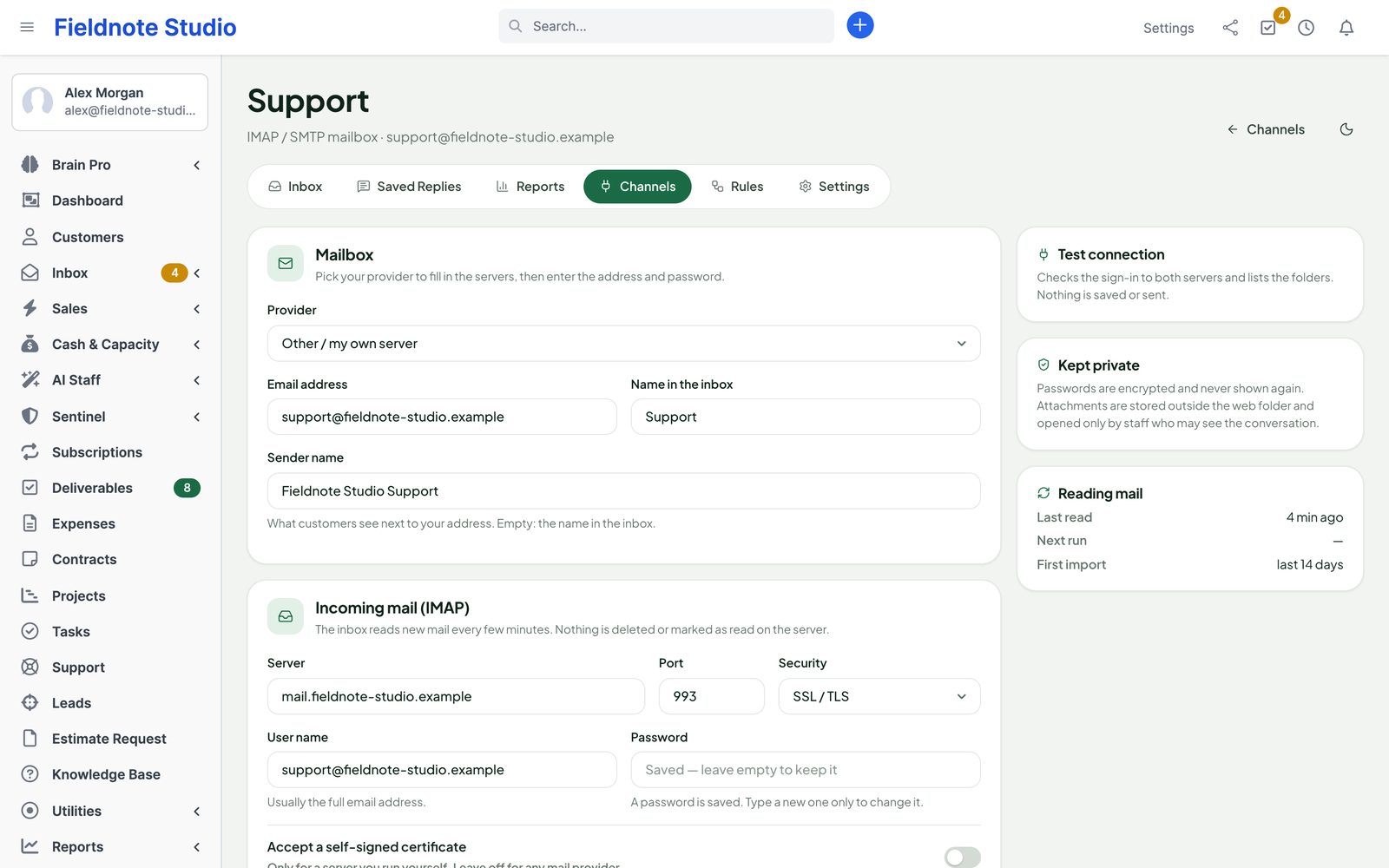
Channels › Add a channel › IMAP / SMTP mailbox works with any mail server: your hosting, company mail, Zoho, iCloud, Yahoo and more. Pick your Provider to fill in the servers, then enter the address, user name and password.
- Incoming mail (IMAP): server, port, security (SSL / TLS on 993 or STARTTLS on 143). New mail is read every few minutes; nothing is deleted or marked as read on the server.
- Outgoing mail (SMTP): replies go through your own server, so they come from your address and pass your SPF and DKIM. Sign in with the same user name and password is on by default.
- Folders: INBOX is always read. Reading the Sent folder too shows replies written in your mail program. Keep a copy of replies in the Sent folder — turn it off for Gmail and Outlook.com, which file sent mail themselves.
- Replies: signature, Quote the customer message under replies, and other addresses (aliases) of the mailbox.
- Test connection checks the sign-in to both servers and lists the folders. Nothing is saved or sent.
Passwords are encrypted and never shown again; leave the field empty to keep the saved one. If you change the server, user name or security, the inbox asks for the password again. Mail servers on localhost or a private network (10.x, 192.168.x) need Settings › Sync and Sending › Allow mail servers on private networks (administrators only).
If Perfex already imports the same mailbox into tickets (Setup › Support › Departments, email piping), the inbox warns you: turn one of them off, or every email arrives twice.
WhatsApp Business connects your number through Meta's WhatsApp Cloud API:
- In Meta for Developers, create an app of type Business and add the WhatsApp product.
- In WhatsApp › API Setup, add your business phone number and copy its Phone number ID and the WhatsApp Business Account ID.
- In Meta Business Settings › System users, create an admin system user, give it the app and the WhatsApp account, and generate a token that never expires with
whatsapp_business_messagingandwhatsapp_business_management. - In the app's Settings › Basic, copy the App secret. Paste the IDs, the token and the secret into the inbox and save.
- In WhatsApp › Configuration, set the Callback URL and Verify token shown by the inbox, then subscribe to the
messagesfield. - Press Test connection. Messages sent to your number now arrive in the inbox.
WhatsApp allows free replies for 24 hours after the customer's last message. After that the composer offers Send template: templates are created and approved in WhatsApp Manager, appear in the inbox by themselves (Refresh loads them) and ask for their placeholder values. Templates with a picture or document header are listed but cannot be sent from the inbox in 1.0.
WhatsApp (installed module) uses the number and token of a WhatsApp module you already run in Perfex (WhatsBot, Whatsbotapi or WhatsApp Cloud API Business Integration); the token is read from that module each time. To receive messages in the inbox, put the inbox's callback URL in the Meta app (the other module then stops receiving them, but can still send). Earlier conversations › Import copies the module's stored conversations into the inbox (text only; safe to run again).
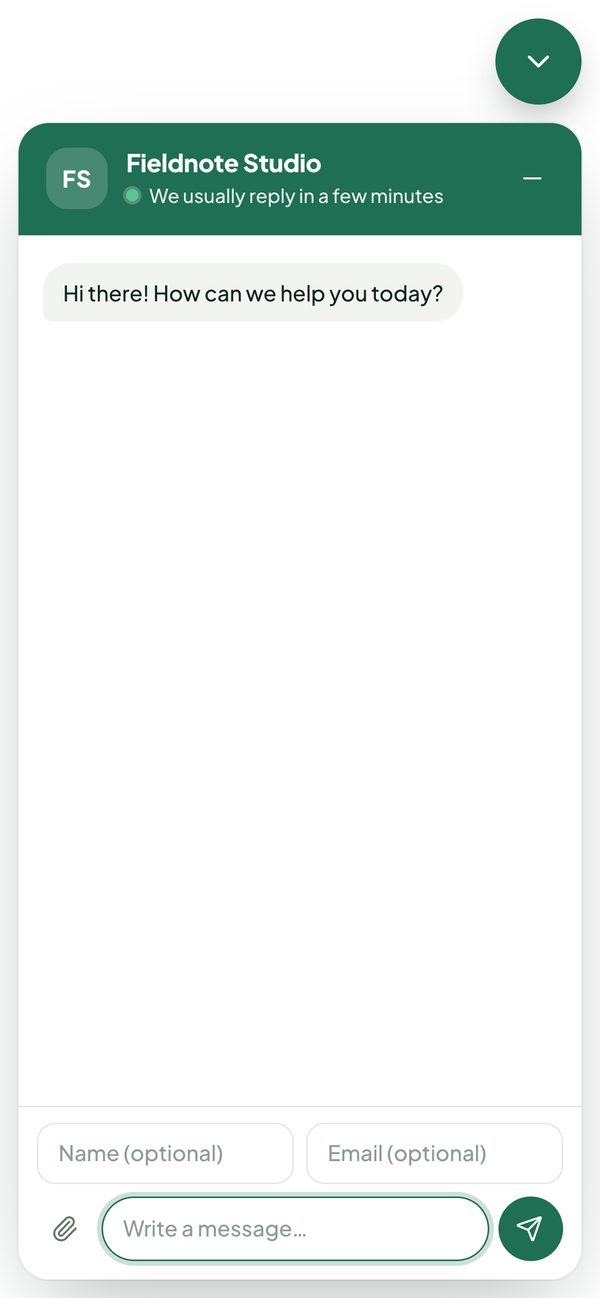
Live chat widget
Channels › Add a channel › Live chat widget creates a chat bubble for your website and, if you like, every page of Perfex's customer area (Show on the customer portal).
- Texts: title, subtitle, greeting, the text when nobody is available, button text. Look: brand colour, position, light, dark or the visitor's device.
- Availability: always, when someone of the team is active in Perfex, during business hours, or away (message form only). When offline, visitors leave a message with their email.
- Ask for the name and the email: do not ask, optional or required. Signed-in portal customers are recognised and never asked; a typed email is marked Not verified and is not linked to a contact automatically.
- Visitors may send files (pictures, PDF, office files; scripts and programs refused) if you allow it.
- Allowed websites: one address per line; your Perfex site is always allowed.
Paste the code before the closing body tag of every page where the chat should appear:
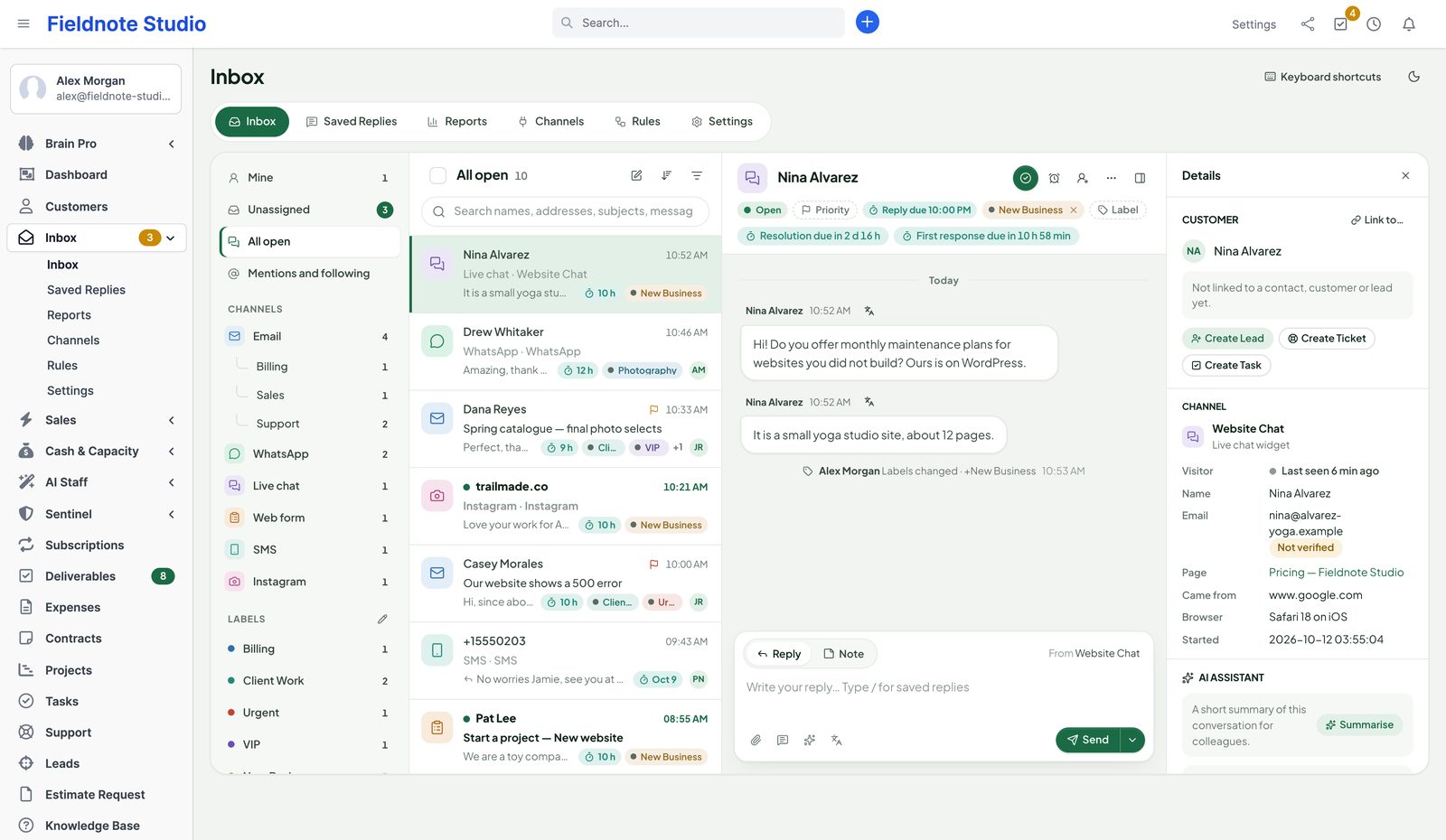
<script src="https://crm.example.com/perfex_inbox/chat/js/YOUR-KEY" async defer></script>Chats arrive like any other conversation; replies appear in the visitor's chat at once, and the details panel shows the page, where they came from and the browser. Visitors keep their chat for 30 days in the same browser, so your replies wait for them.
Web forms
Channels › Add a channel › Web form: choose the fields (short text, email, phone, long text, choice, checkbox; required or not), the texts, an optional consent checkbox, one attached file (up to 10 MB) and a thank-you text or a page to go to. Share the Link to the form, or paste the embed code into your page — it adjusts its height by itself.
Each submission arrives as a new conversation from the email address given, with the answers in the details panel. Forms only receive: answer by email or phone from your other channels, or turn the submission into a lead or ticket. Spam protection: a hidden trap field, a minimum time to fill the form, a limit per visitor and hour, blocked words and allowed websites.
SMS
- In Perfex, open Setup › Settings › SMS, fill in your gateway and turn it on.
- In Channels › Add a channel › SMS, enter the number customers text and save.
- With Twilio, choose Twilio webhook under Replies from customers and save again to see the callback URL.
- In the Twilio console, paste the callback URL as the webhook for incoming messages of your number (A message comes in: Webhook, HTTP POST).
Clickatell, MSG91 and other gateways send only; customer replies reach the inbox through Twilio. Messages longer than 1600 characters are refused. Gateways report only whether they accepted a message, so SMS show as sent, never as delivered.
Instagram and Messenger
Facebook Messenger brings messages sent to your Facebook Page, Instagram Direct those sent to your Instagram professional account linked to the Page. Both use your own Meta app: a long-lived Page access token (pages_messaging, pages_manage_metadata; for Instagram also instagram_basic and instagram_manage_messages), the App secret, and the callback URL and verify token from the inbox in the app's webhooks. Test connection also subscribes your Page to the app.
Using the inbox
Views and filters
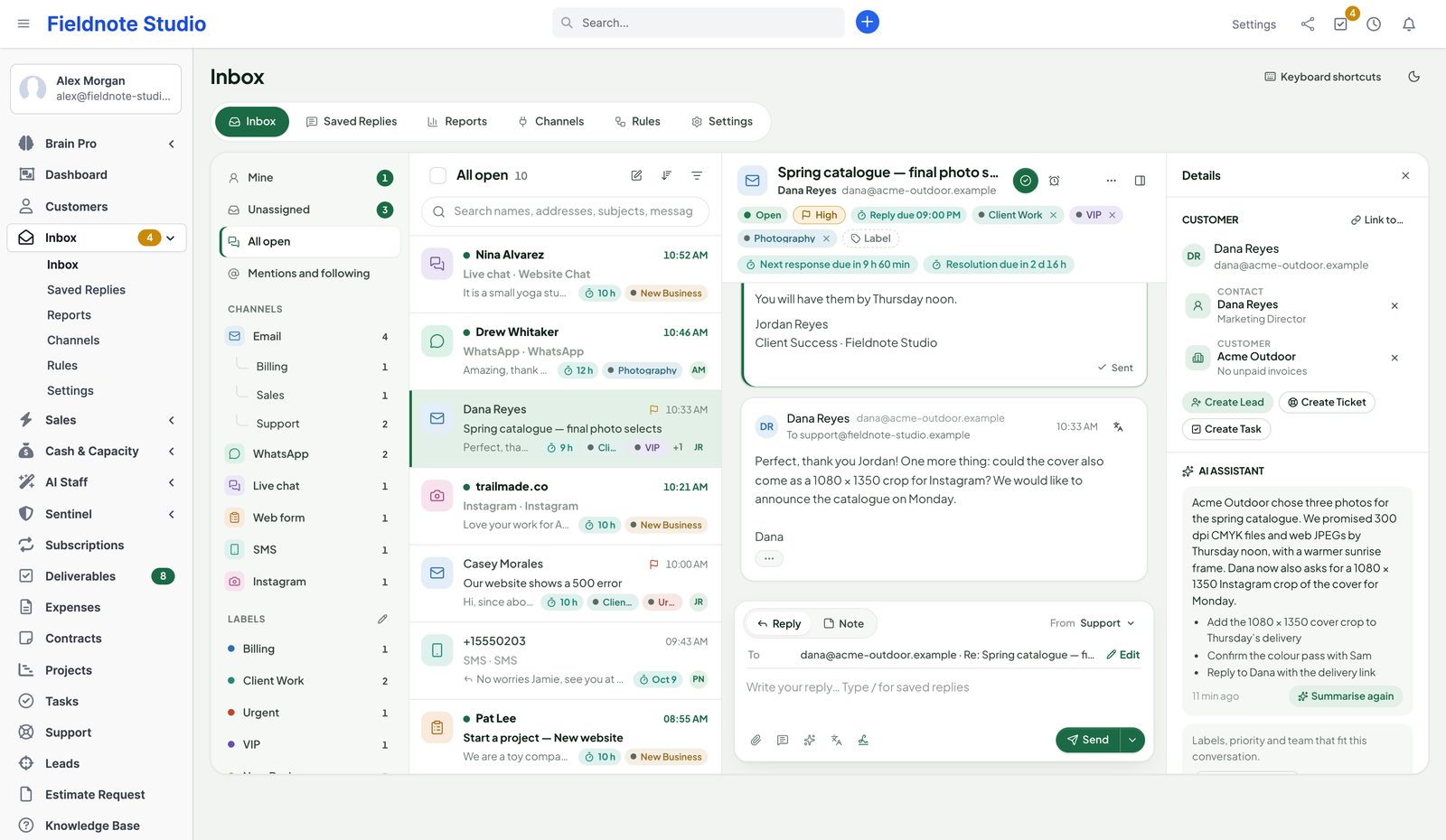
- Mine, Unassigned, All open, Mentions and following; under More: SLA due, SLA missed, Snoozed, Closed, Spam and Trash. Counts show open and unread conversations.
- Channels (email with each mailbox below it, WhatsApp, Live chat, Web form, SMS, Instagram…) and Labels are views too.
- Search finds names, addresses, subjects and message texts. Filters: status, assignee, priority, unread only. Sort: newest, oldest, waiting longest, highest priority.
- Views and filters live in the address — copy it to send a colleague the same list.
- Tick conversations (or x) for bulk actions: assign, status, labels, read/unread, follow, spam, trash.
A conversation
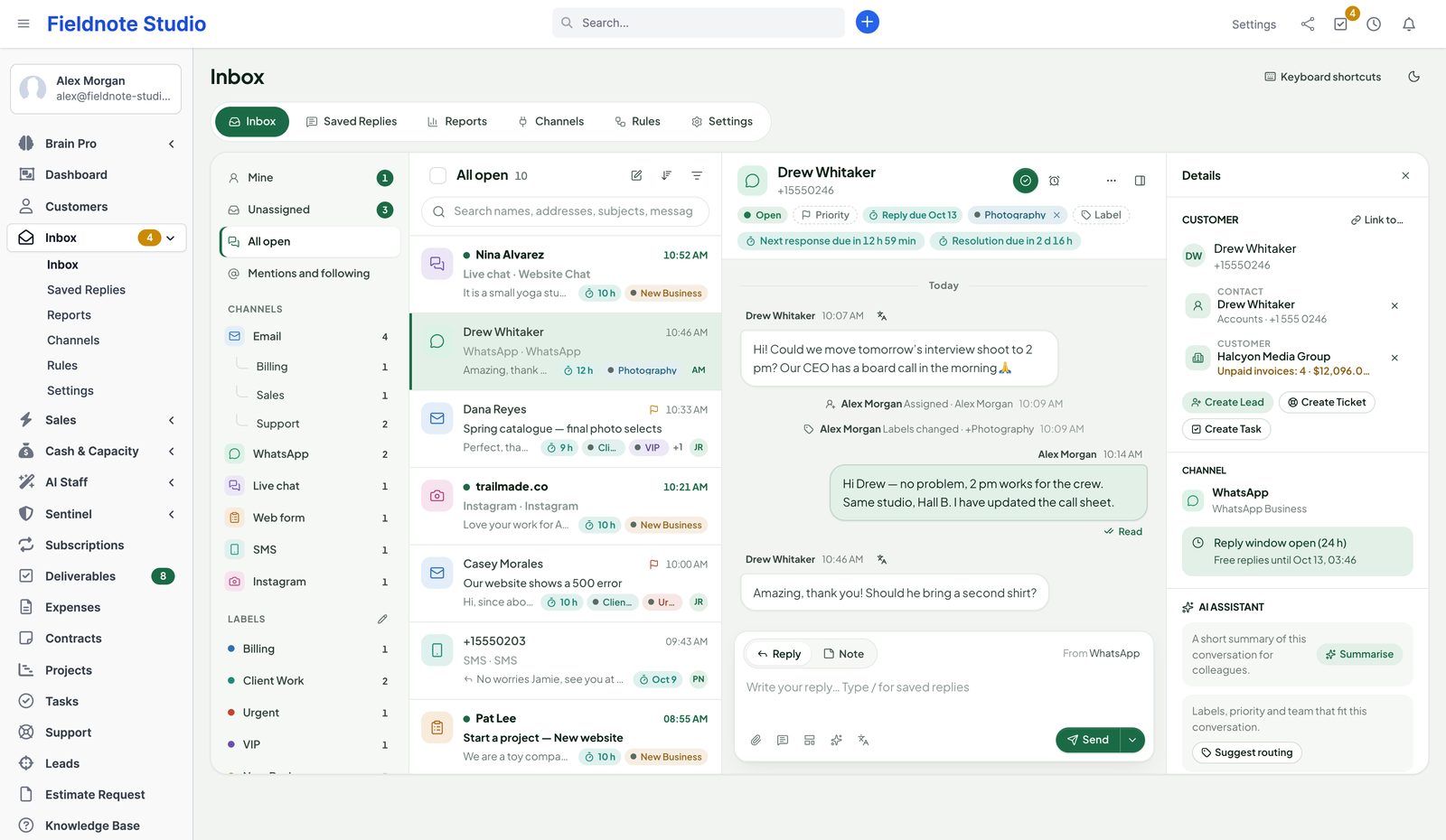
- The header shows the subject, the customer, the status, priority, labels, SLA chips (Reply due 09:00 PM, Next response due in 2 h, late by…) and the owner. Close/Reopen, Snooze (later today, tomorrow morning, next Monday, in one week or a date), Assign and the ⋯ menu: follow, mark unread, mark pending, copy link, spam, block sender, merge into another conversation of the same channel, move to the trash.
- The timeline shows messages, notes and events (assigned, status changed, labels…). Emails open in a safe frame; pictures from other websites wait for Show images; quoted text folds away. Attachments download after a permission check; with Client Hub, their menu has Save to Client Files.
- A new customer message reopens a closed, pending or snoozed conversation. A WhatsApp, SMS or chat message continues a conversation closed in the last 14 days; later ones start a new one.
- When a colleague opens or answers the same conversation, a bar says so: “Sam is writing a reply right now”.
- The Details panel: the customer card, linked records, the channel (reply window, visitor details, form answers), the AI Assistant and facts about the conversation (started, first response, waiting).
Replying
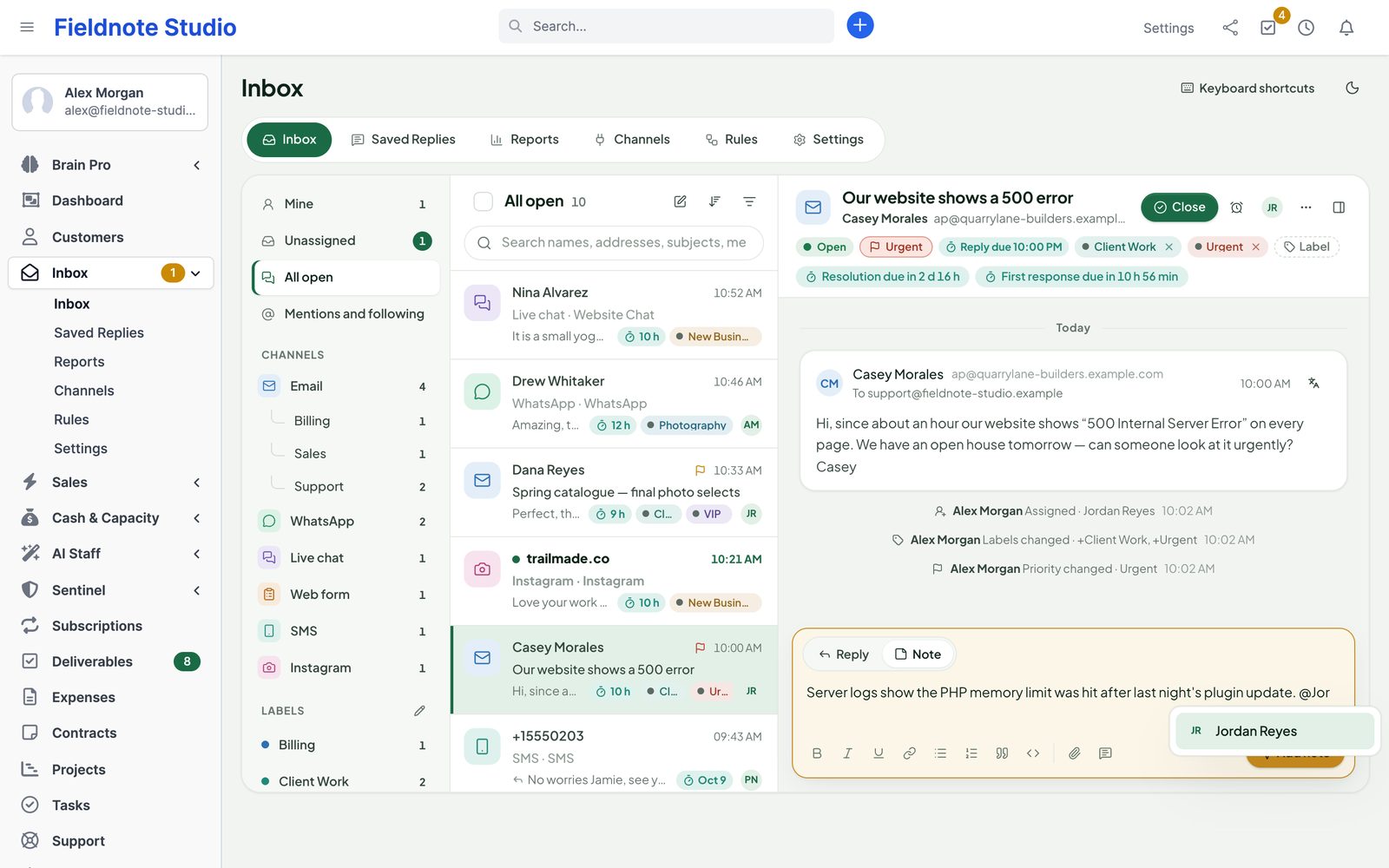
- Reply or Note (internal, never sent). Type @ in a note to mention a colleague: they get a notification and follow the conversation.
- Formatting, links, lists and files where the channel supports them; a character counter on channels with a limit (WhatsApp 4096, SMS 1600, Messenger 2000, Instagram 1000).
- For email: From (another mailbox), To, Cc, Bcc and subject (Edit). New email above the list starts a conversation.
- Send (⌘/Ctrl + Enter), or from the arrow: Send and close, Send and mark pending, Schedule… (one minute to 90 days).
- Undo send: replies wait 5 seconds (Settings) before they go out; Undo puts the text back in the editor.
- Your signature is added when you send (switch it off per reply). Drafts are kept in your browser.
- Answering an unassigned conversation assigns it to you.
Keyboard shortcuts
| Key | Action | Key | Action |
|---|---|---|---|
| j / k | Next / previous conversation | o | Open the highlighted conversation |
| x | Select or unselect | r | Reply |
| n | Write a note | e | Close or reopen |
| a | Assign | l | Labels |
| s | Snooze | ⇧ U | Mark as unread |
| / | Search | Esc | Close a panel, clear the selection, back to the list |
| ⌘/Ctrl ↵ | Send the reply or note | ? | This list |
On phones the inbox shows one pane at a time: the list, then the conversation with a back button; the details open as a drawer.
Saved replies and signatures
Inbox › Saved Replies has three tabs.
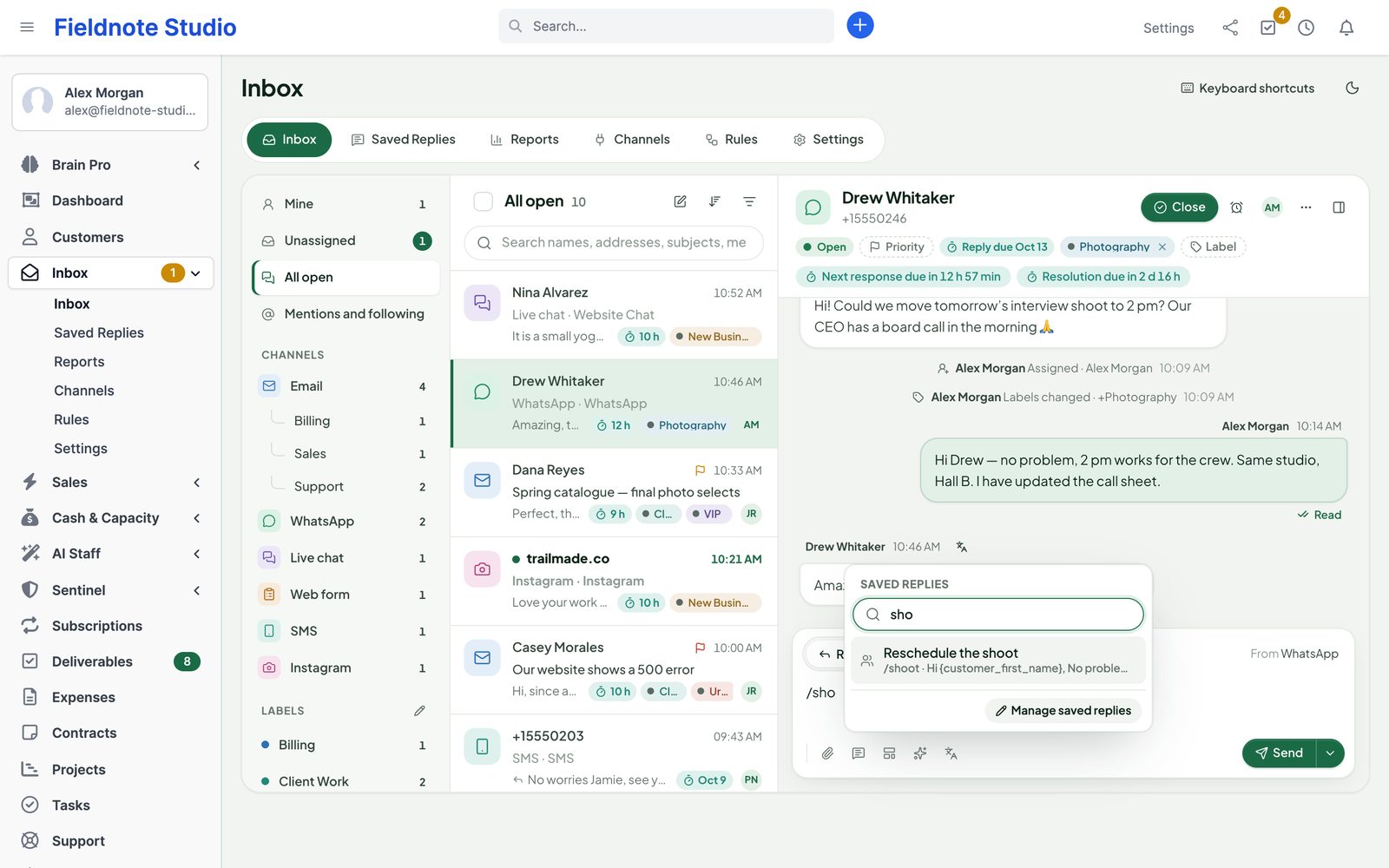
- Saved Replies: title, optional shortcut (type / and the shortcut in a reply), category, channel (or every channel) and who can use it — The whole team (needs the Manage right) or Only me. Usage counts show what your team uses.
- Merge fields, filled in for each conversation when the reply is inserted:
{customer_name},{customer_first_name},{customer_email},{customer_phone},{customer_company},{agent_name},{agent_first_name},{company_name},{conversation_subject},{conversation_id}. - Labels: name, colour and order (Manage right).
- Signatures: yours for every channel that sends formatted text, and one per mailbox if you like. Without one, the mailbox's default signature is used.
CRM linking
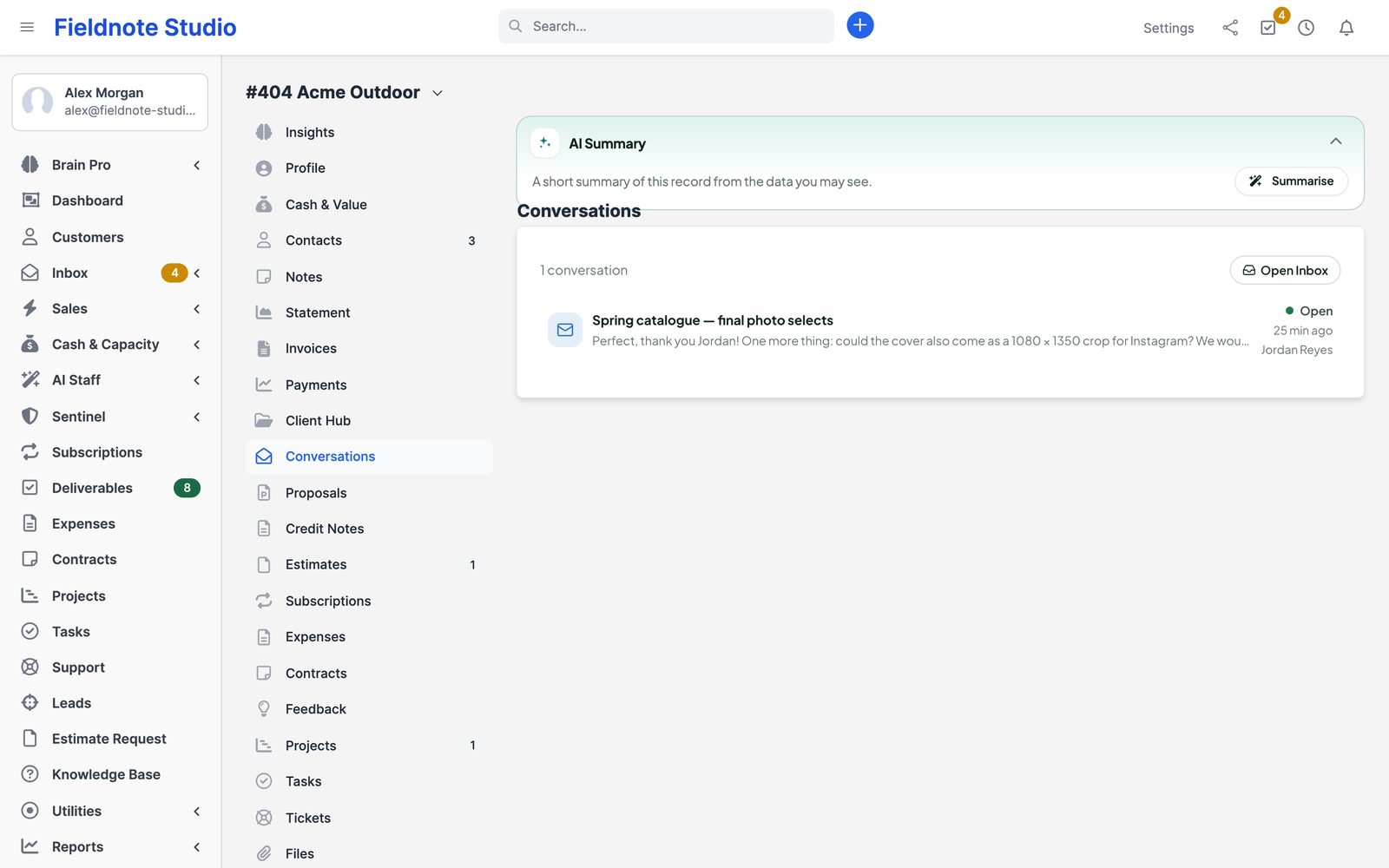
- Link senders automatically (Settings › CRM, on by default): by email address or phone number to Perfex contacts, customers and leads. The customer card shows the contact, the customer with unpaid and overdue invoices, or the lead with its status.
- Link to… on the card searches contacts, customers, leads, tickets, projects and deliverables; Remove link leaves the record in Perfex.
- Create Lead (name, email, phone, company, status, source, assignee), Create Ticket (subject, department, priority, the files of the latest message, optionally Perfex's new ticket email to the customer) and Create Task (name, description, due date, related to). The new record is linked to the conversation and carries a link back.
- Conversations tab on customers, and on leads and tickets: every linked conversation with its status.
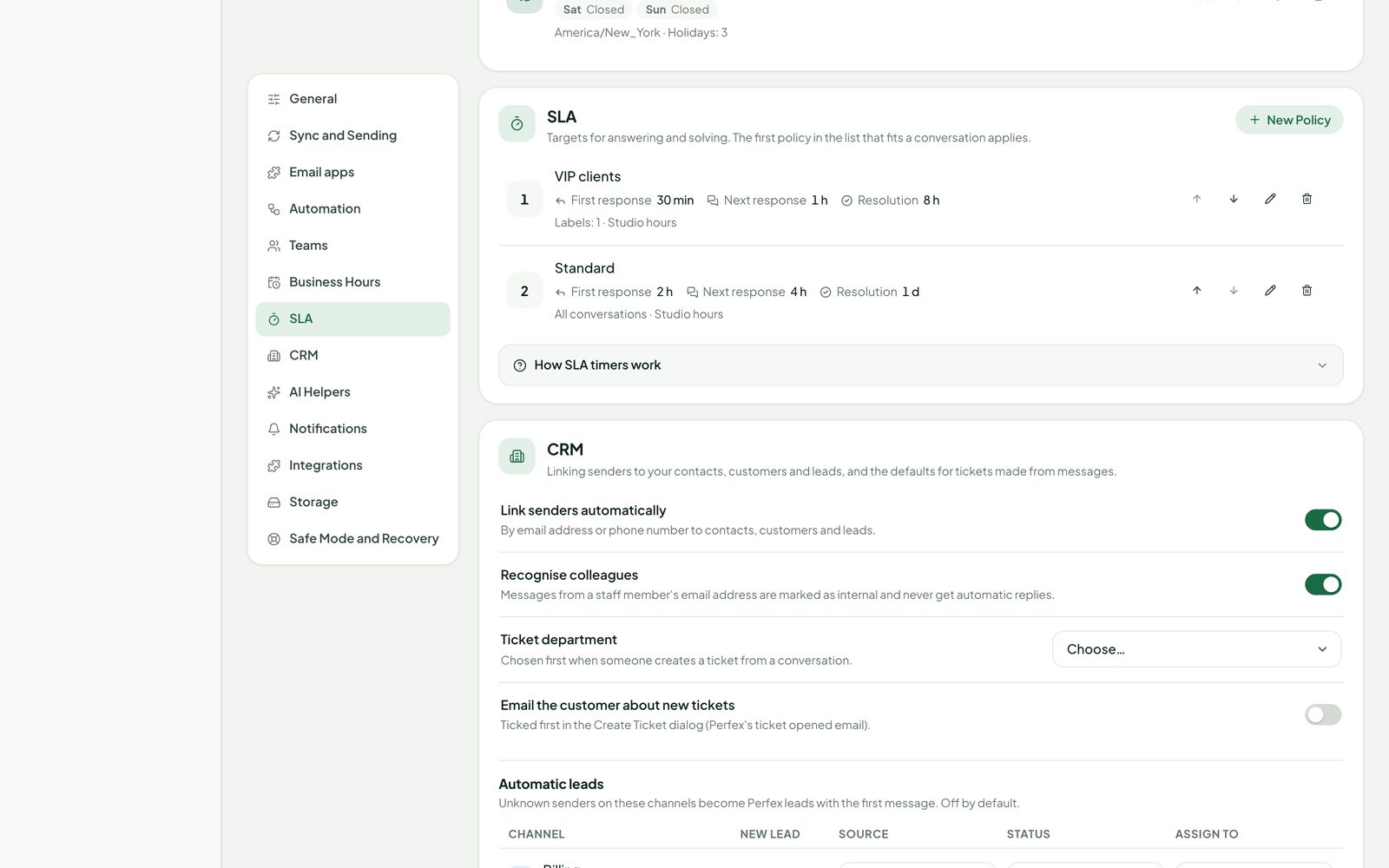
- Automatic leads (Settings › CRM): per channel, unknown senders become Perfex leads with their first message, with a source, status and assignee. Off by default.
- Recognise colleagues: messages from a staff member's address are marked internal and never get automatic replies.
Rules
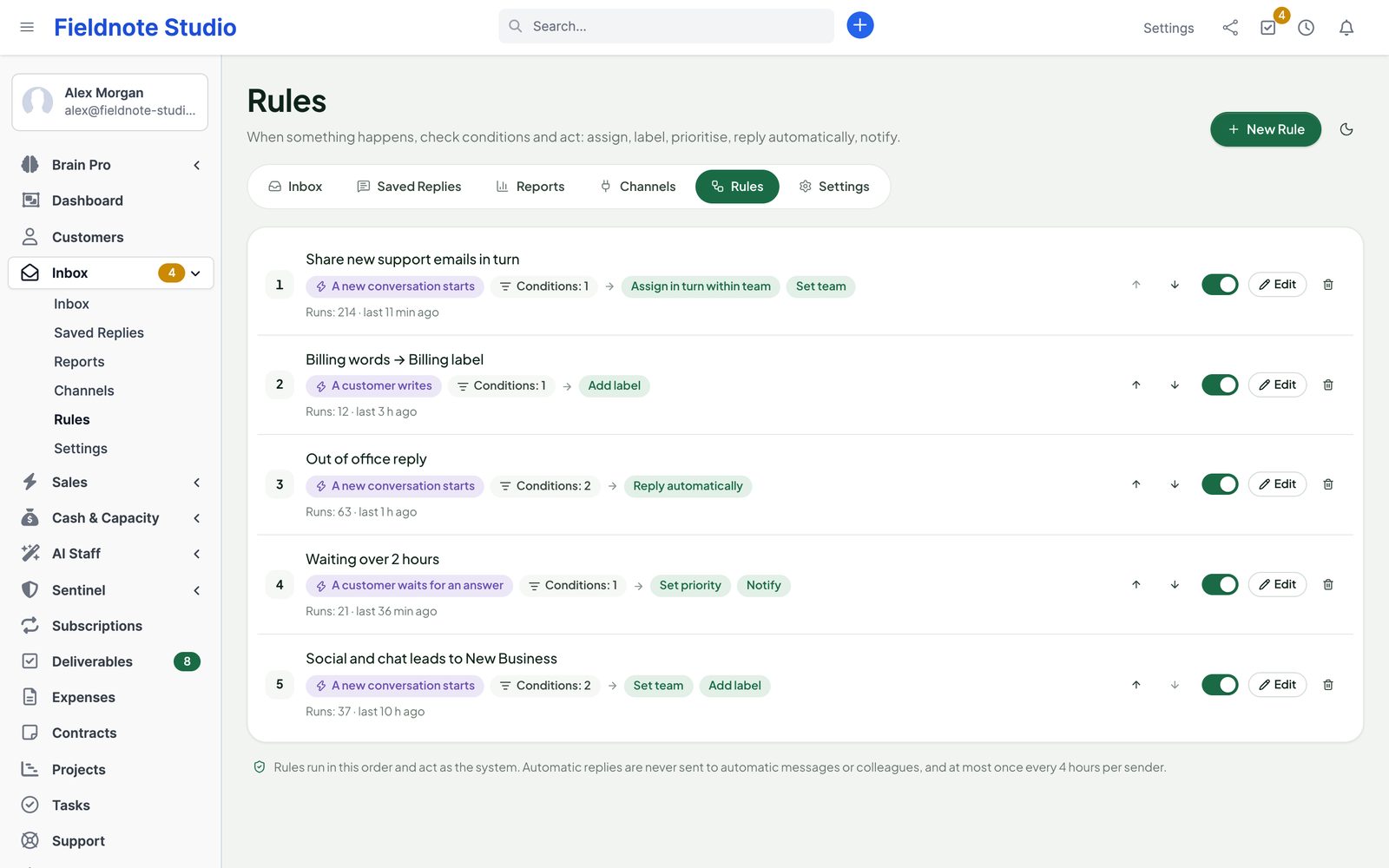
Inbox › Rules run in their order and act as the system. Start from a suggestion (share new conversations, out of office reply, label by keyword, waiting too long) or build your own: When → If (all or any conditions) → Then.
| Part | Choices |
|---|---|
| When | A new conversation starts · A customer writes · A customer waits for an answer (checked every minute, needs the condition Waiting) · The status changes |
| If | Channel, account, sender, subject, message text (contains, starts with, ends with…), label, priority, status, assignee, team, sender in the CRM (known / unknown), business hours (open / closed now), waiting (at least N minutes) |
| Then | Assign to · Assign in turn within team · Unassign · Set team · Add or remove label · Set priority · Set status · Snooze for · Reply automatically · Notify (assignee, team, inbox administrators) · Add follower · Mark as spam |
- Stop here: later rules do not run for the same event when this one acted.
- Automatic replies are plain text with placeholders. They are never sent to automatic messages or colleagues, and at most once every 4 hours per sender; outgoing ones carry
Auto-Submitted: auto-replied. - Each rule shows how often it ran and when last. Settings › Automation › Run rules switches all of them off at once.
Teams, business hours and SLA
- Teams (Settings): groups of colleagues for round robin, routing rules and channel access. A member switched to Away keeps seeing the team's conversations but gets no new ones from round robin.
- Business Hours: one or more calendars with a time zone, opening hours per weekday (two ranges if you close for lunch) and holidays. The default calendar is used by rules and the chat widget.
- SLA policies: First response within, Next response within, Resolve within, counted during a calendar or around the clock, for all conversations or only some channels, labels or a minimum priority. The first policy in the list that fits applies.
First response starts with the customer's first message and stops with your first reply; next response starts again each time the customer writes after you answered; resolution runs until the conversation is closed. Only open time of the business hours counts. Missed targets show in red on the conversation, in the SLA missed view and in the reports; Warn before an SLA target sends a notification first (15 minutes by default). Automatic replies never stop a timer.
AI helpers
With Perfex AI Staff active, a ready AI route shared with other modules and Settings › AI Helpers › Use AI in the inbox on, the inbox shows AI draft and Translate in the reply box and the AI Assistant card in the details panel. Test checks the connection.
- AI draft: a reply to the last customer message in their language, tone friendly, formal or short, with an optional hint. Insert into reply or Replace reply text — you read, change and send.
- Summarise: a short summary for colleagues and up to three next steps.
- Suggest routing: labels, priority and team from your own lists, with a reason; Apply or Dismiss.
- Translate a customer's message into your language (Language for summaries), or your reply into the customer's language.
Features (new in 2.0)
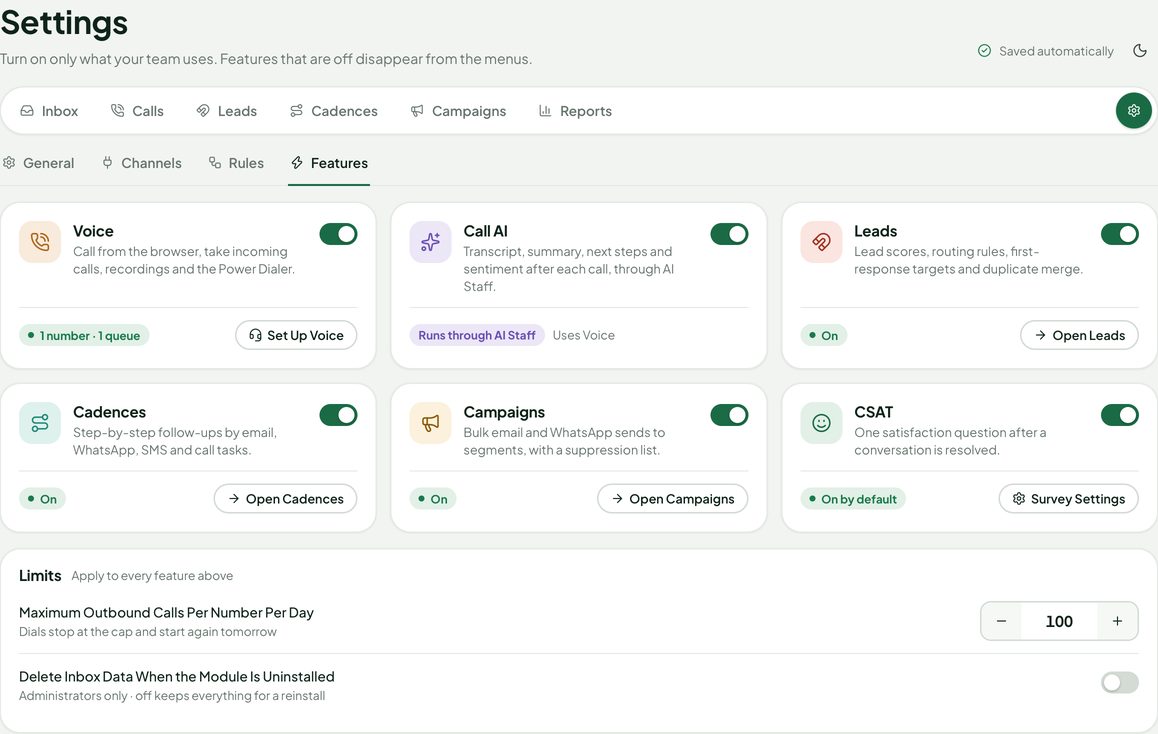
Inbox › Settings › Features (the gear on the Inbox bar) has one switch per area. Areas that are off disappear from the menus, their pages answer “not found” and nothing of them runs in the background. After an upgrade from 1.x or a fresh install, everything is off except CSAT.
| Area | What it adds | Needs |
|---|---|---|
| Voice | Calls in the browser, incoming calls, voicemail, recordings, the Power Dialer (Calls in the Inbox bar). | Your own Twilio or Telnyx account, public HTTPS, a voice worker. |
| Call AI | Transcript, summary, sentiment, talk share and proposed next steps after a call. | Voice on, Perfex AI Staff, the provider's transcription. |
| Leads | Lead scores, routing, first-response targets, duplicates and merge (Leads). | — |
| Cadences | Step-by-step follow-ups (Cadences). | An email, WhatsApp or SMS channel; the postal address in Sending Rules for email steps. |
| Campaigns | Bulk email and WhatsApp template sends (Campaigns). | An email or WhatsApp channel; opted-in recipients. |
| CSAT | One survey question after a conversation is resolved (Reports › CSAT). | An email channel or the web chat. |
Below the switches, Limits holds the maximum outbound calls per number per day and Delete Inbox Data When the Module Is Uninstalled (administrators only, off by default).
Voice
Voice adds phone numbers as channels. Agents call from the browser (softphone), incoming calls ring in the browser, and every call becomes a message in the conversation of that phone number, with direction, duration, result, notes, recording and voicemail. Calls run through your own provider account: Twilio (Voice SDK) or Telnyx (Call Control). Call and number fees are billed by the provider. Generic SIP phones are not supported.
Before you start
- Perfex on a public HTTPS address. The provider sends its webhooks there, and browsers only allow the microphone on https. Behind a reverse proxy, set Perfex's
proxy_ipsto your proxy's addresses only. - A voice worker that runs all the time (below). Shared hosting without background processes cannot run Voice.
- Perfex's cron every minute (recordings, clean-up, tests and retries run there).
- Staff need Inbox — Conversations › Reply and access to the number's channel. Agents allow the microphone when they press Connect Softphone.
Twilio
- In Twilio, note the Account SID and Auth Token, create an API Key (SID and secret) and a TwiML App. Keep the secrets private; never paste them in a ticket or screenshot.
- Turn on Voice in Settings › Features.
- In Calls › Numbers › Add Number, enter the credentials, the TwiML App SID and the number in +E.164 form. Pick the Inbox team, business hours, the number's country calling code and the allowed destination calling codes. Saved secret fields stay empty; leave them empty to keep the stored value.
- Copy the two webhook URLs shown on the saved number into Twilio: the number's A call comes in webhook and the TwiML App's Voice request URL, both HTTP POST. Twilio signs every request; the inbox checks the signature against the address Perfex is configured with.
- Press Queue Connection Test; the result shows under Voice Jobs. It proves the credentials only — make one real call to check audio.
- In Twilio, also set Voice Geo Permissions to the countries you call: the inbox blocks premium prefixes and unlisted calling codes, but the provider's own fraud protection is the second layer.
Telnyx
- In Telnyx, prepare a number, an API key, the webhook public key (base64, from the portal) and a Call Control Application that owns the number.
- Create a separate credential-based SIP connection for agents. It must be internal (SIP URI calling limited to internal) and have no outbound voice profile: agents' browsers never dial the public network themselves. The inbox checks these rules and refuses a connection that breaks them; fix it in Telnyx and the inbox retries within a minute.
- In Calls › Numbers › Add Telnyx Number, enter the API key, public key, Call Control Application ID, the agent SIP connection ID and the number, then the same team, hours and calling-code settings as for Twilio.
- Set the signed JSON webhook URL shown on the saved number as the webhook of the Call Control Application (API v2). Do not attach it to other connections.
- Set up failover in Telnyx. Telnyx controls the call through the inbox's worker. When a new call arrives while the worker is down, the inbox answers 503 so Telnyx retries or uses your failover URL (for example another Perfex server or a voicemail service). The inbox cannot play voicemail while every worker is stopped.
- Run both workers (calls and agents, below). Agents get private SIP credentials that expire after ten minutes and are removed when they sign out; the API key and SIP passwords never reach the browser.
The voice worker
Ringing and call control cannot wait for Perfex's one-minute cron, so Voice needs a small PHP process that runs all the time. It runs for up to 60 seconds and exits; your process manager starts it again. One worker per installation (it takes a lock).
# Twilio and Telnyx: call commands
php index.php perfex_inbox/voice_worker/run loop 60 calls
# Telnyx only: agent credentials (a second process)
php index.php perfex_inbox/voice_worker/run loop 60 agents
Example systemd unit (change the paths, PHP binary and user):
[Unit]
Description=Perfex Inbox voice worker
After=network-online.target

[Service]
User=www-data
WorkingDirectory=/var/www/perfex
ExecStart=/usr/bin/php index.php perfex_inbox/voice_worker/run loop 60 calls
Restart=always
RestartSec=1
KillSignal=SIGTERM
TimeoutStopSec=30

[Install]
WantedBy=multi-user.target
Or a Supervisor program:
[program:perfex-inbox-voice]
directory=/var/www/perfex
command=/usr/bin/php index.php perfex_inbox/voice_worker/run loop 60 calls
user=www-data
autostart=true
autorestart=true
stopwaitsecs=30
For Telnyx, add a second unit or program with agents instead of calls. The worker writes a heartbeat; when it is older than 15 seconds the number shows Worker offline, the softphone cannot connect and incoming calls go to voicemail (Twilio) or are refused for failover (Telnyx). Turning Voice off stops the worker on its own.
Calls and the softphone
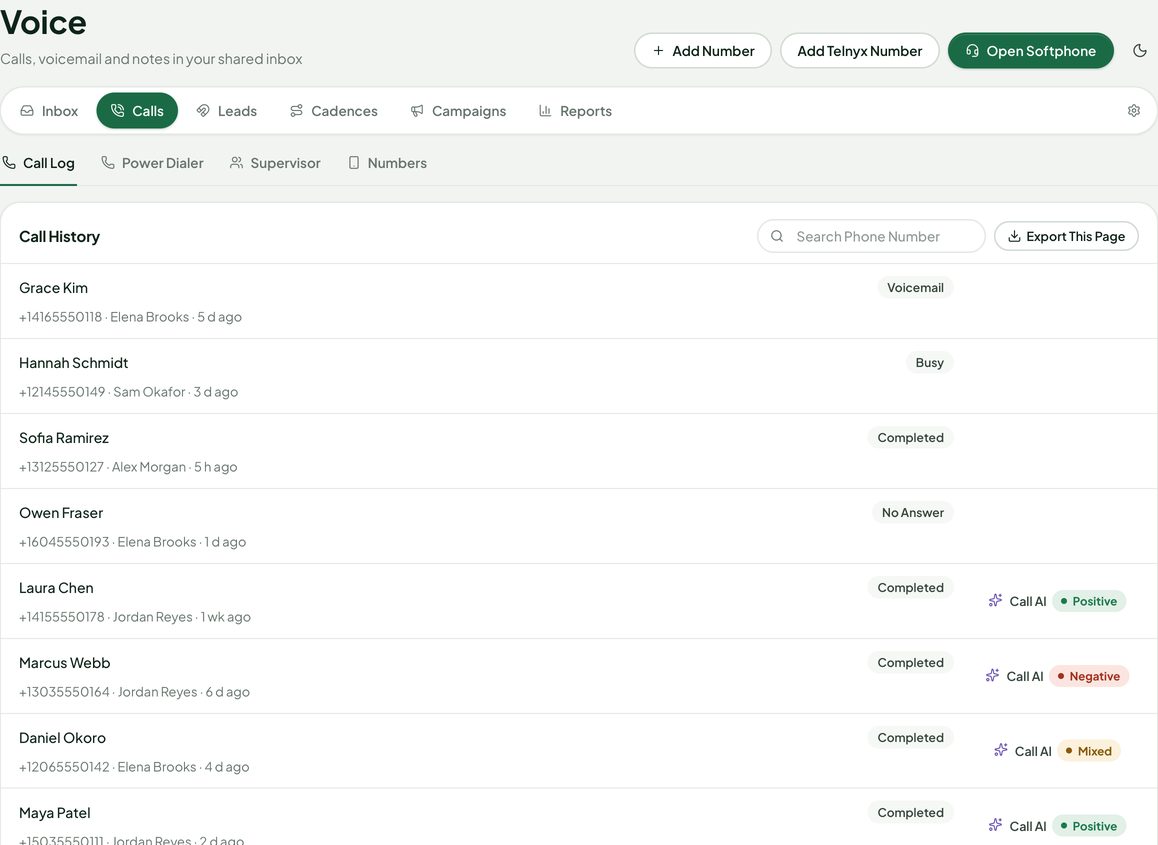
- Calls › Call Log lists calls with agent, result and Call AI sentiment; Open Softphone opens the dial pad. Pop Out before a call keeps it running in its own window while you move around Perfex.
- During a call: mute, hold, keypad tones, warm transfer to a colleague (you stay on until they join), timer. Click-to-call appears on conversations and in the contact, customer and lead panels.
- Outbound numbers: type them with a leading +, or the number's country code is used. Calls go only to the allowed destination calling codes; common premium prefixes are always blocked; each number has a daily cap (Settings › Features › Limits) and each agent at most six new calls a minute.
- Incoming calls ring the conversation's assignee, then the number's default assignee, then the team — only people with the softphone connected. Outside business hours, or when nobody answers, the caller reaches voicemail (if on). A call assigns the conversation only when an agent answers.
- Withheld numbers get their own conversation; nothing is invented.
Recordings, consent and voicemail
- Recording, voicemail, the consent message, the voicemail greeting and the spoken language are set per number. The inbox does not choose a consent policy for you: check the recording rules where you and your callers are.
- Recordings and voicemails are copied into the inbox's private storage, played through links that last 15 minutes and are checked against the conversation's permissions. Keep Local Recordings For (Days): 1–365.
- Delete Provider Recording After Private Copy Is Stored (on by default) removes the recording at Twilio or Telnyx once the inbox has its own copy.
Power Dialer
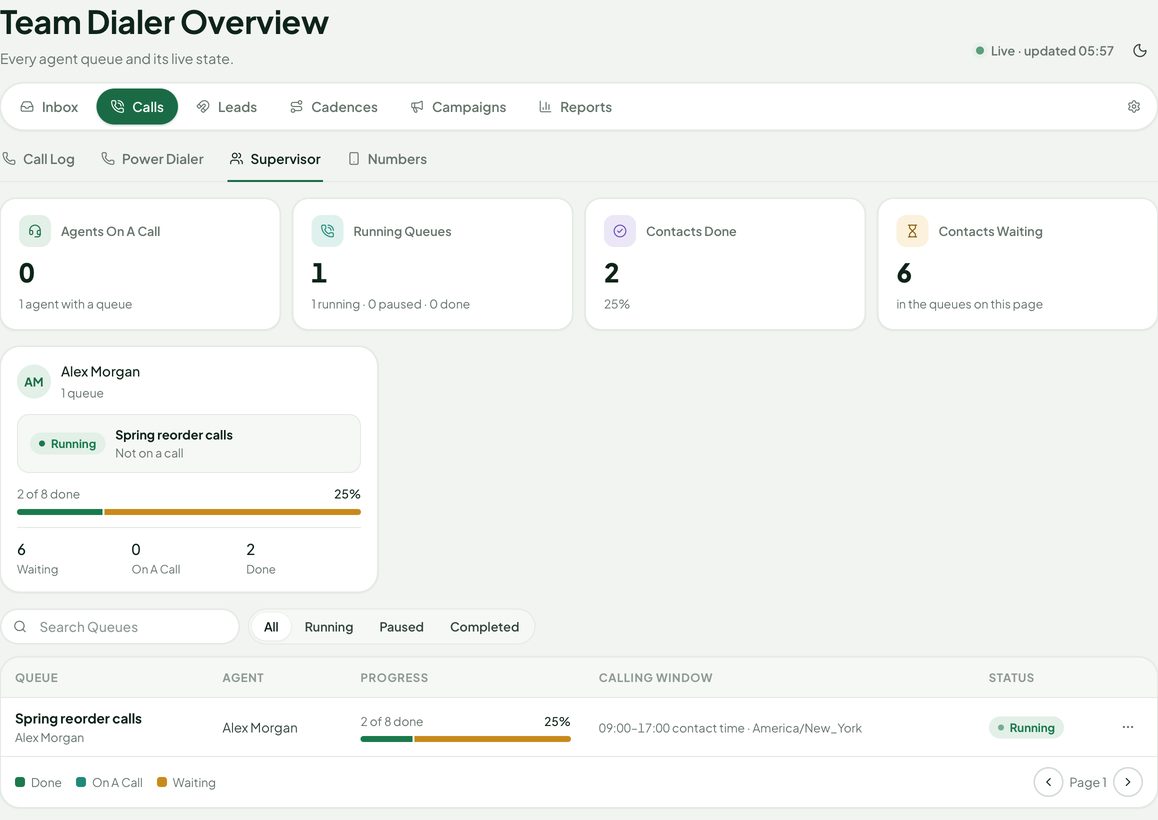
Calls › Power Dialer works through a list of people one call at a time. It is a preview dialer: the agent sees the next contact and presses Call; the inbox never starts a call on its own.
- New Queue: pick the number, then the people — from an Inbox view, a lead/contact/customer picker or a saved selection (up to 1,000). Choose the calling window (for example 09:00–17:00 on weekdays) and the default time zone; a contact's own time zone wins.
- The queue starts paused. Connect the softphone, press Resume, then Start Calling.
- After each call, pick a disposition (Connected, No Answer, Busy, Callback Requested, Do Not Call…), add a note and press Save and Next. Callbacks and retries come back at the time you set.
- Before every call the inbox checks again: do-not-call, the suppression list, rights to the record, business hours and the contact's local time. People outside their window wait.
- Do Not Call also puts the number on the suppression list.
- Calls › Supervisor (right Supervise Dialer Queues) shows every agent's queue and progress.
- Each page of entries exports as CSV.
Call AI
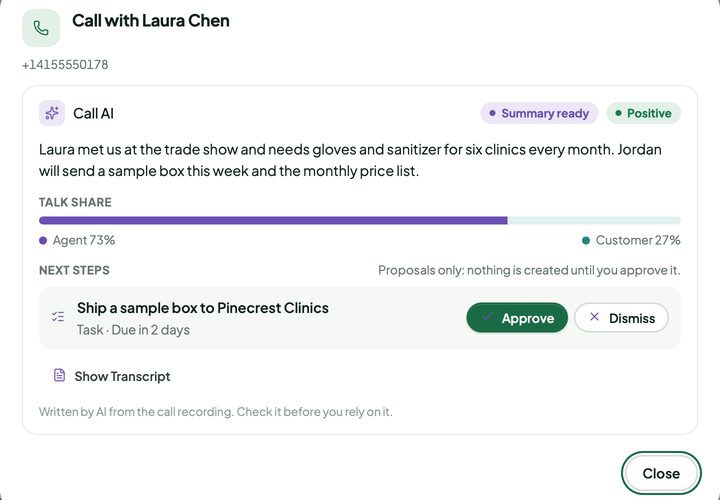
With Call AI on (Settings › Features; needs Voice and Perfex AI Staff), choose per number under Calls › Numbers › Call AI: Off, Transcript, summary on request or Transcript and summary after each call. The number must record calls with a consent message. Each finished call then gets:
- A transcript from the phone provider (Twilio real-time transcription or Telnyx transcription — a paid add-on of your provider account). AI Staff has no speech-to-text, so without the provider's transcription the call shows a note instead.
- A summary, sentiment, talk share and up to five next steps, written by Perfex AI Staff. Email addresses, phone numbers and names are removed before the text goes to AI; the transcript is treated as untrusted text.
- Next steps are proposals: Approve creates a Perfex task or reminder, Dismiss drops it. Nothing is created on its own.
Transcripts are stored encrypted and removed with the number's recording retention. AI Staff's budgets, permissions and usage log apply.
Leads
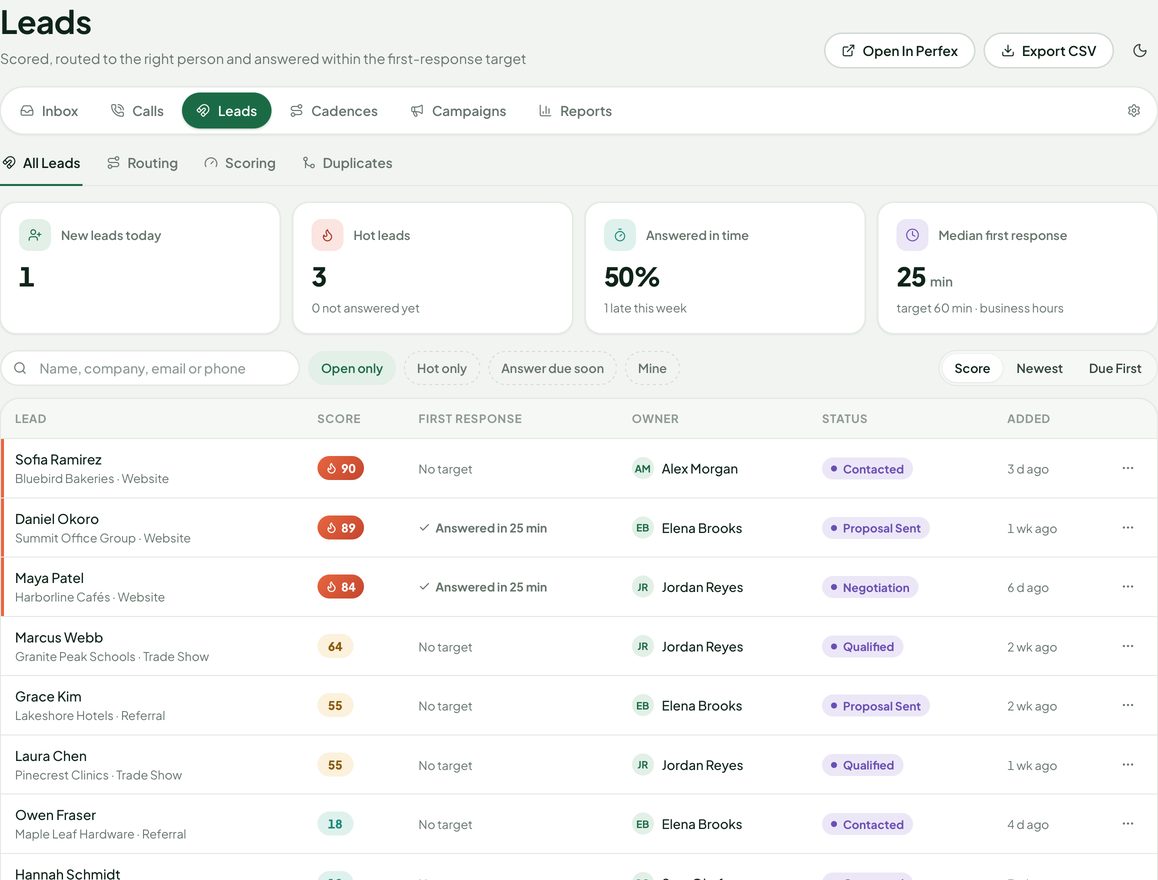
Leads in the Inbox bar works on Perfex's own leads; Perfex's lead permissions apply.
- Scoring: Fit rules (fields, source, country, value), Engagement rules (wrote to us, took our call, quiet for weeks) and Enrichment rules (facts other modules add). Set where warm and hot start. Scores update when a lead changes or writes, and every night.
- AI score (optional, Perfex AI Staff): mixed with the rule score at 20, 30 or 50 % and shown on its own; it never assigns anyone. Only for leads who wrote to you saves budget.
- Routing: round robin, by skill, language, region or product, or to the agent with the fewest open conversations, with overflow when everyone is full. Agent profiles hold skills, languages and capacity.
- First-response target: counted in Inbox business hours from the lead's arrival to the first reply or call; warning and breach bells.
- Duplicates: same email, same phone (country code from Sending Rules) or same name and company, for leads and contacts. Merge shows a preview first; the merged lead is archived and its history kept, and the preview warns about anything that cannot move.
- Hot leads are highlighted in Perfex's leads table, kanban and lead window; a Score column appears while Leads is on.
Sending rules and the suppression list
Cadences and campaigns share one set of rules (Cadences › Sending Rules) and one suppression list. New right: Inbox Outreach (Cadences And Campaigns) — view, view own, create, edit, delete, switch on cadences and launch campaigns, and the suppression list.
- Company postal address — added to the footer of every cadence and campaign email (CAN-SPAM). Email steps cannot start without it.
- One-click unsubscribe: every email carries a signed unsubscribe link and the
List-UnsubscribeandList-Unsubscribe-Postheaders. Mail programs (Gmail, Outlook, Apple Mail) only show their own Unsubscribe button for mail that passes DKIM from your domain and links on https — set up DKIM at your mail provider. - Sender limits: messages per account per day (200 by default) and per minute (20). Cadences and campaigns send through Perfex's cron, up to 100 messages per run.
- Tracking: link clicks through a signed redirect on your site (on); opens with an invisible picture are off by default, and reports then say “not tracked”.
- Consent: email cadences to leads are “Opted In Only” by default; campaigns and every WhatsApp and SMS send need an opt-in. An administrator may switch a cadence to “Not Opted Out” (legitimate interest with an immediate opt-out) after a confirmation, and the cadence keeps who chose it and when. The rules for unsolicited email differ by country — in some (Germany and Austria, for example) business email also needs an opt-in, and the GDPR needs a documented legitimate-interest assessment — so check with your adviser before you switch. Opt-ins and opt-outs can also be written to a Perfex GDPR consent purpose. Opt-out words (STOP and others) on WhatsApp and SMS unsubscribe at once.
- Suppression list: hard bounces, complaints and opt-outs land there by themselves; add addresses or import a CSV. Nothing automated is ever sent to them; staff can still answer one to one unless you block that too.
- Unsubscribe and survey links keep working even when the inbox is paused or its licence is not valid — people must always be able to opt out.
Cadences
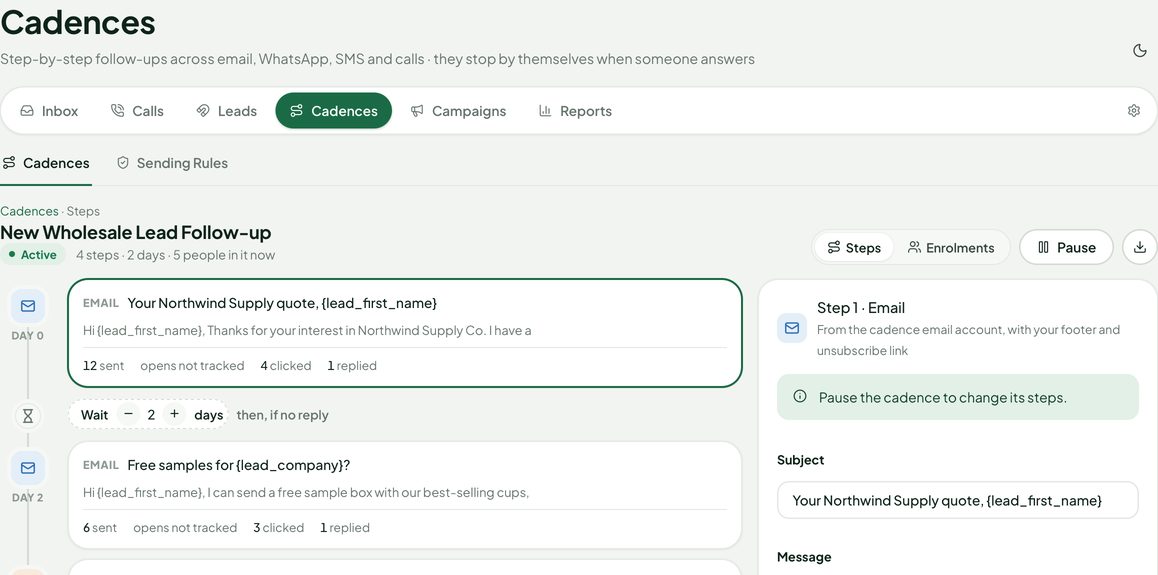
- A cadence is a list of steps: Email, WhatsApp (approved template outside the 24-hour window), SMS (where an SMS channel exists), Call task (a Perfex task for the owner), Wait N days and Manual task. Each step has merge fields, skip rules and a preview.
- Send window by weekday and hours, in the contact's local time or a fixed time zone; a daily maximum per cadence.
- Stop when: they reply on any channel, unsubscribe, an email bounces, the lead is converted, lost or junk, or a meeting is booked (Perfex Flow Studio or a booking module tells the inbox).
- Enrol by hand, automatically for new leads, or from Perfex Flow Studio (Enrol in cadence). Pausing a cadence holds everyone; switching it off ends their enrolments.
- Results per step: sent, clicked, replied, and opened only when tracking is on.
Campaigns
- Audience: customers, contacts and leads with filters, groups, sources and statuses. People without an opt-in, on the suppression list, without an address or listed twice are left out — the counts show why.
- Content: email with merge fields, or an approved WhatsApp template. When the first channel has no address or opt-in, a person can fall back to the next (email → WhatsApp → SMS).
- Schedule: now or later, speed per hour, quiet hours (20:00–08:00 in the recipient's time).
- Review: preview per recipient, a test send to yourself or colleagues, then Launch.
- Each recipient gets their own conversation; a reply reopens it in the normal inbox.
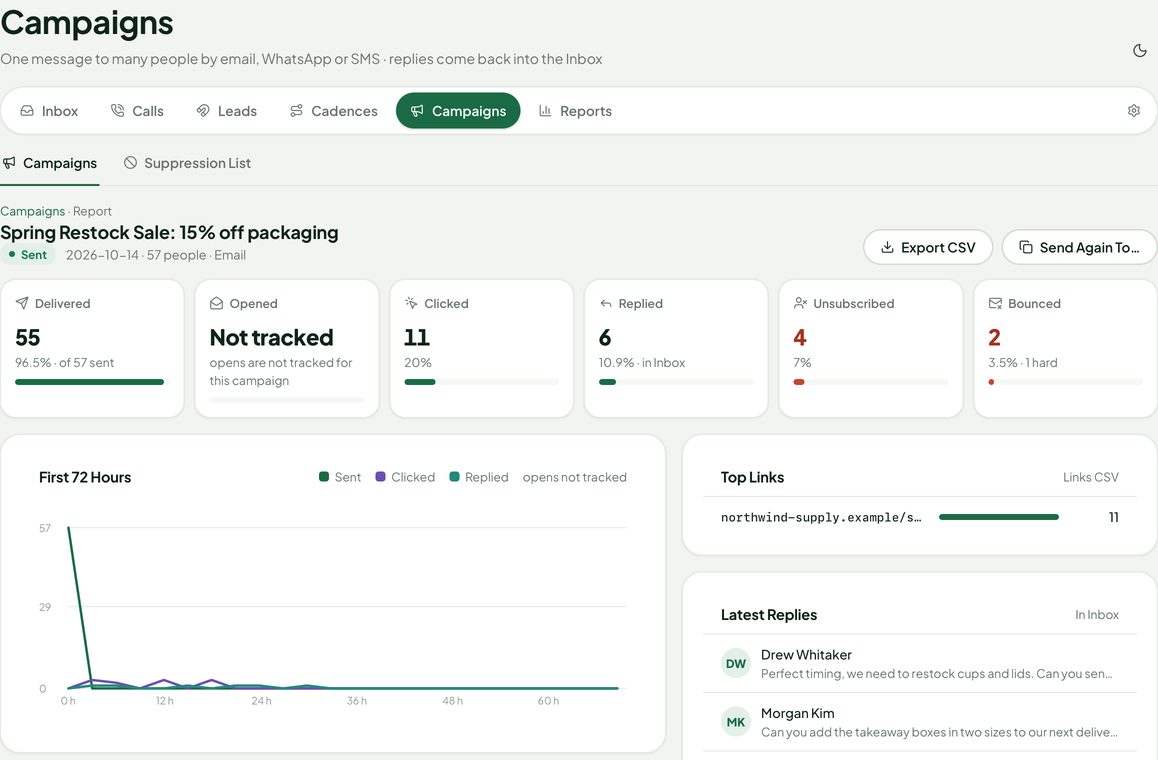
- The report shows delivered, clicked, replied, unsubscribed and bounced (opened only when tracked), the first 72 hours, top links and each person's result; CSV export.
- Bounces (DSN) and complaints (ARF) that match a message you sent go to the suppression list.
- Abuse guard: a campaign stops by itself when bounces pass 5 %, complaints 1 % or unsubscribes 5 % (from 50 sent).
CSAT surveys
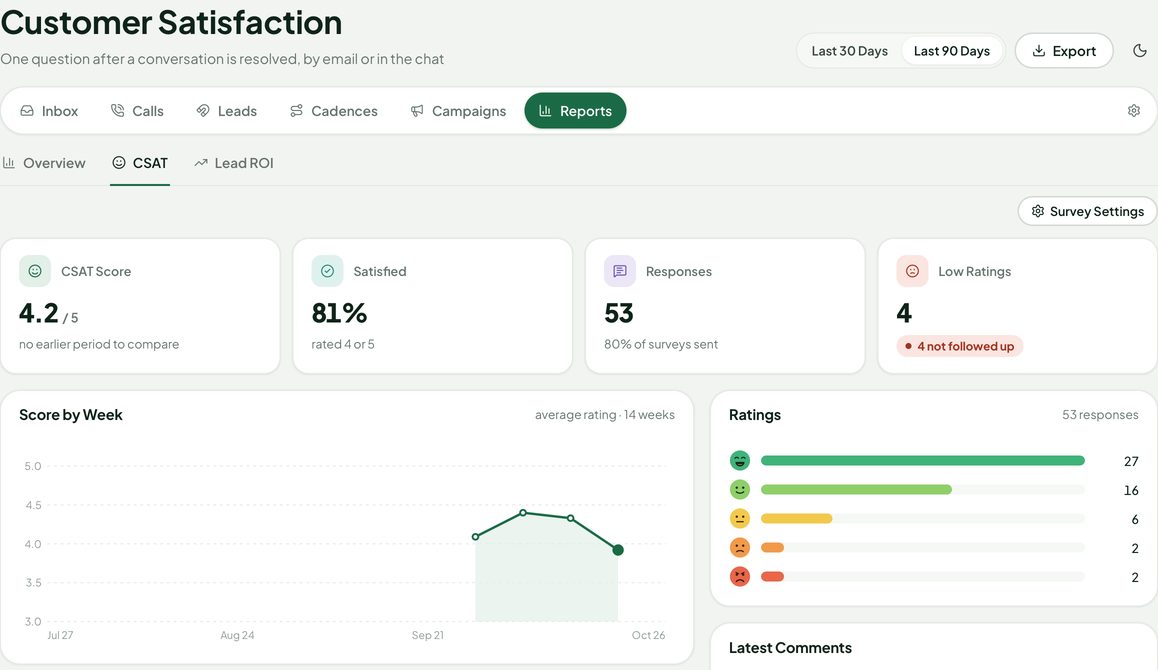
On by default for a new install; after an upgrade from 1.x it starts off and administrators see a one-time notice to turn it on. When a conversation is resolved, the customer gets one question by email or in the web chat, in the same conversation. Settings are on Reports › CSAT › Survey Settings:
- Send by email and/or chat, wait after resolving (not sent if the conversation reopens), how long the link works (one answer per link).
- The question, the scale (faces, stars or 1–5) and an optional comment.
- A bell to the assignee on a low rating; skip people surveyed recently (14 days by default) and conversations with chosen labels. Campaign conversations, colleagues and unsubscribed people are never surveyed.
Reports › CSAT shows the score, the satisfied share, responses, low ratings, score by week, per agent and team, and the latest comments with Follow Up.
Notifications
Perfex bells, each one switchable per person in My Notifications (Settings › Notifications): a conversation is assigned to me; someone mentions me in a note; new message in my conversations; new conversation nobody has yet (for conversations you may take); an SLA target is due soon or was missed; my reply could not be sent (after the retries ran out); a channel fails or needs reconnecting (for staff who manage channels); and a daily summary (offered by an administrator, sent at the hour you set). Bells link straight to the conversation.
Reports
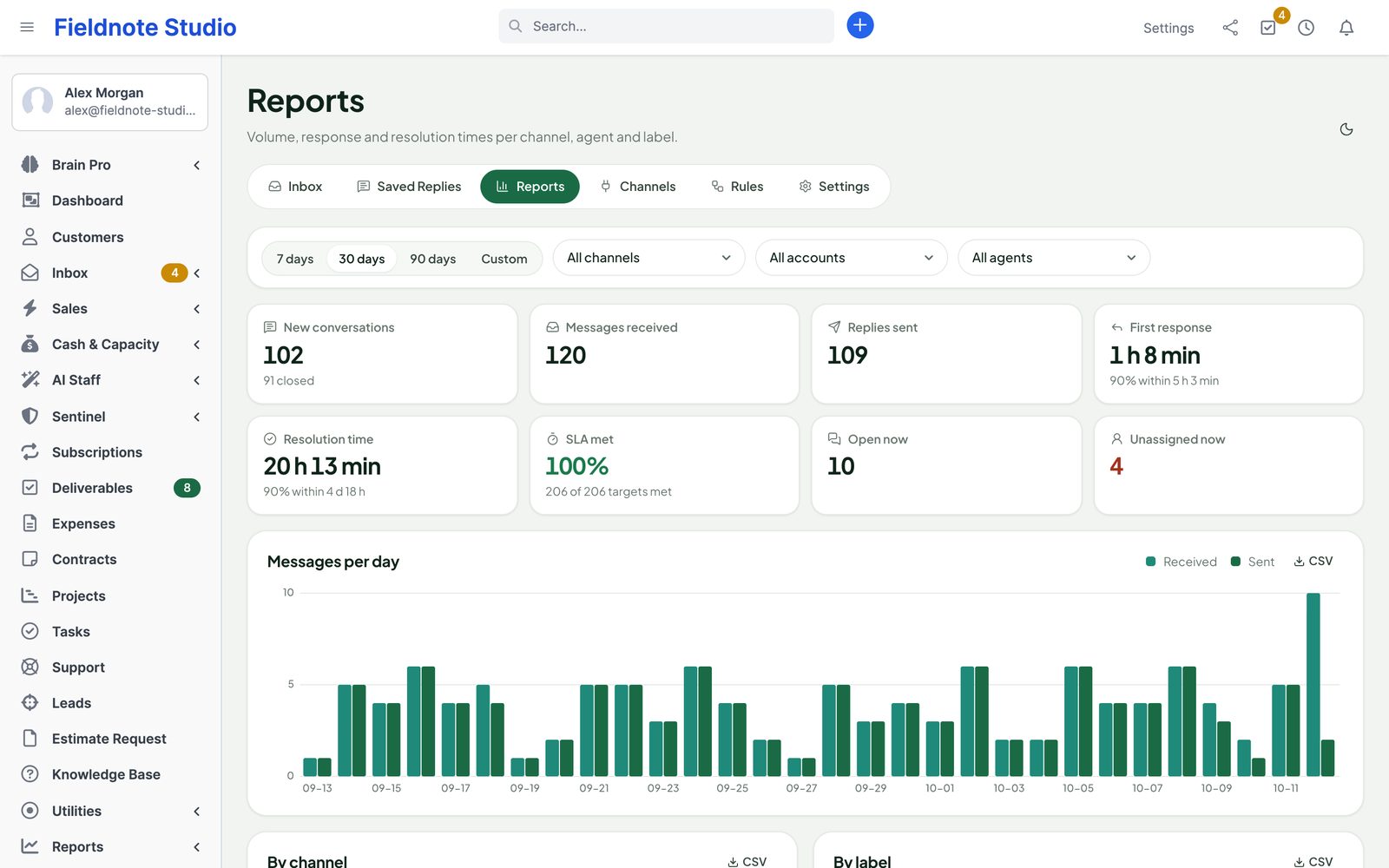
Inbox › Reports for 7, 30 or 90 days or your own range, filtered by channel, account and agent:
- New conversations, messages received, replies sent, first response and resolution time (median, with the 90th percentile), SLA met, open now and unassigned now.
- Messages per day; tables by channel, by account, by label and by agent (replies, first response and resolution medians); busiest hours by weekday and hour.
- Times are calendar time: from the customer's first message to the first reply sent by a person, and to closing. Automatic replies do not count.
- Every table exports as CSV.
Integrations
Settings › Integrations shows each module and switches its part on or off.
- Perfex AI Staff: AI helpers (above), Call AI, the AI lead score, and three tools for AI Staff itself: a call summary, a lead score (with an approval card) and a draft of the next cadence message.
- Perfex Brain Pro: seven widgets for dashboards — open conversations, unassigned conversations, new conversations, first response time, SLA targets missed, conversations by channel and waiting longest — plus (2.0) calls per agent, answer rate, lead response time, CSAT and campaign results, and a Calls & Outreach dashboard template. They respect the inbox's access rules.
- Perfex Flow Studio (2.0): triggers call ended, call summarised, lead score crossed, lead response target missed, cadence finished, campaign finished and CSAT received; steps Enrol in cadence, Stop cadence, Route lead and Start campaign, run with the flow owner's rights and at most 200 inbox steps an hour.
- Perfex Connect (2.0): read-only API resources
inbox_calls,inbox_cadences,inbox_enrolments,inbox_campaignsandinbox_csat, and webhooks when calls end or are summarised, enrolments finish, campaigns start or finish and CSAT answers arrive. - Perfex Sales Growth (2.0): Reports › Lead ROI — leads, won deals and revenue per lead source, read-only, per currency.
- Perfex Client Hub: Save to Client Files on an attachment copies it into the folder From the inbox of the linked customer. Customers do not see it until you share it.
- Perfex Sentinel: channel, access, settings, label and deletion events go to Sentinel's audit log. Message contents are never sent to the log.
- Perfex Deliverables: link a conversation to a project deliverable with Link to….
- Light and dark follow the shared setting of our modules (Perfex Brain Pro decides the default when it is installed).
Settings
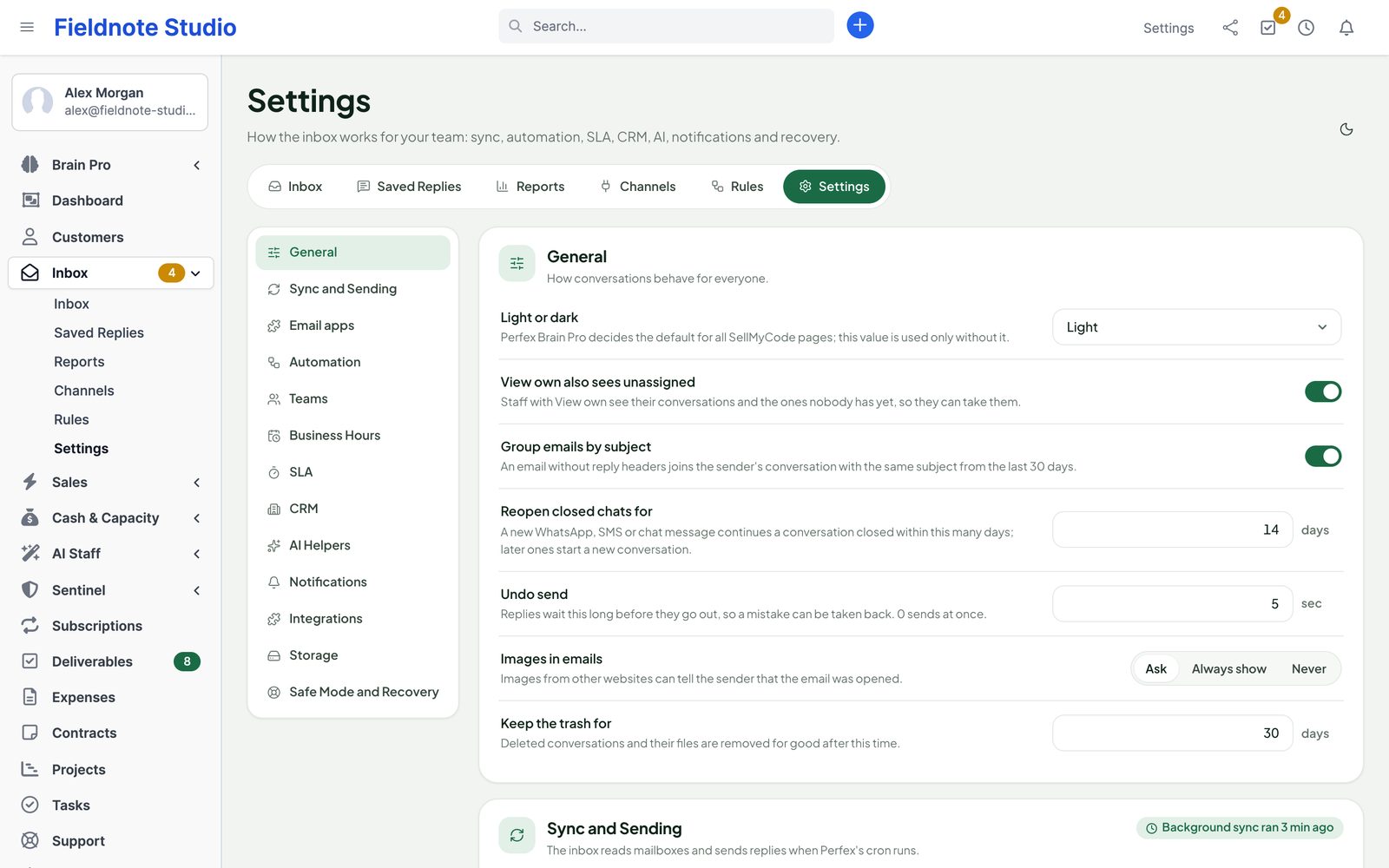
| Section | What |
|---|---|
| General | Light or dark, View own also sees unassigned, group emails by subject, reopen closed chats for (14 days), undo send (5 s), images in emails (ask, always, never), keep the trash for (30 days). |
| Sync and Sending | Check mailboxes every (2 min), first import (14 days), messages per run, time per cron run (40 s), largest attachment (25 MB), chat and form requests per visitor, mail servers on private networks; whether Perfex's cron is running. |
| Email apps | Your Google and Microsoft apps (above). |
| Automation | Run rules, use the default assignee of each channel, warn before an SLA target. |
| Teams · Business Hours · SLA | See Teams, hours and SLA. |
| CRM | Link senders automatically, recognise colleagues, ticket department and customer email defaults, automatic leads per channel. |
| AI Helpers | Use AI in the inbox, language for summaries, connection test. |
| Notifications | Your own bells; the team's daily summary and its hour. |
| Integrations | Brain Pro, Sentinel, Client Hub and Deliverables parts. |
| Features (2.0) | Switches for Voice, Call AI, Leads, Cadences, Campaigns and CSAT; calls per number per day; delete data on uninstall. See Features. |
| Storage | Where attachments are kept, whether that folder is private, free space, how to move it. |
| Safe Mode and Recovery | The main switch, pause syncing and sending, the outbox and job queue, the activity log with search and CSV export. |
Safe mode
Switching the inbox off stops syncing and sending; webhooks answer “try again later” (providers retry), and the chat widget and forms close. Staff pages stay open with a notice so conversations can still be read. Data and files are kept.
| Switch | How |
|---|---|
| Pause | Settings › Safe Mode and Recovery › Pause syncing and sending: for incidents; mailboxes are not read and nothing is sent, replies wait. |
| One channel | Channels › ⋯ › Pause. |
| Main switch | Settings › Safe Mode and Recovery › Inbox on. |
| DISABLE file | Create an empty file modules/perfex_inbox/DISABLE; delete it to switch on again. Works without signing in. |
| Constant | define('PINB_SAFE_MODE', true); in application/config/app-config.php. |
Security notes
- Secrets: mailbox passwords, access tokens and client secrets are encrypted with your installation's encryption key, never sent to the browser and never shown again. Changing Perfex's encryption key makes them unreadable: the channels then ask to be signed in again.
- Your own apps: Gmail and Microsoft sign in through apps in your own accounts. Access ends when you remove the mailbox or revoke the app.
- Attachments are stored outside the web root by default (
perfex-inbox-storage/next to Perfex), under random names without extension, readable by the web server only. Choose another folder withdefine('PINB_STORAGE_PATH', '/home/acme/inbox-files');inapp-config.php. If neither can be written, a protected folder insideuploads/with deny rules is used; on nginx add:location ^~ /uploads/perfex_inbox/ { deny all; } - Downloads are streamed only after a check that the staff member may open that conversation, with
Content-Disposition,X-Content-Type-Options: nosniff, a sandboxing content security policy and private caching. SVG, HTML and XML files always download. - Emails are shown in a sandboxed frame: scripts, forms, frames and event handlers are removed; pictures from other websites (tracking pixels) load only after Show images.
- Uploads from the composer, chat and forms are checked by content; scripts and programs are refused.
- Webhooks: a secret key per channel in the address plus the provider's signature (Meta's App secret, Twilio's Auth Token, Telnyx Ed25519 with a five-minute window), size limits, rate limits and de-duplication of retries.
- Calls: the number to call is approved by the server and used once; the browser cannot change it. Telnyx agents get private credentials that expire; provider keys never reach the browser. Recordings and transcripts follow the conversation's permissions and play through 15-minute signed links.
- Outreach links: unsubscribe, survey and click links are signed, their tokens stored hashed; click redirects go only to links saved with the message (no open redirect).
- Public pages (chat widget, forms) show nothing private, are limited per visitor, check allowed websites, use a honeypot and a timing check. Visitor IP addresses are stored only as a keyed hash.
- Writes are POST requests with Perfex's CSRF token and a permission check. Mail servers on reserved or private addresses are refused unless an administrator allows private networks.
- Activity log: channel, access, settings and conversation events with who and when; export as CSV, and to Perfex Sentinel when installed.
SaaS
With a multi-tenant module that gives each tenant its own database, every tenant has its own channels, conversations and storage folder (the folder name carries a key per tenant and database, so a copied site never reads or deletes the original's files). The shared-database mode of some SaaS modules is not supported: the inbox stays off inside such tenants.
Deactivate and uninstall
Deactivating removes the menu, tabs, webhooks, chat widget, forms and the inbox's bells at once, and the cron leaves the inbox alone. Data and files are kept; activate again to continue.
Uninstalling (after deactivating) keeps all inbox data by default since 2.0, so a reinstall continues where you left off. Only when an administrator has turned on Delete Inbox Data When the Module Is Uninstalled (Settings › Features) does it delete the pinb_ tables and settings, the staff permissions, the bells and this installation's storage folder with every attachment and recording. Mail stays on your mail servers. Remove the webhooks at Meta, Twilio and Telnyx, stop the voice worker and, if you no longer need them, the Google and Microsoft apps.
Troubleshooting
| Symptom | Check |
|---|---|
| No Inbox in the sidebar | Module active; the role has an Inbox right; not a shared-database SaaS tenant. |
| New mail does not arrive | Perfex's cron runs every minute (Channels shows the last run); the channel is Working, not paused; Sync now shows the error if any. |
| “The server refused the sign-in” | App password instead of the normal password; IMAP enabled at the provider; user name usually the full address. |
| Gmail stops every 7 days | The Google app is External and in Testing: make it Internal (Workspace) or publish it. |
| Microsoft mailbox “Needs reconnecting” | The client secret expired or admin consent is missing: create a new secret, save it in Email apps, Sign in again. |
| “redirect_uri_mismatch” | The redirect URI in the Google or Microsoft app must be exactly the one shown in Email apps, with https on a live site. |
| Every email arrives twice | Perfex's ticket piping imports the same mailbox: turn one of them off. |
| WhatsApp messages do not arrive | Callback URL and verify token saved in Meta; the messages field subscribed; App secret correct; the site reachable over https. |
| “Use an approved template” | The customer last wrote more than 24 hours ago: send a template. |
| The chat does not show on my website | The website's address is under Allowed websites; the script is on the page; the inbox is not switched off. |
| Replies stay “Sending soon” | Cron; Pause syncing and sending off; the channel not paused; a scheduled time in the future. |
| “The file storage is not writable” | Settings › Storage: make the folder writable for the web server, or set PINB_STORAGE_PATH. |
| Softphone says “Worker offline” | The voice worker is not running: start it under systemd or Supervisor (Voice worker); for Telnyx both calls and agents. |
| Calls do not ring in the browser | Softphone connected and microphone allowed; site on https; the agent has Reply and access to the number; inside business hours; webhook URLs in Twilio/Telnyx exactly as shown on the number. |
| Telnyx: “Agent SIP connection must be internal” | In Telnyx, set the agent SIP connection to internal calls only and remove its outbound voice profile; the inbox retries within a minute. |
| Twilio webhooks answer 403 | Perfex's base URL must be exactly the https address Twilio calls; behind a proxy set proxy_ips. |
| A call shows no transcript | Call AI on in Features and on the number; recording and consent on; the provider's transcription enabled on your Twilio/Telnyx account. |
| Cadence email step does not start | Postal address filled in under Sending Rules; the sending account's daily cap not reached; Perfex cron running. |
| No Unsubscribe button in Gmail or Outlook | Sign your mail with DKIM at your mail provider and serve Perfex on https. |
FAQ
Does it need the PHP IMAP extension?
No. The inbox has its own IMAP client and sends with PHPMailer from Perfex.
Is my mail deleted from the server?
No. The inbox only reads; nothing is deleted or marked as read on your mail server.
Can I answer from Gmail or Outlook too?
Yes. The Sent folder is read, so replies written in your mail program appear in the conversation.
Can customers read their conversations in the portal?
Not yet. Customers write by email, WhatsApp, SMS or the chat, which shows a visitor only their own chat.
Can I reply to a web form submission?
Forms only receive. Answer from a mailbox with New email, or create a lead or ticket from the submission.
Is it translated?
Yes: English, Spanish, Portuguese (Brazil), French, German, Italian, Dutch, Turkish and Russian.
Is 2.0 a paid upgrade?
No. Everyone who bought Perfex Inbox gets 2.0 free with the same purchase code.
Is the Power Dialer predictive?
No. It is a preview dialer: one call at a time per agent, started by the agent.
Can I use a SIP desk phone?
Not yet. Calls run in the browser through Twilio or Telnyx.
How do I get support?
Send the module, Perfex and PHP versions and a screenshot through SellMyCode support — never passwords or tokens.
Changelog
Current version 2.0.0 (27 Oct 2026). Release notes of every version, newest first: perfexcrm.app/inbox/changelog/.
2.0.0 — 2026-10-27
- Voice: browser calls and incoming calls with Twilio or Telnyx on your own account, softphone (mute, hold, transfer, keypad, timer), click-to-call, voicemail, private recordings with consent and retention; every call is a message in the conversation.
- Power Dialer: preview dialing from call queues, dispositions and notes, do-not-call and calling-hour rules, retry and callback scheduling, Supervisor view.
- Leads: lead score (rules plus optional AI Staff score), hot leads, routing by round robin, skills or load, first-response target with alerts, duplicate finder and merge.
- Cadences and Campaigns: multi-step follow-ups and bulk email/WhatsApp sends with opt-in, suppression list, one-click unsubscribe, signed link tracking and reports.
- CSAT surveys after a conversation is resolved, Call AI transcripts and summaries (off by default), and Flow Studio, Connect, AI Staff, Brain Pro and Sales Growth integrations.
- Every new area has its own switch and is off after the upgrade, CSAT included (a one-time notice offers to turn it on). Free upgrade from 1.x; Upgrade Database also works while the module is inactive.
1.0.0 — 2026-10-12
- Email: IMAP/SMTP mailboxes with provider presets, Gmail through your own Google app (Gmail API) and Microsoft 365 / Outlook through your own Entra app (Graph, shared mailboxes); background sync through Perfex cron, threading, Sent folder, aliases, quoting, bounces, private attachments.
- WhatsApp Business (Cloud API) with templates, or an installed WhatsApp module with history import; live chat widget for websites and the client portal; web forms; SMS through Perfex gateways with Twilio replies; Facebook Messenger and Instagram Direct.
- Team inbox: views, channels and labels, search, filters, sorting, statuses, snooze, priorities, assignment, notes with mentions, followers, collision detection, rich composer, signatures, saved replies with merge fields, undo and scheduled sending, bulk actions, merge, spam, block, trash, keyboard shortcuts, phone layout, light and dark.
- CRM: automatic linking to contacts, customers and leads, Link to…, Create Lead, Ticket and Task, Conversations tabs, automatic leads per channel.
- Rules, round robin, teams, business hours with holidays, SLA policies with warnings, automatic replies with loop protection.
- AI drafts, summaries, routing proposals and translation through Perfex AI Staff (proposals only).
- Notifications, daily summary, reports with CSV export; Brain Pro, Client Hub, Sentinel and Deliverables integrations; safe mode and activity log.
The full list is in changelog.txt in the download.