Perfex Flow Studio documentation
Perfex Flow Studio adds visual workflow automation to Perfex CRM. A workflow starts on a trigger — a record created or changed, a date coming closer, a schedule or a button — and runs steps: send an e-mail, update a field, assign someone, create a task, ask a manager to approve, call another system. Every execution keeps its steps, results and timings.
Administrators build and publish workflows. Other staff see what their Perfex rights allow: all executions, the executions of their own records, or only the approvals assigned to them.
Installation
Requirements
- Perfex CRM 3.4 or newer. Tested with Perfex 3.4.1.
- PHP 8.0 or newer with the
curlandopensslextensions; MySQL or MariaDB. - Perfex's cron job running every minute (Setup › Settings › Cron Job shows the command). Steps, waits, approvals deadlines and date triggers run in the background through it.
- Outgoing HTTPS from the server, only if you use the web request step.
- Perfex Inbox All-in-One, AI Staff, Brain Pro, Sentinel, Client Hub, Deliverables and Document Studio are optional.
Install
- Back up the CRM database and files.
- Extract the download
perfex-flow-studio-1.0.0.zipon your computer. Inside are the installableperfex_flow_studio-1.0.0.zip, this documentation, the changelog and the licenses. - In Perfex, open Setup › Modules, upload the inner
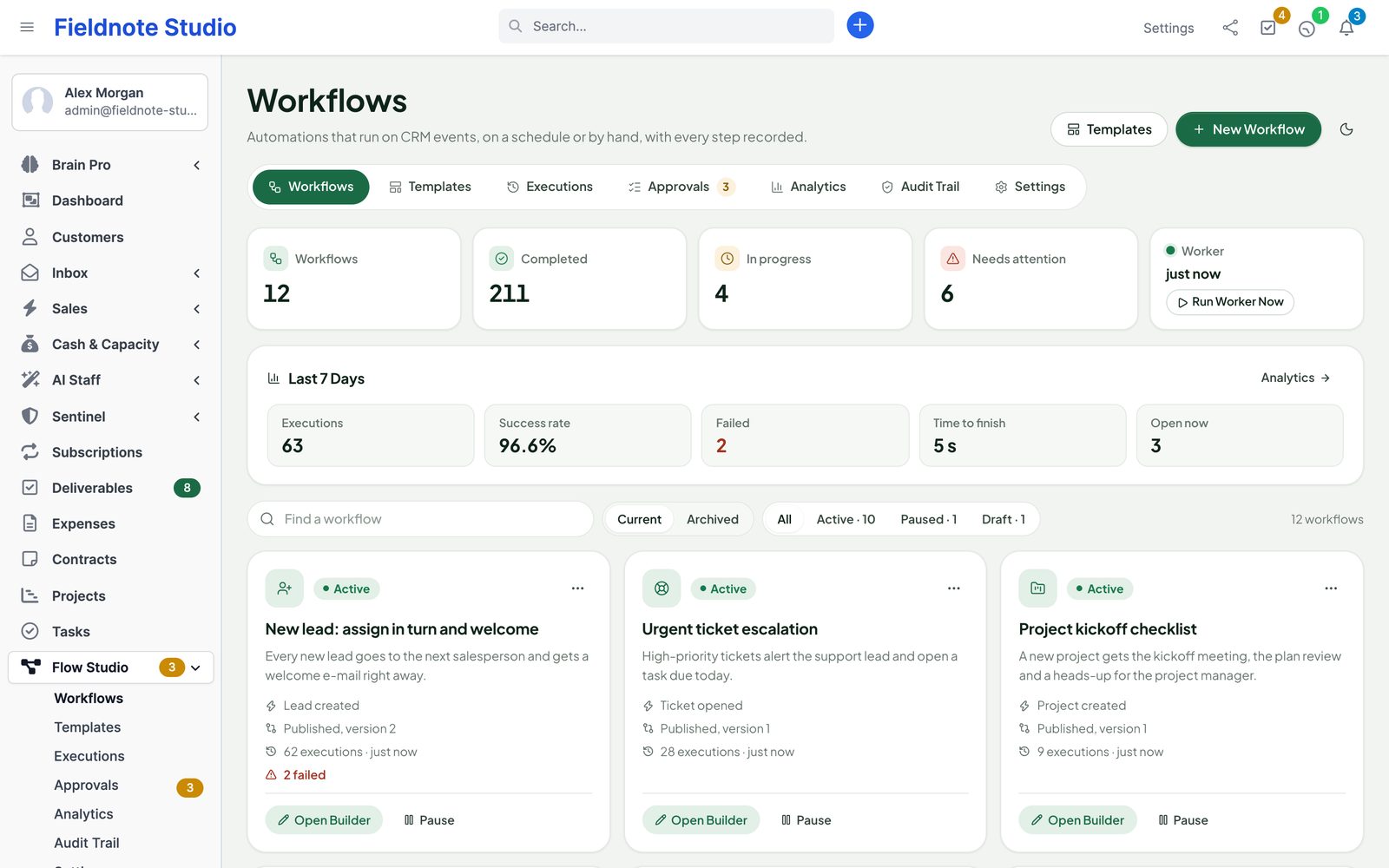
perfex_flow_studio-1.0.0.zip, then install and activate Perfex Flow Studio. - Open Flow Studio in the sidebar. With no workflow yet, the page offers the template gallery.
Upgrade from the 0.2 preview
Workflows made with the 0.1 or 0.2 development preview carry over. The upgrade only adds tables, columns and indexes; it never removes or rewrites your data.
- Back up the database.
- Upload
perfex_flow_studio-1.0.0.zipin Setup › Modules over the installed module — do not uninstall the old one first, uninstalling deletes its data. - If Perfex shows a database upgrade notice for the module, run it. Flow Studio also completes its own upgrade on the first page load.
- Open Flow Studio: workflows, published versions, executions, approvals with their decision history and the audit trail are all there.
- Versions published with 0.2 keep their meaning: their conditions are evaluated with the 0.2 rules. Versions you publish with 1.0 use the improved conditions (case-insensitive “contains”, numbers compared by value, more operators — see Conditions).
- Links in older notifications keep working; old addresses lead to the same pages.
- Exports from 0.2 import as drafts; reviewers stay as they were because a 0.2 export has no people list.
Files and tables
| Where | What |
|---|---|
modules/perfex_flow_studio/ | The module, with its interface font and the Lucide icons. Nothing is loaded from a CDN. |
Tables pfs_* | Workflows, versions, events, executions, steps, approvals and reviewers, audit trail, schedules, date watches, field snapshots and sealed secrets. |
Options pfs_* | Settings. Secrets of the web request step are sealed with your installation's key and never shown again. |
First steps
- Check that Perfex's cron runs every minute. Flow Studio › Workflows shows when the worker last ran.
- Open Flow Studio › Templates, pick one (for example New lead follow-up) and click Use Template. Choose the colleague the template's steps should name.
- In the builder, adjust texts and people, press Test, choose a real record and read what each step would do.
- Press Publish, add a short note. The workflow is active from now on.
- In Setup › Staff › Roles, give reviewers the Approve right and give managers View or View (Own).
Concepts
| Term | Meaning |
|---|---|
| Workflow | A named map of one trigger and its steps. Active, paused, draft or archived. |
| Trigger | What starts the workflow: a Perfex event, a date, a schedule, a button or an event of one of our modules. |
| Step | One action or decision. Steps are connected by ports: next, yes / no after a condition, approved / rejected / expired after an approval, and an optional error port on actions that can fail. |
| Version | An unchangeable copy of the workflow made when you publish, with a number, a note and a checksum. |
| Execution | One run of a version for one event, with its steps, results, record and timings. |
| Worker | The background part that runs steps on Perfex's cron, at most once a minute, for a limited time per run. |
Drafts and versions
You always edit a draft; Save Draft keeps it and nothing changes for running workflows. Publish checks the draft completely and makes a new version. Executions that already started finish on the version they started with, and a new version never picks up events from before it was published. Pause stops new executions; queued steps wait, approval deadlines keep counting.
The version list shows every version with its note. Compare shows what changed between two versions; Restore copies an older version into the draft (the published version stays until you publish again). A workflow that has never run can be deleted; otherwise archive it — archived workflows keep their history and can be restored.
Fields in texts
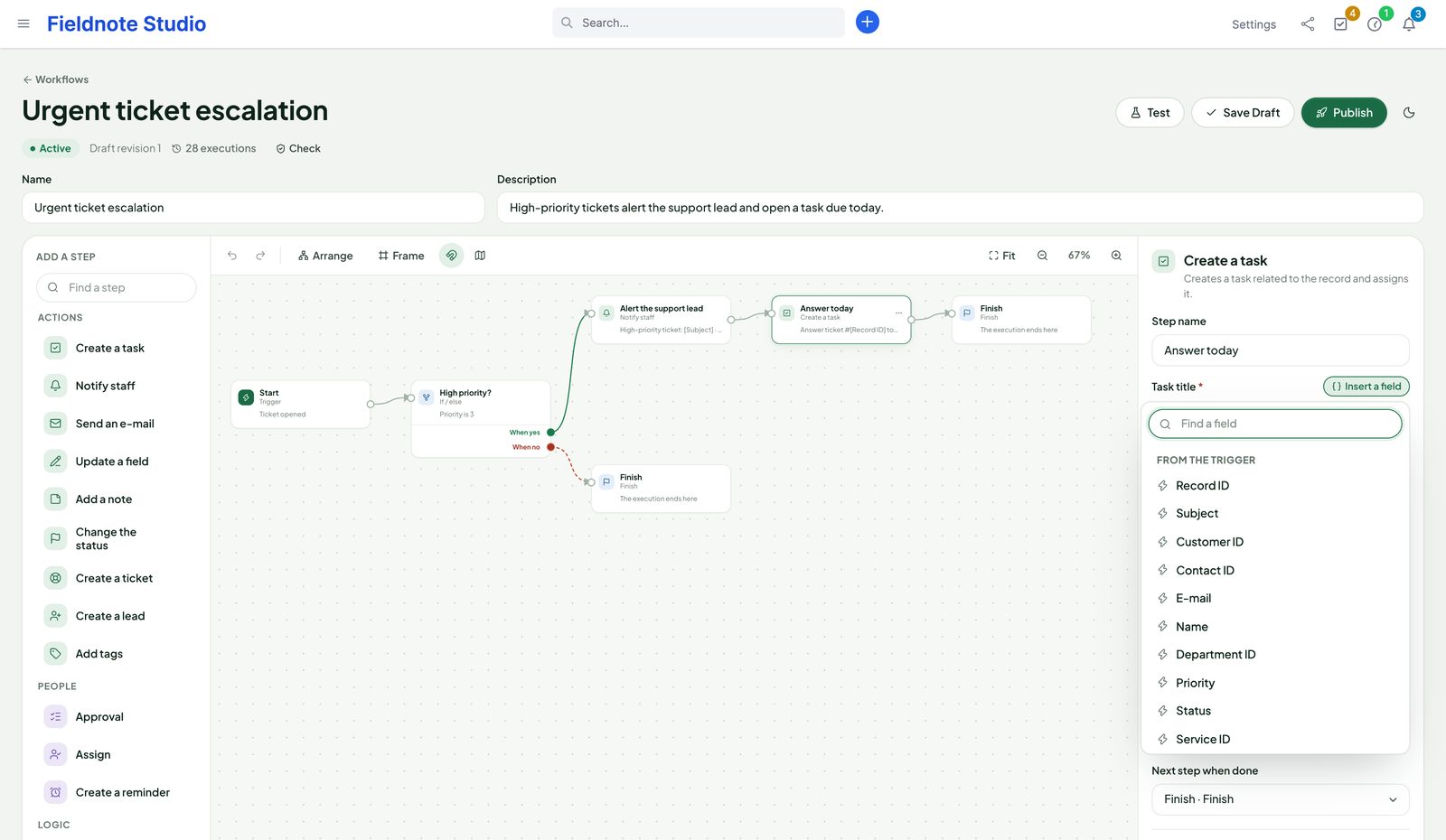
Subjects, messages, titles and request texts can use fields. Click Insert a field and pick from the trigger's fields and the outputs of earlier steps; the builder writes the placeholder for you:
{{event.subject}}— a field of the triggering record (here: a ticket's subject).{{steps.n3.url}}— an output of an earlier step (here: the link of the task stepn3).{{vars.topic}}— a value saved by Set a value or Ask AI Staff.
Fields are looked up, never run as code. A field that does not exist stays empty.
Conditions
If / else compares a field with a value or with another field and continues on yes or no. Operators: is, is not, contains, does not contain, starts with, ends with, is greater than, is less than, is at least, is at most, is one of, is none of (comma separated), has a value, is empty, is not empty, is before (date), is after (date) and is within the next N days. Text comparisons ignore upper and lower case; numbers are compared by value (1500 equals 1500.00).
Triggers
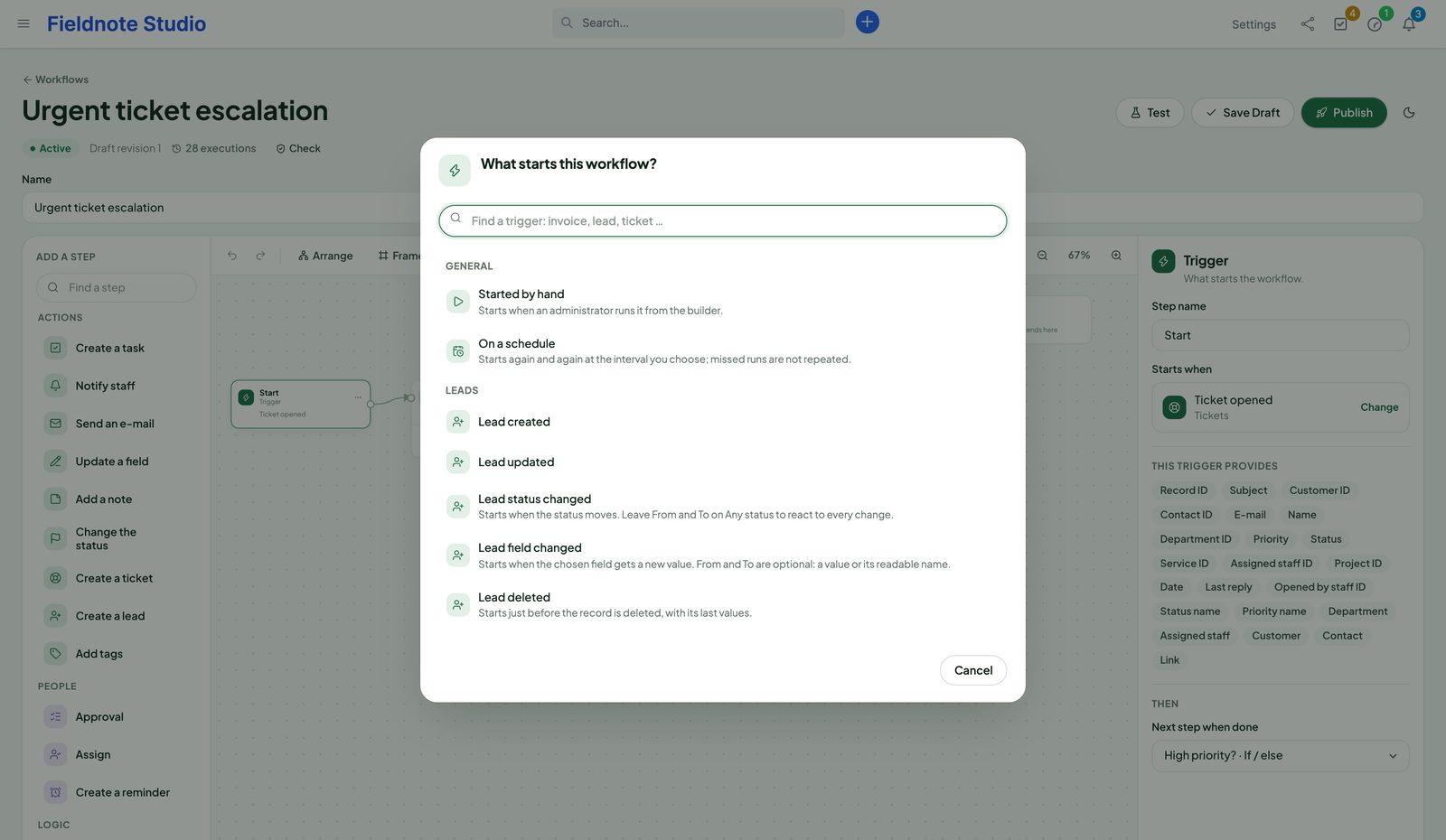
Pick a trigger in the builder: click the trigger step, then Change. Triggers are grouped by record type and searchable. Each trigger lists the fields it provides.
Record triggers
| Record | Triggers |
|---|---|
| Leads | Created, updated, status changed, field changed, deleted; converted to customer, marked as lost, marked as junk; not contacted for N days |
| Customers | Created, updated, activated or deactivated, field changed, deleted |
| Contacts | Created, updated, activated or deactivated, field changed, deleted |
| Tasks | Created, updated, status changed, field changed, deleted; completed, staff assigned, comment added; due soon, overdue |
| Projects | Created, updated, status changed, field changed, deleted; deadline coming up |
| Tickets | Opened, status changed, field changed, deleted, reply added |
| Invoices | Created, updated, status changed, field changed, deleted; sent to the customer, paid in full, cancelled; due soon, overdue |
| Estimates | Created, updated, status changed, field changed, deleted; sent, accepted, declined, converted to an invoice; about to expire |
| Proposals | Created, updated, status changed, field changed, deleted; sent, accepted, declined, comment added; about to expire |
| Contracts | Created, updated, field changed, deleted; signed by the customer; about to end |
| Payments | Recorded, updated, deleted |
| Expenses | Created, updated, field changed, deleted |
| Credit notes | Created, updated, status changed, deleted |
| Subscriptions | Customer subscribed (Stripe checkout); renewal coming up (N days before the next billing date) |
Triggers react to changes made anywhere in Perfex — by staff, by customers in the portal, by other modules — but not to changes made by a running workflow step, so a workflow cannot start itself in a loop. “Deleted” triggers start just before the record is removed, with its last values.
Field changed from / to
Choose <Record> field changed, the field to watch and, optionally, a From value and a To value (a value or its readable name; empty means any). The trigger provides the field, the old and the new value. Status triggers work the same with a list of the record's statuses (“Any status” for every change). Changes made through Perfex's forms, the kanban boards and other modules are seen; one event per changed field.
Date triggers
Date triggers fire a number of days before or after a date of the record: invoice due soon and overdue, estimate and proposal about to expire, contract about to end, task due soon and overdue, project deadline coming up, subscription renewal coming up, lead not contacted for N days. They are checked on every cron run in your time zone. Each record fires once per date; if the date moves, it fires again for the new date.
Manual, schedule and our modules
- Started by hand — Run Published Version in the builder's tools; you type the values the workflow needs.
- On a schedule — every N minutes; missed runs are not repeated.
- Events of our modules — Inbox, Client Hub, Document Studio, Deliverables and Sentinel, listed when the module is active (see Integrations).
Actions and logic
| Step | What it does |
|---|---|
| Send an e-mail | Through Perfex's mail settings, with one of Perfex's e-mail templates and its merge fields or your own subject and text. To: the record's own address, the customer's primary contact, the person responsible, a staff member or an address. Outputs: recipient, sent. |
| Update a field | Sets one field of the record (an allow-list per record type, typed and audited). Outputs: field, old and new value. |
| Change the status | Moves the record to another status through Perfex's own models, with their activity log. |
| Assign | Makes one person responsible, or the next one of a rotation (round robin): lead, ticket, proposal, invoice or estimate owner, task assignee, customer admin or project member. Optional notification. |
| Add a note | A note on the record; a comment on tasks. |
| Add tags | Adds tags; existing tags stay. |
| Create a task | Through Perfex's tasks, related to the record, assigned (with Perfex's notification), due in N days; the workflow owner is the author. Outputs: task ID and link. |
| Create a ticket / a lead / a reminder | A ticket for the record's customer with department and priority; a lead with source and status; a reminder on the record for a colleague, optionally also by e-mail. |
| Notify staff | A Perfex bell that opens the record — or the execution, for people who may see it. |
| Send a web request | See Web request step. |
| If / else | See Conditions. |
| Wait | Waits minutes, hours or days before the next step. |
| Set a value | Keeps a value for later steps as {{vars.name}}. |
| Approval | See Approvals. |
| Finish | Ends the execution. |
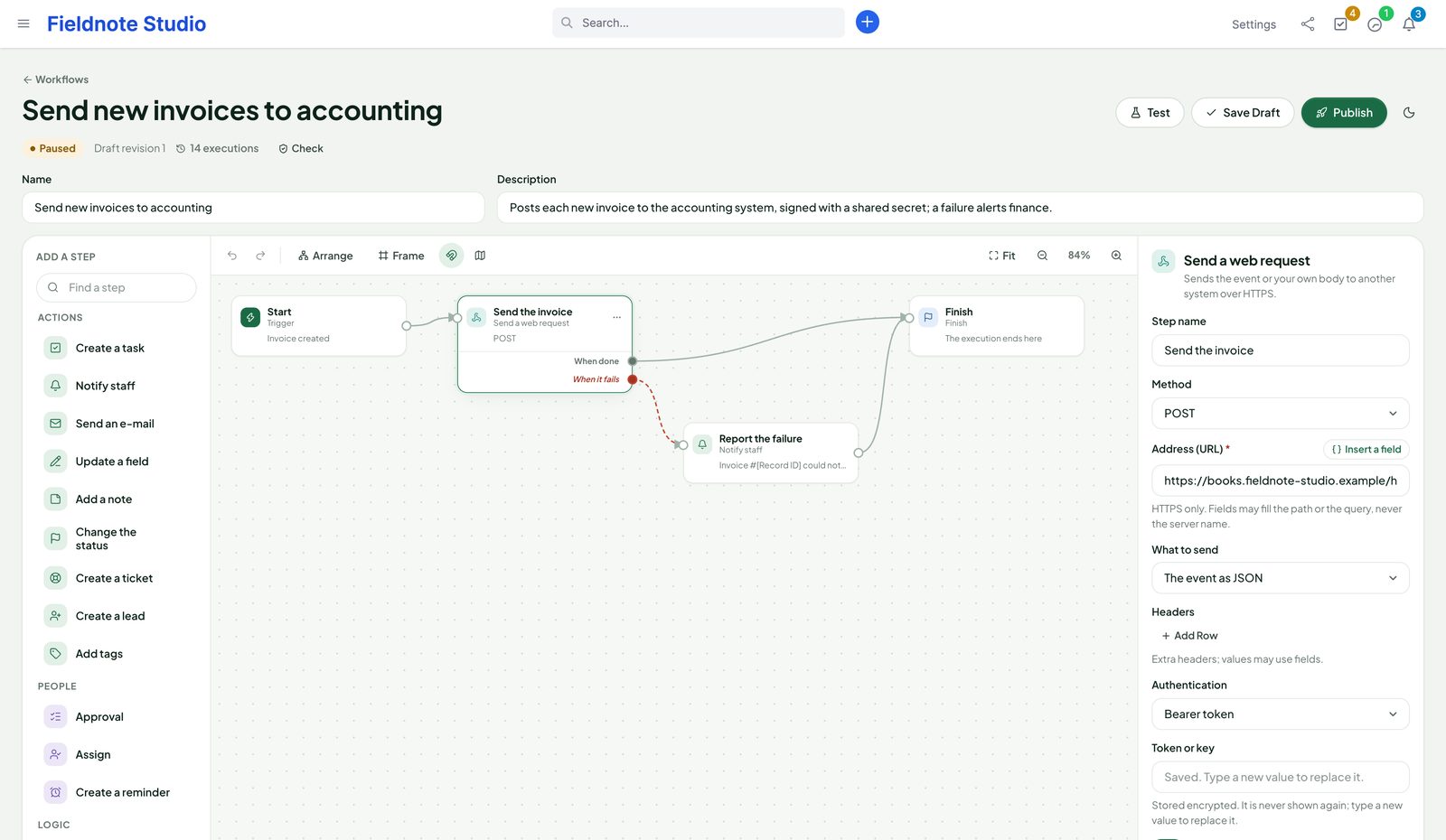
Every action that can fail has an optional error port (“When it fails”). Connected, the execution continues there and the step shows its error; not connected, the execution stops as failed. People chosen in steps are checked again when the step runs: an inactive colleague makes the step fail with a clear message instead of acting.
The builder
The palette on the left lists the steps by category; click one to add it after the selected step, or drag it onto the canvas and connect it by dragging from a port. The panel on the right shows the selected step's settings. The status bar above the canvas shows whether the draft is valid; Check validates it like Publish without publishing.
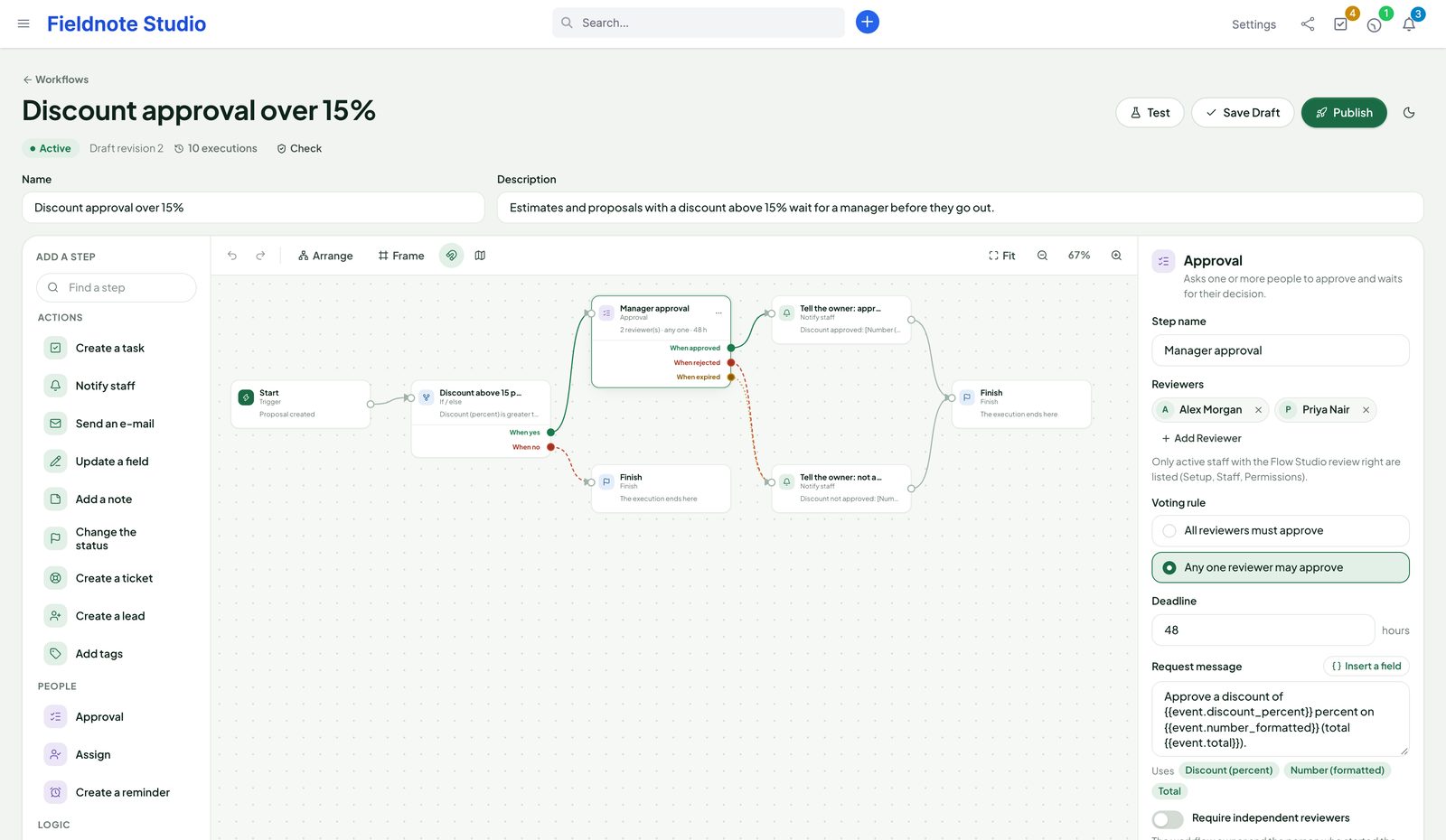
- Fit, zoom, Arrange (automatic layout), a minimap and snapping to a grid.
- Frame groups selected steps under a coloured, named frame.
- Step menu: edit, add after, duplicate, delete.
- Keyboard: ⌘/Ctrl+Z undo, ⌘/Ctrl+Shift+Z or ⌘/Ctrl+Y redo, ⌘/Ctrl+S save, ⌘/Ctrl+D duplicate, Delete remove, arrows move (with Shift further), + / - zoom, Esc deselect.
- On a phone the builder shows an outline of the steps; open one to read its settings.
- Export downloads the published version (or the draft) as a file; Templates › Import brings it back as a draft, matching people by e-mail address. Export Library saves up to 50 workflows in one file. Secrets are never exported.
Approvals
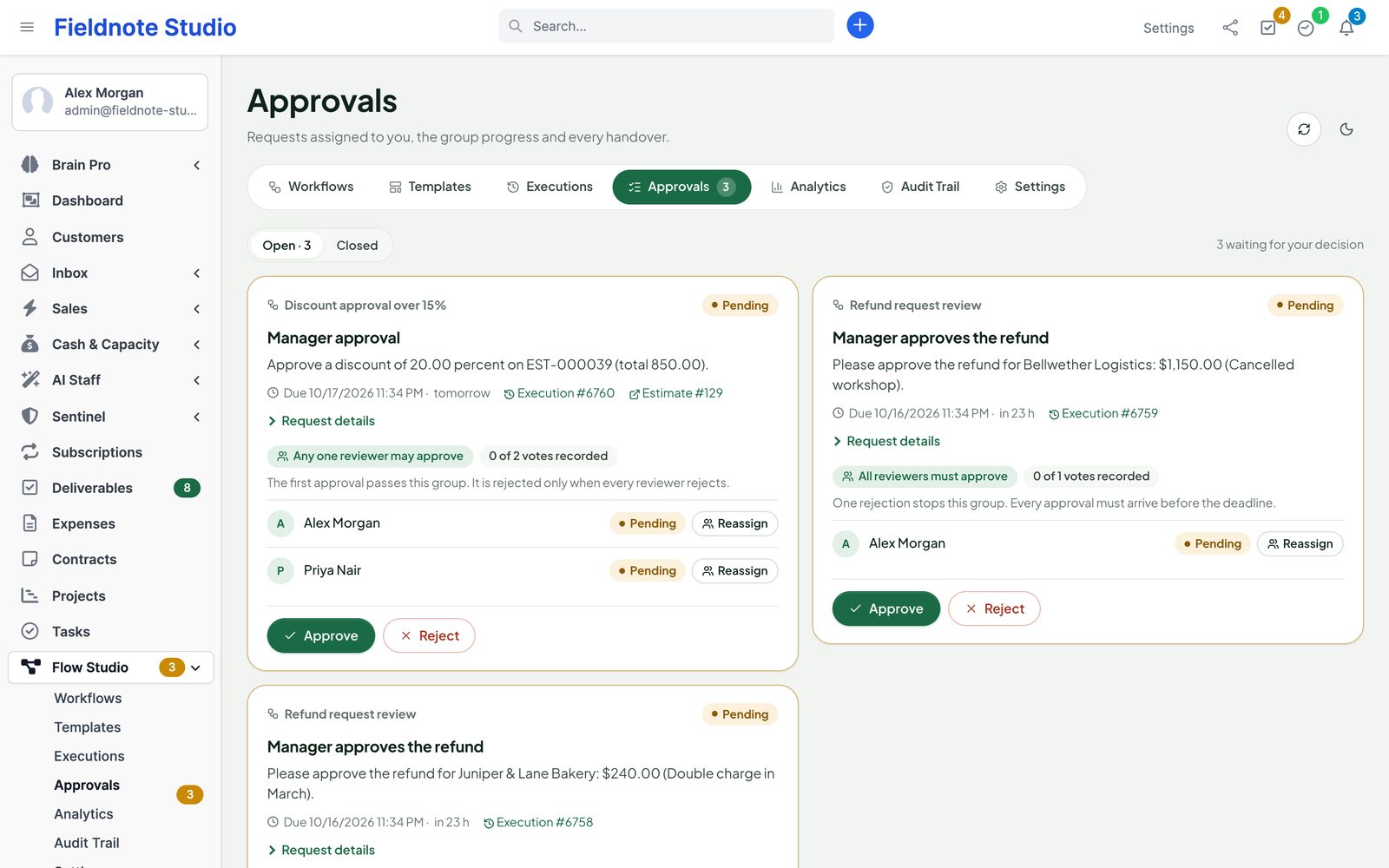
An Approval step pauses the execution and asks people to decide. It continues on approved, rejected or expired (deadline passed).
- Reviewers: one or more staff members with the Approve right. Voting rule: all reviewers must approve (one rejection stops it), or any one reviewer may approve (it is rejected only when everyone rejects).
- Deadline in hours; one reminder before it. The expiry branch runs even while the workflow is paused.
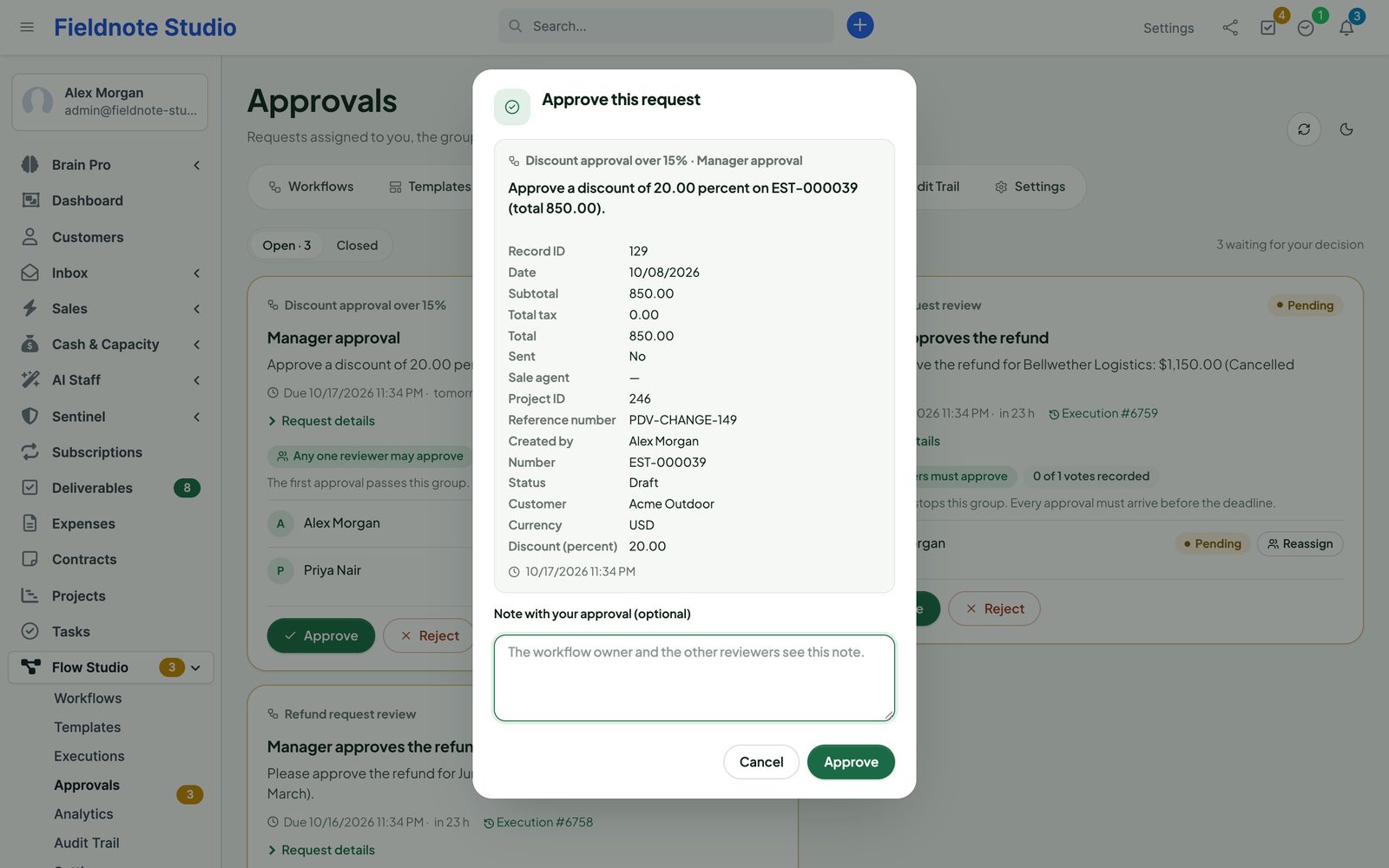
- Request message with fields — reviewers who only hold the Approve right see the fields this message names, not the whole record.
- Require independent reviewers: the workflow owner and the person who started the execution cannot review it.
- Allow delegation: a reviewer can hand the request to a colleague with a reason; administrators can reassign. Every handover is recorded; at most 10 per request.
Reviewers get a Perfex notification. Flow Studio › Approvals lists open requests (with a count in the menu) and closed ones. Approve and Reject open a dialog for an optional note.
Web request step
Send a web request sends the event, your own body or nothing to another system and hands the answer to the next steps (status, ok, body, json fields and attempts).
| Setting | Options |
|---|---|
| Method | POST, GET, PUT, PATCH, DELETE |
| Address (URL) | An https:// address; fields may be used in it. |
| What to send | The event (all trigger fields as JSON), your own body, or nothing. Format JSON, form or text; at most 64 KB. |
| Headers | Name / value rows; fields may be used in values. |
| Authentication | None, a bearer token, or a key in a header you name. |
| Sign the request | HMAC-SHA256 signature with a signing secret (see below). |
Security
- HTTPS only; redirects are not followed (a 3xx is the answer).
- The host is resolved once, every address is checked and the connection is pinned to a checked address, so the name cannot point elsewhere in between.
- Loopback, private, link-local, cloud metadata, multicast and reserved addresses are refused, including their IPv6 and NAT64 / 6to4 forms. Host names must be plain ASCII (use the punycode form).
- Settings › Outgoing Requests: an allow list (only these hosts;
*.example.comfor subdomains) and a deny list. They never open the blocked ranges. - Time limit per attempt (10 s by default, 3–30), answers cut at 256 KB, up to 2 retries (0–5) with a short pause on server errors and connection problems; one step never takes longer than about a minute.
- Tokens and signing secrets are sealed when you save and never shown again; leaving the field empty keeps the stored one. Exports never contain them. Header values and query strings are masked in the step log.
For an installation on a private network only, an administrator can add define('PFS_HTTP_ALLOW_PRIVATE', true); to application/config/app-config.php; private addresses (and plain http) are then allowed. Cloud metadata addresses stay closed.
Checking the signature
Every request carries User-Agent: PerfexFlowStudio/1.0.0 and X-Flow-Studio-Execution (the execution number). With signing on, it also carries:
X-Flow-Studio-Timestamp: 1760640000
X-Flow-Studio-Signature: sha256=<hex HMAC-SHA256 of "<timestamp>.<raw body>" with your signing secret>
On the receiving side, recompute and compare in constant time, and refuse old timestamps:
$body = file_get_contents('php://input');
$ts   = $_SERVER['HTTP_X_FLOW_STUDIO_TIMESTAMP'] ?? '';
$sig  = $_SERVER['HTTP_X_FLOW_STUDIO_SIGNATURE'] ?? '';
$ok   = abs(time() - (int) $ts) < 300
     && hash_equals('sha256=' . hash_hmac('sha256', $ts . '.' . $body, $secret), $sig);
Templates
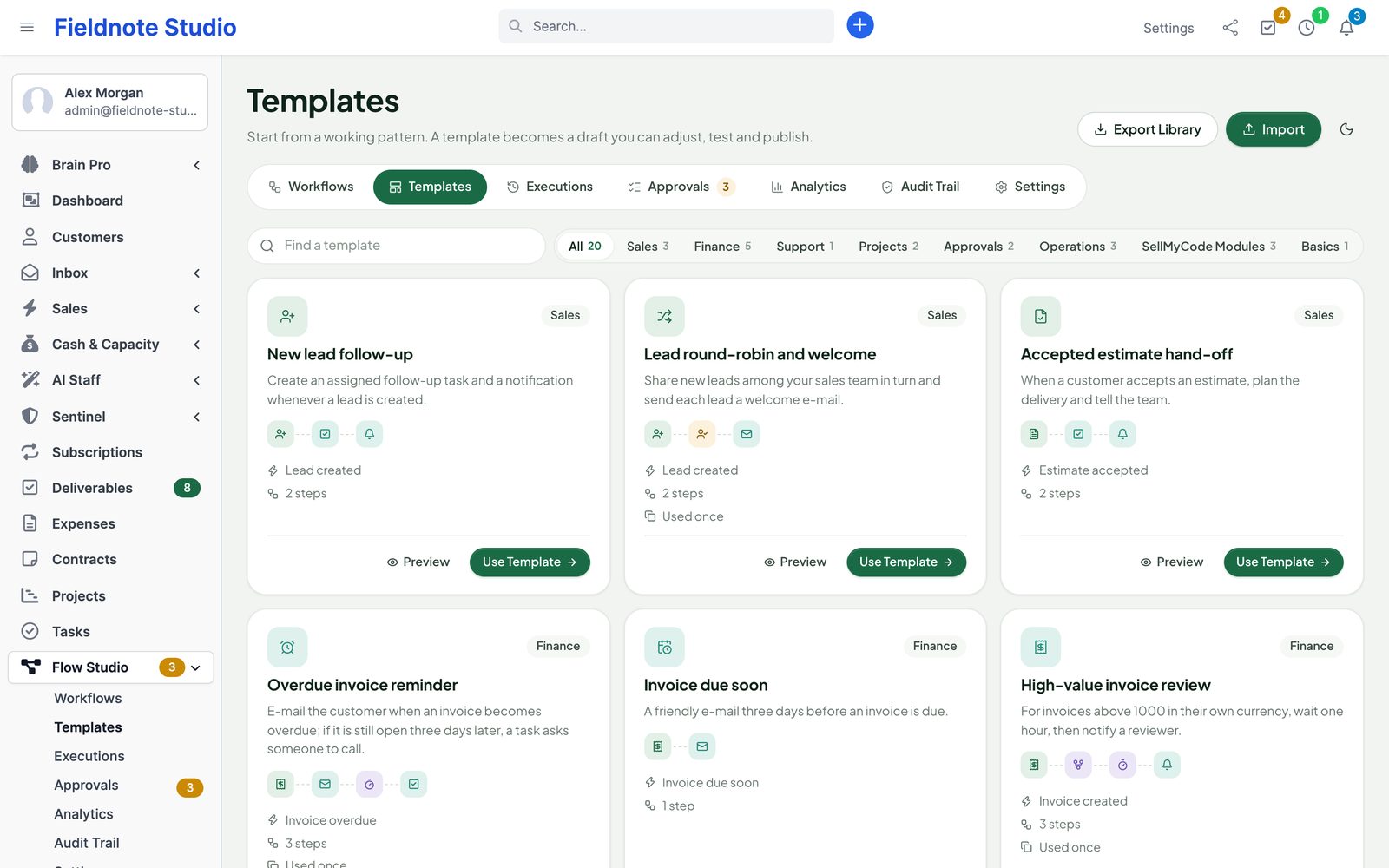
Flow Studio › Templates holds 20 starters by category. Preview shows the steps; Use Template asks which colleague the steps should name and opens the new draft. Templates that need a module you do not have are not shown.
| Category | Templates |
|---|---|
| Sales | New lead follow-up · Lead round-robin and welcome · Accepted estimate hand-off |
| Finance | Overdue invoice reminder · Invoice due soon · High-value invoice review · Payment thank-you · Send new invoices to another system |
| Support | High-priority ticket escalation |
| Projects | Project kickoff · Overdue task nudge |
| Approvals | Review before acting · Discount approval |
| Operations | Customer onboarding · Contract renewal · Daily operations reminder |
| SellMyCode modules | New conversation follow-up (Inbox) · AI triage of incoming messages (Inbox + AI Staff) · Client file received (Client Hub) |
| Basics | Your first workflow |
Testing
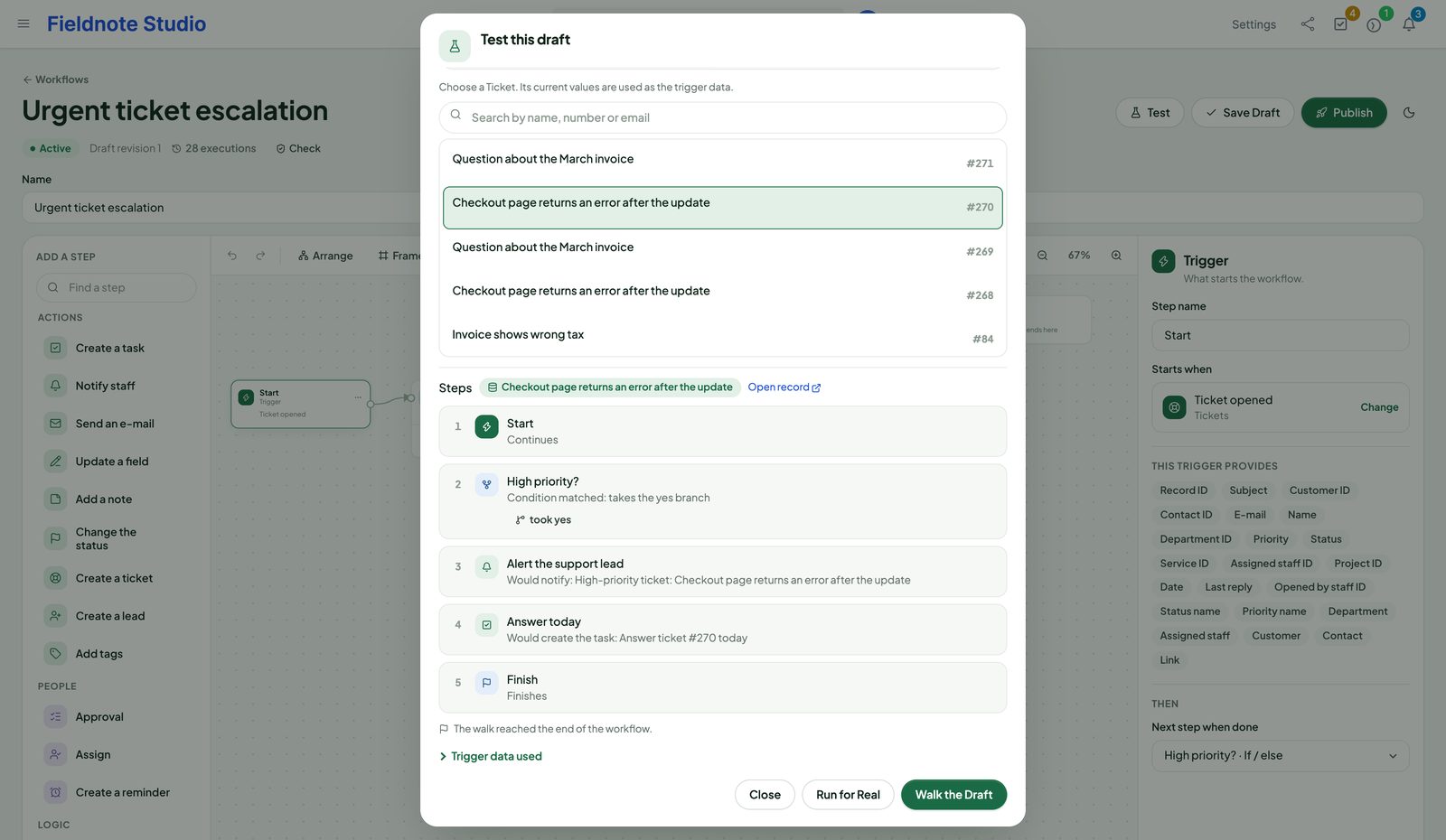
- Test (builder) runs the draft against a real record you search for — or against values you type, for workflows started by hand — and lists every step with its result, branch and outputs. Nothing is sent, changed or created.
- Test on a Real Record (builder tools) starts a real execution of the published version for a record, marked as a test. Its effects are real; test runs are hidden from the executions list unless you choose With tests, and left out of analytics unless you include them.
- Run Again on an execution starts a new one with the same event data.
Executions
Flow Studio › Executions lists executions newest first: status, workflow and version, record, start and duration. Filter by status, workflow, period and tests, or search by execution, record number or workflow name.
| Status | Meaning |
|---|---|
| Queued / Running | Waiting for, or in, the next worker run. |
| Waiting | In a Wait step. |
| Approval | Waiting for reviewers. |
| Completed | Reached Finish. |
| Failed | A step failed without an error branch. Retry Safe Step runs it again when it has no effect (condition, value, finish); after a failed action, check the record and use Run Again. A failed Ask AI Staff step has Ask AI Again instead (see below). |
| Interrupted | The server stopped while a step with an effect was running. Flow Studio never repeats such a step by itself; check the record, then run again or cancel. |
| Cancelled | Cancelled by a person. |
An execution page shows each step with its time, duration, input and result, the details and the event data. Links to records open the record in Perfex.
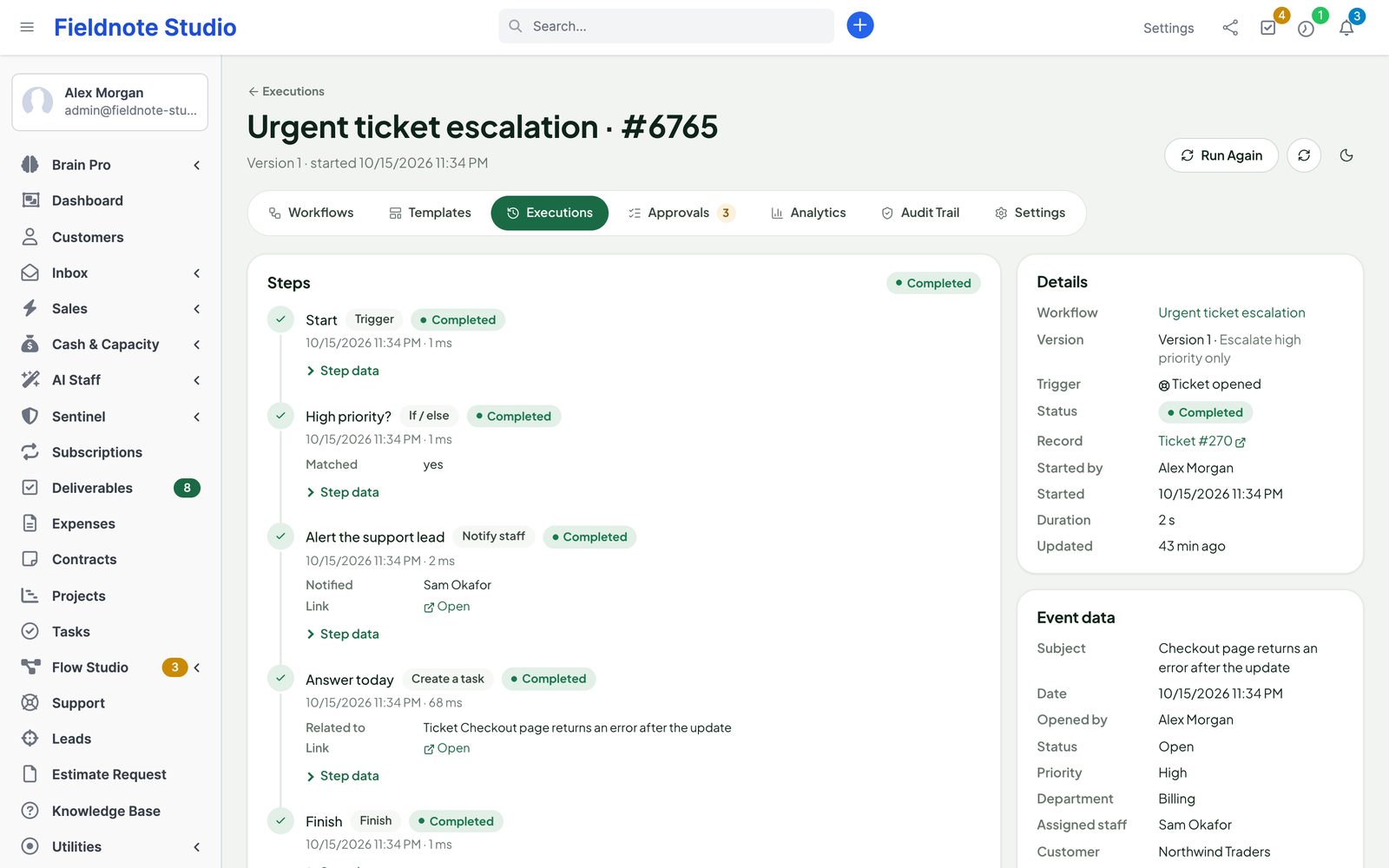
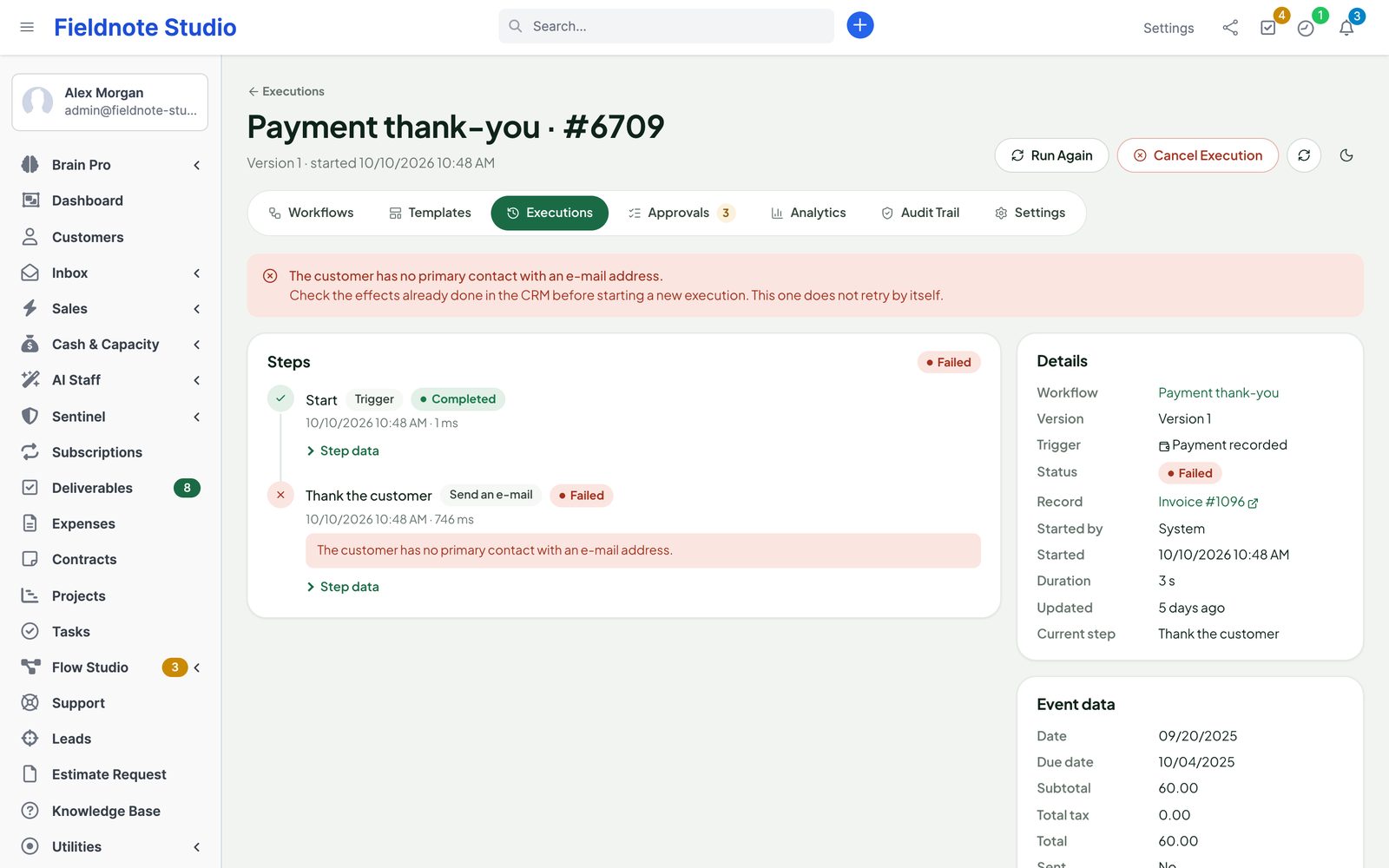
Workers and failures. One workflow that cannot run (for example a damaged version) is paused with the reason, its owner is notified, and the others keep running. Limits per workflow (500 executions an hour by default) and per workflow and record (20 an hour) stop loops and floods; the audit trail records when a limit was hit.
Analytics
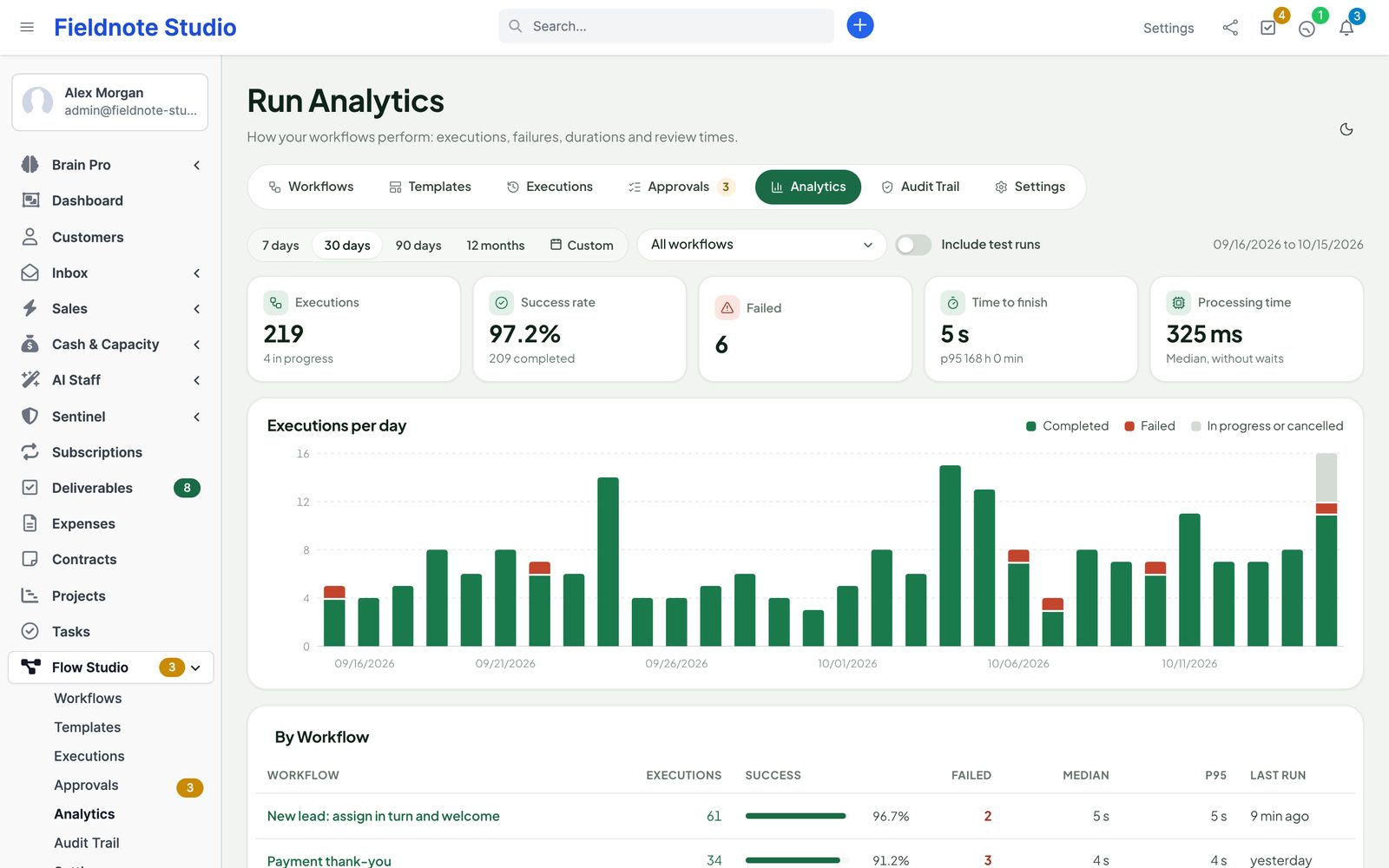
Flow Studio › Analytics shows executions, success rate, failures, time to finish (median and 95th percentile) and processing time without waits, executions per day, and tables by workflow, by step, by error and for approvals (time to decision per reviewer, open and overdue). Periods: 7, 30, 90 days, 12 months or custom; one workflow or all; tests in or out. Staff with View (Own) see the numbers of their own records only.
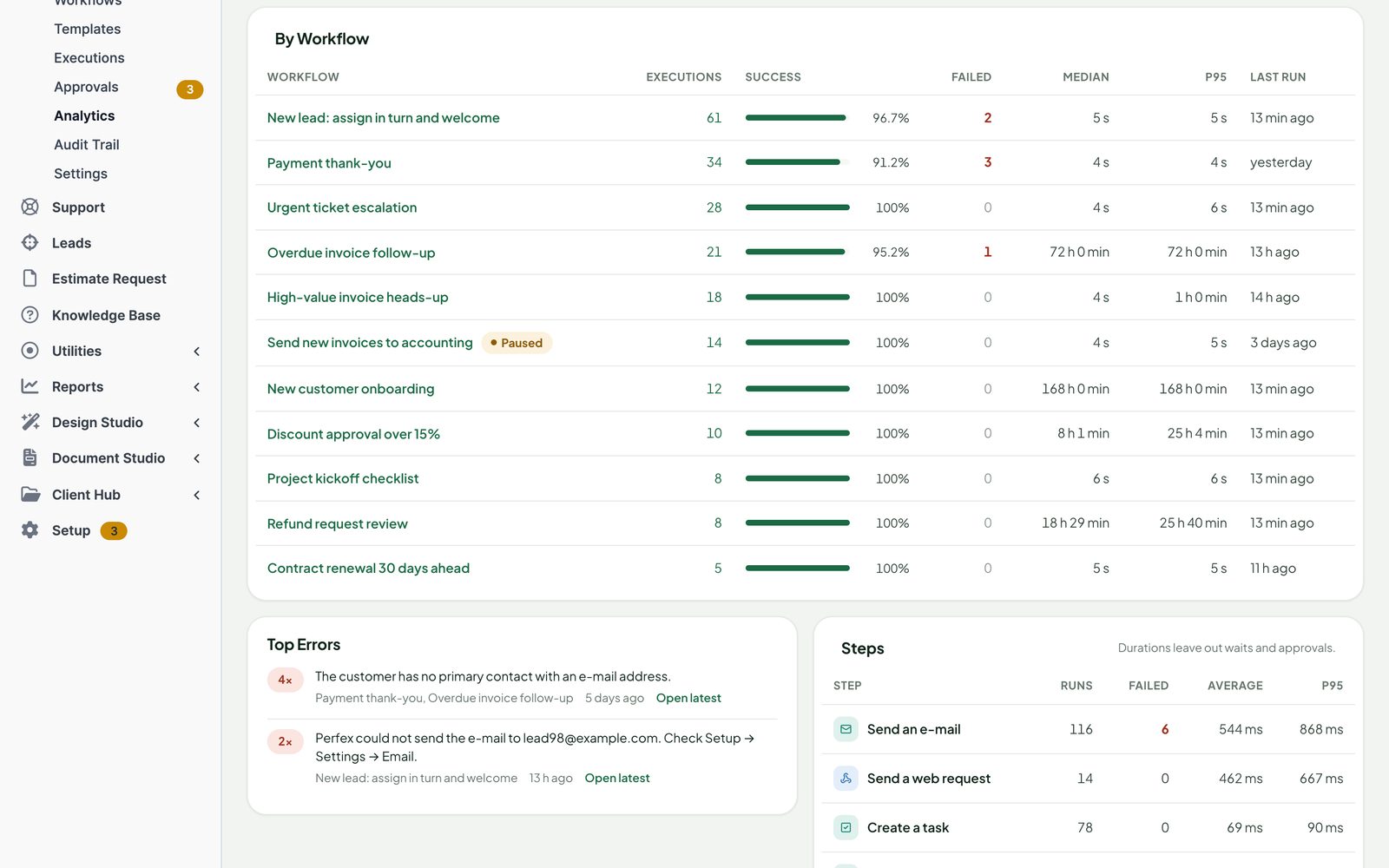
Audit Trail lists every change: drafts saved, versions published, workflows paused, archived, imported, settings saved, executions cancelled, review handovers, limits reached.
Integrations
Each integration appears only while the other module is active; turning that module off never breaks Flow Studio (a step that needs it fails with a clear message or takes its error branch).
| Module | Adds |
|---|---|
| Perfex Inbox All-in-One | Triggers: new conversation, message received, status changed, assigned, SLA target missed, any activity. Steps: send a message (reply in the conversation, or to a contact on an account), assign, label, change status, add an internal note. Messages go out through Inbox's own queue. |
| Perfex AI Staff | Ask AI Staff: classify into your categories, summarise or draft; the answer is saved as a value for the next steps. It never sends or changes anything itself. Switch: Settings › Family Modules. When the step itself fails (provider error or timeout, rate limit, an AI Staff budget, AI Staff unavailable), an administrator can use Ask AI Again on the execution page once the cause is fixed: the dialog shows the last error and that it sends one more AI request; AI Staff's routing, budgets, permissions and usage log apply as for the first. At most 3 times per step and execution, never automatically; every retry is in the audit trail and on the execution page (who, when, previous error). An answer AI already gave is kept: when a later step fails, that step is retried and reuses the answer. |
| Perfex Brain Pro | Six widgets: executions, success rate, failures, executions by workflow, open approvals and my reviews. |
| Perfex Sentinel | Governance actions (publishing, pausing, deleting, importing, settings, review reassignments, cancellations) in Sentinel's audit log; triggers on security events and on high or critical events. |
| Perfex Client Hub | Triggers: customer uploaded a file, share link created, feedback posted, feedback status changed. |
| Perfex Deliverables | Triggers: new version uploaded, version approved, changes requested, comment added, delivered, scope approved, change request approved, any event. |
| Perfex Document Studio | Triggers: template published, default template changed. |
Other modules can start workflows with the action pfs_emit_event (trigger “Extension event (by key)”).
Permissions
Staff rights are set in Setup › Staff › Roles (or per staff member), feature Flow Studio. Administrators can do everything.
| Who | Can |
|---|---|
| Administrator | Build, test, publish, pause, archive, import and export workflows; settings; everything below. |
| View | All workflows, executions, analytics and the audit trail (read only). |
| View (Own) | Analytics and executions about their own records: executions they started, ones they review, and records they are responsible for (assigned lead, task assignee or follower, project member, assigned ticket, sales agent, customer admin and so on). |
| Approve | The approvals assigned to them, with only the fields the request names. |
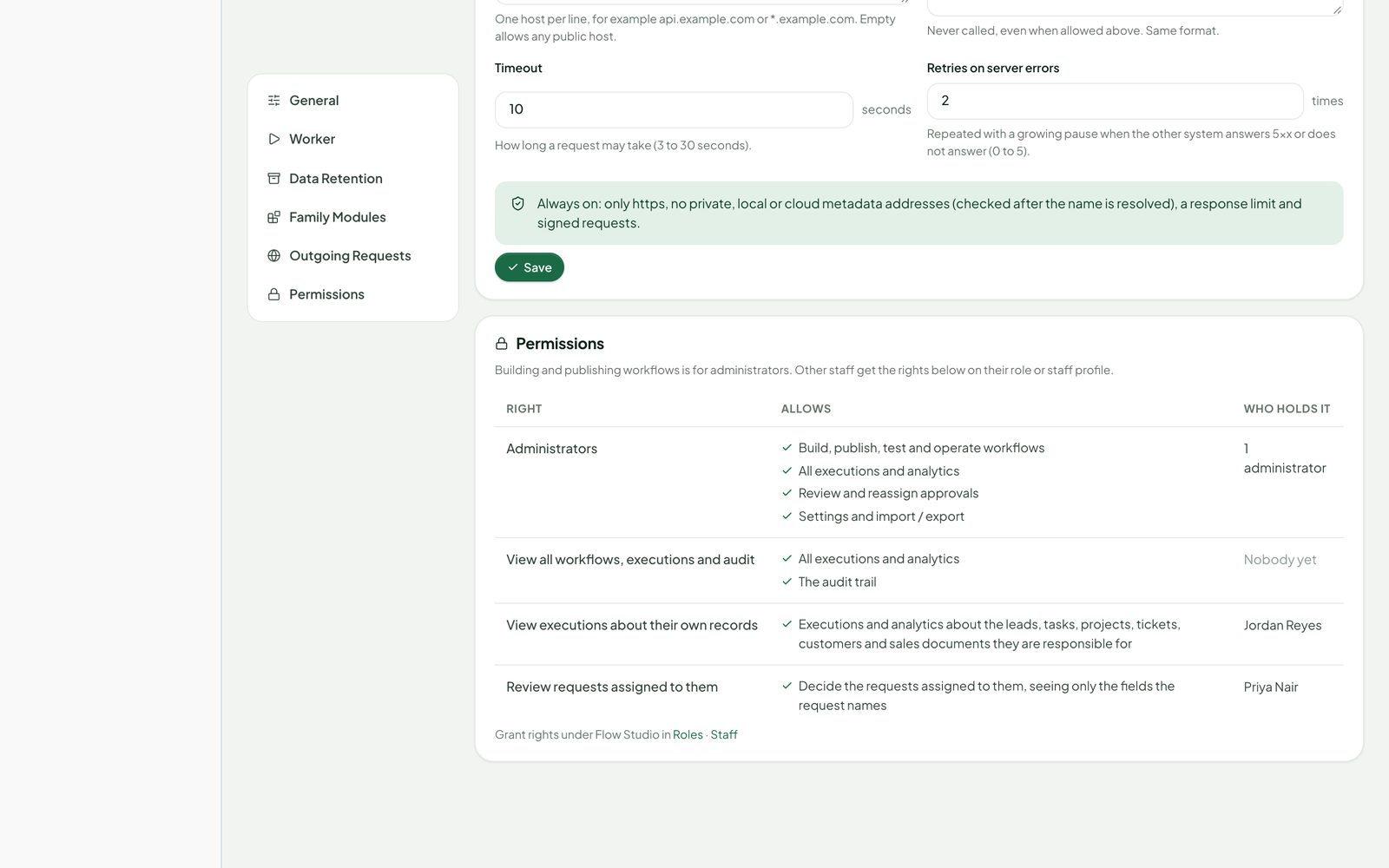
Data retention
Settings › Data Retention decides how long history is kept. An hourly clean-up on the worker deletes:
- finished executions with their steps, review rows and processed events older than Keep execution data for (180 days by default; at least 7, or 0 to keep everything — not advised under GDPR); executions still waiting are kept;
- audit entries older than Keep the audit trail for (730 days by default; at least 30, or 0);
- old field snapshots and secrets no longer used by any workflow.
The section shows the last clean-up and how much is due at the next one. When a lead, customer or contact is deleted in Perfex, its copies in finished executions and processed events are cleared.
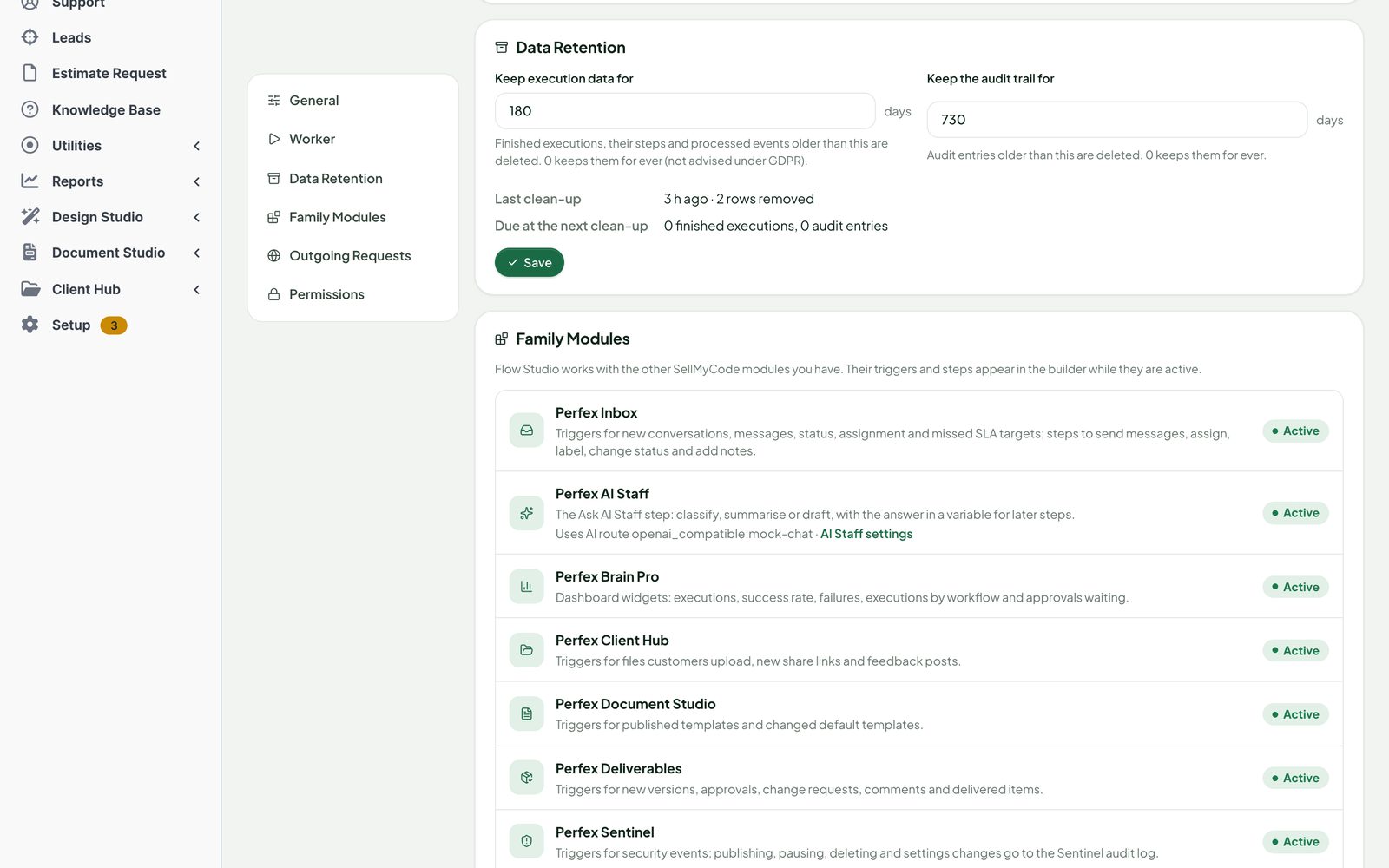
Settings
| Section | Settings |
|---|---|
| General | Light or dark (follows Perfex Brain Pro's setting when it is installed, shared by all our modules). |
| Worker | Time per cron run (15 s by default, 5–120); executions per workflow per hour (500); executions per workflow and record per hour (20). Last run, and Run Worker Now. |
| Data Retention | See Data retention. |
| Family Modules | Let workflows ask AI Staff; send governance actions to Sentinel; offer widgets in Brain Pro. |
| Outgoing Requests | Allow and deny lists of hosts, time limit, retries. |
| Permissions | Who holds which Flow Studio right, with a link to the roles. |
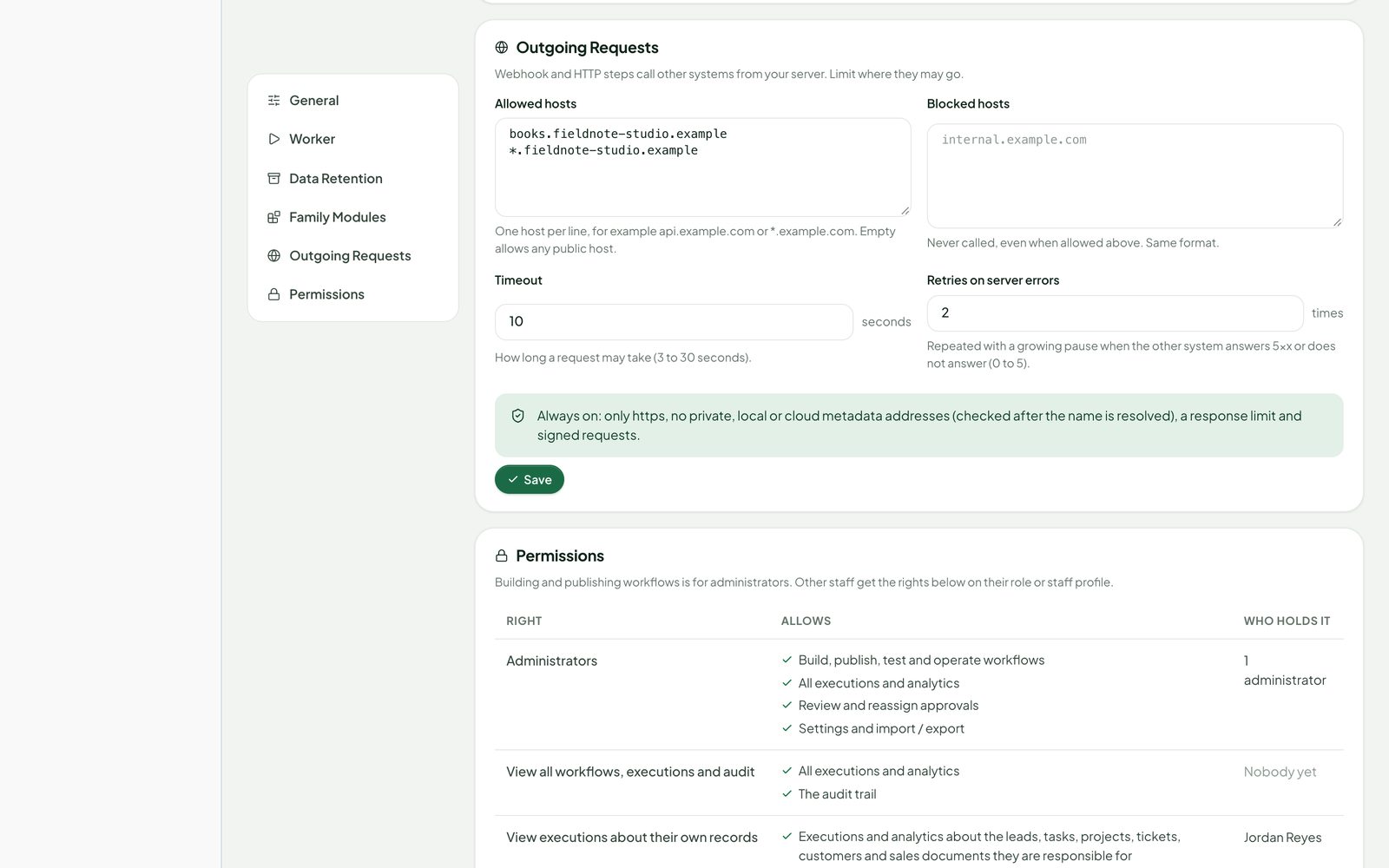
Security notes
- Only administrators build and publish; workflows act with the rights of their owner, checked again at every step.
- Published versions are immutable and verified with a SHA-256 checksum before every step.
- A step with an effect is marked as started before it acts; a crash leaves the execution interrupted instead of repeating an e-mail or a task.
- Each event starts a workflow once; a double click on Run starts one execution.
- No code in workflows: fields are looked up, conditions use fixed operators, texts are escaped.
- Events carry plain values only, at most 12 KB; there is no public endpoint.
- Every change is a POST with Perfex's CSRF token and a permission check; errors come back as messages, never as raw error pages.
- No Perfex core file is changed.
Deactivate and uninstall
Deactivate in Setup › Modules: the menu, the triggers and the worker stop at once; your workflows and history stay. Activating again continues where it stopped; events that happened while it was off are not recorded.
Uninstall (after deactivating) deletes every Flow Studio table, setting, staff right and notification, and Perfex deletes the module folder. Export your workflows first (Templates › Export Library) if you may want them back.
Troubleshooting
- Nothing runs; executions stay Queued. The worker runs on Perfex's cron. Check Setup › Settings › Cron Job and the “worker last ran” line on the Workflows page; Run Worker Now runs it once by hand.
- A workflow does not start. Is it active (not paused, not a draft)? Was the event before its last publication? Did a running workflow cause the change (those events are ignored to prevent loops)? Did it reach its hourly limit (see the audit trail)?
- “Perfex could not send the e-mail.” Check Setup › Settings › Email and send a test e-mail from there.
- A web request is refused. The address must be https and public; check the allow and deny lists in Settings › Outgoing Requests.
- A workflow paused itself. Its card shows the reason; open the builder, fix and publish again.
- A reviewer cannot see a request. They need the Approve right and must still be an active staff member.
FAQ
Can I edit a workflow while it runs?
Yes. You edit the draft; running executions finish on their version.
Can customers see anything?
No. Flow Studio is for staff. Customers only receive what your steps send them.
Does it work without AI or our other modules?
Yes. They add triggers, steps and widgets when installed; everything else works the same.
Is it translated?
Yes: English, Spanish, Portuguese (Brazil), French, German, Italian, Dutch, Turkish and Russian.
How do I get support?
Send the module, Perfex and PHP versions and a screenshot of the execution through SellMyCode support — never passwords or secrets.
Changelog
Current version 1.0.6 (25 Oct 2026). Release notes of every version, newest first: perfexcrm.app/flow-studio/changelog/.
1.0.0 — 2026-10-16
- Triggers on 14 Perfex record types (subscriptions included): created, updated, status changed, field changed from / to, deleted, and outcome moments (lead converted, lost, junk; task completed, assigned, comment; ticket reply; invoice sent, paid, cancelled; estimate sent, accepted, declined, converted; proposal sent, accepted, declined, comment; contract signed).
- Date triggers: invoice due soon and overdue, estimate and proposal expiring, contract ending, task due soon and overdue, project deadline, lead not contacted.
- Actions: send e-mail (Perfex templates or your own text), update a field, change the status, assign (fixed or round robin), add a note, add tags, create a task, ticket, lead or reminder, notify staff, and a guarded web request with signing and sealed secrets; error branches.
- Conditions with 18 operators; approvals with groups, all / any voting, deadlines, reminders, independence, delegation and reassignment.
- New builder: palette, port dragging, frames, minimap, arrange, undo / redo, keyboard, field picker, Check, version notes and comparison, phone outline; test on real records, test runs and run again.
- Executions list and page, analytics, audit trail, template gallery with 20 templates, import / export with people mapping and libraries.
- Integrations with Inbox, AI Staff, Brain Pro, Sentinel, Client Hub, Deliverables and Document Studio.
- Engine: non-blocking worker lock, a broken workflow pauses itself without stopping others, cron safeguard, hourly limits, data retention and privacy clean-up.
- Permissions View, View (Own) and Approve; light and dark; nine languages. Additive upgrade from 0.2.
0.2.0 and 0.1.0 — development previews
- First visual builder, published versions, simulation, executions, single and group approvals with delegation.
The full list is in changelog.txt in the download.