Perfex TeamPulse documentation
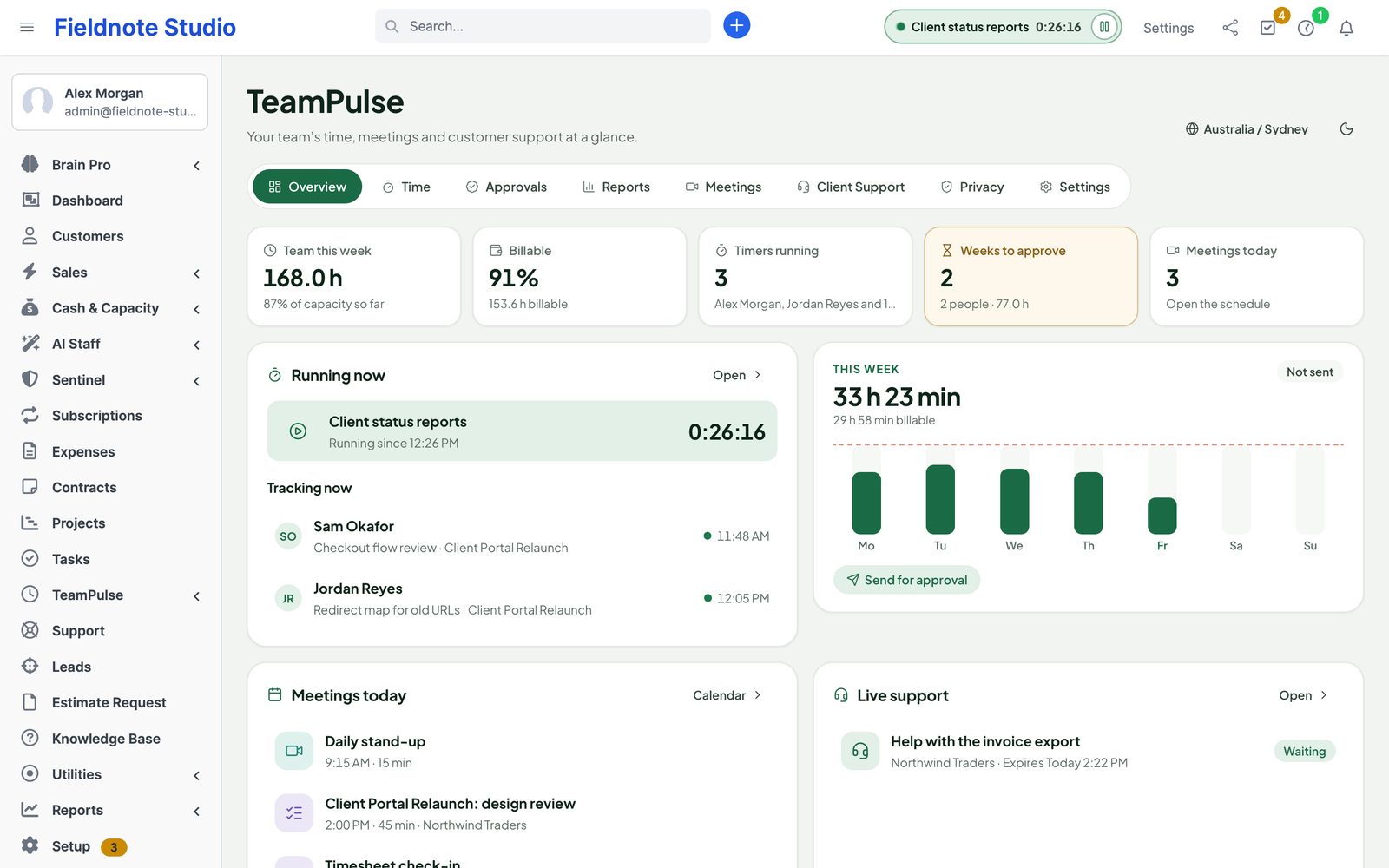
Perfex TeamPulse adds four things to Perfex CRM: time (a timer in the Perfex header, manual entries, weekly timesheets with approvals, and reports), meetings (agenda, shared notes and next steps, with or without a Jitsi or Zoom call), planning (project roadmaps, OKRs and an @mentions inbox) and Client Support (consent-based, view-only screen sharing with a customer).
Time on Perfex tasks is written into Perfex's own task timers, so the task timesheet, project hours and Bill tasks on invoices keep working. TeamPulse records only the time people declare and the meetings they hold — never screenshots, keystrokes, websites or location.
Installation
Requirements
- Perfex CRM 3.4 or newer. Tested with Perfex 3.4.1.
- PHP 8.0 or newer with the
curlandopensslextensions; MySQL or MariaDB. - Perfex's cron job (Setup › Settings › Cron Job shows the command), ideally every minute. It stops forgotten timers, sends meeting reminders, picks up Perfex's own timers, processes Zoom events and removes old data.
- Perfex encryption configured (it is on every normal installation): Zoom, Jitsi and TURN secrets are sealed with it.
- Only if you use them: outgoing HTTPS to Zoom; the CRM served over HTTPS for Client Support, and a TURN relay across networks (see STUN and TURN).
- Perfex Brain Pro, Cash & Capacity, AI Staff, Sentinel and Design Studio are optional.
Install
- Back up the CRM database and files.
- Extract the download
perfex-team-pulse-1.0.0.zipon your computer. Inside are the installableperfex_team_pulse-1.0.0.zip, this documentation, the changelog and the licenses. - In Perfex, open Setup › Modules, upload the inner
perfex_team_pulse-1.0.0.zip, then install and activate Perfex TeamPulse: Time, Meetings & Client Support. - Open TeamPulse in the sidebar. Administrators see every tab; give your team their rights next (Permissions).
Upgrade from 1.x
Upload the new perfex_team_pulse-<version>.zip in Setup › Modules over the installed module (never uninstall first), then click Upgrade database if Perfex offers it. 1.2.0 only adds tables (roadmap phases and links, OKRs, mentions, import batches) and options; Perfex's milestones and tasks are not altered. New rights (roadmaps, OKRs) start unassigned: give them in Setup › Staff › Roles. The client portal roadmap stays off.
Upgrade from the 0.2 preview
Data made with the 0.1 or 0.2 development preview carries over. The upgrade only adds tables, columns and indexes; it never removes your data.
- Back up the database.
- Upload
perfex_team_pulse-1.0.0.zipin Setup › Modules over the installed module — do not uninstall the old one first: uninstalling deletes its data. - TeamPulse completes its database upgrade on the first page load after the upload.
- Open TeamPulse › Time: the 0.2 work sessions (with their approved corrections) are now time entries. Meetings and support sessions are kept.
- Zoom host links stored by 0.2 are removed; joining a Zoom meeting as host fetches a fresh link from Zoom each time.
- The 0.2 desktop companion is not part of 1.0. Its server side is switched off (Settings › Labs stays off); its data follows the retention periods and can be removed in Settings › Privacy & retention.
Files and tables
| Where | What |
|---|---|
modules/perfex_team_pulse/ | The module, with its interface font and the Lucide icons. Nothing is loaded from a CDN. |
Tables ptp_* | Time entries, weekly timesheets, meetings with participants, contacts, notes, next steps and AI proposals, support sessions, Zoom events, roadmap phases and links, OKR periods, objectives, key results and check-ins, mentions, import batches and the audit trail. |
Perfex taskstimers | Time on tasks, written by TeamPulse like Perfex's own timer (the billing record). |
Options ptp_* | Settings. Secrets are sealed with Perfex's encryption and never shown again. |
First steps
- Check that Perfex's cron job runs (Setup › Settings › Cron Job).
- In Setup › Staff › Roles (or per staff member), feature TeamPulse: give the team Track own time and join invited meetings, team leads Approve timesheets, the support desk Run own Client Support sessions.
- Open TeamPulse › Settings: check Time rules (daily limit, automatic stop, billing) and Approvals; each person sets their time zone with the globe button.
- Start a timer from the Perfex header on a task you are assigned to. At the end of the week, open Time and press Send for approval.
- Optional: connect Jitsi or Zoom in Settings › Video meetings, and a relay in Settings › Client Support.
Permissions
Rights are set in Setup › Staff › Roles or per staff member, feature TeamPulse. Administrators can do everything.
| Right | Can |
|---|---|
| Track own time and join invited meetings | The timer, their own entries and week, sending the week; their own reports; meetings they organize or are invited to; scheduling meetings. |
| See everyone's time and reports | The time, weeks and reports of the whole team (read only). |
| Approve timesheets | The approvals queue for the people they approve for (everyone, or their Perfex departments — see Approvals). |
| Manage all meetings | Every meeting, including editing, cancelling and moderating calls. |
| Configure TeamPulse | Settings, data removal and the data export of any person. |
| Run own Client Support sessions | Invitations for customers they can access in Perfex, and their own sessions. |
| Run Client Support for all accessible customers | Every session of the customers they can access. |
| See project roadmaps | The portfolio and the roadmap of every project they can see in Perfex (members, or everyone with the Perfex right to view projects); the Roadmap tab on Perfex's project page. |
| Plan roadmaps | Phases, dependencies and the client portal switch. Moving milestones also needs Perfex's Edit milestones (Projects); moving tasks needs Perfex's Edit (Tasks). |
| See OKRs, own personal objectives and check in | Every objective of every period (OKRs are open to the team), their own personal objectives with key results, check-ins on key results or objectives they own. |
| Manage all OKRs and periods | Company and department objectives, any objective's key results and check-ins, periods. |
The Mentions inbox needs no right: every staff member sees their own mentions, nobody else's.
Everyone with any TeamPulse right sees the Privacy tab with what TeamPulse keeps about them and can download it.
Timer and time entries
Header timer
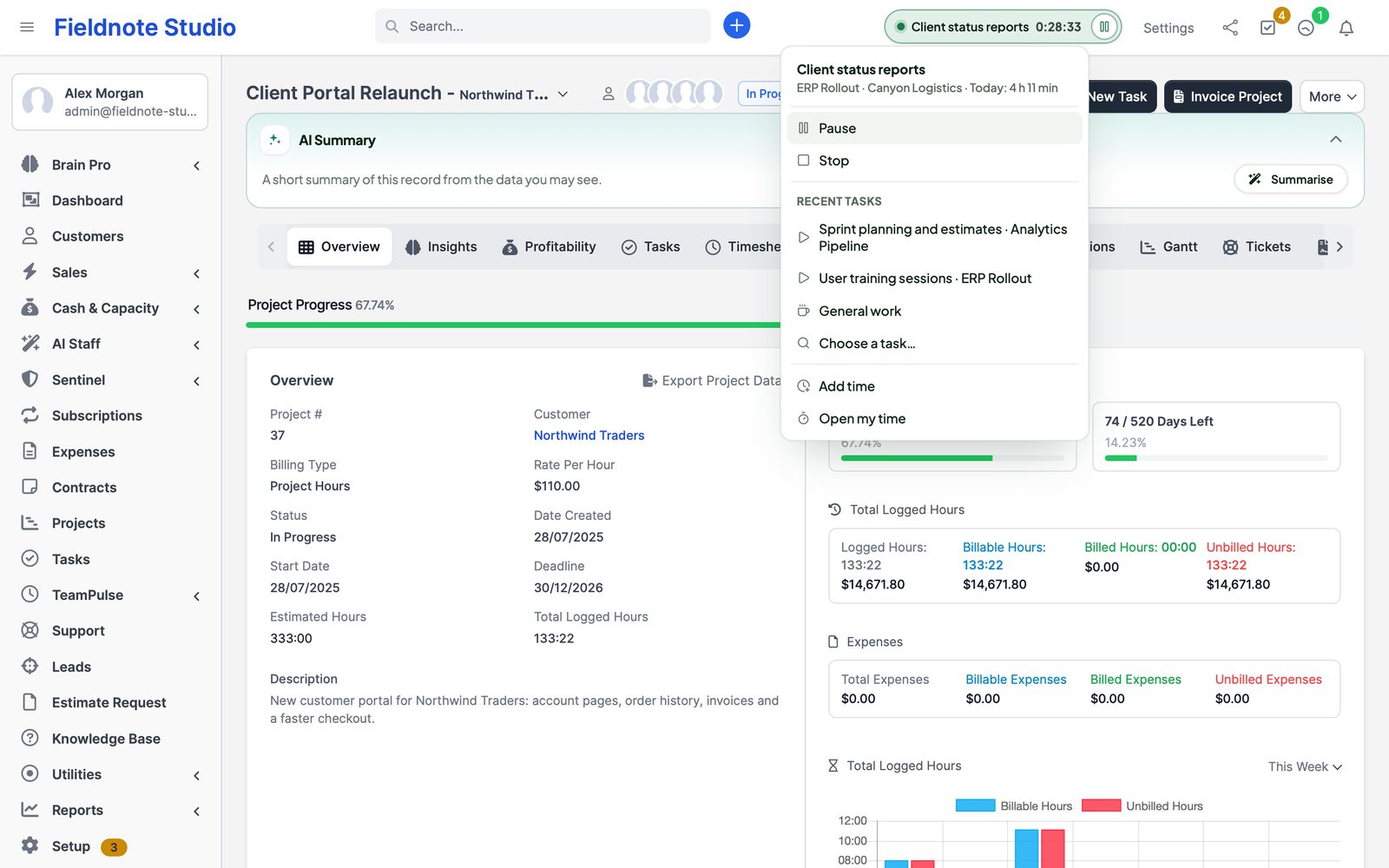
Every admin page shows the timer in the Perfex header. Open it to pick a task — the ones you worked on recently come first — or General work, add a short note and start. While it runs you can pause, resume and stop it from any page; the Overview and the Time page show the same timer. On a phone the timer floats at the bottom of the screen.
- One timer per person. Switching to another task stops the first entry and starts a new one.
- You can log time on tasks you are assigned to (Perfex's own rule; administrators on any task). Time on invoiced tasks can no longer change.
- Billable follows the task's Billable setting in Perfex. For general work you choose.
Manual entries and corrections
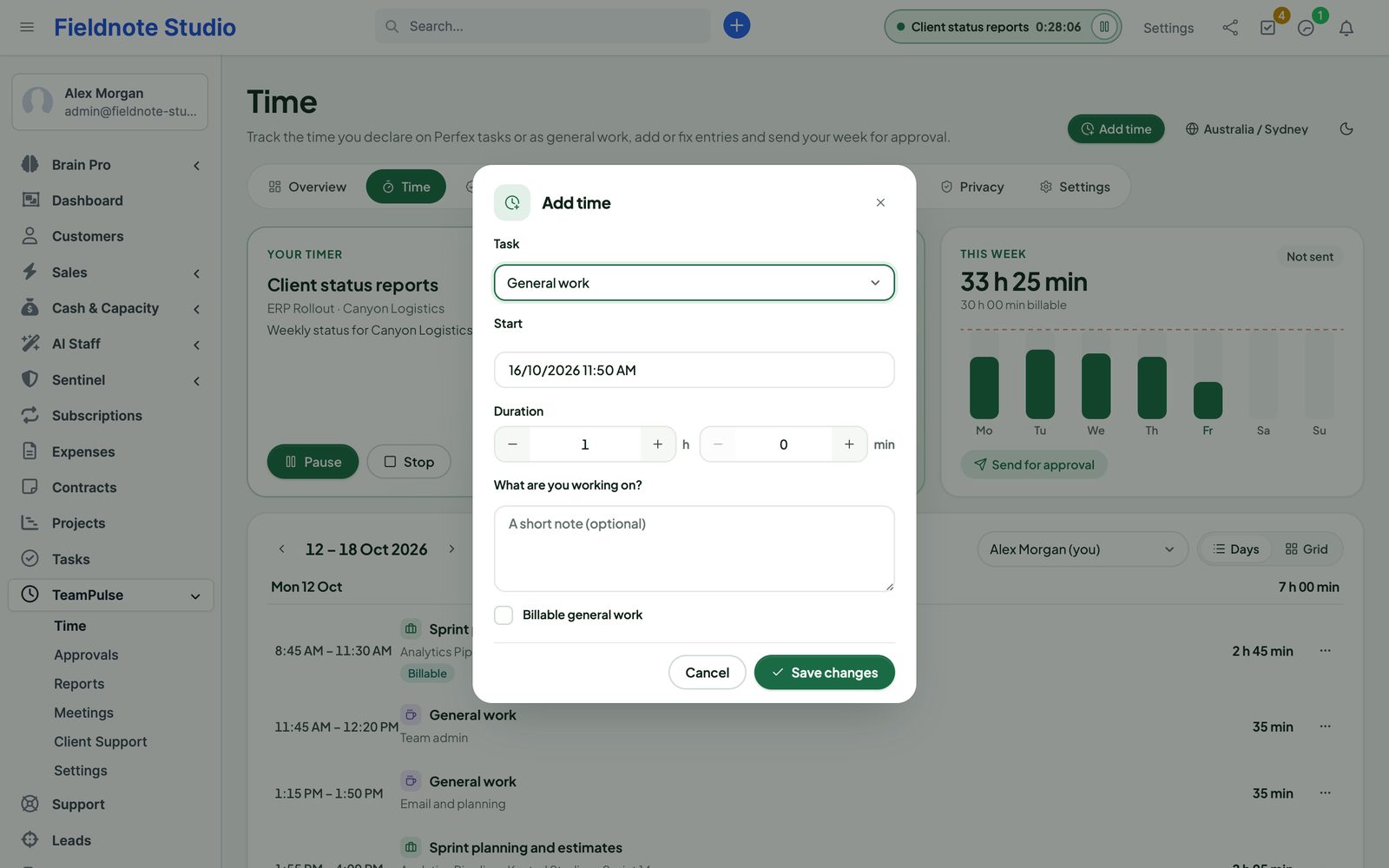
Time › Add time (or Add time in the header menu) adds an entry with a task or general work, a start in Perfex's date format and your time zone, a duration and a note. Each entry's menu edits or deletes it. Entries never overlap; the form says which entry is in the way.
The Time page shows a week as a list of days or as a grid of tasks by day. People with See everyone's time can switch to another person.
Time rules
| Setting | What it does |
|---|---|
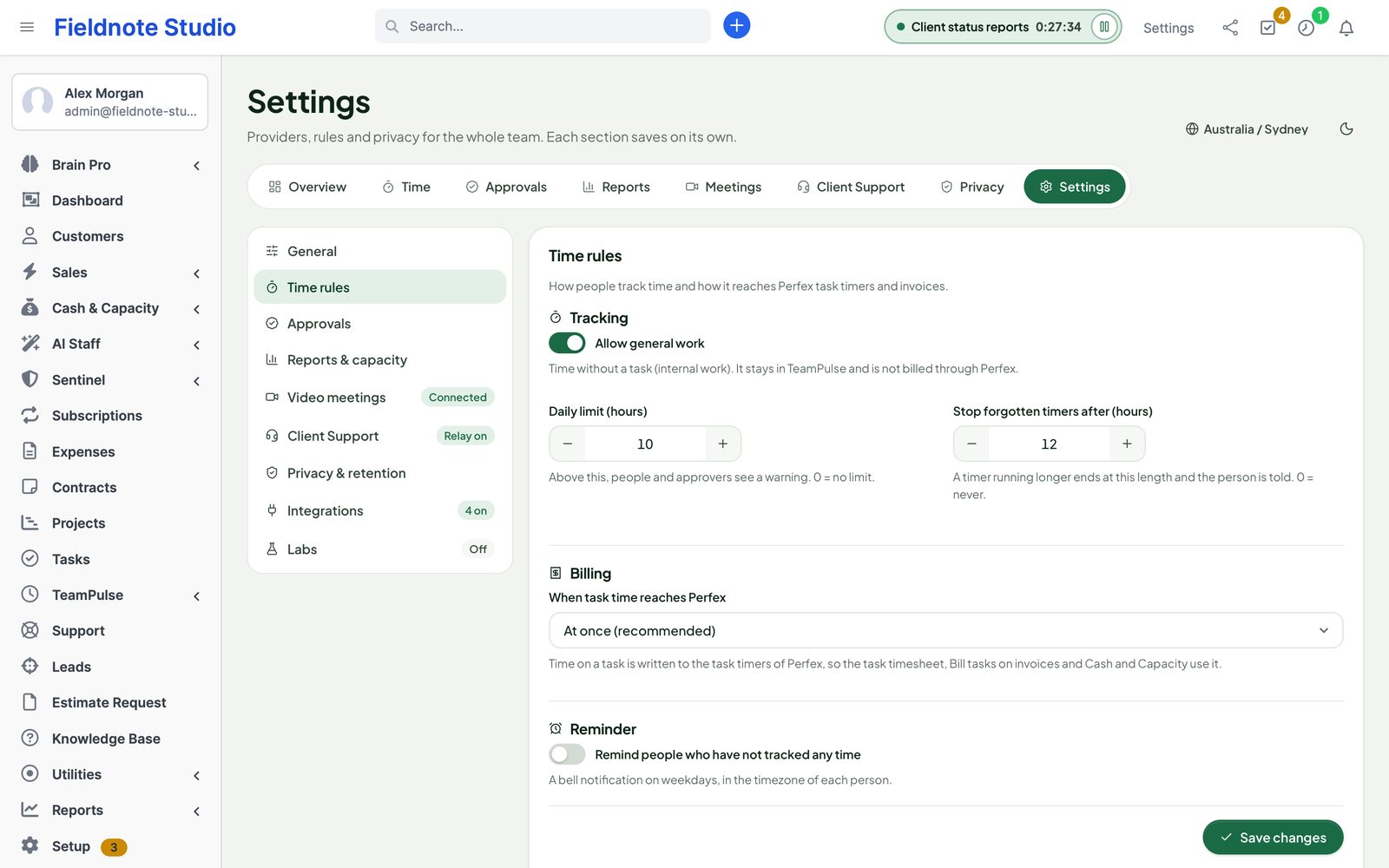
| Allow general work | Time without a task (internal work). It stays in TeamPulse and is never billed through Perfex. |
| Daily limit (hours) | Above it the person and the approver see a warning (10 by default; 0 = no limit). |
| Stop forgotten timers after (hours) | A timer running longer ends at this length and the person is told (12 by default; 0 = never). Checked by the cron job. |
| When task time reaches Perfex | At once (recommended) or only after the week is approved — see Perfex task timers. |
| Reminder | A weekday bell, at a time you choose, for people who have not tracked anything yet that day. |
Perfex task timers
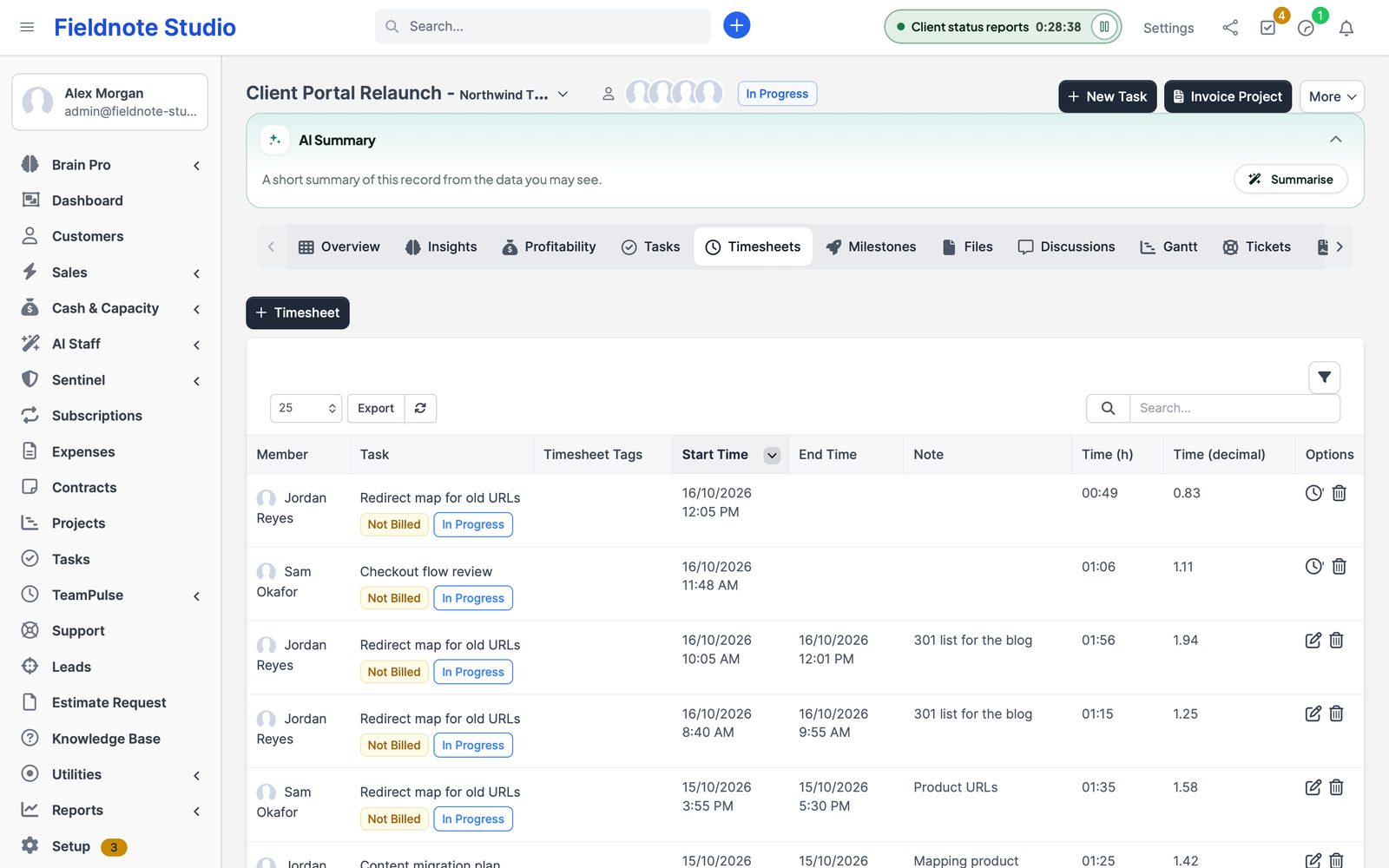
Time on a task is written as a row of Perfex's own task timers, with the staff member's hourly rate. So the task's Timesheets tab, the project's logged hours, Bill tasks on an invoice, Perfex's reports and Perfex Cash & Capacity all count it without anything extra.
- At once (default): the Perfex timer is written when the entry is saved or the timer starts, and kept in step with every edit.
- Only after approval: the Perfex timer is written when the week is approved and removed again if the week is reopened — useful when only signed-off time may be invoiced.
- Timers started with Perfex's own task timer button are picked up too, and edits or deletions made in Perfex's forms are applied to TeamPulse on the next cron run.
- On the first cron runs TeamPulse also imports your existing Perfex timer history (in batches), so its reports include time from before it was installed.
- Uninstalling TeamPulse leaves all task timers in Perfex: they are your billing record.
Timesheets and approvals
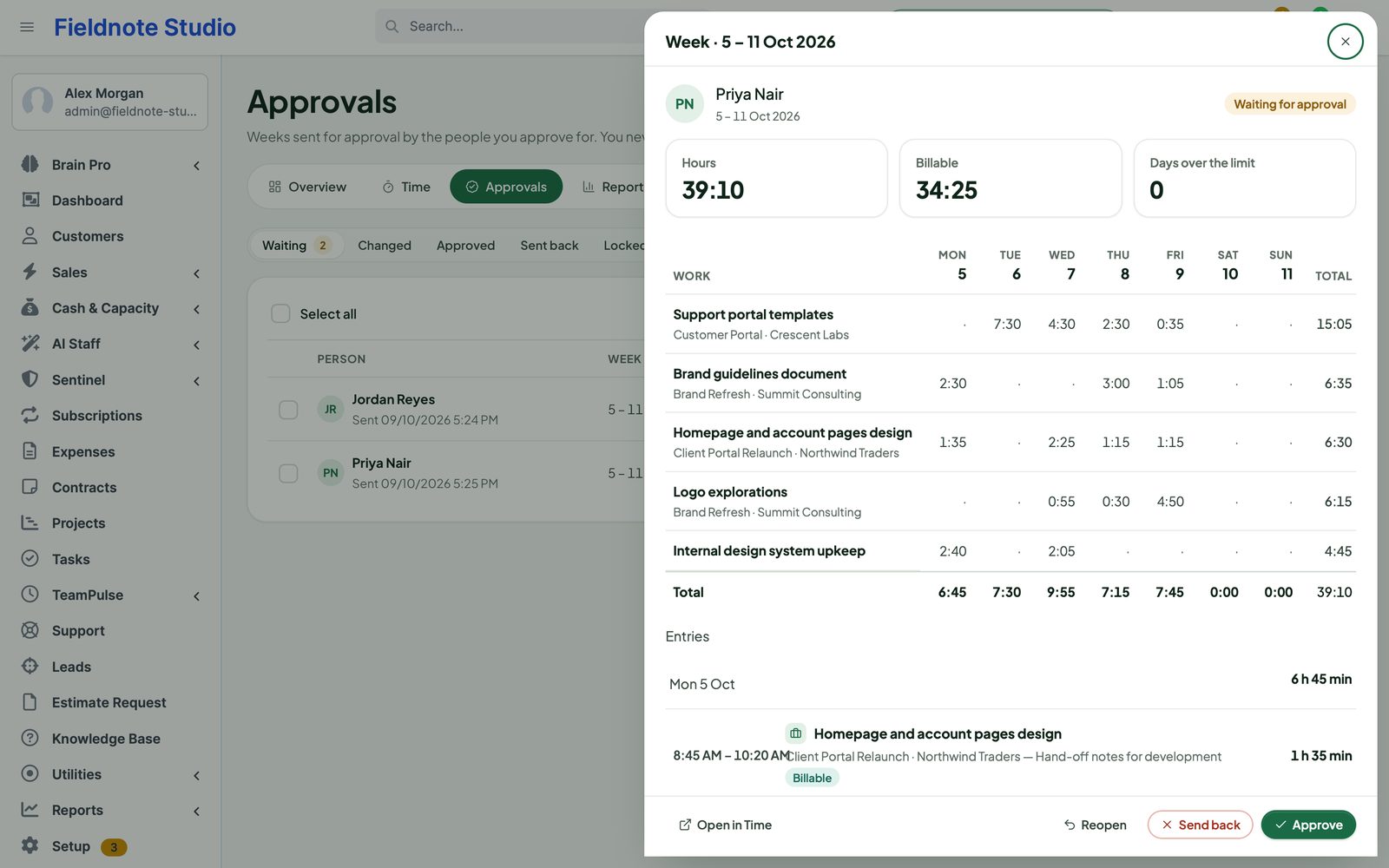
With Use weekly approvals on (Settings › Approvals), each person sends their week from the Time page. Approvers find the waiting weeks under TeamPulse › Approvals.
- Open a week to see its hours per task and day, the billable hours and the days over the daily limit.
- Approve it, or Send back with a note; the person gets a bell and can fix and send again.
- Tick several weeks to approve, send back or lock them at once. Locked weeks cannot change. Unlock keeps a week approved; Reopen gives it back to its owner as not sent.
- Filters: waiting, changed after approval, approved, sent back, locked, all; search by person.
- Approvers decide for: everyone, or the people in their Perfex departments. Administrators and people with See everyone's time see everyone.
- Approvers never decide on their own week unless Approvers may approve their own week is on (an administrator who is the only approver always may). Each self-approval is recorded.
- With approvals off, time stays editable and nobody signs it off.
Reports
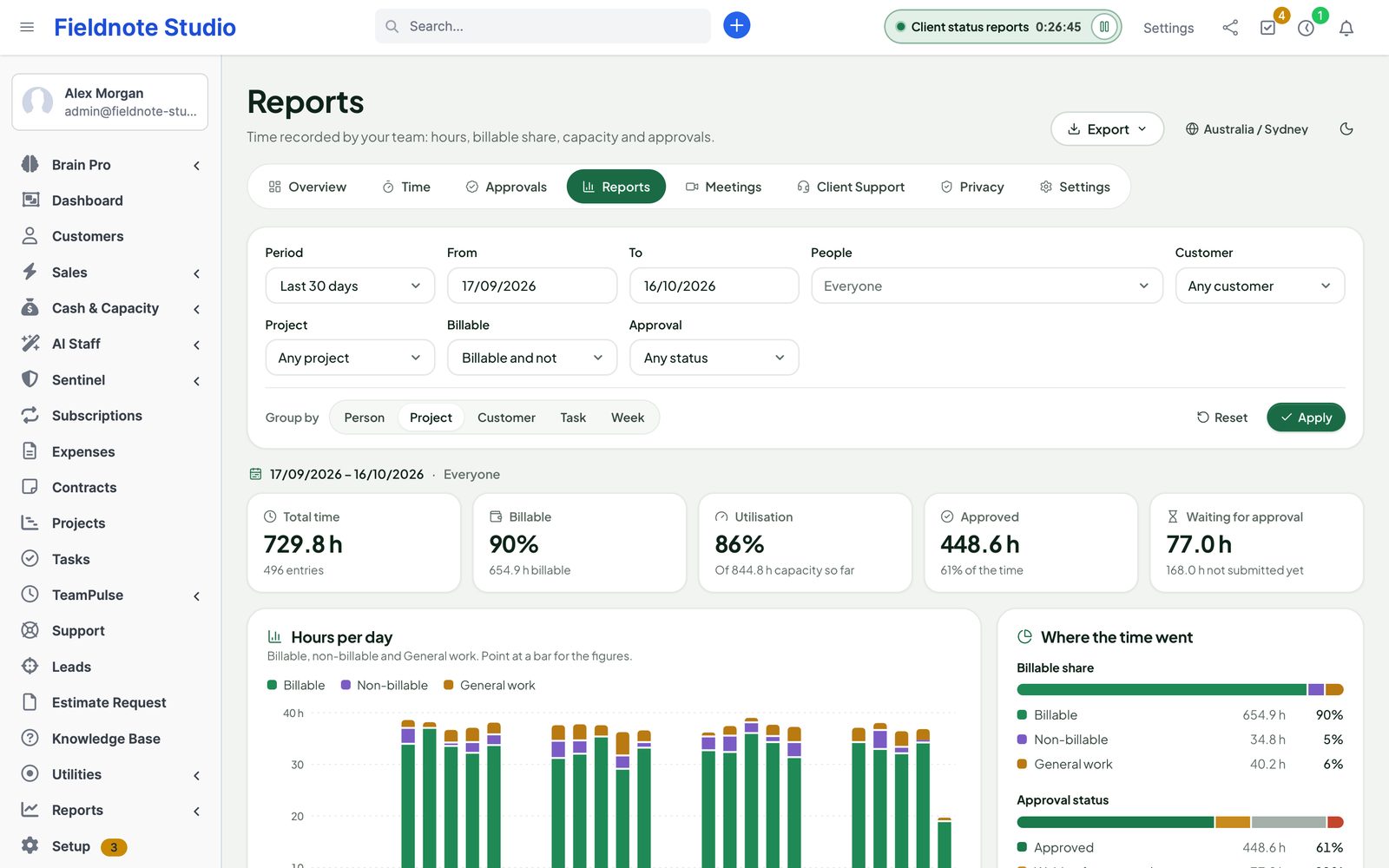
TeamPulse › Reports answers where the hours went. Choose a period (this or last week, month or quarter, the last 30 days, this year or your own dates), people, project, customer, billable and approval status, then group by person, project, customer, task or week.
- Figures: total hours, billable share, utilisation, approved hours and hours waiting for approval.
- A chart of hours per day split into billable, non-billable and general work; the split of billable share and approval status.
- A table per group in decimal hours; open a row to see its entries.
- People who see only their own time get their own reports.
Rules: billable comes from the entry (the task's setting, or the choice made for general work); a running timer counts until now; project and customer come from the entry, or the task's project and the project's customer.
Export
Export downloads the report as CSV or Excel (.xlsx): the summary of the current grouping, or every entry with person, task, project, customer, start, end, hours, billable and status. Text cells a spreadsheet would run as a formula are escaped. Each export is written to the audit trail.
Capacity
Utilisation compares tracked time with capacity: Settings › Reports & capacity sets the default hours per week (40) and the working days; in Reports grouped by person, the menu of a row sets a different figure for one person.
Meetings
TeamPulse › Meetings lists upcoming and past meetings (search, kind filter, only mine) and a month or week calendar. Everyone with a TeamPulse right sees the meetings they organize or are invited to; Manage all meetings sees every one.
Scheduling
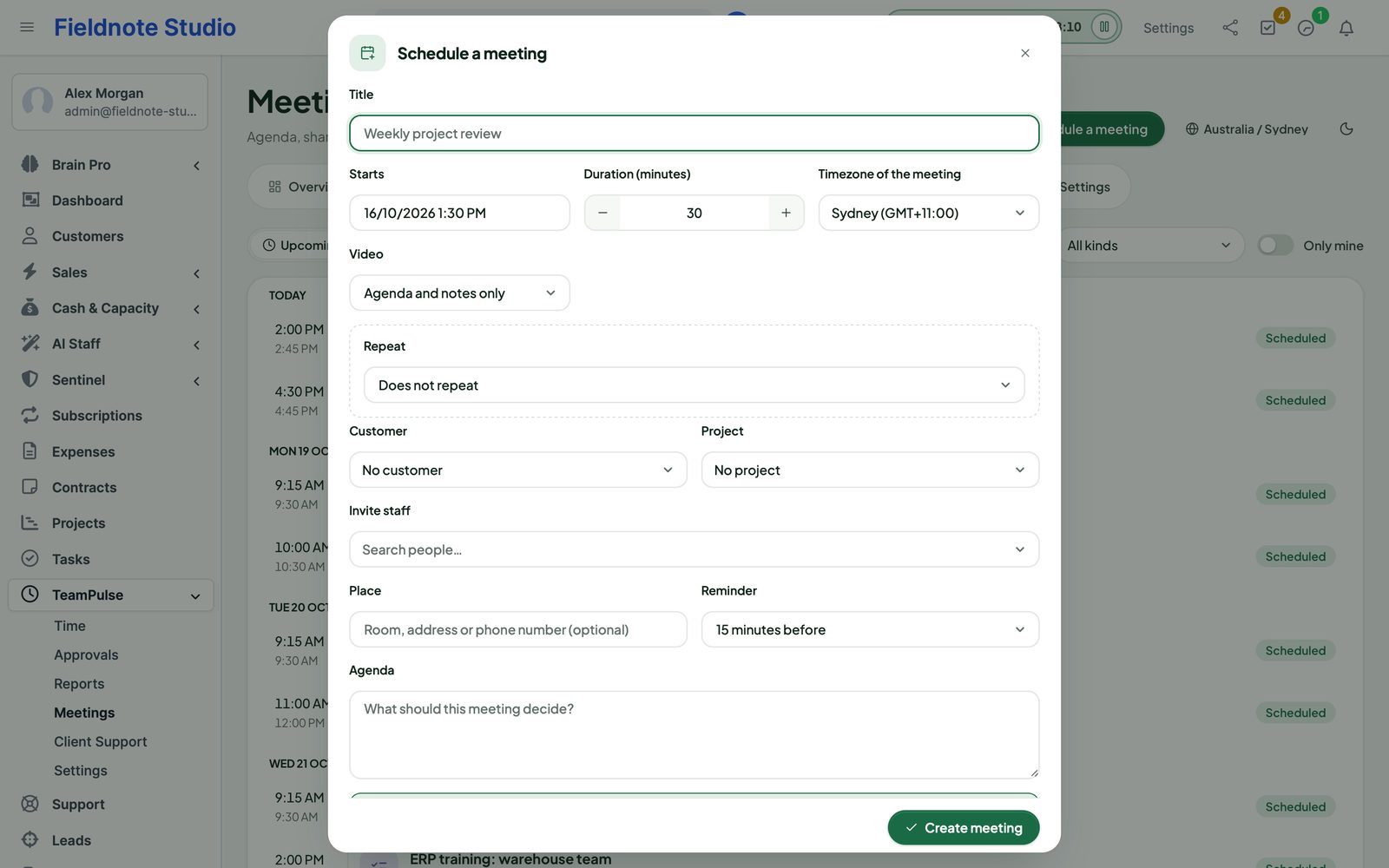
- Video: Agenda and notes only (a room, an address or a phone call), Private Jitsi or Zoom — the last two once they are set up.
- Title, start, duration, the meeting's own time zone, customer, project, invited staff and customer contacts (searchable pickers), place, agenda and reminder.
- Repeat daily, weekly on chosen weekdays or monthly, a number of times or until a date (up to 100 meetings, two years). Editing asks for this meeting or this and the following.
- E-mail the invitations: staff get a bell and an e-mail, contacts an e-mail; each e-mail carries a calendar file (.ics) — updates and cancellations too. Add to my calendar downloads it.
- Reminders go out once, by the cron job: a bell and an e-mail to staff, and to contacts if Remind customer contacts too is on.
The e-mail texts are Perfex e-mail templates: Setup › Email Templates › TeamPulse.
Notes and next steps
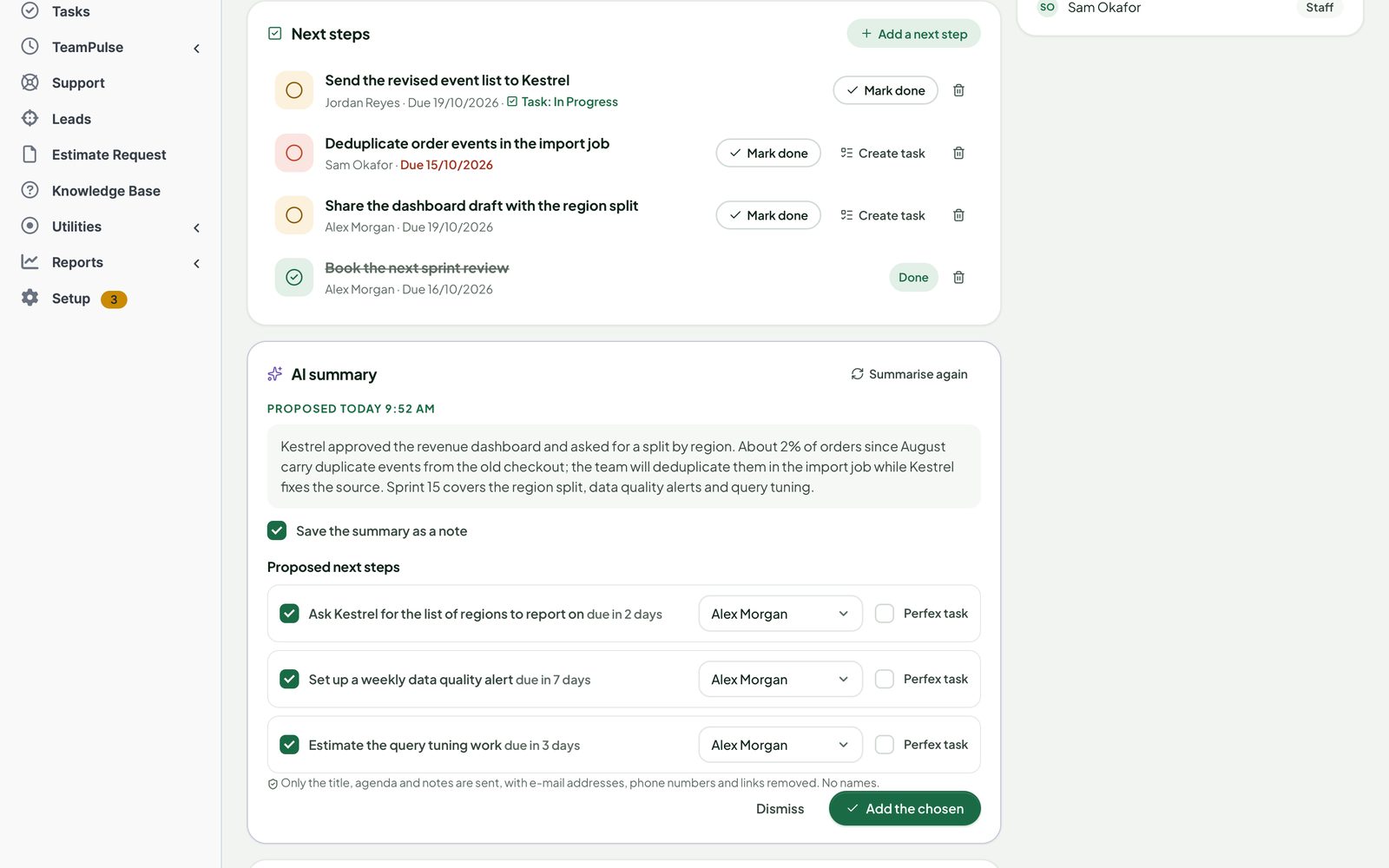
The meeting page holds the agenda, shared notes everyone in the meeting can read and add to, and next steps with an owner and a due date. Create task turns a next step into a Perfex task assigned to its owner, with the due date and the meeting's project; time logged on it counts like any task time. Overdue steps are shown in red and on the Overview.
AI summary
With Perfex AI Staff installed and set up (and Offer Summarise notes on in Settings › Video meetings), the organizer can press Summarise notes. Only the title, agenda and notes are sent, with e-mail addresses, phone numbers and links removed, and no names. The answer is a proposal: a summary and suggested next steps. Tick what to keep, choose owners and whether to create Perfex tasks, then Add the chosen — or dismiss it. AI usage is billed by your provider through AI Staff.
Private Jitsi
Use your own Jitsi Meet server with token (JWT) sign-in. In Settings › Video meetings enter the hostname (for example meet.example.com), the token app ID and the token secret configured on your server, then Test connection. TeamPulse signs a short-lived token for each person who opens the call; the organizer (and people with Manage all meetings) join as moderators. Lobby and room ownership are enforced by your Jitsi configuration.
Zoom setup
- In the Zoom App Marketplace, create a Server-to-Server OAuth app in your Zoom account and give it the scopes to create, read and delete meetings.
- In Settings › Video meetings › Zoom enter the Account ID, Client ID and Client secret, then Test connection.
- Map each staff member who hosts meetings to their Zoom user (ID or e-mail) under Zoom host for each staff member. Administrators may set a default host.
- Optional, for start / end and join counts: in the app's Event Subscriptions, add the Webhook address for Zoom shown in the settings (
https://your-crm/perfex_team_pulse/zoom_hook) with the events Meeting Started, Meeting Ended, Participant Joined and Participant Left, and copy Zoom's secret token into Webhook secret token.
- Zoom meetings are created as the organizer's Zoom user; a repeating series becomes one recurring Zoom meeting. Cancelling deletes it at Zoom.
- The access token is cached and renewed by itself; when Zoom limits requests, TeamPulse says so and you can try again.
- Attendance from Zoom is counted, never named.
- If Zoom did not confirm a meeting (a timeout), the meeting shows Needs a check: Check in Zoom finds and links it, Link takes a Zoom meeting ID, or Not created turns it into an agenda-only meeting. TeamPulse never creates a second Zoom meeting for the same request.
Project roadmaps
Open TeamPulse › Roadmap for the portfolio, or the Roadmap tab of a Perfex project. The timeline shows the project's phases (date ranges you add here), its Perfex milestones (start date to due date, a diamond on the due date) and its tasks with dates, grouped under their milestone. Zoom by week, month or quarter; Today scrolls to the red line.
- Move: drag a bar; change dates: drag its left or right edge; with the keyboard, focus a bar and use the arrow keys (Shift changes the end). Dates are saved into Perfex's own milestones and tasks, with a line in the project activity.
- Phases: Add Phase (name, dates, colour, shown to the customer or not); click a phase to edit or delete it.
- Export: a PNG image of the timeline, or a CSV of every item with its dates, people, progress, dependencies and slack.
- Settings › Roadmaps: default zoom, whether tasks are shown, the client portal switch.
Dependencies and critical path
Dependencies are finish-to-start with a lag in days: the second item starts at the earliest the day after the first ends plus the lag (a negative lag allows an overlap). Add one with Add Dependency, from an item's menu, or by dragging the dot at the end of a bar onto another bar; click a dependency line to change its lag or remove it. Loops are refused.
The critical path (red) is the chain of items without slack that decides the planned finish. A dashed orange line is a dependency that is not met. With Move linked items on, moving an item later pushes the items that depend on it by just enough; items you may not change stay where they are and are named in the message.
Client portal roadmap
Off by default. Switch on Allow sharing roadmaps with customers in Settings › Roadmaps, then Share with the customer on a project's roadmap. Contacts of the project's customer with Perfex's Projects permission then see a Roadmap link on the project in the client portal: phases marked for customers, milestones not hidden from them (the project must show milestones to the customer) and, when the project shows tasks, their visible tasks. Read only; no people's names.
OKRs
TeamPulse › OKRs shows one period at a time: the figures, a card per objective with a progress ring and its key results, and Needs Attention. Managers add periods (a quarter, or custom dates) under Periods; closed periods are read only.
- Objectives belong to the company, a department or a person, have an owner and may support another objective (the Alignment Tree shows the result).
- Key results are measured as a number (with a unit), a percent, money (in a Perfex currency) or a milestone (done or not), from a start value to a target — a falling target such as churn 10 → 4 counts the way down — with a weight. Objective progress is the weighted average.
Automatic progress
A key result can follow Perfex instead of being entered by hand. Values are read for the objective's period every 15 minutes (and with Refresh Values):
| Source | Value | Needed to set it up |
|---|---|---|
| Tasks completed in a project | Completed tasks (number), or the share of the project's tasks completed (percent); optionally only tasks completed in the period | The project is visible to you |
| Invoice payments received | Payments recorded in the period on invoices in one currency, optionally of one customer | Perfex right to view invoices or payments |
| Leads converted to customers | Leads converted in the period, optionally assigned to one person | Perfex right to view leads |
| A project milestone completed | Done when every task of the milestone is completed | The milestone's project is visible to you |
The sources are fixed queries on Perfex's own tables; there is no free SQL. OKR readers see the resulting figure, never the records behind it.
Check-ins and health
Check In records the new value (hand-entered key results), your confidence (low, medium, high) and a comment; the history is kept on the objective. Health compares progress with a steady pace through the period: at risk when behind by the gap set in Settings › OKRs (25 points by default) or with a low-confidence key result, off track when behind by twice the gap, achieved at 100 %.
Mentions
The @ in Perfex's header opens Mentions, with the number of unread mentions. It lists where people mentioned you: task comments and project discussions and file comments (Perfex's own @ in those editors — Perfex keeps sending its own notification and e-mail), notes on leads, customers and staff, and imported posts. Filter by unread / all, where it was written, search, and the tags of the tasks you were mentioned on. Opening a mention marks it read; the ⋯ menu marks it read or unread.
@ in notes: in a note on a lead, a customer or a staff profile, type @ and a few letters — the list offers only people who can see that record — and pick a name (Enter, Tab or a click). The person gets a TeamPulse notification and, when switched on in Settings › Mentions, the e-mail template TeamPulse: you were mentioned.
Import from another module
Settings › Import › Open Importers (Configure TeamPulse right). TeamPulse finds the data of these modules by their tables, even when they are switched off; their tables are only read, never changed.
| Source module | Imported | Not imported |
|---|---|---|
| OKR | Cycles → periods (a period with the same dates is reused), OKRs → objectives (personal, department, company, owner, parent OKR), key results (target, achieved, unit, confidence), check-ins | Approval workflow, evaluation criteria, check-in questions (answers go into the comment), categories, cross-links, linked tasks, edit logs; key results whose target is not a number |
| @Mention | Staff mentioned in posts and comments → their Mentions inbox (as read) | The news feed itself, mentions of customers and contacts |
| Project Roadmap | Finish-to-start task dependencies → roadmap links, sprints → phases (not shown to customers) | Other dependency types, subtasks, baselines, issues, milestone approvals, discussions, retainers, timesheet approvals, task templates |
| Staff Workload | Standard working hours per person → weekly capacity (people who already have one keep theirs) | Days off, the Estimate hour task field, the default hours and working days (set them in Settings › Reports & capacity) |
Use Dry Run first: it counts what would come in, what was imported before, what is matched or skipped and why. Import runs one batch; running it again never copies a record twice. Undo on a batch removes what it created (records you added later to an imported objective go with it) and puts a replaced capacity back.
Client Support
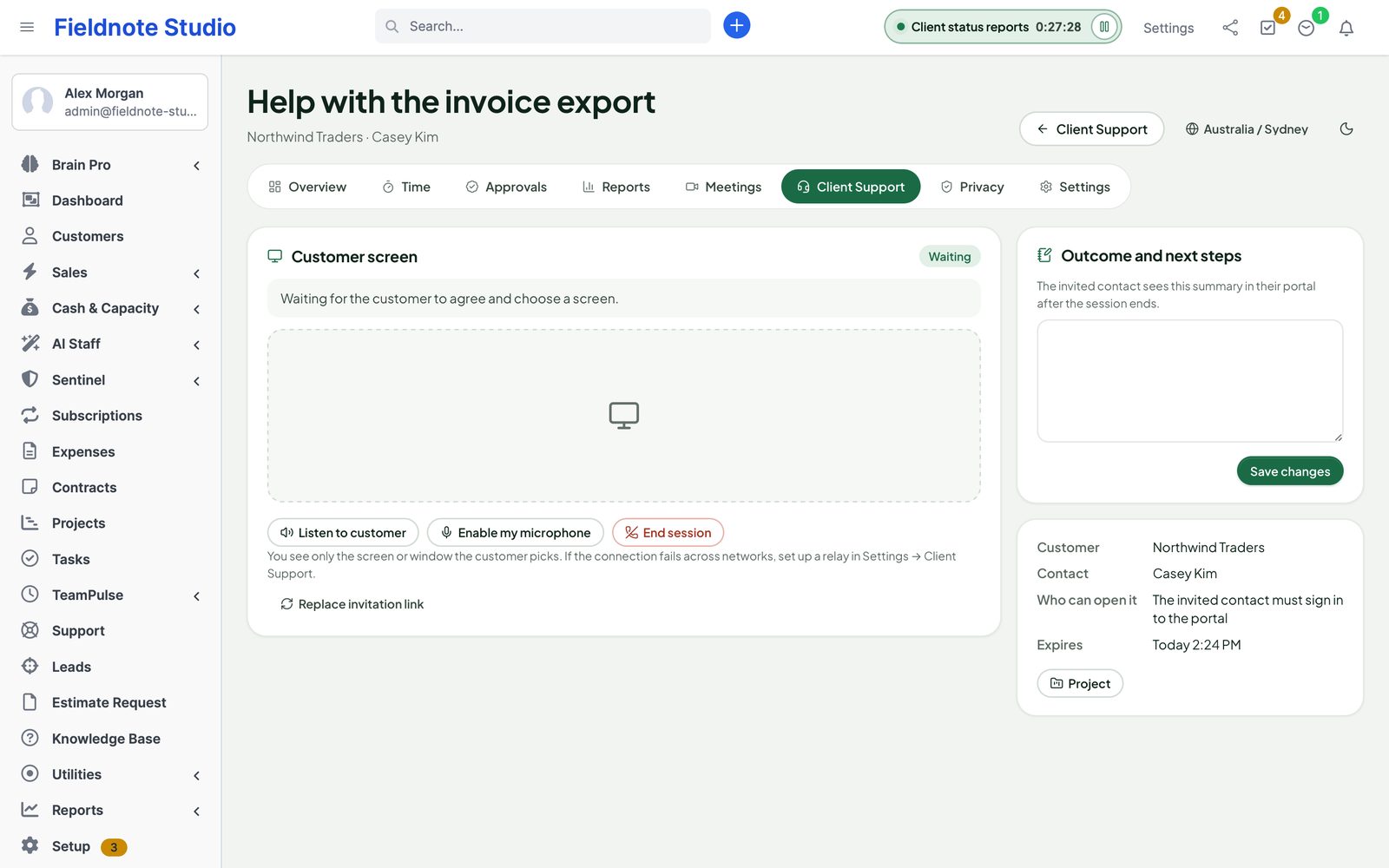
Client Support lets a support person see a customer's screen in the browser, with the customer's consent. Under TeamPulse › Client Support › New support session:
- Choose the customer and contact, optionally a project and a ticket (assigned to you), a purpose, how long the link is valid (5–120 minutes) and who can open it: the invited contact signed in to the portal (default) or anyone with the link, once.
- The invitation link is shown once. Copy it, or press E-mail the link to send it to the contact. Replace invitation link makes a new one and stops the old one.
- The session page waits for the customer. When they share, their screen appears; switch on your microphone or listen to theirs if they shared it.
- End session when you are done and write the outcome and next steps; the contact sees it in their portal.
Consent and what is shared
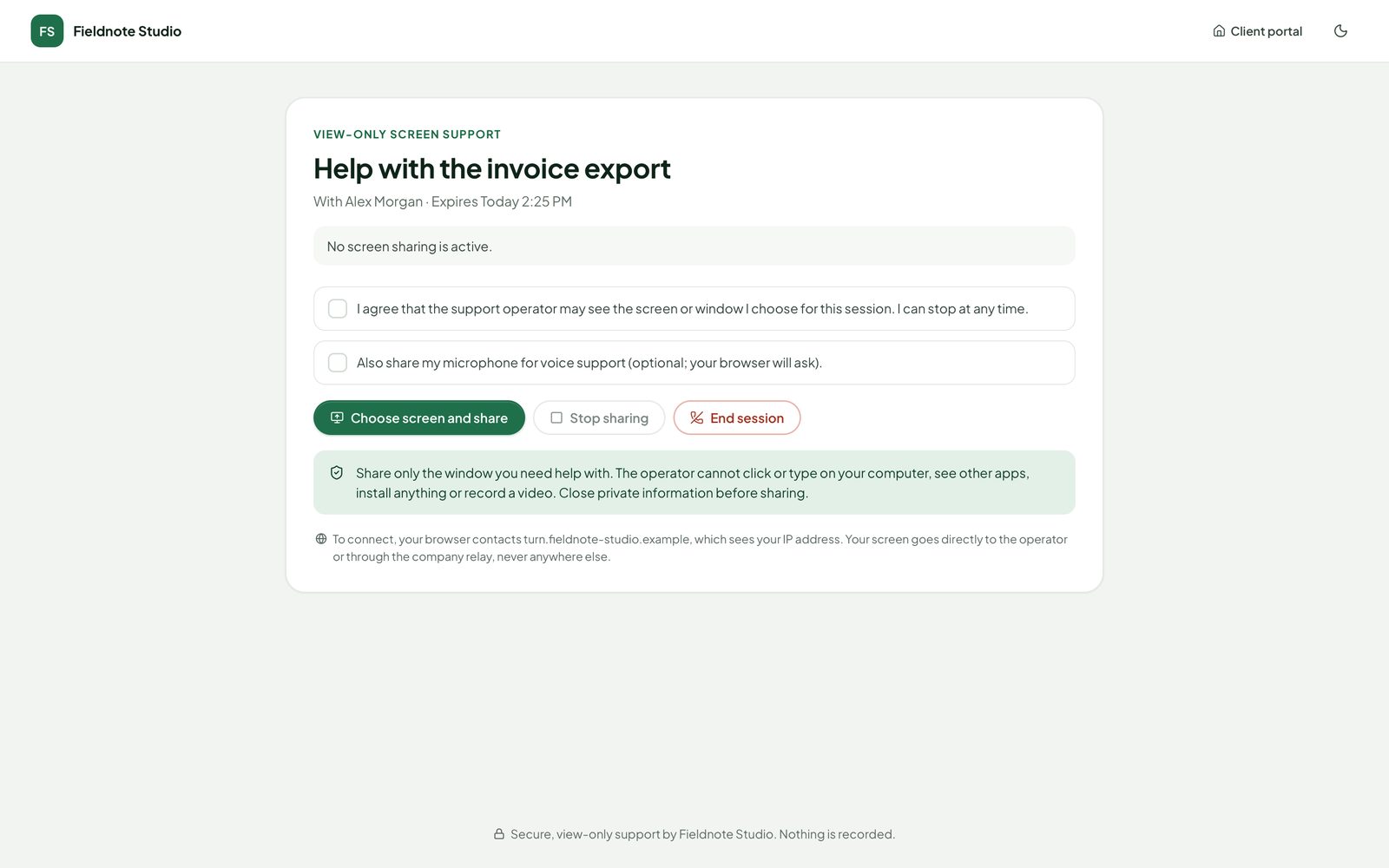
- The customer page explains what happens, then asks the customer to tick: “I agree that the support operator may see the screen or window I choose for this session. I can stop at any time.”
- The customer picks one screen, window or tab in the browser's own dialog. They can add their microphone (optional).
- View-only: the operator cannot click, type, install anything or record. Nothing is recorded by TeamPulse. Stopping withdraws the agreement.
- Codes are hashed and single-use, links expire, and every step is in the audit trail.
HTTPS and browsers
- Browsers allow screen sharing only on HTTPS pages. If your CRM is on plain HTTP, TeamPulse warns the operator and the customer page says why sharing cannot start.
- The customer needs a computer with a current Chrome, Edge, Firefox or Safari. Phones and most tablets cannot share a screen; the page says so.
STUN and TURN
The two browsers connect directly (WebRTC). Settings › Client Support:
- Relay server (TURN): your own coturn server with the REST shared-secret method (
use-auth-secretandstatic-auth-secret). Enter the TURN hostname and the shared secret; TeamPulse issues short-lived credentials per session. Without a relay, sharing can fail between some networks. - Connection helper (STUN): Your relay server (recommended: the STUN service of your TURN host), None, Your own STUN servers (up to five
stun:addresses) or Google public STUN. - Disclosure: the STUN server sees the IP addresses of your customer and staff, so the customer page names the hosts their browser contacts. The settings show the exact sentence.
Customer page and portal
- The customer page shows your name, your Perfex company logo (and its dark version) and your button colour — never the module's name.
- Show Client Support in the portal menu: only for contacts with an open session or one from the last days (default), for every signed-in contact, or never (invitation links only). The portal lists only sessions addressed to the signed-in contact.
Privacy and retention
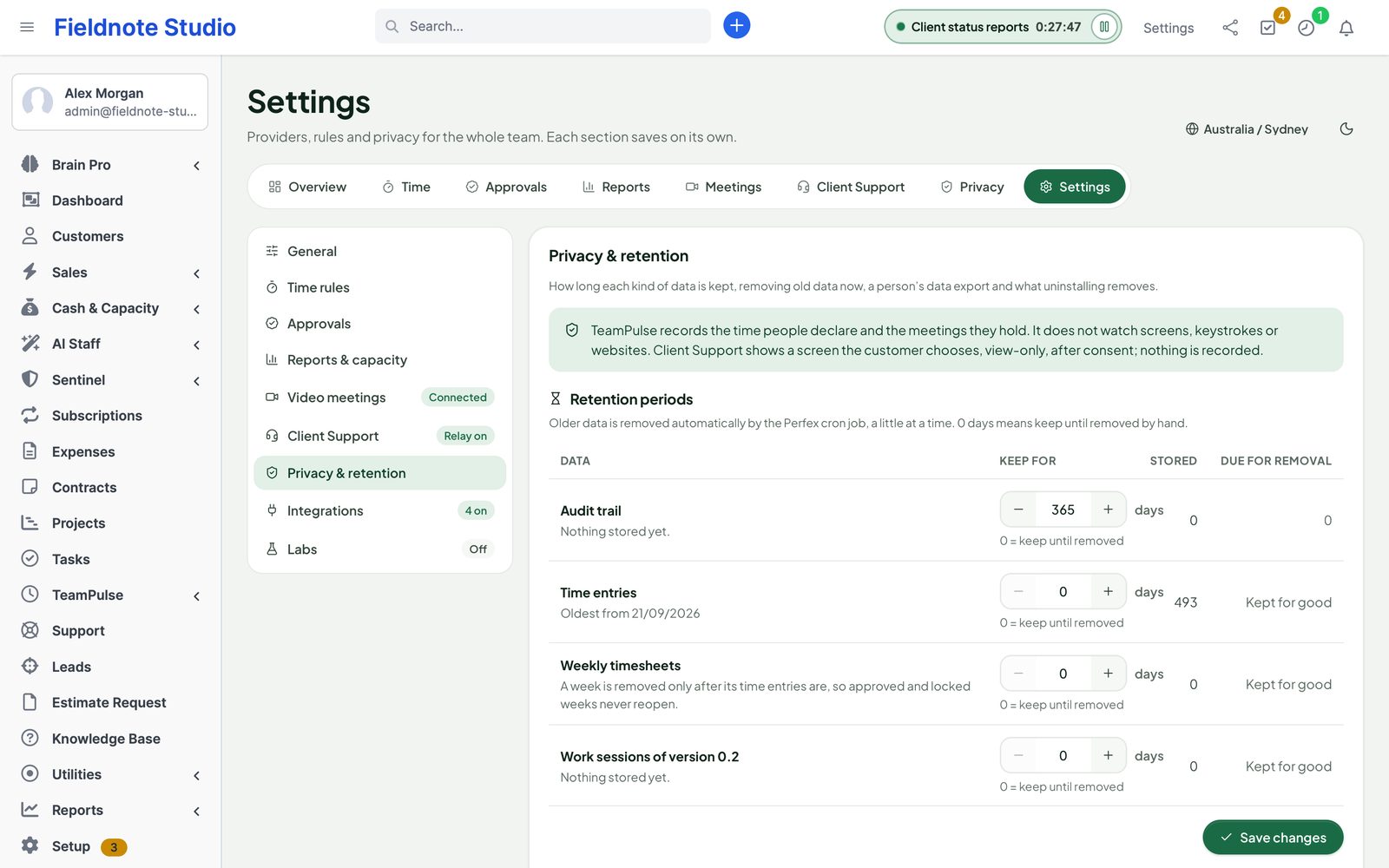
TeamPulse records the time people declare and the meetings they hold. It does not watch screens, keystrokes or websites, takes no screenshots and stores no location. The Privacy tab tells every staff member this, lists what is kept about them and offers Download my data.
Settings › Privacy & retention:
- Retention periods for every kind of data: the period, the rows stored and what is due for removal. Older data is removed by the cron job in small batches. Defaults: audit trail 365 days, AI proposals 90, finished support sessions 180, Zoom events and request tokens 30; time entries, timesheets and past meetings are kept until you set a period.
- Remove old data now: by each kind's period or everything older than N days, with a count first and
REMOVEtyped to confirm. Perfex task timers are never touched. - Export a person's data: a ZIP with a JSON and a CSV file per kind of data (times in GMT), via a link that works once for 10 minutes. Secrets, hashes and host links are left out.
- When a staff member, customer, contact, project or task is deleted in Perfex, TeamPulse removes or detaches what belonged to it.
Integrations
Each integration works only when the other module is installed and active, needs no keys and can be switched off in Settings › Integrations.
| Module | What TeamPulse adds |
|---|---|
| Perfex Brain Pro | Twelve dashboard widgets: hours, billable share, utilisation, approvals waiting, timers running, over the daily limit, hours by person, project and customer, the hours trend, next meetings and overdue next steps. Light and dark follow Brain Pro. |
| Perfex Cash & Capacity | Task time reaches it through Perfex task timers already. In Settings › Reports & capacity you can make it read all TeamPulse time (general work included) or approved weeks only (needs a Cash & Capacity release that includes the TeamPulse time source). |
| Perfex AI Staff | The AI summary of meeting notes, and three read-only tools for the assistant: a project's roadmap (late items, critical path), the OKR status of the current period and your unread mentions. Each answers within the asking person's rights. |
| Perfex Flow Studio | The TeamPulse activity trigger also fires on roadmap changes, OKR check-ins and new mentions. |
| Perfex Sentinel | Settings changes, timesheet decisions, data removal and exports and Client Support sessions in Sentinel's audit log. |
| Perfex Design Studio | When its admin skin is on, TeamPulse follows its light or dark mode. |
Settings
| Section | Settings |
|---|---|
| General | Default appearance (light or dark, shared with our other modules); the company time zone (Perfex's). Each person picks their own zone with the globe button. |
| Time rules | General work, daily limit, automatic stop, when task time reaches Perfex, reminder. |
| Approvals | Weekly approvals on or off, who approvers decide for, self-approval. |
| Reports & capacity | Default hours per week, working days, the time Cash & Capacity reads. |
| Video meetings | Private Jitsi, Zoom, Zoom hosts per staff member, invitations and reminders by default, AI summaries. |
| Client Support | Relay (TURN), STUN, customer page name and colour, portal menu. |
| Privacy & retention | See Privacy and retention. |
| Integrations | See Integrations. |
| Labs | Preview features that are not part of 1.0. Off by default; leave them off. |
Deactivate and uninstall
Deactivate in Setup › Modules: the menu, the header timer and the background work stop at once; your data stays. Activating again continues where it stopped.
Uninstall (after deactivating) deletes every TeamPulse table (time entries, timesheets, meetings, notes, support sessions, audit trail), its settings, personal preferences, staff rights, notifications and e-mail templates — and Perfex deletes the module folder. Kept: the Perfex task timers TeamPulse wrote (your invoices and project time stay correct) and the tasks created from next steps. Export the data of anyone who asked for it first.
Troubleshooting
- Forgotten timers do not stop, reminders do not arrive, Perfex timers are not picked up. These run on Perfex's cron job. Check Setup › Settings › Cron Job.
- “You cannot log time on this task.” The task must be assigned to you (Perfex's rule) and not invoiced yet.
- A week cannot be changed. It was sent, approved or locked. Ask an approver to send it back or reopen it.
- Task time is not on the invoice. In Settings › Time rules, Only after the week is approved writes Perfex timers only once the week is approved. The task must be billable.
- Zoom says the credentials are wrong / the app has no permission. Check the account ID, client ID and secret and the app's scopes, then Test connection.
- Customers cannot share their screen. The CRM must be on HTTPS and the customer on a desktop browser. Across networks set up a TURN relay.
- Invitation e-mails do not arrive. Check Setup › Settings › Email with a test e-mail; the texts are in Email Templates › TeamPulse.
FAQ
Does TeamPulse watch what people do on their computers?
No. It records the time people declare and the meetings they hold. No screenshots, keystrokes, websites, window titles or location.
Can customers see time or reports?
No. Customers receive meeting invitations by e-mail and see Client Support sessions addressed to them; nothing else.
Does it work without Zoom, Jitsi or our other modules?
Yes. Meetings work as agenda-and-notes meetings; integrations add widgets and options when the other modules are installed.
Is it translated?
Yes: English, Spanish, Portuguese (Brazil), French, German, Italian, Dutch, Turkish and Russian. Perfex copies the English e-mail templates for each language; translate them in Setup › Email Templates.
How do I get support?
Send the module, Perfex and PHP versions and a screenshot through SellMyCode support — never passwords or secrets.
Changelog
Current version 1.2.0 (25 Oct 2026). Release notes of every version, newest first: perfexcrm.app/team-pulse/changelog/.
1.0.0 — 2026-10-16
- New product shape: Time, Meetings & Client Support. Upgrades the 0.1 / 0.2 previews in place (additive database upgrade; 0.2 work sessions become time entries).
- Time: header timer on every admin page, manual entries and corrections, general work, daily limit, automatic stop of forgotten timers, weekday reminder; time on tasks written to Perfex task timers (at once or after approval), Perfex's own timers and timer history picked up.
- Weekly timesheets: send, bulk approve, send back with a note, lock, reopen, department scope, self-approval rule, changed-after-approval flag, bell notifications.
- Reports by person, project, customer, task and week with billable share, utilisation against capacity, approval status, a daily chart and CSV / Excel export.
- Meetings: agenda-only, private Jitsi or Zoom; customers, contacts and projects; e-mail invitations with calendar files, updates and cancellations; reminders; repeating series; month and week calendar; shared notes; next steps that become Perfex tasks; AI summary through AI Staff; Zoom token cache, rate-limit handling and reconcile.
- Client Support: invitation e-mail, contact sign-in or one-time link, consent, optional voice, branding, configurable STUN with disclosure, TURN relay, HTTPS and browser checks, portal menu only when relevant, outcome note.
- Privacy: retention periods for every table with automatic and manual removal, per-person data export, Zoom host links no longer stored.
- Integrations with Brain Pro (12 widgets), Cash & Capacity, AI Staff, Sentinel and Design Studio.
- Interface: same look as our other modules, light and dark in step with them, in-page dialogs, styled controls, phone layouts, staff time zone and Perfex date format everywhere; nine languages; seven permissions; uninstall.php.
0.2.0 and 0.1.0 — development previews
- First work-session timer with corrections, meetings with Jitsi and Zoom rooms, Client Support screen viewing with consent, and a desktop companion preview that is not part of 1.0.
The full list is in changelog.txt in the download.