For Perfex CRM 3.4 · Triggers · Actions · Approvals · Run history

Your CRM routine.
Running by itself.

Draw the steps your team repeats every day — follow up a new lead, chase an overdue invoice, escalate an urgent ticket, ask a manager before a big discount goes out — test them on a real record and publish. Flow Studio runs them on every Perfex record, waits when it should, asks people when it must, and keeps every step on record.

  • 13kinds of Perfex records that start workflows
  • 100+triggers: created, changed, status, dates, family modules
  • 20ready templates to start from
  • 0Perfex core files changed
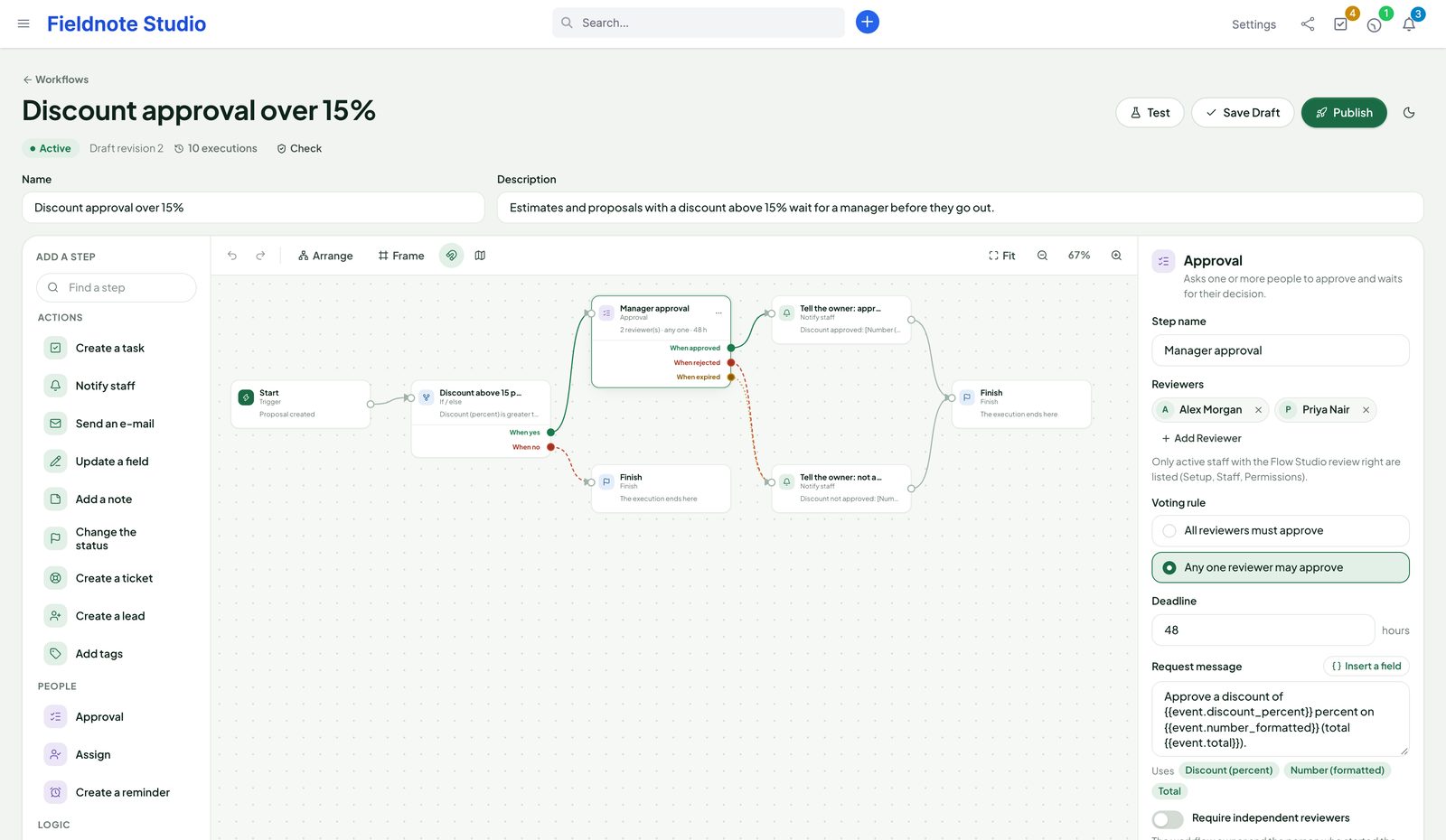
The builder: a discount approval workflow with a condition, an approval step with two reviewers and its approved, rejected and expired branches, the step palette and the approval settings
Actual module interface on a Perfex 3.4.1 installation with fictional demonstration data.

Why Perfex Flow Studio

The follow-ups nobody remembers. Done every time.

Every team has a list of “when this happens, do that”: welcome the lead, remind the customer, tell the project manager, check with finance. Flow Studio turns that list into workflows that run inside Perfex — on time, in order, with a record of what happened.

“Did someone follow up?”

New leads wait, overdue invoices wait, urgent tickets wait for whoever notices.

With Flow StudioThe moment a lead arrives, an invoice falls due or a ticket is marked urgent, the right person is assigned, the customer gets the e-mail and a task with a due date lands in Perfex.

“Who approved this discount?”

Approvals happen in chats and hallways and leave no trace.

With Flow StudioAn approval step asks one or several people, with a deadline, delegation and a decision history. The workflow continues on approved, rejected or expired.

“Why did the automation do that?”

Scripts and cron jobs run blind; when they fail, nobody knows.

With Flow StudioEvery execution keeps its steps, inputs, results and timings. Failures are counted and explained, a broken workflow pauses itself, and the audit trail shows who changed what.

How it works

Trigger, steps, branches. Then publish.

A workflow is a small map: one trigger, the steps after it and the branches between them. You edit a draft; publishing makes an unchangeable version, and every execution runs the version it started with.

  1. 1 · TriggerSomething happens in PerfexA record is created, changed or deleted, a field moves from one value to another, a date comes closer — or you start it by hand or on a schedule.
  2. 2 · StepsFlow Studio does the workSend an e-mail, update a field, assign in turn, create a task, ticket or lead, add a note or tags, notify a colleague, call another system.
  3. 3 · BranchesIt decides and it waitsIf / else on any field, waits of minutes to weeks, values for later steps, and approvals that continue on approved, rejected or expired.
  4. 4 · RecordEverything is written downEach execution shows its steps, results and timings; analytics show what runs, what fails and how long reviews take.
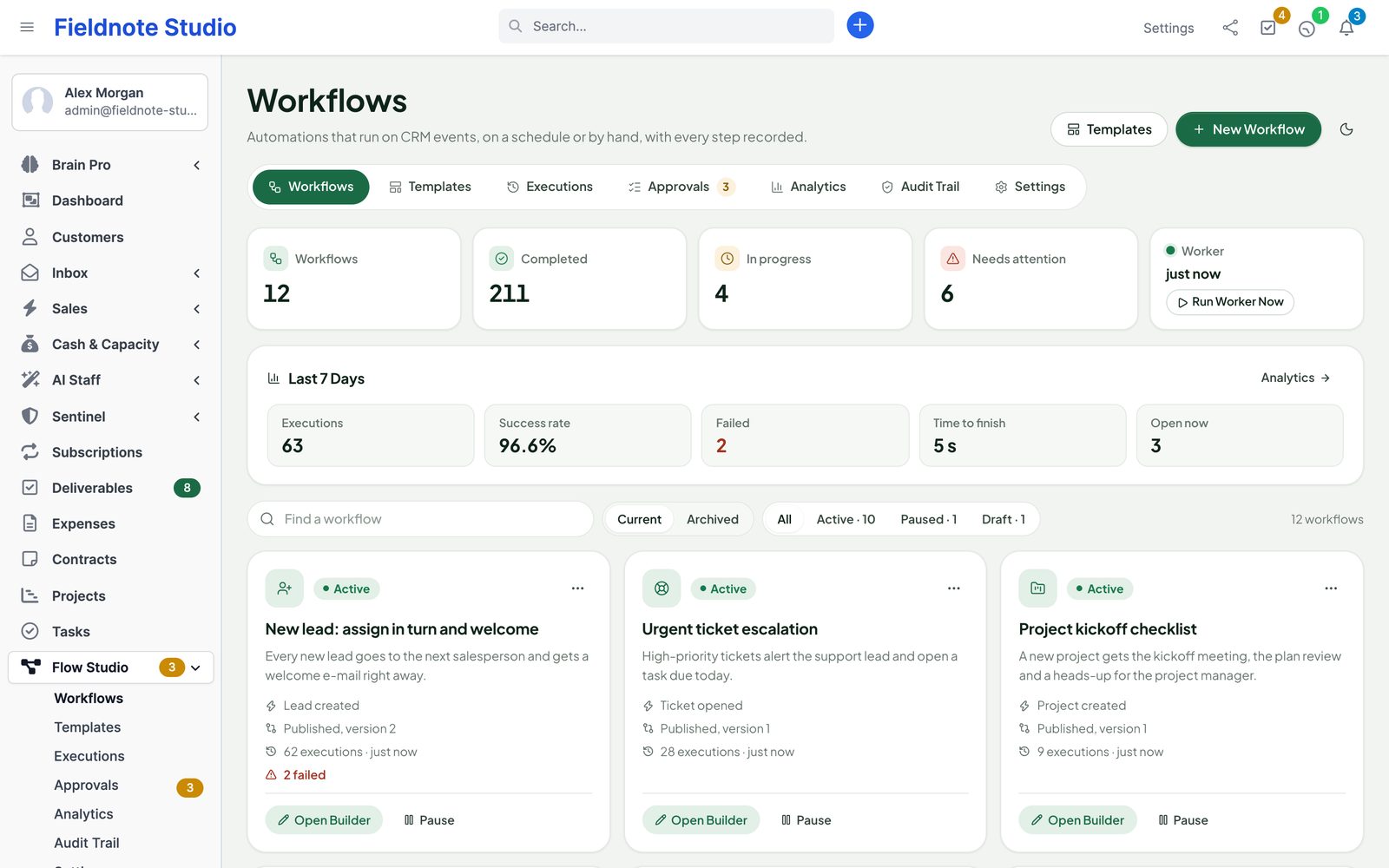
The workflows page: totals, the last seven days, the worker status and workflow cards with their trigger, version, executions and failures
Actual module interface with fictional demonstration data.

Triggers

Starts on every Perfex record.

Each record type has created, updated, field changed and deleted triggers, plus the moments that matter for it — and date triggers that fire a set number of days before or after a date, once per record, in your time zone.

Sales

Leads, estimates and proposals.

  • Lead created
  • Status changed from / to
  • Converted, lost, junk
  • Not contacted for N days
  • Estimate sent, accepted, declined, converted
  • Proposal accepted, declined, comment
  • Expiring in N days

Money

Invoices, payments, expenses and credit notes.

  • Invoice created, sent
  • Paid in full, cancelled
  • Due in N days
  • Overdue for N days
  • Payment recorded
  • Expense created
  • Credit note status

Customers

Customers, contacts and contracts.

  • Customer created
  • Activated or deactivated
  • Contact created
  • Contract signed
  • Contract ends in N days
  • Any field changed

Work

Projects, tasks and tickets.

  • Project created
  • Deadline in N days
  • Task completed, assigned
  • Task comment added
  • Task due soon, overdue
  • Ticket opened, reply added
  • Ticket status changed

Field changed from / to

Pick the field and, if you like, the old and the new value.

  • Lead status → Customer
  • Ticket priority → High
  • Invoice status → Overdue
  • Any value → empty

By hand, on a schedule, from our modules

Start with a button, every N minutes, or on events from our other modules.

  • Started by hand
  • On a schedule
  • Inbox conversations
  • Client Hub uploads
  • Deliverables approvals
  • Sentinel alerts
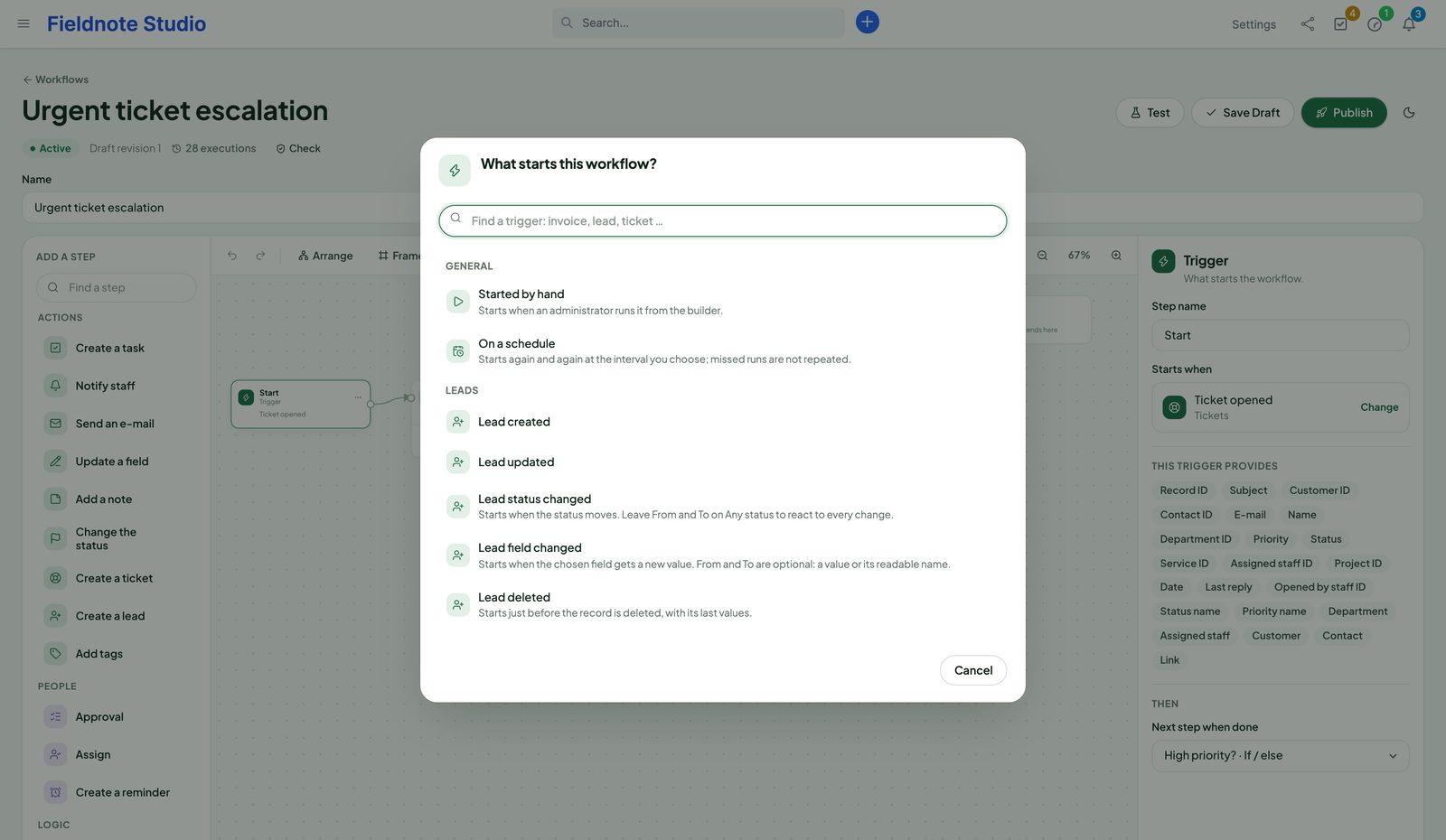
The trigger picker in the builder with triggers grouped by Perfex record type and a search box
Actual module interface with fictional demonstration data.

Actions

The work your team repeats, done in Perfex.

Every action uses Perfex's own models, so activity logs, notifications and hooks behave exactly as if a colleague did it. Texts take fields from the trigger and from earlier steps — pick them from a list, no codes to remember.

  • Send an e-mail with one of Perfex's e-mail templates and its merge fields, or your own subject and text — to the record, the customer's primary contact, the person responsible, a colleague or an address
  • Update a field or change the status with Perfex's rules; every change is audited
  • Assign to one person or in turn between several (round robin), with a notification
  • Create a task related to the record, assigned and due in N days; create a ticket, a lead or a reminder
  • Add a note (a comment on tasks), add tags, notify staff with a bell that opens the record
  • If / else with 18 operators, wait, set a value, approval and send a web request
  • Every action that can fail has an optional error branch, so a failure can alert someone instead of stopping
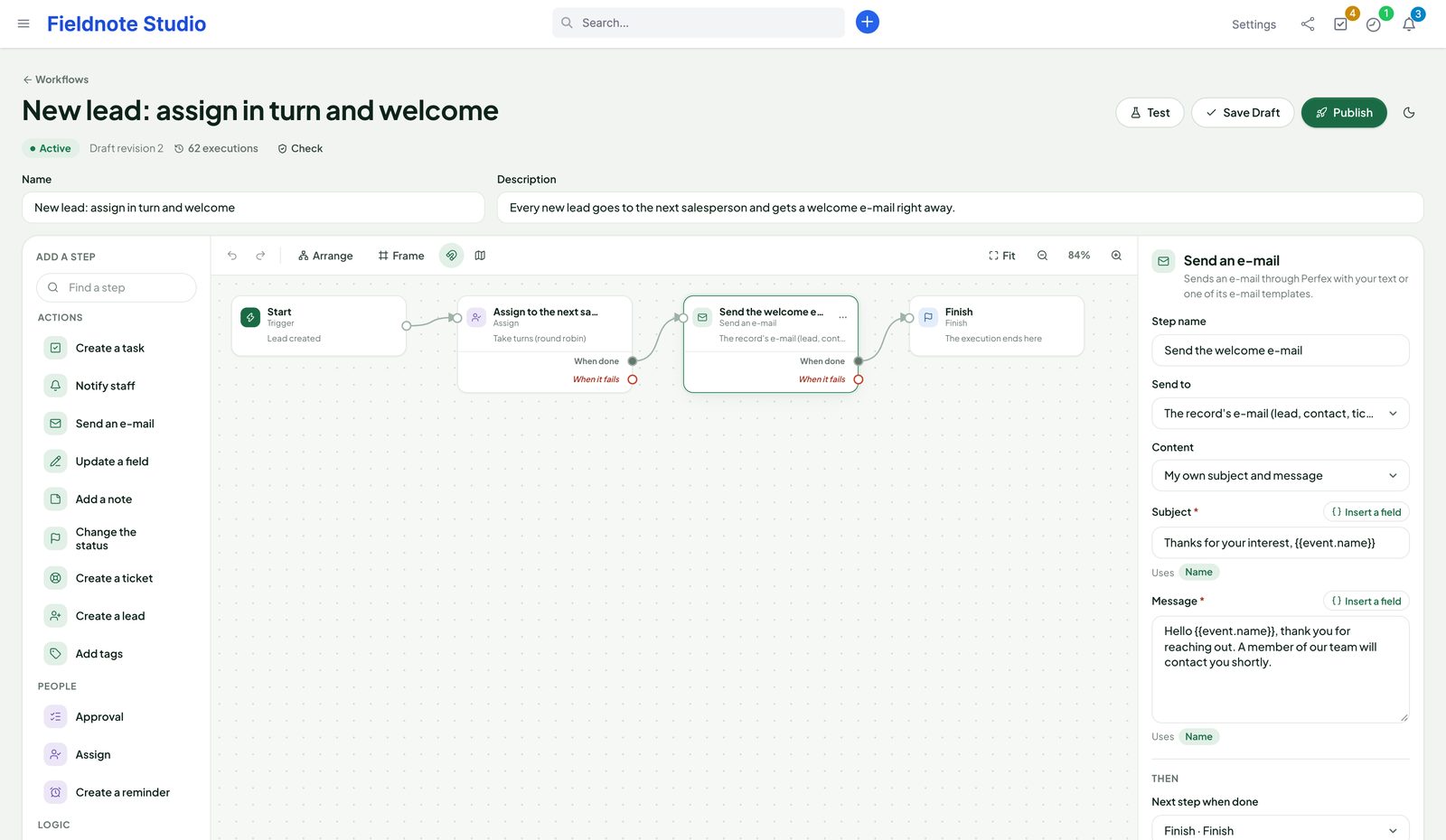
A lead workflow with an assign-in-turn step and a welcome e-mail step whose subject and text use fields of the lead
Actual module interface with fictional demonstration data.

Builder

Readable at a glance. Precise when you click.

Add steps from the palette, connect them by dragging from a port, and set each one in the panel on the right. The builder checks the workflow as you go and tells you, in plain words, what is still missing before it can be published.

  • Opens at a readable zoom; Fit, Arrange, a minimap, frames to group steps, undo and redo
  • Insert fields from the trigger and from earlier steps — “Ticket · Subject”, “Create a task · Link”
  • Check validates like Publish without publishing; version notes and a side-by-side comparison of versions
  • Restore an older version into the draft; export a workflow or your whole library and import it elsewhere, with people matched by e-mail
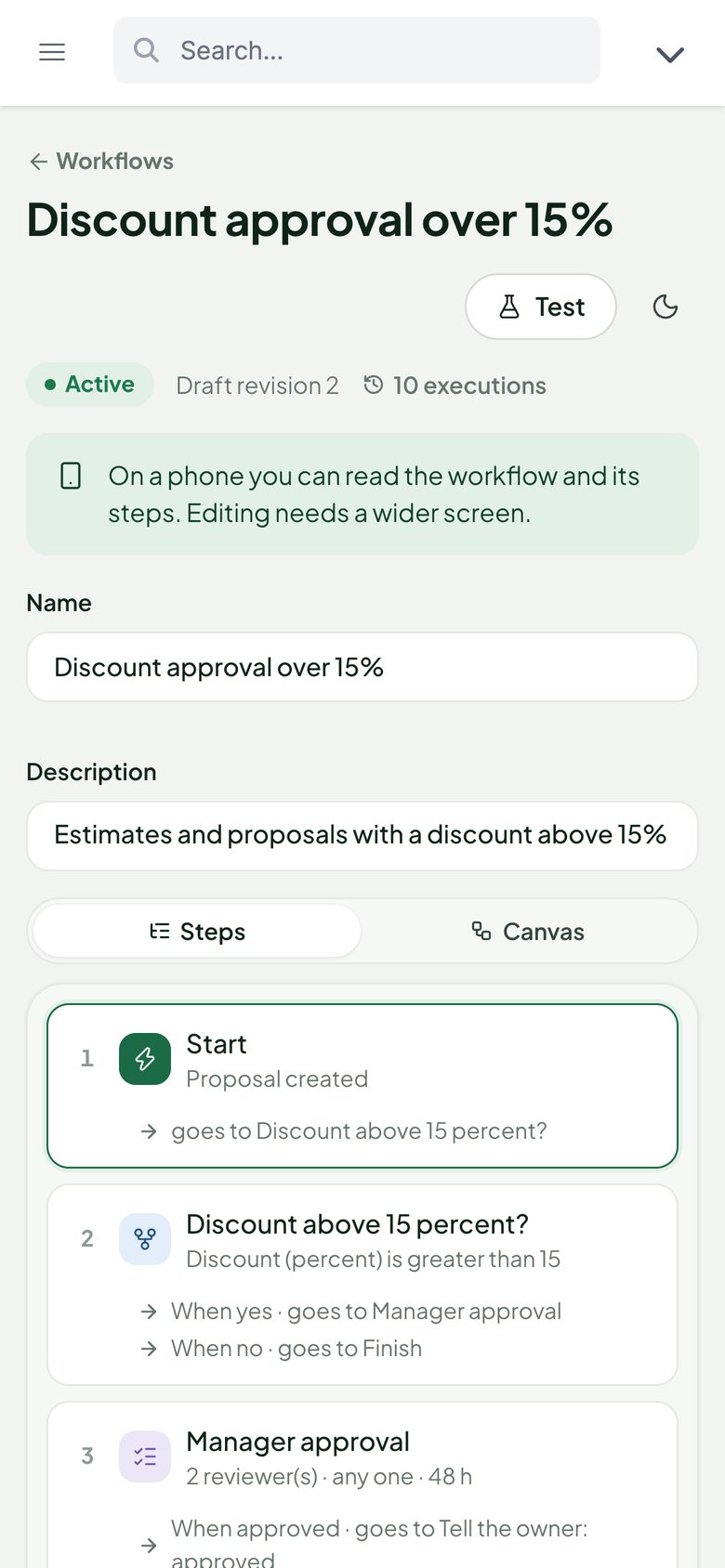
  • On a phone, an outline of the steps with a read-only view of each
  • Light and dark, in step with our other modules
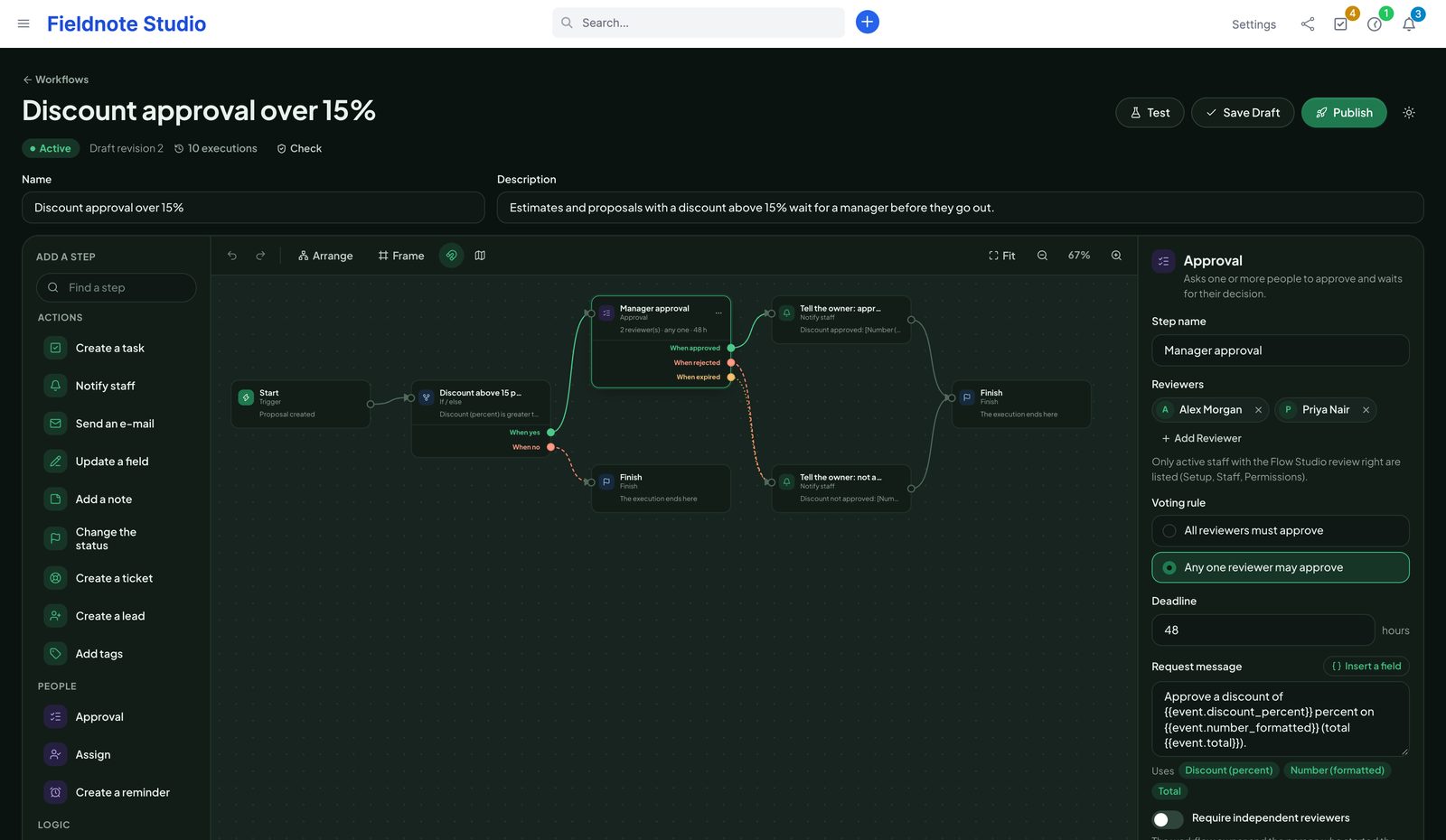
The builder in dark mode with the approval step selected
The builder on a phone: the workflow as an outline of steps

Approvals

A person decides. The workflow remembers.

An approval step stops the workflow and asks one or more colleagues. Reviewers get a Perfex notification and an Approvals page with the request, the record and a deadline; the workflow continues on approved, rejected or expired.

  • One reviewer or a group; all must approve or any one may approve
  • Deadlines in hours, one reminder, and an expiry branch that runs even while a workflow is paused
  • Optional independence: the workflow owner and the person who started it cannot approve it themselves
  • Delegation with a reason, and reassignment by an administrator; every handover is on record
  • Reviewers who only hold the approve right see the fields the request names — not the whole record
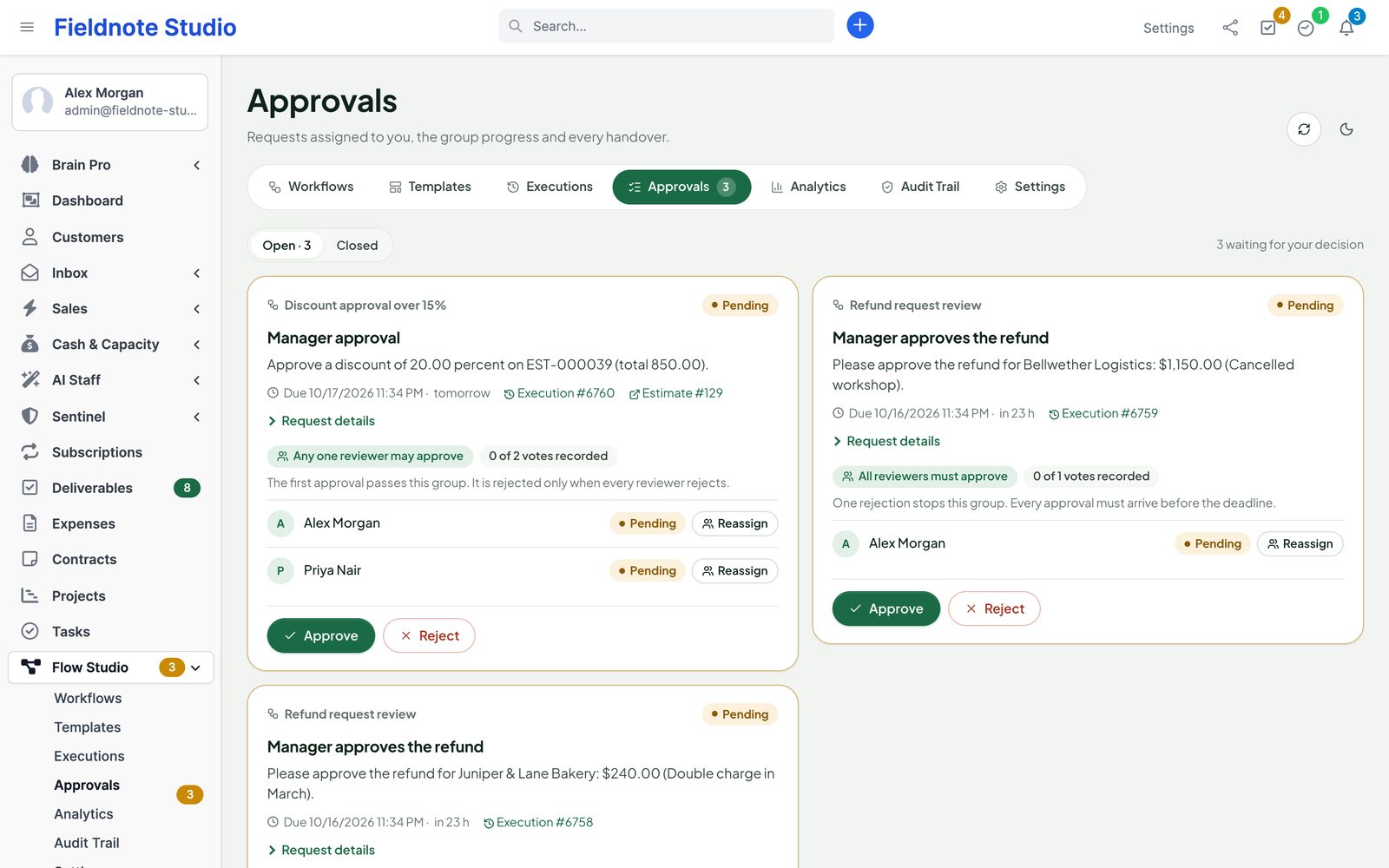
Open approvals: a discount approval with two reviewers where any one may approve, and two refund reviews with their deadlines and Approve and Reject
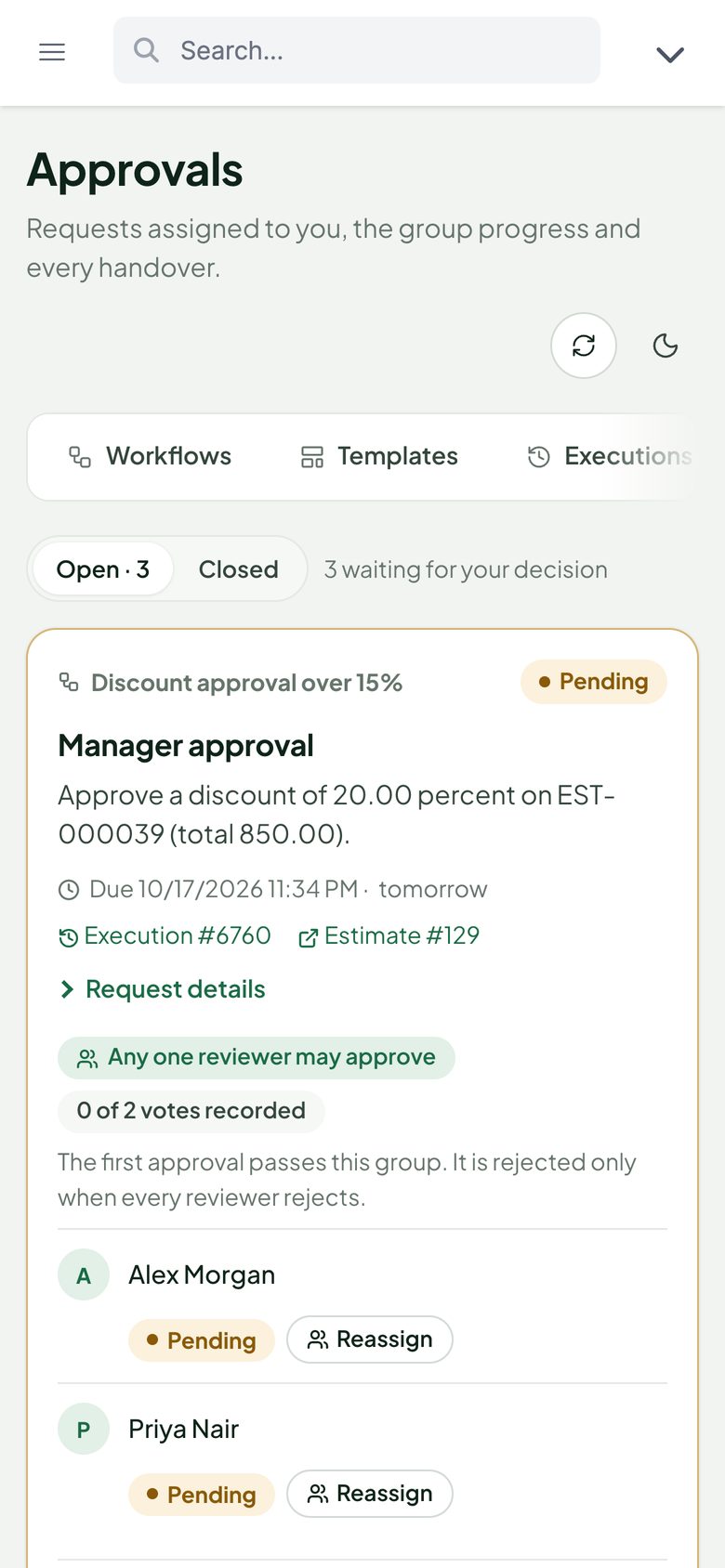
The approvals page on a phone

Testing

Try it on a real record before it goes live.

Pick a real lead, ticket or invoice and press Test: the draft runs step by step against that record and shows what each step would do and which branch it would take — without sending, changing or creating anything.

  • Record search for every trigger, or typed values for workflows started by hand
  • Each step with its result, its branch and the fields it would hand on
  • Test run of the published version, marked as a test and kept out of the analytics
  • Run again any execution with the same event data
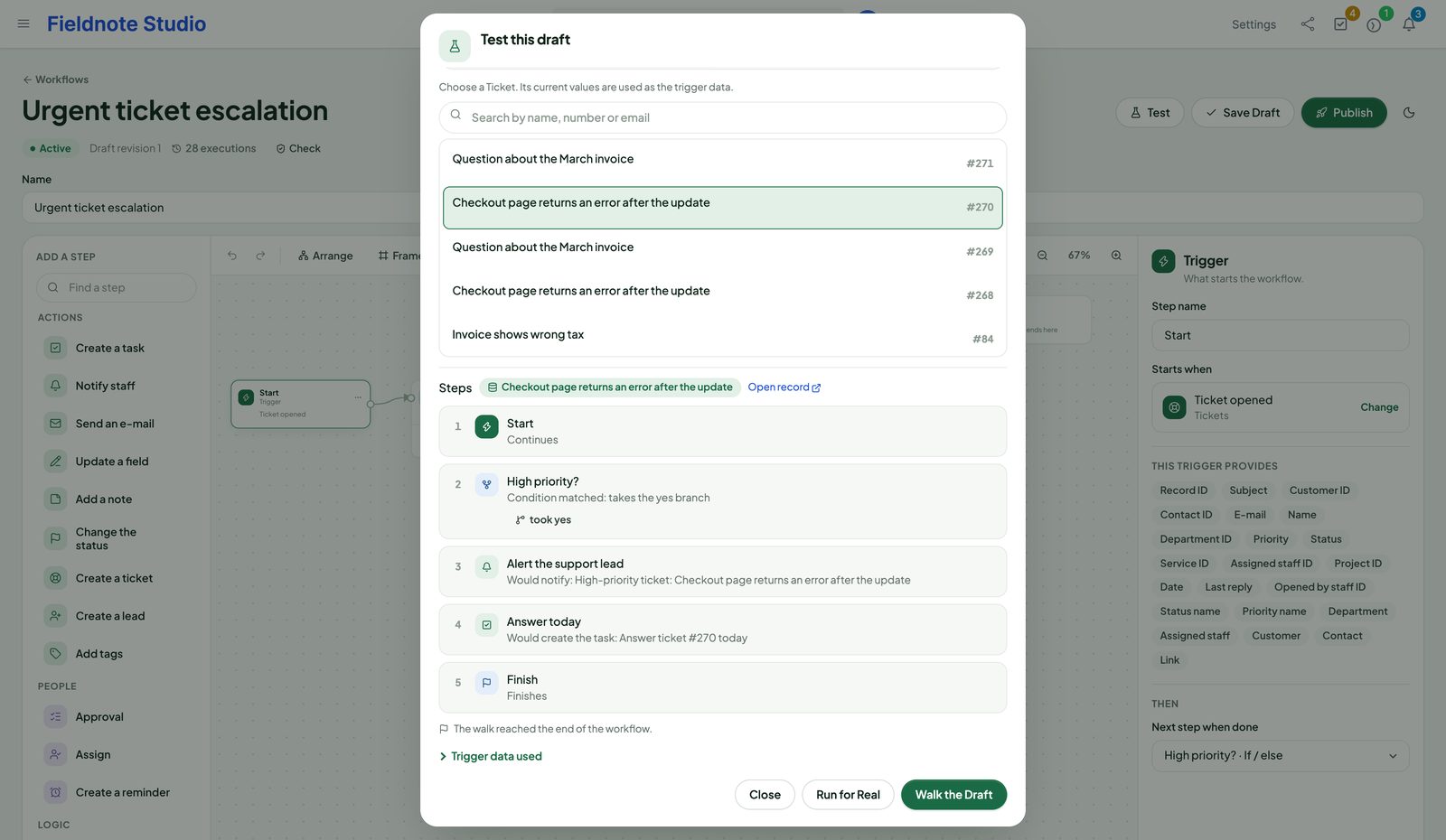
The test dialog: an urgent ticket chosen as the record and the steps the workflow would take with their results
Actual module interface with fictional demonstration data.

Run history

Every execution, step by step.

The executions list shows what ran, for which record, how it ended and how long it took — filter by status, workflow and period, or search by record number. Open one to see each step with its time, its input and its result, the record and the event data.

  • Statuses queued, running, waiting, approval, completed, failed, interrupted and cancelled
  • Failed steps explain themselves: “The customer has no primary contact with an e-mail address.”
  • Retry a step without effects, cancel a waiting execution, run again with the same data
  • Durable step markers: a crash leaves an execution interrupted — an e-mail is never sent twice by accident
  • Notifications link to the record, or to the execution for people who may see it
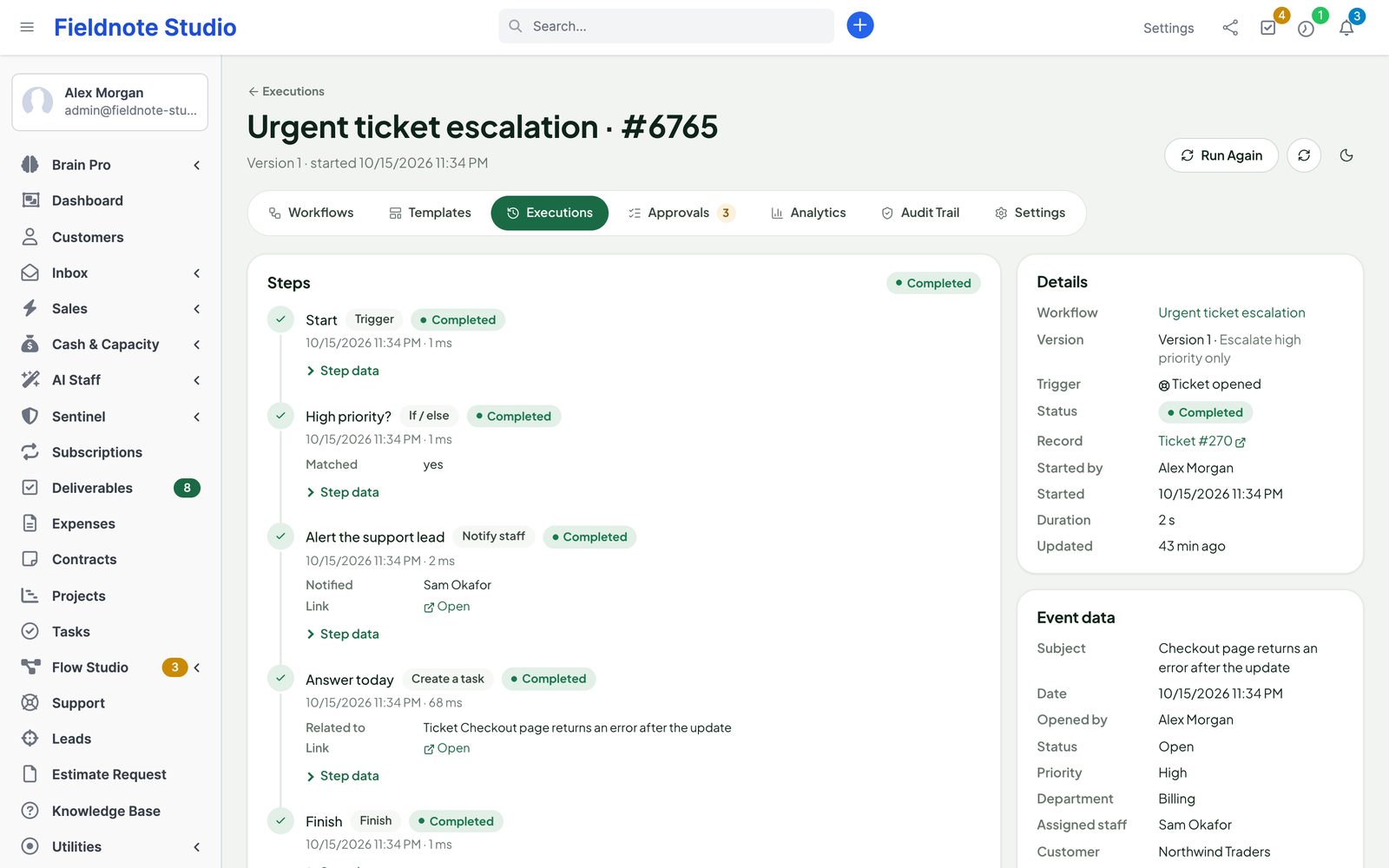
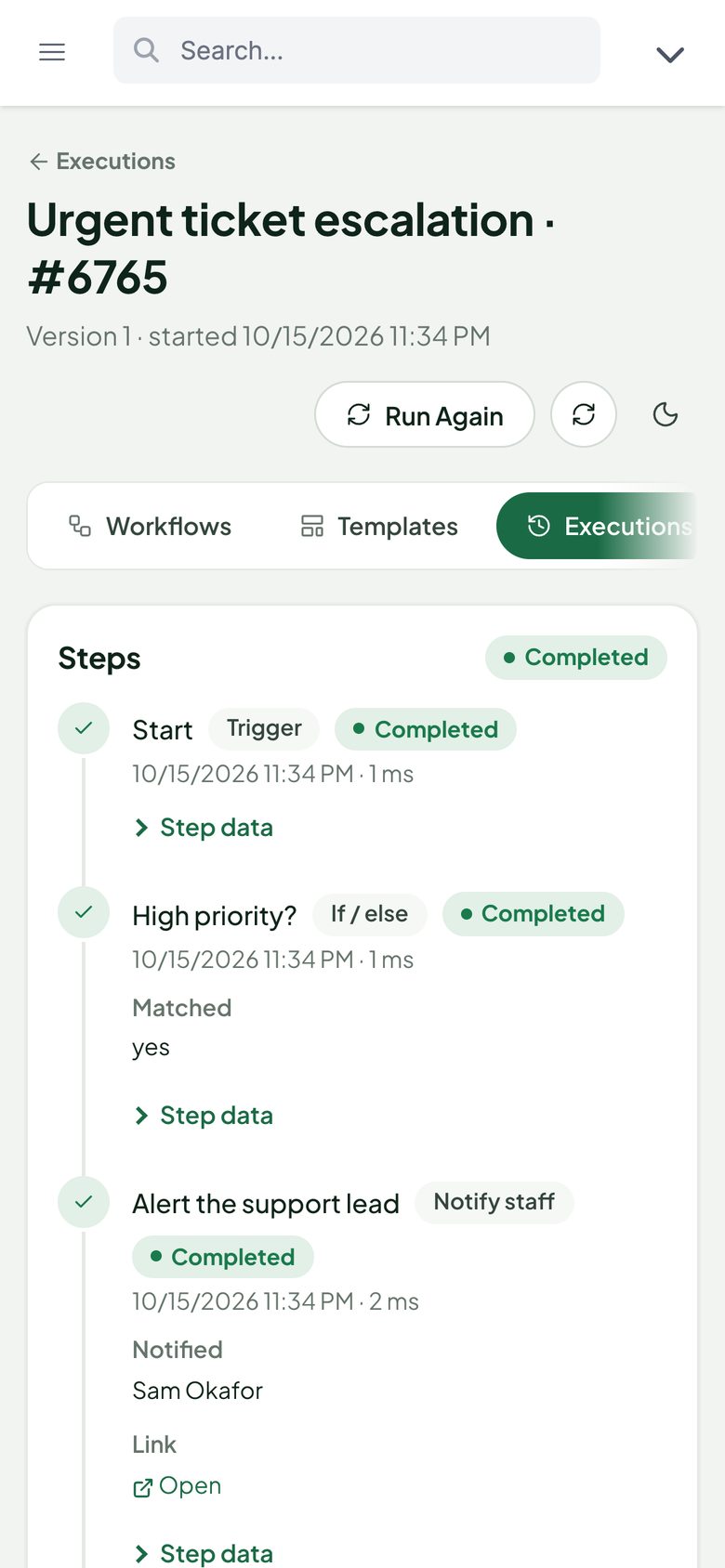
An execution of the urgent ticket escalation: the condition, the notification and the task created for the ticket, with the details and event data
An execution on a phone

Analytics

Know what your automations really do.

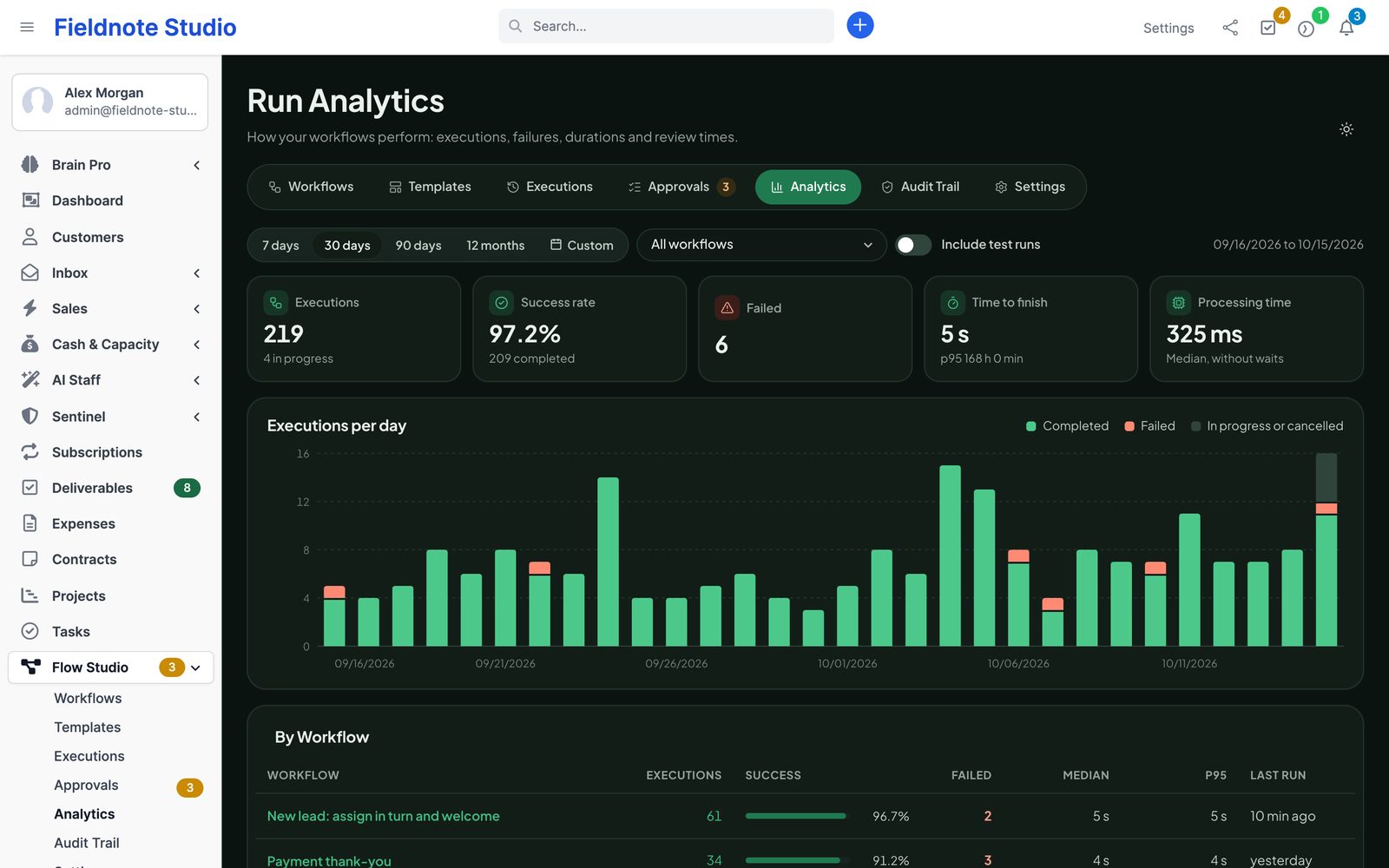
Executions per day, success rate, failures folded by cause, time to finish and processing time (median and 95th percentile), per workflow and per step — and how long reviewers take to decide.

  • 7, 30, 90 days, 12 months or your own period; one workflow or all; test runs in or out
  • Approval times per reviewer, open and overdue requests
  • Six Brain Pro widgets: executions, success rate, failures, by workflow, open approvals and my reviews
  • Staff with View (Own) see the numbers and executions of their own records only
Run analytics in dark mode for 30 days: executions, success rate, failures, time to finish, processing time and executions per day

Web requests

Talk to other systems. Safely.

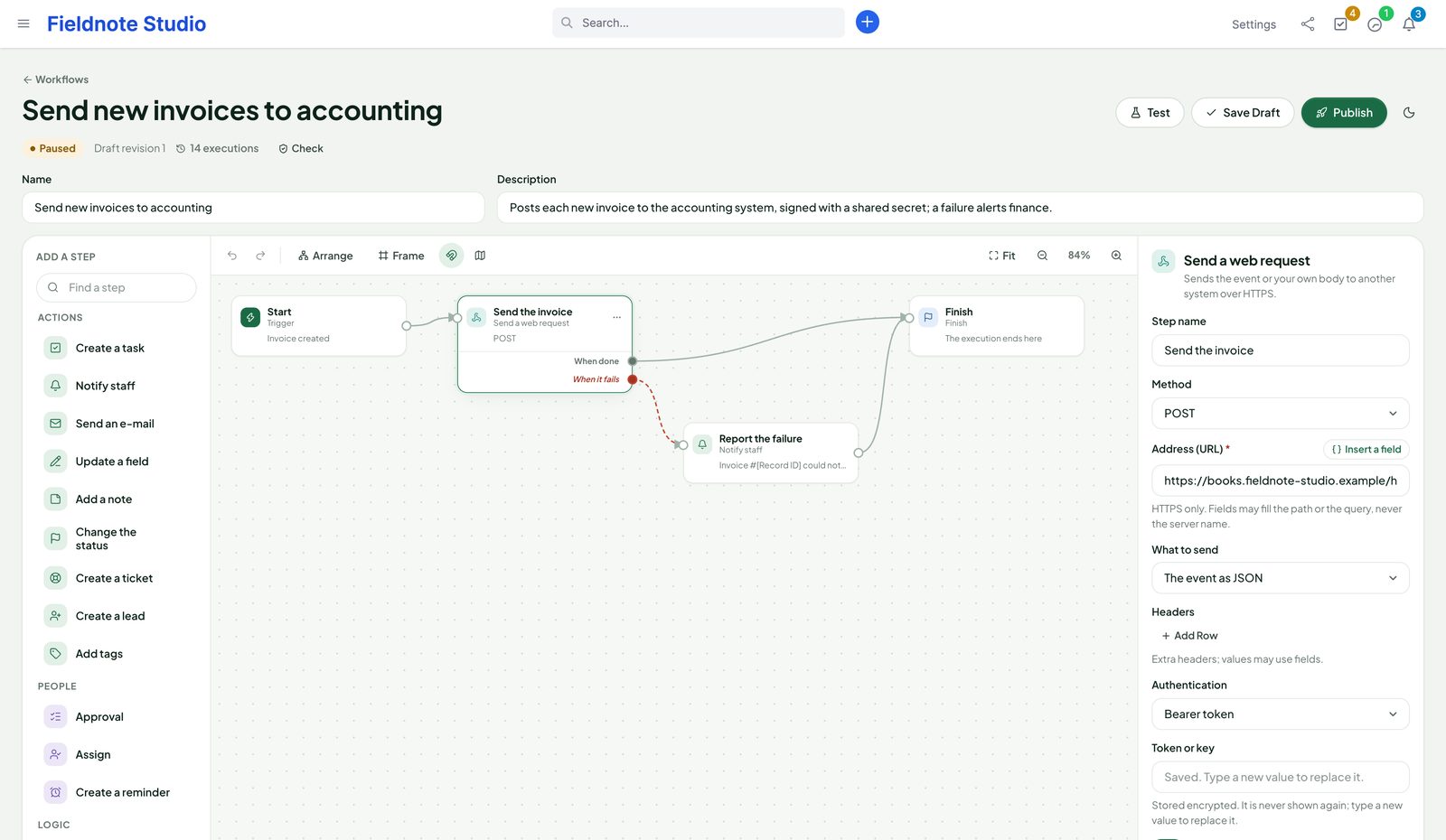
The Send a web request step posts the event or your own body to another system over HTTPS — your accounting, a warehouse, a chat channel — and hands the answer to the next steps. It was built so a workflow can never become a way into your own server's network.

  • HTTPS only, no redirects followed; the host is resolved once and the connection pinned to the checked address
  • Private, loopback, link-local and cloud metadata addresses refused; your own allow and deny lists on top
  • Bearer token or header key, and an HMAC signature with a timestamp — secrets sealed and never shown again
  • Time limit, answers capped at 256 KB, up to 2 retries on server errors, and an error branch
  • Header values and query strings masked in the step log
A web request step that posts new invoices to an accounting system, with signing and an error branch that alerts finance

Templates

Start from a working pattern.

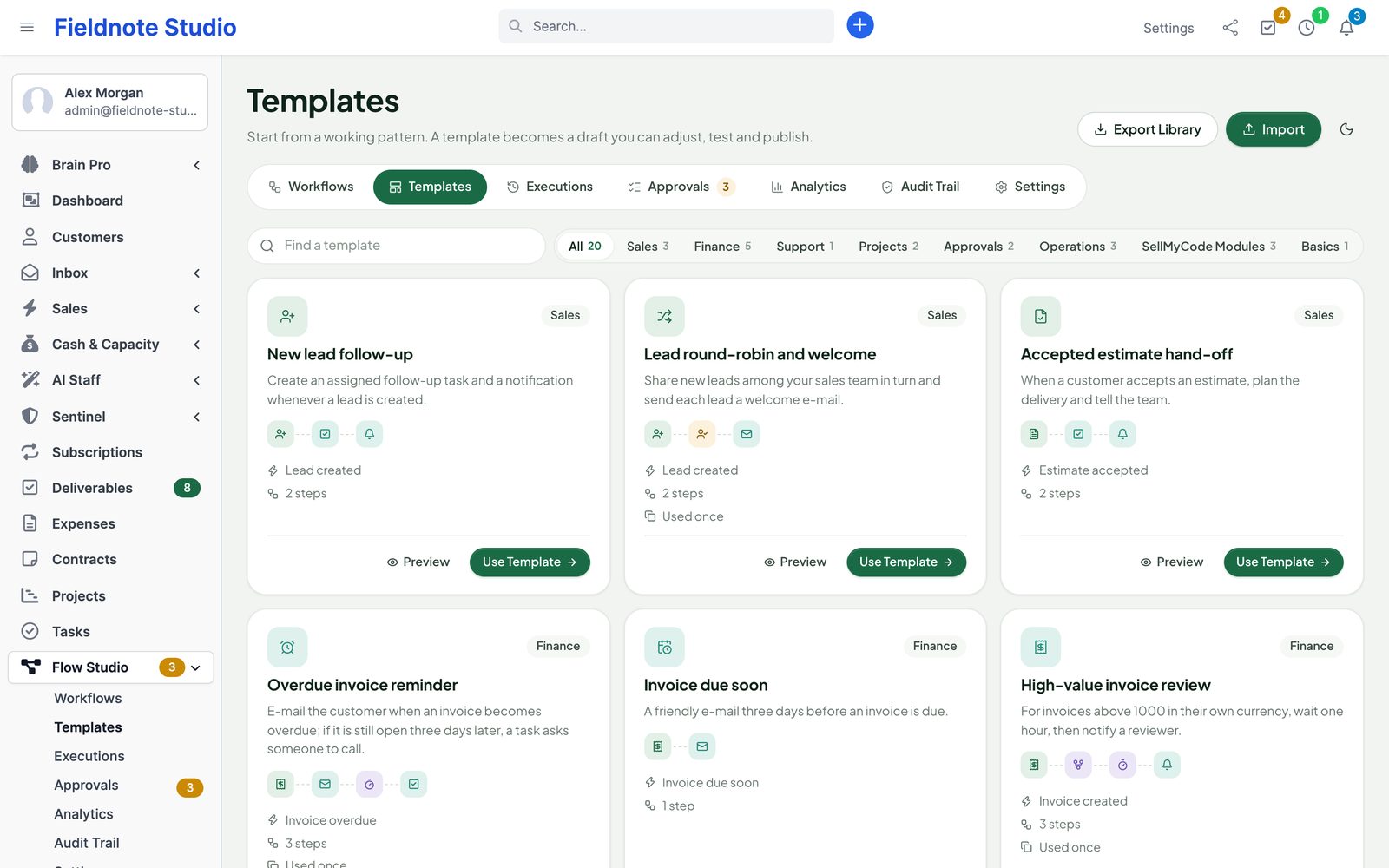
Twenty templates for sales, finance, support, projects, approvals and operations — each one becomes a draft you adjust, test and publish. The people in it are the colleague you choose when you use it.

  • New lead follow-up, lead round robin and welcome, accepted estimate hand-off
  • Invoice due soon, overdue reminder, high-value invoice review, payment thank-you, invoices to another system
  • Urgent ticket escalation, project kickoff, overdue task nudge
  • Review before acting, discount approval, customer onboarding, contract renewal, daily reminder
  • With our other modules: Inbox follow-up and AI triage, Client Hub file received
The template gallery with categories, the steps of each template, Preview and Use Template
Actual module interface with fictional demonstration data.

Integrations

Works on its own. Plugs into our other modules.

▤

Perfex itself

Leads, customers, contacts, tasks, projects, tickets, invoices, estimates, proposals, contracts, payments, expenses and credit notes; Perfex's e-mail templates, notifications, permissions and cron.

✉

Perfex Inbox All-in-One

Start on new conversations, messages, assignments and missed SLA targets; send a message, assign, label, change the status or add a note in a step.

✦

Perfex AI Staff

Ask AI Staff sorts, summarises or drafts and saves the answer for the next step. It never sends anything itself — a following step does.

▦

Perfex Brain Pro

Six widgets: executions, success rate, failures, executions by workflow, open approvals and the reviews waiting for you.

⛨

Perfex Sentinel

Published versions, settings, cancelled executions and review handovers in Sentinel's audit log; start a workflow on a high-severity security event.

⇩

Client Hub, Deliverables, Document Studio

Start when a customer uploads a file or posts feedback, when a deliverable is approved or changes are requested, or when a document template is published.

Security & control

Automation you can hand to auditors.

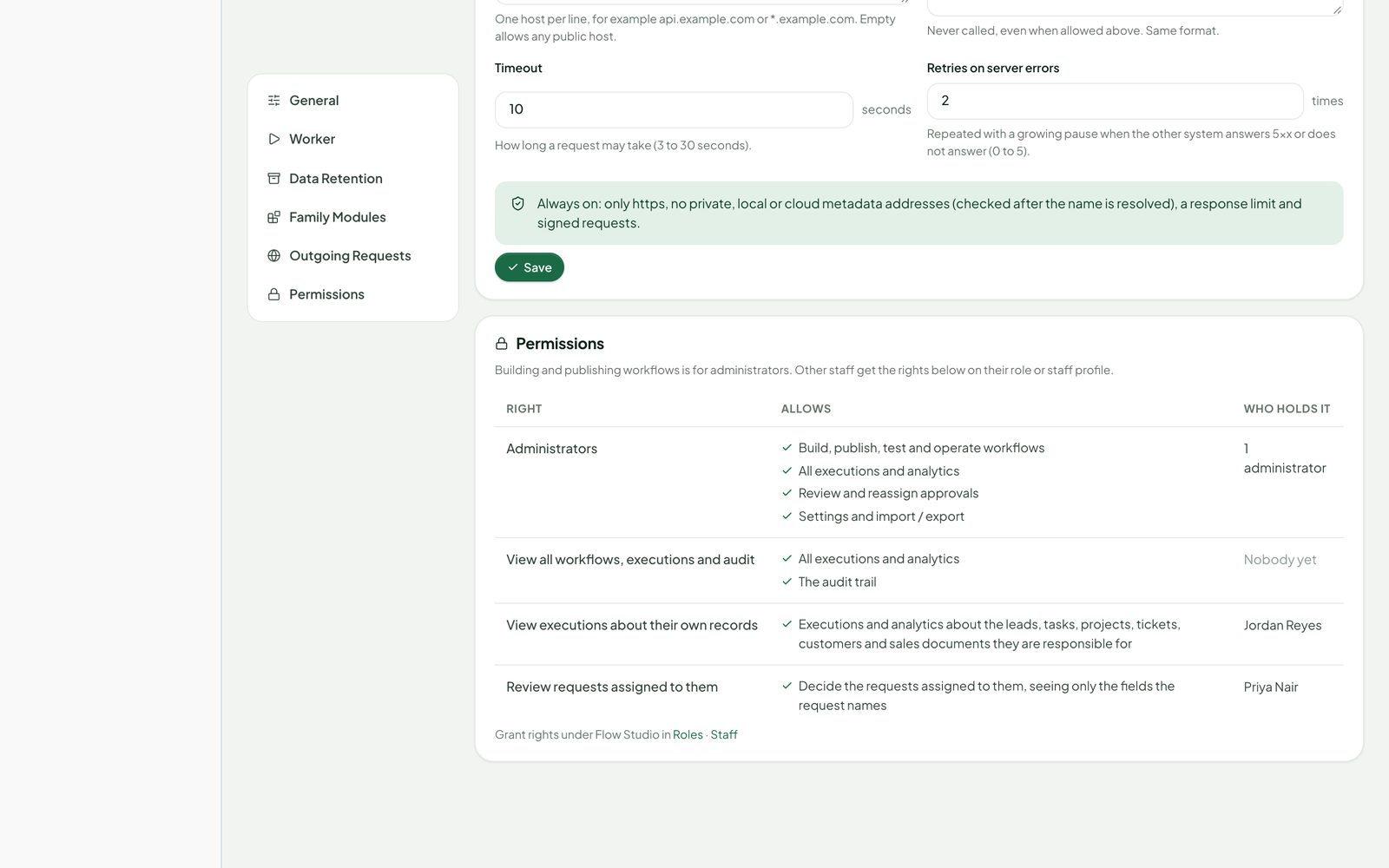
Only administrators build and publish workflows. Everyone else sees what their Perfex rights allow: all workflows and executions, the executions of their own records, or only the approvals assigned to them.

  • Published versions are immutable and checked with a SHA-256 checksum before every step
  • One broken workflow pauses itself and tells its owner — the others keep running
  • Limits per workflow and per record each hour stop loops and floods of events
  • No code in workflows: fields are looked up, conditions use fixed operators
  • Every change is a POST with Perfex's CSRF token; every page checks permissions
  • Data retention: finished executions after 180 days and the audit trail after 730 by default; deleting a lead, customer or contact clears its copies
Settings: who may do what in Flow Studio, with the Perfex rights View, View (Own) and Approve
Actual module interface with fictional demonstration data.

Up and running in three steps

  1. 1

    Upload and activate

    Setup › Modules › upload the zip and activate Perfex Flow Studio. Make sure Perfex's cron runs every minute.

  2. 2

    Pick a template

    Open Flow Studio › Templates, use one, adjust the people and texts, and press Test on a real record.

  3. 3

    Publish and watch

    Publish with a note. Executions, approvals and analytics fill up as your team works in Perfex.

Roadmap

What comes next for Flow Studio

What we are building and planning. Plans can change, and we never promise dates: an item ships when it is ready and tested.

  • Next

    Triggers and steps for every new module

    Each new SellMyCode module registers its own events and actions.

  • Planned

    More gallery workflows

    Ready-made flows for each module, tested on demo data.

  • Planned

    One-click updates

    Update the module from the Perfex admin, with a backup first and a way back.

Pricing

One price. Every workflow, every colleague.

Perfex Flow Studio

$99one-time

One installation, unlimited workflows, executions and staff. Licence and support terms are shown on the SellMyCode listing. No per-run or per-user fees. Sold by SellMyCode.

Buy on SellMyCode Read the documentation
  • Visual builder with palette, frames, minimap, undo, Check and phone outline
  • Triggers on 14 Perfex record types: created, updated, status and field changed, deleted, outcomes
  • Date triggers: due soon, overdue, expiring, deadline, not contacted — once per record
  • E-mail, update field, change status, assign in turn, notes, tags, tasks, tickets, leads, reminders, notifications
  • If / else, waits, values, approvals with groups, deadlines, delegation and independence
  • Guarded web request step with signing, sealed secrets and an error branch
  • Immutable versions with notes, comparison, restore, import and export
  • Test on real records, test runs, run again, retry and cancel
  • Executions, analytics, audit trail, data retention and least-privilege access
  • 20 templates; Inbox, AI Staff, Brain Pro, Sentinel, Client Hub, Deliverables and Document Studio integrations
  • Module zip, offline documentation and license notices

Interface in nine languages. Optional AI steps are billed by your AI provider through Perfex AI Staff. Flow Studio works completely without AI and without our other modules.

Questions

Does it need anything besides Perfex?

No. Flow Studio works with Perfex CRM alone. Inbox, AI Staff, Brain Pro, Sentinel, Client Hub, Deliverables and Document Studio add triggers, steps and widgets when they are installed and active.

When do workflows run?

Events are recorded the moment they happen in Perfex; the steps run in the background through Perfex's cron job, which should run every minute. Waits, approvals and date triggers are checked on every cron run.

What happens when I change a published workflow?

You edit a draft; nothing changes until you publish. Publishing creates a new version. Executions that already started finish on the version they started with, and a new version never picks up events from before it was published.

Can a workflow send something by mistake while I build it?

No. Test walks the draft against a record without sending, changing or creating anything. Only a published, enabled workflow acts — and you can pause it at any time.

What if a step fails?

The execution stops at that step with a plain explanation, or follows the step's error branch if you connected one. Steps without effects (conditions, waits, values, AI) can be retried; after a failed action, check the record and use Run Again. A workflow whose version cannot be read pauses itself and notifies its owner; the others keep running.

Who can see what?

Administrators build and publish. Staff with View see every workflow and execution; with View (Own) the executions of records they are responsible for; with Approve only the requests assigned to them and the fields those name.

I used the 0.2 development preview. Do I lose my workflows?

No. Upload 1.0.0 over it; the database upgrade only adds tables and columns. Workflows, published versions, executions, approvals and the audit trail are kept, and 0.2 versions keep their meaning.

Does it change Perfex core files?

No. Flow Studio uses Perfex's module hooks and its own tables. Deactivate it and its menu and background work stop at once; your data stays until you uninstall.

What are the requirements?

Perfex CRM 3.4 or newer (tested on 3.4.1), PHP 8.0 or newer with curl and openssl, MySQL or MariaDB, and Perfex's cron running every minute. The web request step needs outgoing HTTPS from your server.

Is it translated?

Yes. The interface ships in English, Spanish, Portuguese (Brazil), French, German, Italian, Dutch, Turkish and Russian.

How do I get support?

Contact us through sellmycode.net. Six months of support are included with every licence. Please add the module, Perfex and PHP versions and a screenshot of the execution — never passwords or secrets.
Let Perfex do the follow-ups.

Triggers on every record, approvals where they matter, and a record of every step — inside the CRM your team already uses.