Perfex Books documentation
Perfex Books adds double-entry accounting to Perfex CRM: a chart of accounts and an immutable general ledger, automatic posting of invoices, payments, credit notes, refunds and expenses, vendor bills, bank statement import and reconciliation, multi-currency with exchange differences, a tax summary and financial reports with drill-down to every document.
Installation
Requirements
- Perfex CRM 3.4 or newer. Tested with Perfex 3.4.1.
- PHP 8.1 or newer with the
bcmathextension; MySQL or MariaDB with InnoDB tables. XLSX export needszip; CAMT.053 import needsdom. - Perfex's cron job (Setup › Settings › Cron Job shows the command), ideally every minute. Posting, imports, exports, recurring journals, period close and the integrity check run in the background.
Install
- Back up the CRM database and files.
- Extract the download
perfex-books-1.0.0.zipon your computer. Inside are the installableperfex_books-1.0.0.zip, this documentation, the changelog and the licenses. - In Perfex, open Setup › Modules, upload the inner
perfex_books-1.0.0.zip, then activate Perfex Books. - Enter your purchase code on the License page that opens.
Installing creates the Books tables and a starter chart of accounts. It posts nothing: no transaction reaches the ledger until you choose a go-live date.
Files and tables
The module lives in modules/perfex_books. Its tables start with tblpbk_ (your table prefix may differ). Uploaded statements and bill attachments are stored under Perfex's uploads folder, never inside the module folder. Books adds no columns to Perfex's own tables and changes no Perfex core files. Deactivating keeps all data.
First steps
- Settings › Fiscal: fiscal year start and base currency (the same as Perfex's base currency).
- Accounts: pick a starter template — generic small business, services or products — then add or rename accounts.
- Settings › Posting: map payment modes to bank accounts, expense categories to expense accounts and Perfex taxes to tax accounts.
- Opening Balances: enter what each customer owes, what you owe each vendor and each bank balance on the day before your go-live date.
- Choose the posting start date and turn automatic posting on. New documents post from then on.
- Optional: run the historical backfill for documents before that date.
- Give staff the permissions they need.
Permissions
Set them in Setup › Staff › Roles (or per staff member) under Perfex Books. Staff without View do not see Books at all.
| Permission | Allows |
|---|---|
| View | Open Books: accounts, journals, bills and bank statements. |
| View Reports | Financial reports and exports, with company-wide totals. |
| Create / Edit | Draft journals, bills, accounts and imports. |
| Post | Post journals, bills and payments to the ledger. |
| Approve | Approve manual journals above the approval threshold (never one's own). |
| Reconcile | Match statement lines, reconcile and undo a reconciliation. |
| Close Periods | Move the lock date, close a fiscal year and close tax periods. |
| Settings | Fiscal settings, mappings, exchange rates, backfill and integrations. |
| Manage Accounting Connections | Connect, sign in again, replace the secret or disconnect QuickBooks Online and Xero; choose which side reports read. |
| Map Accounting Records | Link Perfex customers, items, taxes, payment modes, expense categories and currencies to the accounting app. |
| Run Accounting Backfill | Sync settings, Send History, retries and review. The staff member chosen as Send As needs it too. |
| View Accounting Sync Log | Sync log, Needs Review and Payments Received, without document contents. |
The accounting sync has its own menu item, Accounting Sync, for staff with any of the four sync permissions; they do not need Settings.
Report totals are company-wide for everyone with View Reports. Names, document numbers, memos and links of customers and projects follow each person's own Perfex rights: rows they may not see show the amount as “Restricted Document”.
Chart of accounts
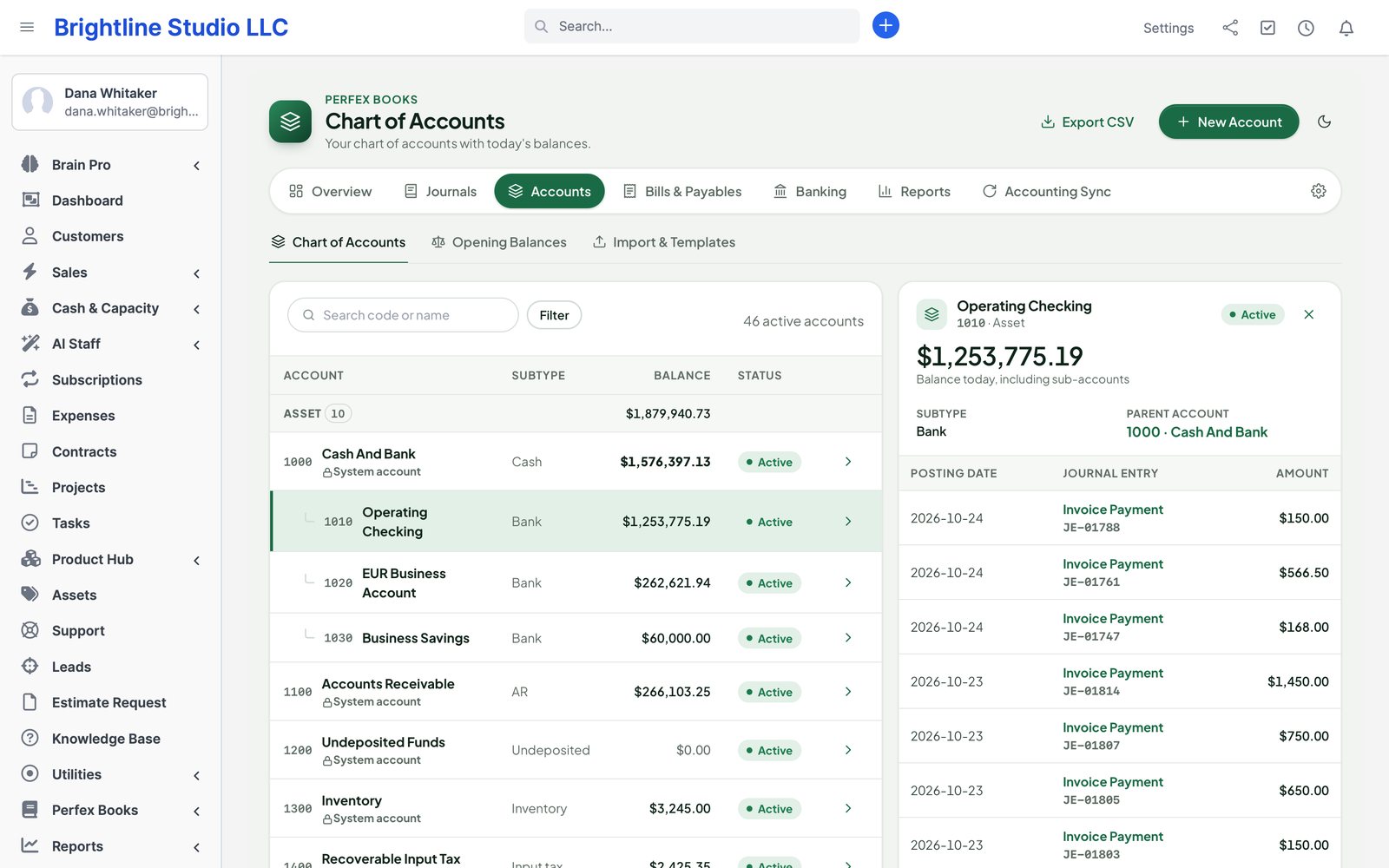
Each account has a code, a name, a type (asset, liability, equity, income, expense or cost of goods sold), a sub-type and optionally a parent. Reports group accounts by type and parent. Archive an account instead of deleting it once it has postings.
System accounts are created for you and cannot be archived: Accounts Receivable, Accounts Payable, Undeposited Funds, Sales Tax Payable, Foreign Exchange Gain and Loss, Retained Earnings, Opening Balance Equity, Inventory and Cost of Goods Sold.
Import from CSV: upload a file, map its columns (code, name, type, sub-type, parent), check the dry run and confirm. Nothing is written before you confirm; the import runs in the background.
Fiscal settings
The fiscal year start sets your reporting year. The base currency is Perfex's base currency; every journal line keeps the document amount and the base amount.
Opening balances
The opening balances wizard posts one balanced entry on the day before you start: receivables per customer, payables per vendor (each becomes an open bill or vendor credit you can pay or apply later), bank and other balances. The difference goes to Opening Balance Equity. Later corrections are posted as opening adjustments, never by editing the first entry. Opening balances can also be imported from CSV.
Lock date and year-end close
- Lock date: nothing can post on or before it. It only moves forward. A change to a document dated in a locked period posts on the first open day, with the original date kept on the entry.
- Close a fiscal year: the year's profit or loss moves into Retained Earnings and the year is locked. The close runs in the background and refuses while reversals are still scheduled inside the year.
Automatic posting
Books reads Perfex's own records through the cron and posts each document as a balanced journal entry:
| Perfex document | Journal entry |
|---|---|
| Invoice | Receivable against income per item, item group or default; tax to the tax account; discounts and adjustments to their accounts. |
| Payment | Bank or Undeposited Funds (per payment mode) against the receivable; overpayments to Customer Credits. |
| Credit note / refund | The reverse of the invoice lines; a refund takes the money out of the bank. |
| Expense | Expense account per category and recoverable tax, against the bank it was paid from or Unpaid Expense Clearing. |
| Subscription | Through the invoices it creates. |
Basis: the ledger is on the accrual basis. Profit and loss and the tax summary can be shown on the cash basis from the same data.
Account mapping
Under Settings › Posting, map each payment mode to a bank or Undeposited Funds, each expense category to an expense account and each Perfex tax to a tax account; optionally income per item or item group. Mappings apply to new documents. To re-classify history after changing a mapping, use Reclassify History: it previews the accounts that would change and posts reversals and replacements only after you confirm.
Historical backfill
- Choose the start date of the history you want in Books.
- Preview lists every document that would post and compares the totals per document type and currency with Perfex's own. Differences are listed by document.
- Fix what you can in Perfex and preview again, or explicitly accept the differences.
- Confirm: the backfill runs in the background in small batches, with progress shown. Failed documents keep their error and can be previewed again one by one.
Documents covered by your opening balances are not posted twice: a payment on an invoice that is already in opening receivables settles that balance.
Edits and cancellations
Posted entries never change. When a document is edited, cancelled or deleted, Books posts a reversal and, if needed, a new entry, both linked to the original. A received payment keeps its entry when its invoice changes; a bank match survives only when account, currency, amount and date are unchanged, otherwise the line shows in Needs Attention.
Journals
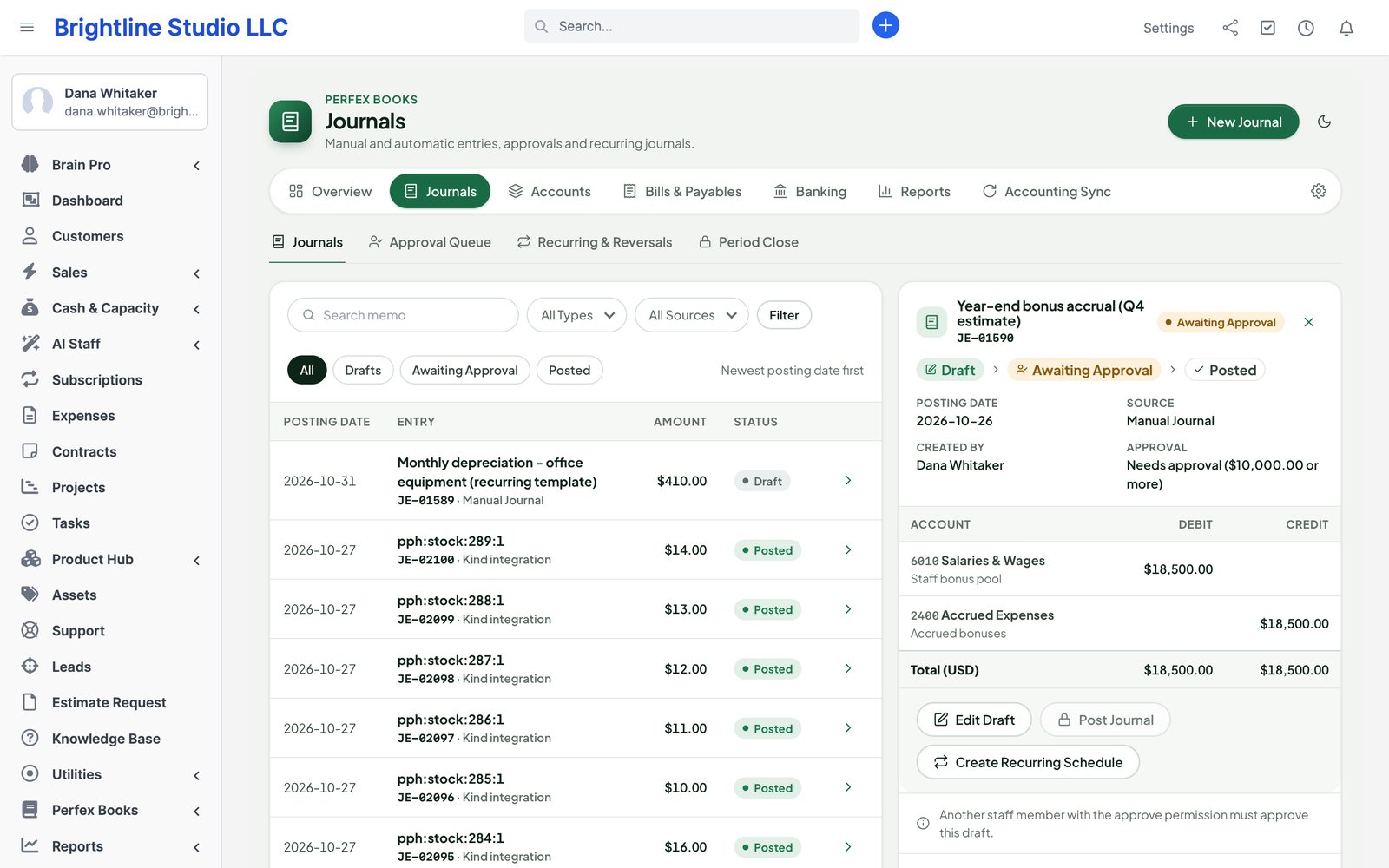
- Manual journals: any number of balanced lines with dimensions (customer, vendor, project, cost centre, tag) and attachments.
- Approval: set an amount in Settings; drafts above it need approval by another staff member with Approve before they can post.
- Recurring: a schedule (daily, weekly or monthly) creates the journal through the cron — for example monthly depreciation.
- Reversing: give an accrual a reverse date and Books posts the opposite entry on that day (or the first open day if it is locked).
- Reverse a posted journal from its page; the reversal links to it.
Vendors and bills
Vendors are kept in Books. A bill has lines with accounts and tax, a due date and attachments. Post it to record the payable; pay it in full or in parts from a bank account; apply vendor credits of the same vendor and currency. To void a posted bill, first reverse its payments and credit applications.
Banking
Add each bank or cash account (with its currency) under Banking, linked to a ledger account.
Statement import
- CSV: map date, description, reference, amount (or separate debit and credit columns), date format, decimal and thousands separators and the sign convention. Save the mapping as a template for that bank.
- OFX/QFX and CAMT.053 files are read as they are, including the statement balances.
- The preview shows lines that overlap an earlier import; skip them explicitly. Files are limited to 1 MB and 2,000 lines; XML is read without external entities.
Matching and rules
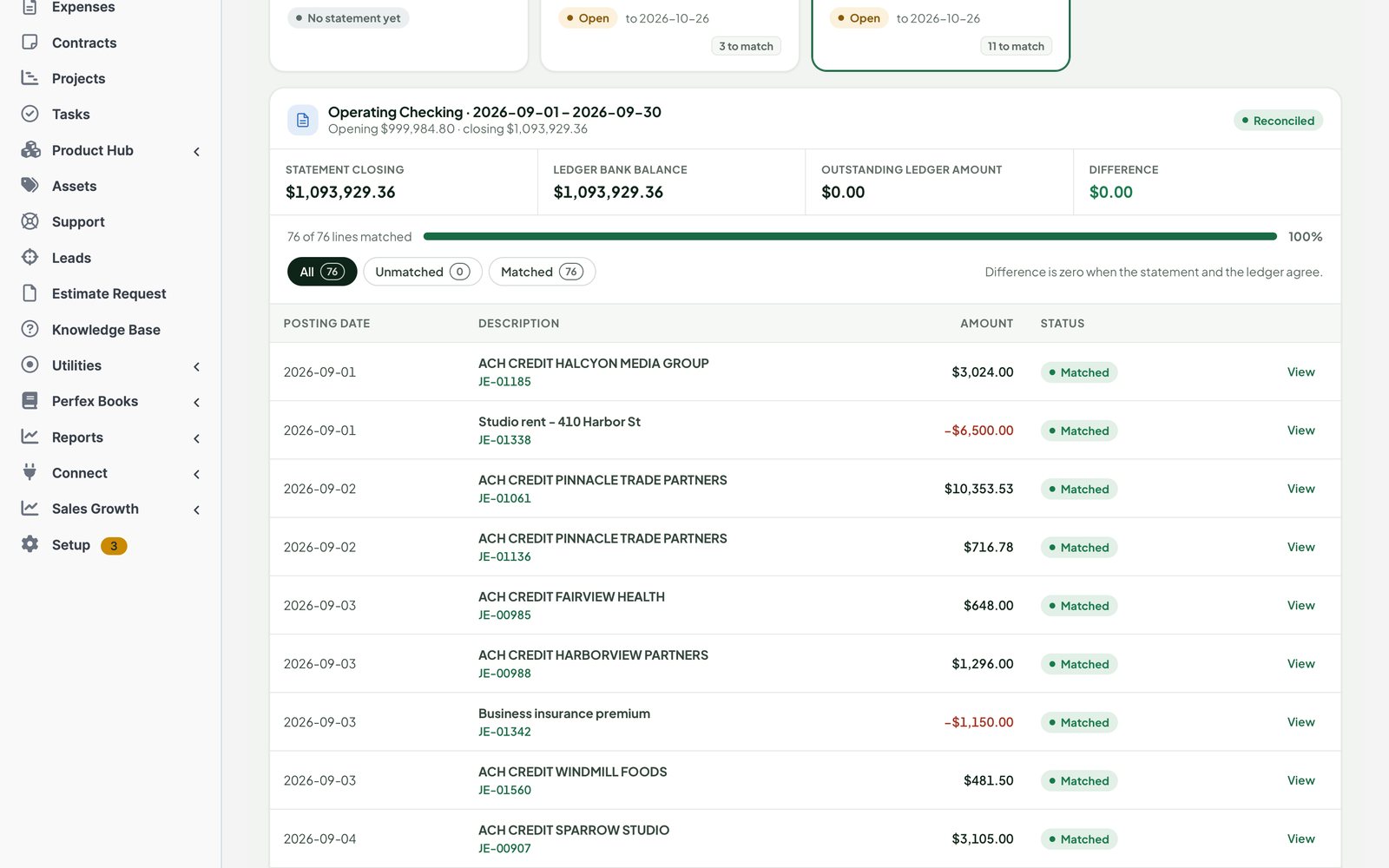
Select a statement line to see Matching Suggestions by amount, date, reference and party. Match one line to several ledger items, group receipts in Undeposited Funds into one deposit (with a fee if the bank took one), split a line across accounts or record a transfer between two of your accounts. Rules post recurring lines for you: “if the description contains X, post to account Y with vendor Z”.
Reconciliation
When every line is matched, reconcile the statement: the ledger balance less uncleared items must equal the statement's closing balance. The reconciliation report keeps what was cleared. Undo reopens the last reconciliation and keeps its matches. If a later posting changes a reconciled period, the statement is flagged so you can review it.
Multi-currency
- Enter exchange rates per date in Settings. A document without a rate for its date waits; Books never converts at 1.
- Each currency uses its Perfex decimal places.
- On payment of a foreign invoice or bill, the difference between the invoice rate and the payment rate posts to Foreign Exchange Gain or Loss.
- Optional revaluation at period end for receivables, payables and foreign bank accounts, posted with a reversal on the next day. It never affects cash-basis reports.
Tax
Each Perfex tax is mapped to a tax account and code. The Tax Summary shows tax collected and tax paid per rate and code for a period, on the accrual or cash basis, with drill-down to the documents. Create a tax period and close it when you have filed: its summary is frozen, and later postings that would change it are refused or move to an open date. Books does not file returns.
Reports
| Report | What it shows |
|---|---|
| Profit and Loss | Income, cost of goods sold and expenses for a period; compare with another period; accrual or cash basis. |
| Balance Sheet | Assets, liabilities and equity on a date. |
| Cash Flow | Indirect method from net profit. |
| Trial Balance | Debits and credits per account. |
| General Ledger / Journal Report / Account Transactions | Every line, with links to the journal and the document. |
| Aged Receivables / Aged Payables | Open amounts by age bucket, per customer or vendor and currency. |
| Customer / Vendor Statement | Opening balance, documents, payments and running balance in one document currency. |
| Tax Summary | See Tax. |
| Budget vs Actual | Your monthly budget per account against posted amounts. |
Every report filters by date range and dimensions (customer, vendor, project, cost centre, tag). Exports to CSV, XLSX and PDF run in the background; spreadsheet exports keep numbers numeric and neutralise formulas.
Integrity check
Once a day (and on demand from the Overview) Books checks that every entry balances, that no line is orphaned and that cached balances equal the sum of their lines. It reports findings in Needs Attention and never changes a record.
QuickBooks Online and Xero
Books can send your Perfex documents to a QuickBooks Online company or a Xero organisation, with or without the Books ledger. Each connection is one company in one environment (sandbox or production).
Connect
- Create an app in the Intuit Developer portal (QuickBooks Online) or the Xero Developer portal. Add the redirect URI shown in Books:
https://your-crm/admin/perfex_books/books_sync/callback. Your Perfex address must use HTTPS. - In Perfex Books › Accounting Sync, choose New Connection, pick the provider and environment, paste the Client ID and Client Secret (a Xero app that uses PKCE needs no secret) and choose Save and Connect.
- Sign in at the provider and allow access. For Xero, choose the organisation if you authorised more than one. The connection card turns Connected.
Tokens and the secret are stored encrypted in your database, renewed automatically and never shown again. Books calls only the providers' official API addresses. Disconnect revokes access; documents already sent stay in the accounting app.
Sync settings and mapping
On the connection page set a start date (older documents are skipped), the staff member Books sends as, how expenses appear (purchases, or bills when unpaid), a default supplier, a zero-rate tax for discounts and adjustments and a default item. Then open Mapping and link customers, items, taxes, payment modes, expense categories, currencies, suppliers and income accounts. Suggest looks for the same name, email or number; nothing is linked until you choose. Changing a link keeps the history and only affects documents sent afterwards.
What is sent and how
- Customers, invoices, credit notes, payments, credit applications, refunds and expenses, with lines, taxes, discounts and currency. Optional: catalog items.
- An edit updates the same document; a cancellation or deletion voids or deletes it according to the provider's rules. Replays never create a second document.
- The Perfex cron sends in the background, retries with backoff and pauses when the provider's rate limit is reached; the connection page shows the pause.
- Sync Log lists every job with filters. Needs Review lists what Books could not send safely on its own: fix the cause and Retry, Review what was sent next to what the provider holds now, Close as Rejected a refused document, or Discard a request that was never sent.
- Send History previews older documents for a date range and sends them only after you confirm.
Payments received and books of record
Payments entered in QuickBooks Online or Xero against invoices sent from Perfex appear under Payments Received. With Record payments made in the accounting app on, you can record a reviewed payment on the Perfex invoice (customers are not emailed); a payment that was changed or deleted at the provider is never applied. Books of Record chooses whether profit and loss and the balance sheet come from the Books ledger or from the accounting app.
Switching from another accounting module
If another accounting module for Perfex is installed on the same database, Settings › Switching and Opening Balances reads its chart of accounts, mappings, journal history or opening balances and bank accounts. The source tables are only read.
- Start with a fresh Books ledger, with automatic posting off, and pause work in the old module.
- Choose History and Cutover Balances or Opening Balances Only, and the last day in the old ledger.
- Map the old module's vendors to Books vendors.
- Run the dry run: counts, debits against credits, control balances and anything that cannot be imported.
- Confirm. The import runs as one batch; running it again never imports a row twice.
- To go back, Undo the batch: Books posts reversals in an open period and archives the imported accounts.
Past bank reconciliations are kept for reference only; import fresh statements and reconcile them in Books. Review the tax mappings after the import.
Integrations
Each works only when the other module is active, through its public hooks.
- Perfex People: each approved pay run posts one payroll journal (gross pay and employer costs against deductions, net pay and employer contributions payable); adjustment runs post their difference. Map the payroll roles in Settings › Account Mappings (People Payroll Role).
- Product Hub: inventory value and cost of goods sold. Sales Growth: commission and loyalty accruals.
- Perfex Brain Pro: seven widgets — cash, profit, receivables, payables, profit trend, aged receivables and aged payables.
- Perfex AI Staff: a read tool for profit and loss, cash position, account balances, overdue bills and tax due, within the asking person's rights.
- Perfex Connect: read-only API resources “Books Accounts”, “Books Journals” and “Books Reports” for keys with those scopes.
- Perfex Cash & Capacity: actual results for its forecasts.
- Perfex SaaS Studio: each workspace has its own books; storage is under the workspace's uploads.
For developers
pbk_bank_feed_providers(filter): register a bank-feed provider. A staff request queues an import preview; feeds are never imported automatically. No provider ships in 1.0.pbk_exchange_rate_suggestion(filter): suggest a rate for a currency and date; staff save it explicitly. Off by default.pbk_tax_return_closed(action): fired when a tax period is closed, for country packs.
Troubleshooting
- Nothing posts: check that Perfex's cron runs, the posting start date is set and the posting staff member has Books Post.
- A document is in Needs Attention with a mapping error: add the missing mapping in Settings › Posting and press Retry.
- “The period is locked”: the date is on or before the lock date; the change will post on the first open day.
- Backfill totals differ from Perfex: open the listed documents; typical causes are invoices without item rows or payments in a currency the payment mode's bank account does not hold.
Changelog
Current version 1.0.0 (29 Oct 2026). Release notes of every version, newest first: perfexcrm.app/books/changelog/.
1.0.0
- First release: chart of accounts, immutable ledger, automatic posting from Perfex with backfill, vendor bills, bank import and reconciliation, multi-currency and FX, tax summary, financial reports, audit log and integrations with Brain Pro, AI Staff, Connect and Cash & Capacity.
The full list is in changelog.txt in the download.