Perfex People documentation
Perfex People adds HR to Perfex CRM: employee records, leave, attendance, payroll, recruitment, onboarding and offboarding and reports, with read-only importers to switch from another HR module. Every Perfex staff member can have an employee profile; People keeps it in its own table next to Perfex staff.
Salary, bank and identity details are encrypted at rest and protected by their own permissions. They never load with a page: allowed people open them with Reveal, and every view and export is recorded. You choose the working rules; People does not provide the legal, tax or employment rules of any country.
Installation
Requirements
- Perfex CRM 3.4.x with MySQL 5.7+ or MariaDB 10.3+.
- PHP 8.1 or newer with BCMath (exact money arithmetic) and sodium (licence check). Perfex's normal encryption key must be set; keep it in your secured backup — without it protected data cannot be recovered.
- Perfex's cron job running (Setup › Settings › Cron Job shows the command). Accrual, payroll calculation, bank files, payslip e-mail, privacy clean-up and candidate retention run through it.
- A private, writable folder for documents and CVs.
- Perfex TeamPulse (1.2.1 or later), Perfex Books, Brain Pro, AI Staff, Flow Studio, Connect and Document Studio are optional.
Install
- Back up the CRM database, the uploads folder and the modules folder.
- Extract the download
perfex-people-1.1.1.zipon your computer. Inside are the installableperfex_people-1.1.1.zip, this documentation, the changelog and the licences. - In Perfex, open Setup › Modules, upload the inner
perfex_people-1.1.1.zip, then activate Perfex People. - Enter your purchase code on the License page (see Licence activation).
- Give HR and payroll staff their rights (see Permissions), then open Perfex People in the sidebar.
Licence activation
Your sellmycode.net purchase code switches the module on for one domain. After activation, open Perfex People › License, enter the purchase code and click Activate. The page shows the domain, the licence type, the activations used, how long updates are included and when the licence was last checked (every 6 hours; the module keeps working while the licence server is briefly unreachable).
- Installs on a development address (such as
localhost) need no licence and use no activation. - Moving to another domain: deactivate the old domain on the License page, then activate the new one.
- Pausing the module keeps the activation slot reserved for the domain.
Upgrades
Upload the new module zip in Setup › Modules and click Upgrade Database if Perfex shows it. Upgrades work whether People is active or not; deactivation keeps your data. Never use uninstall as an upgrade or troubleshooting step. After an upgrade, check the version, open your own profile, leave balances and approval queues, one sample payslip and the integration status.
Background work
Keep Perfex's cron job running. Work is done in small batches: accrual and payroll calculation handle up to 25 employees per run, so a large team may need a few cron runs. Wait until a pay run says it is ready before you review it. Look at worker states and errors after changing settings.
Permissions
Rights are set in Setup › Staff › Roles (or per staff member), feature Perfex People. Use the smallest set each person needs: viewing employees does not include salary, bank, recruitment or payroll.
| Who | Rights |
|---|---|
| Every employee | No right needed: their own profile, leave, attendance and locked payslips. They can reveal their own protected fields (audited). |
| Direct manager | Their direct reports for leave and attendance decisions. Being a manager does not open protected fields or the whole company. |
| HR records | View All Employees, Create, Edit; Documents for private files; Identity and Emergency Details where needed. |
| Leave and attendance | Manage Leave Types and Holidays; Approve Leave as HR; Manage Attendance Rules, Shifts and Rosters; Approve Attendance as HR. HR approval always comes after the manager and by a different person. |
| Payroll operator | View + Salary + Manage Payroll. |
| Payroll approver | View + Salary + Approve and Lock Payroll. Nobody can approve a run they created. |
| Payments | Salary + Bank Details and a payroll right. A bank file never marks payments as made. |
| Recruitment | Manage Recruitment (Salary as well for offer texts). Interviewers get Assigned Interviews and see only their own scheduled interviews. |
| Checklists | Manage Onboarding and Offboarding for templates; Assigned People Checklists for the people doing the tasks. |
| Reports | View + Company People reports; money reports also need Salary and a payroll right; the hiring funnel needs a recruitment right. |
| Privacy | Employee Privacy Operations for exports; Delete as well for erasure. Privacy never overrides the field rights. |
Review rights when someone leaves, changes manager or has their account deactivated. Background workers check the rights of the person who started the work; they never borrow an administrator's session.
First steps
- Check your departments in Perfex (Setup › Support › Departments); People uses them.
- Open People › Directory and add a profile for each existing staff account: job title, department, manager, location, employment type, time zone, contract start and probation. Check the account before saving; do not match people by name alone.
- Set up leave types and public holidays (see Leave).
- Set attendance rules and shifts, or use TeamPulse 1.2.1 or later once that update is out (see Attendance).
- If you used another HR module before, run the importer first (see Switching).
- Set up pay components, a pay group and the employees' pay values before your first run (see Payroll).
- Set the recruitment consent text, retention period and CV storage limit before you publish a job.
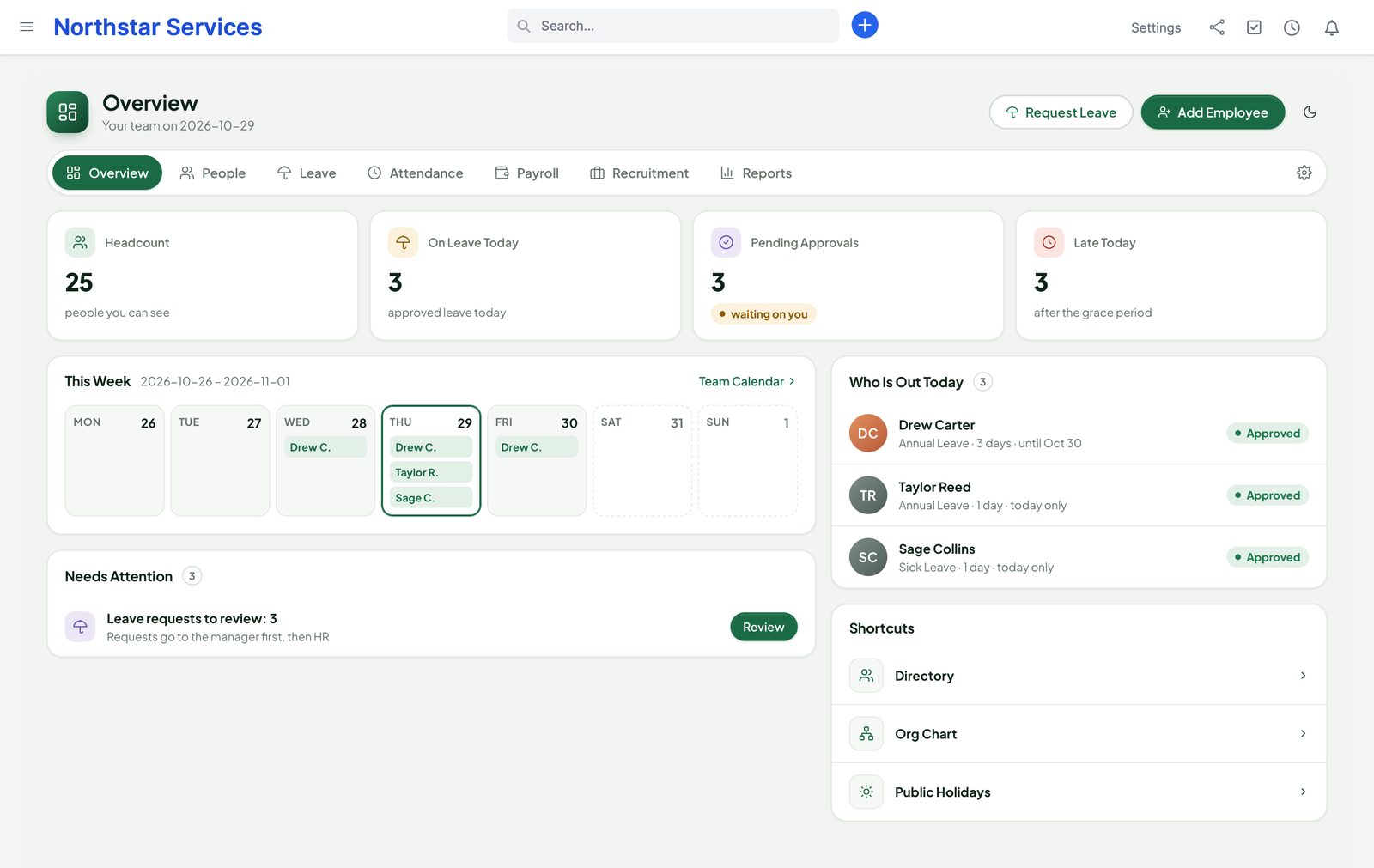
Employee records
A profile holds job title, department, direct manager, location, employment type, contract dates, probation, custom fields, emergency contacts and documents. The profile tabs are Details, Protected, Private Documents and Privacy; each shows only what your rights allow.
- Org Chart is drawn from the saved managers.
- Contracts and probation that end soon appear under Needs Attention on the overview.
- Set the contract start explicitly before adding someone to payroll: contract dates decide pay eligibility and proration.
- If someone else saved the profile first, People asks you to refresh instead of overwriting their change.
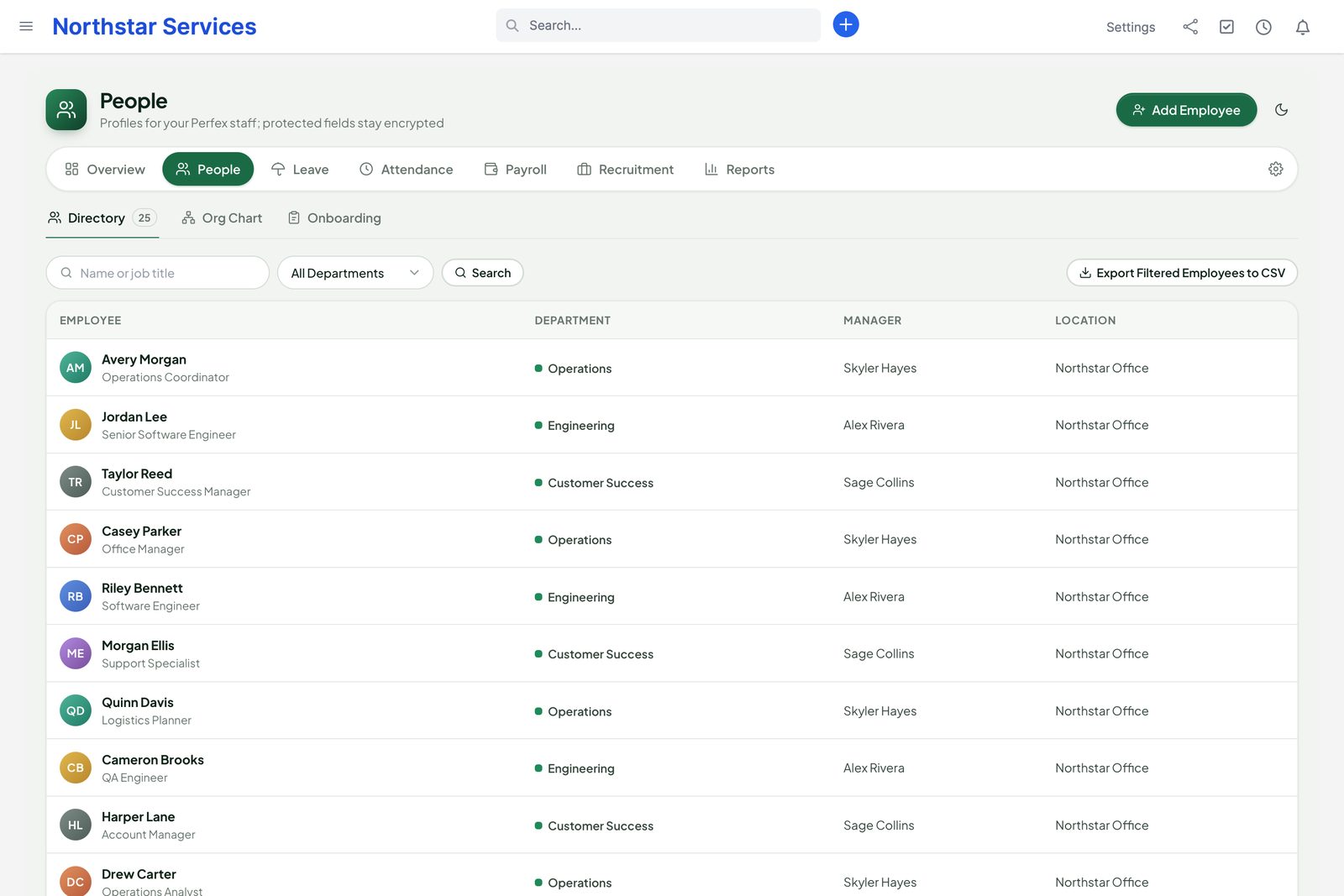
Protected fields
Salary, bank details, identity details and emergency contacts are protected. Their values are encrypted in the database and are not part of the page when it loads. A person with the right permission clicks View Protected Fields (Reveal); People loads the values once and records who saw what and when. People without the permission see that the field exists, not its value. An encrypted value cannot be copied to another employee or field to read it.
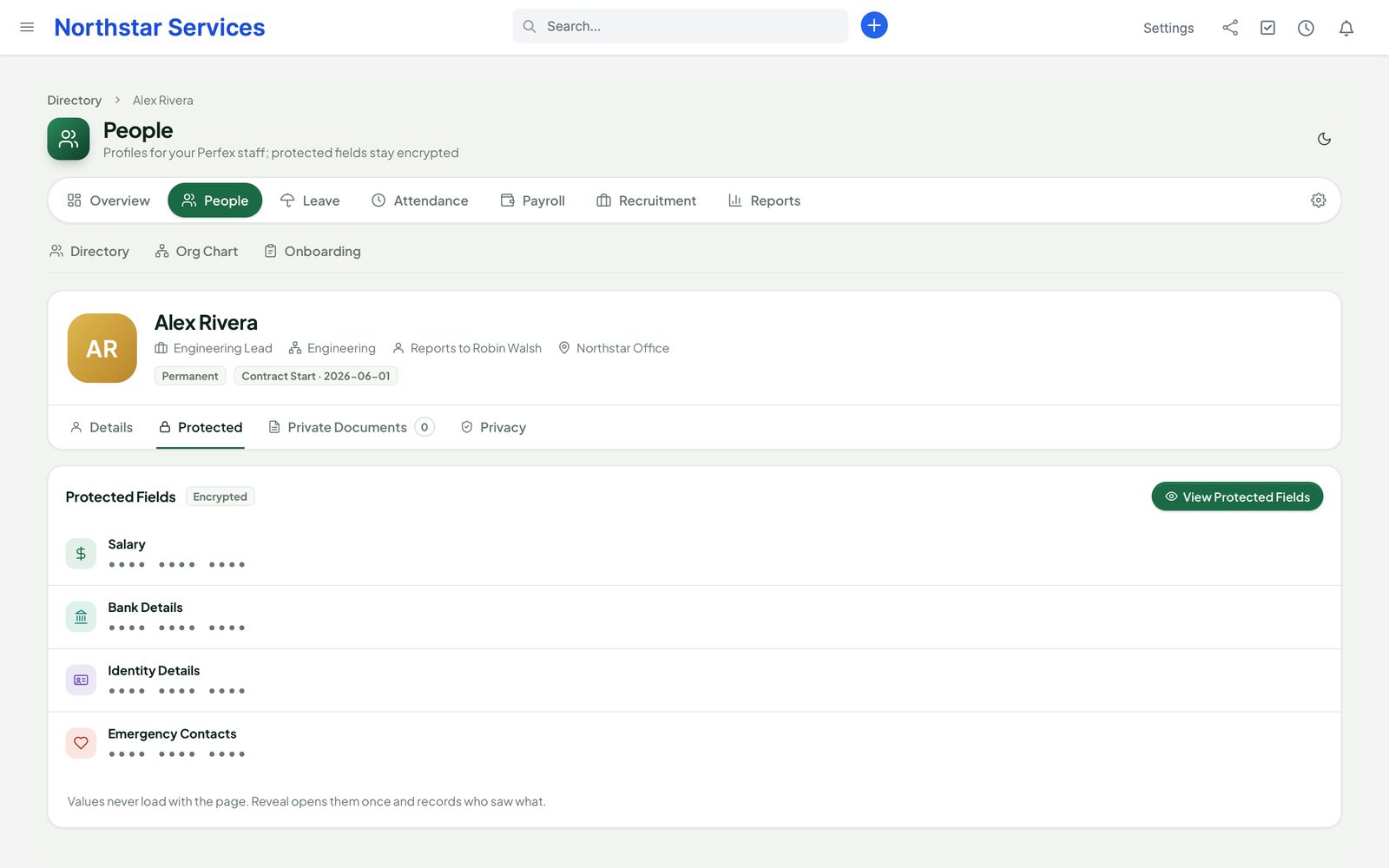
Documents
Drop files on the drop zone of the Private Documents tab, or click it to browse. Files are stored encrypted in private storage and downloaded through People with a permission check, never by a public link. Keep the private folder in your backups together with the database.
Set the private folder in People's settings. Prefer a writable path outside the web server's document root. If you keep the default folder inside Perfex, People ships deny rules for Apache and IIS; on Nginx, add a deny rule for uploads/ppl_private yourself.
Self-service
Every staff member gets My Profile: their own details, leave balances and requests, attendance, locked payslips and documents. They can reveal their own protected fields; nobody else's.
Leave
Leave types
Leave › Leave Types. For each type set:
- Accrual: an amount per month or per year.
- Carry-over cap: how much may move to the next year.
- Pro-rata for people who join during the year.
- The day length, used for half days and hours.
Decide which types are unpaid before you use them in a pay group. Accrual runs through cron and never grants the same amount twice. Balances show what is left, what pending requests reserve and what was taken. Renaming a type keeps its history; deactivating it stops new use without erasing anything.
Requests and approvals
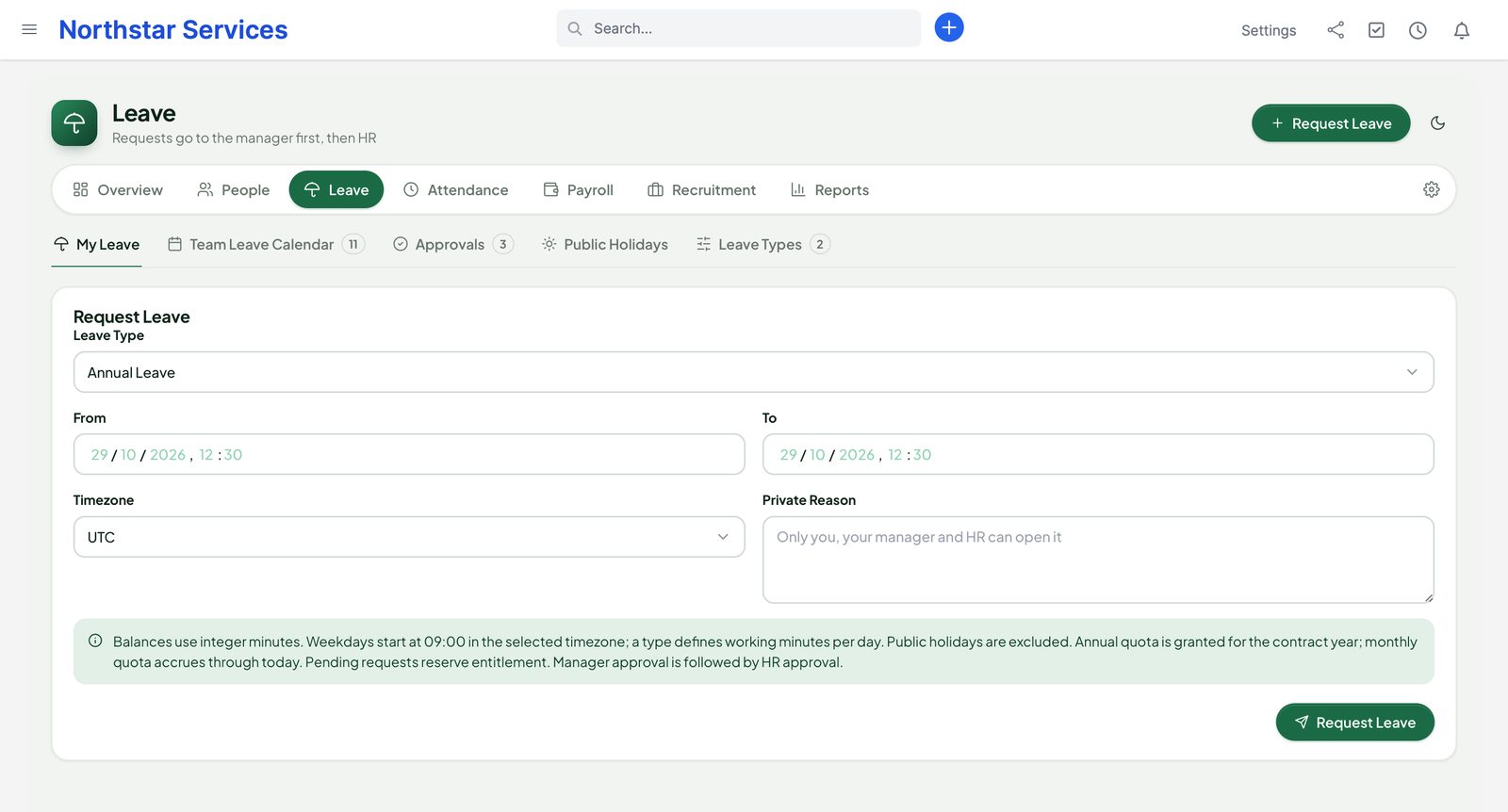
- The employee clicks Request Leave, picks a type and the dates (full days, half day or hours) in their time zone. People counts the working time, skips public holidays and warns when others in the team are out. Overlaps, a too-small balance and dates outside the contract are refused.
- The manager approves or rejects first, then HR. One person cannot approve both steps, and nobody approves their own request.
- Approved leave shows on the Team Leave Calendar and is taken from the balance. To change approved leave, use cancel or shorten; the balance is refunded.
The reason is optional and private: only the employee, their manager and HR can open it. HR can also record past leave through the audited HR entry.
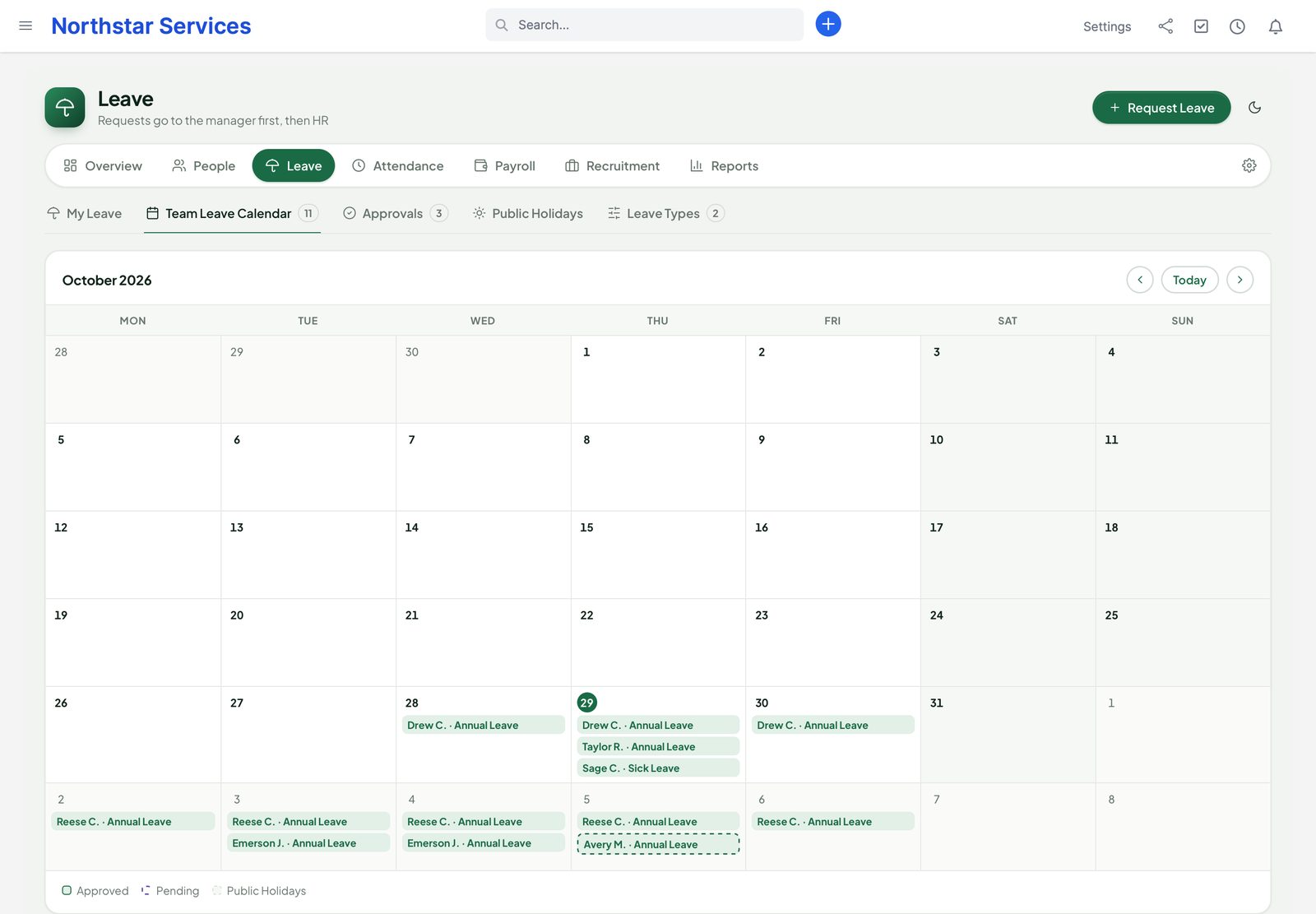
Public holidays
Leave › Public Holidays. Holidays are kept per location; a global holiday applies to everyone, a location holiday only to that location. Import them from a reviewed CSV file or an iCal calendar, or add them by hand.
Attendance
Rules and rosters
Attendance › Attendance Setup. Choose the allowed office IP addresses or location (geofence) before you switch on web clocking. Create shifts with start, end, an optional break, a grace period and the overtime threshold, and assign them as dated rosters in the employee's time zone. Overnight shifts and daylight saving changes are handled.
Clock and approve
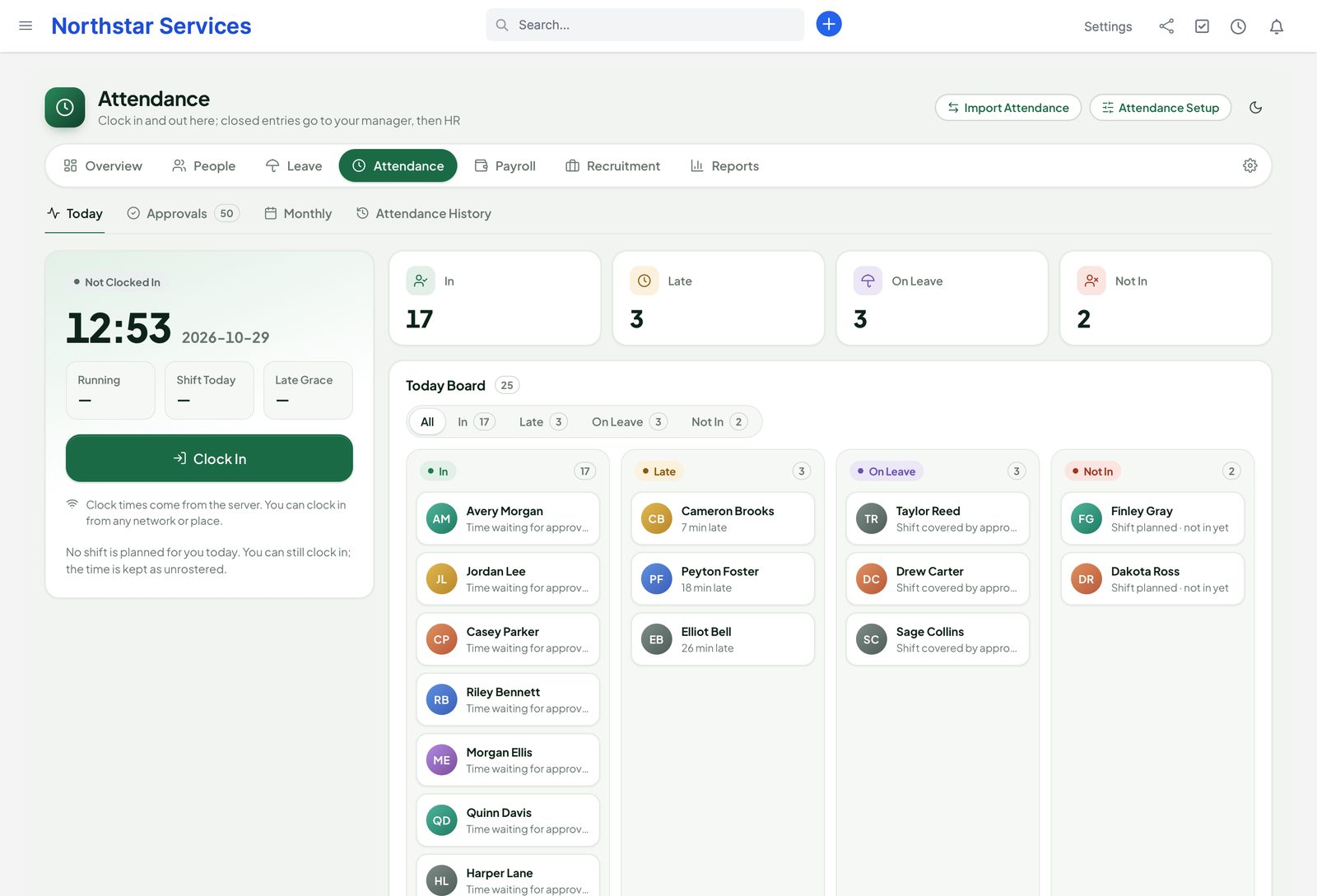
- Employees clock in and out for themselves. A second clock-in at the same time cannot create two open entries, and a failed rule check creates nothing.
- The Today board shows who is in, late (after the grace period), on leave or not in yet. A future shift is never counted as absent.
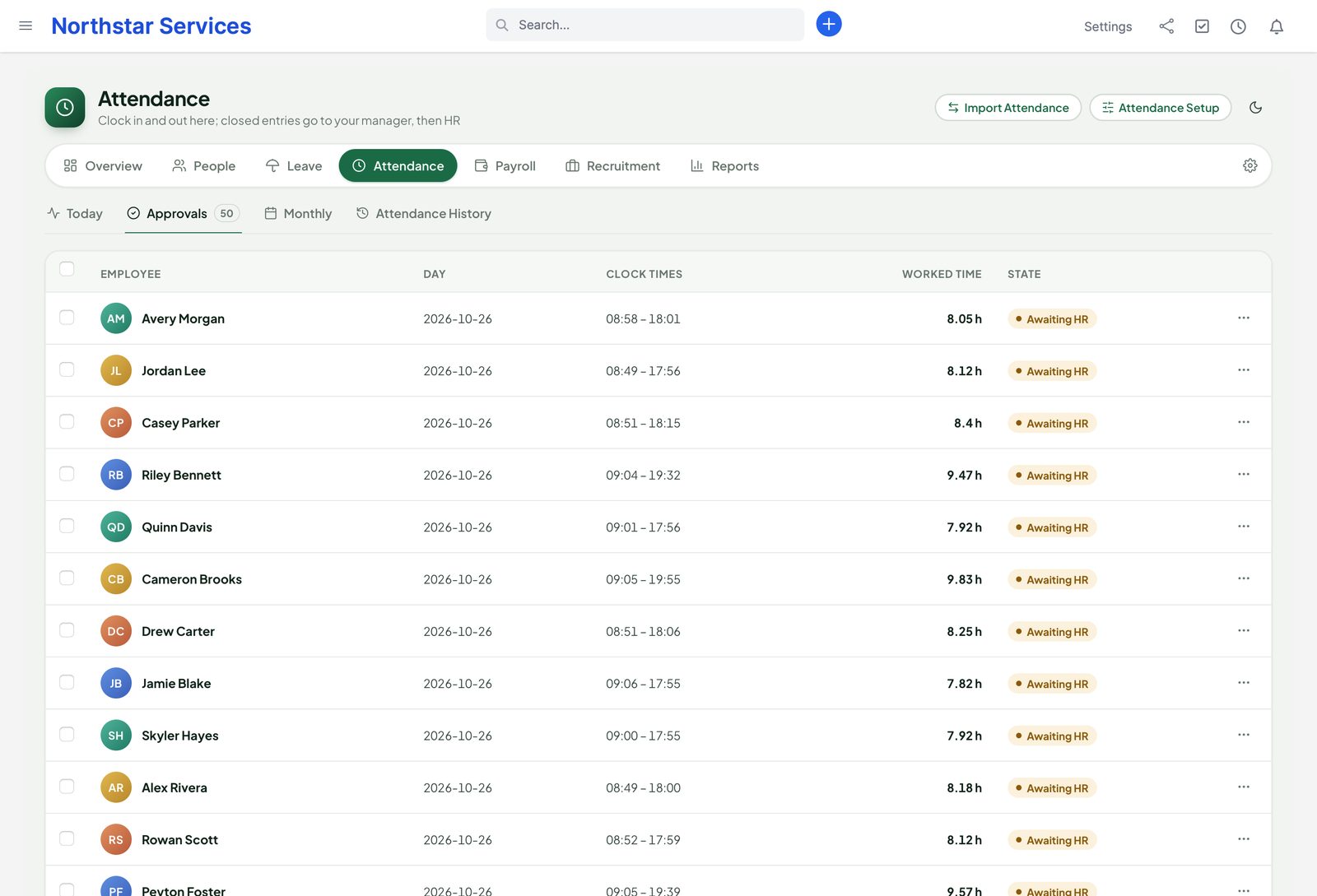
- Finished time is approved by the manager, then by HR (a different person), one by one or in bulk. Approved time cannot be edited afterwards.
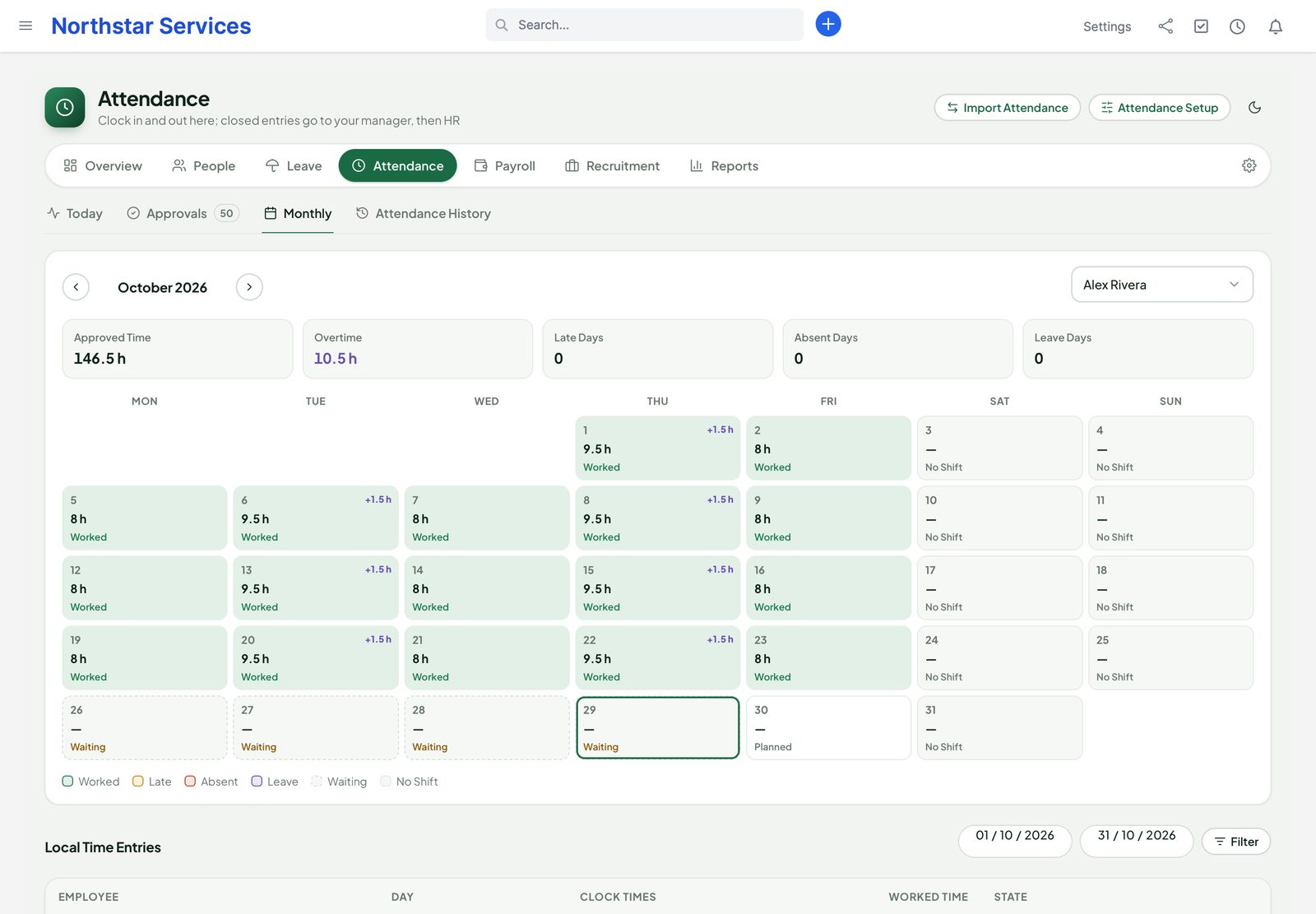
- The Monthly grid shows every day of a person's month with worked time, overtime, late, absent, leave and waiting days.
- Only approved time and approved overtime reach payroll.
With Perfex TeamPulse
With TeamPulse 1.2.1 or later: approved hours and overtime feed payroll. Without it, People uses its own clock, rosters and overtime rules.
With TeamPulse 1.2.1 or later active, People reads approved time from TeamPulse through its public API and does not offer a second timer. TeamPulse supplies the first and last activity of each day, the approved work time and the overtime, classified against the dated People roster; People adds its rosters, breaks and approved leave. TeamPulse's own view and approval rights apply on top of People's.
- Submitted but not yet approved TeamPulse time prevents a false absence, but is not paid.
- Without a dated People roster, overtime stays unclassified, and a pay run refuses to guess it.
- If TeamPulse is missing, too old or your rights do not allow the read, People shows unavailable — never a made-up zero.
- Each entry belongs to its start day in the roster's time zone, overnight entries included, and is counted once. First and last activity are the times recorded in TeamPulse, not proof of continuous presence or device monitoring.
Payroll
Pay components
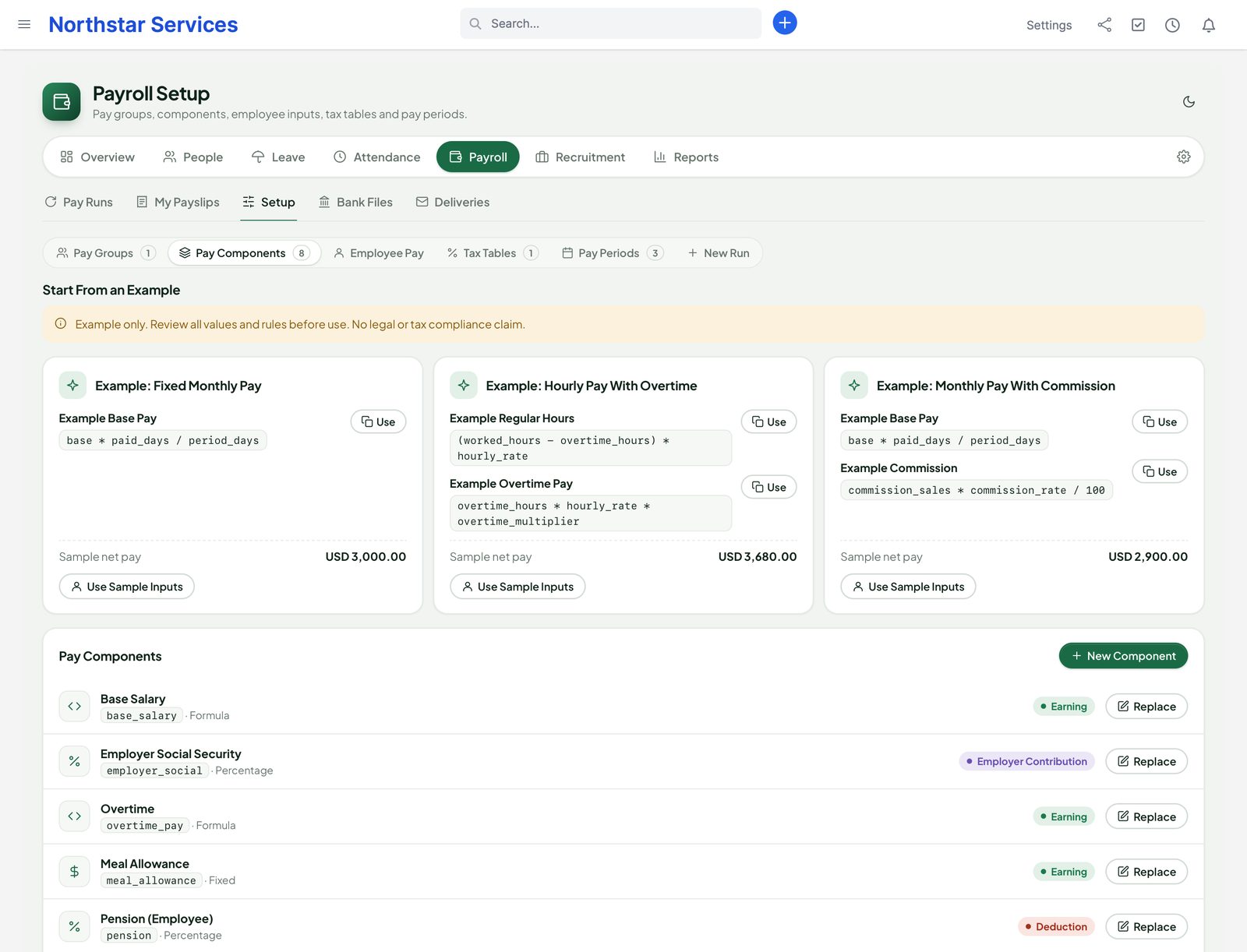
Payroll › Setup › Pay Components. A component has a code (lowercase letters, digits and _), a name, a kind — earning, deduction or employer contribution — and a method:
- Fixed: the same amount for everyone in the group.
- Percentage: a rate of an expression, for example 5% of
base_salary. - Formula: an expression over variables and other components.
- Tax table: the taxable expression run through the brackets of a tax table you entered.
Net pay is earnings minus deductions. Employer contributions are shown on the payslip and in the totals but are not deducted from pay. Every component is rounded to the currency's decimals. A component that comes out negative, or a net pay below zero, stops the run with a message instead of paying it.
Formulas and variables
Formulas are plain arithmetic: numbers, names, + - * / and brackets. They are evaluated with exact decimals by a safe evaluator — never as PHP or any other code. Division by zero, an unknown name or a loop between components stops the run. A formula can use:
| Name | Value |
|---|---|
paid_days | Calendar days of the period the person was employed (from the contract dates). |
period_days | Calendar days of the pay period. |
planned_minutes | Working minutes planned in the period (rosters, or the group's day length on working days). |
unpaid_minutes | Approved leave of the group's unpaid leave types in the period, in minutes. |
worked_hours | Approved work time in the period, in hours (from People attendance or TeamPulse). |
overtime_hours | Approved overtime in the period, in hours (included in worked_hours). |
settlement_earning, settlement_deduction | An approved final settlement from offboarding that falls in this run. |
| Employee values | Your own names per employee, such as base, hourly_rate, overtime_rate or reviewed commission_sales. Stored encrypted. |
| Component codes | The rounded result of another component, for example base_salary + overtime_pay. |
Examples: base * paid_days / period_days (monthly pay with joiner proration), base * unpaid_minutes / planned_minutes (an unpaid-leave deduction), overtime_hours * overtime_rate. The engine's own variables cannot be entered as employee values.
Tax tables
Payroll › Setup › Tax Tables. A tax table is a list of marginal bands for a year that you enter: each band has an upper limit and a rate, and the last band has no limit. The bands are stored encrypted. Use the table in a component with the method Tax table.
Pay groups and members
A pay group has a currency and its decimals, a frequency (monthly, semi-monthly or weekly), a day length, its unpaid leave types and its components. The same currency cannot use two different decimal settings. Add each employee to a group with their values (Employee Pay); the contract start must be set. Pay Periods are created per group and must match its frequency.
Pay runs
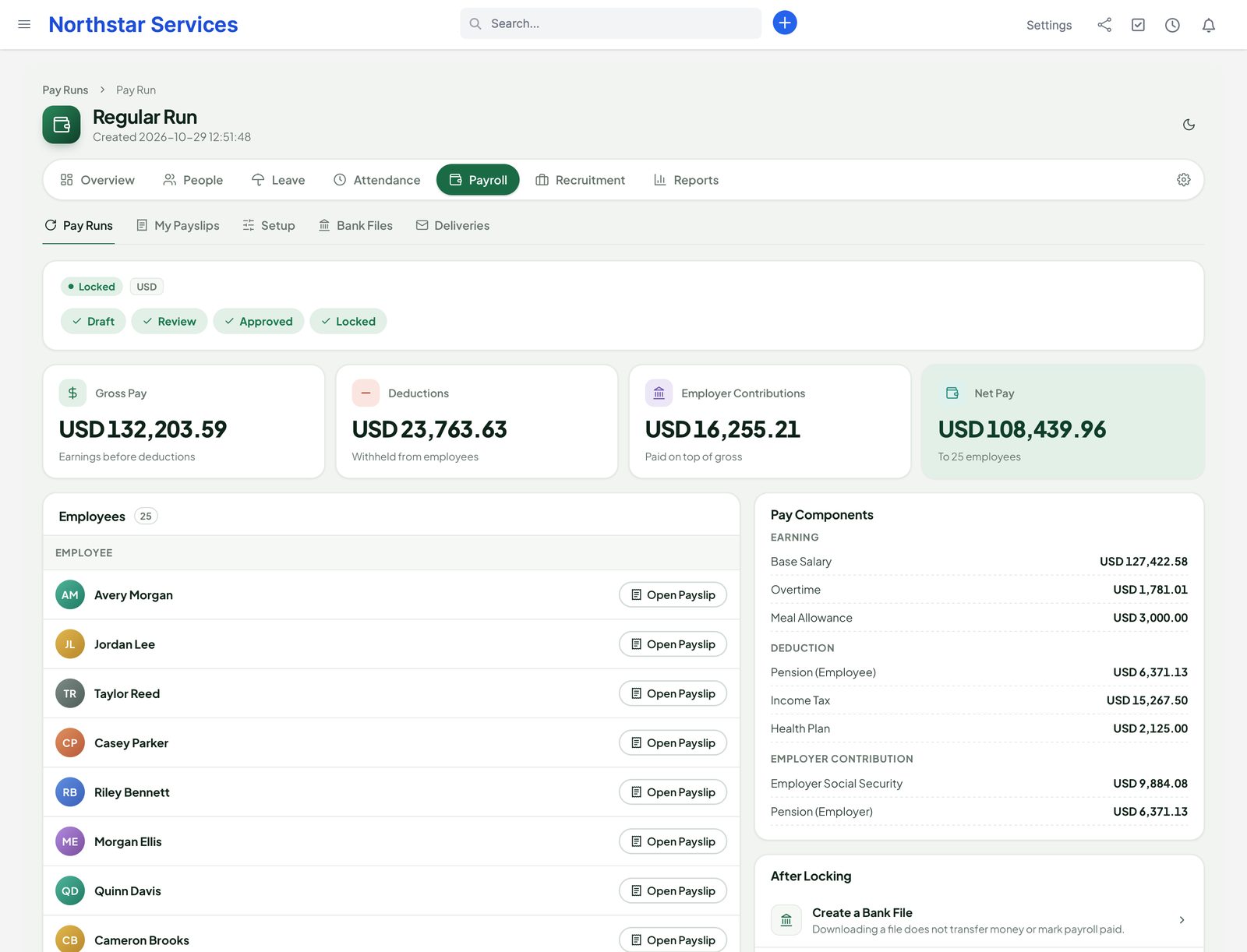
- New Run for a period queues the run. Sending the same command twice returns the same run.
- The run is calculated in the background. A failed or unfinished calculation cannot be reviewed; the run shows the error and can be retried after you fix the cause.
- Review: check totals, each person and the differences against the previous period — joiners, leavers, unpaid leave, overtime and unusual components.
- A different person with the approve right approves the run, then locks it.
- A locked run never changes. Each run keeps a snapshot of the employees' values, components, currency, departments and project allocation, so later edits do not rewrite past payslips.
Adjustment runs
To correct a locked run, start a new run for its period and choose it under Locked Regular Run to Adjust. The adjustment run holds only the differences (deltas) against the original, not a second full payment. It goes through the same review, approval and lock. A correction can reduce pay: the reduction is kept as a negative difference.
Payslips and e-mail
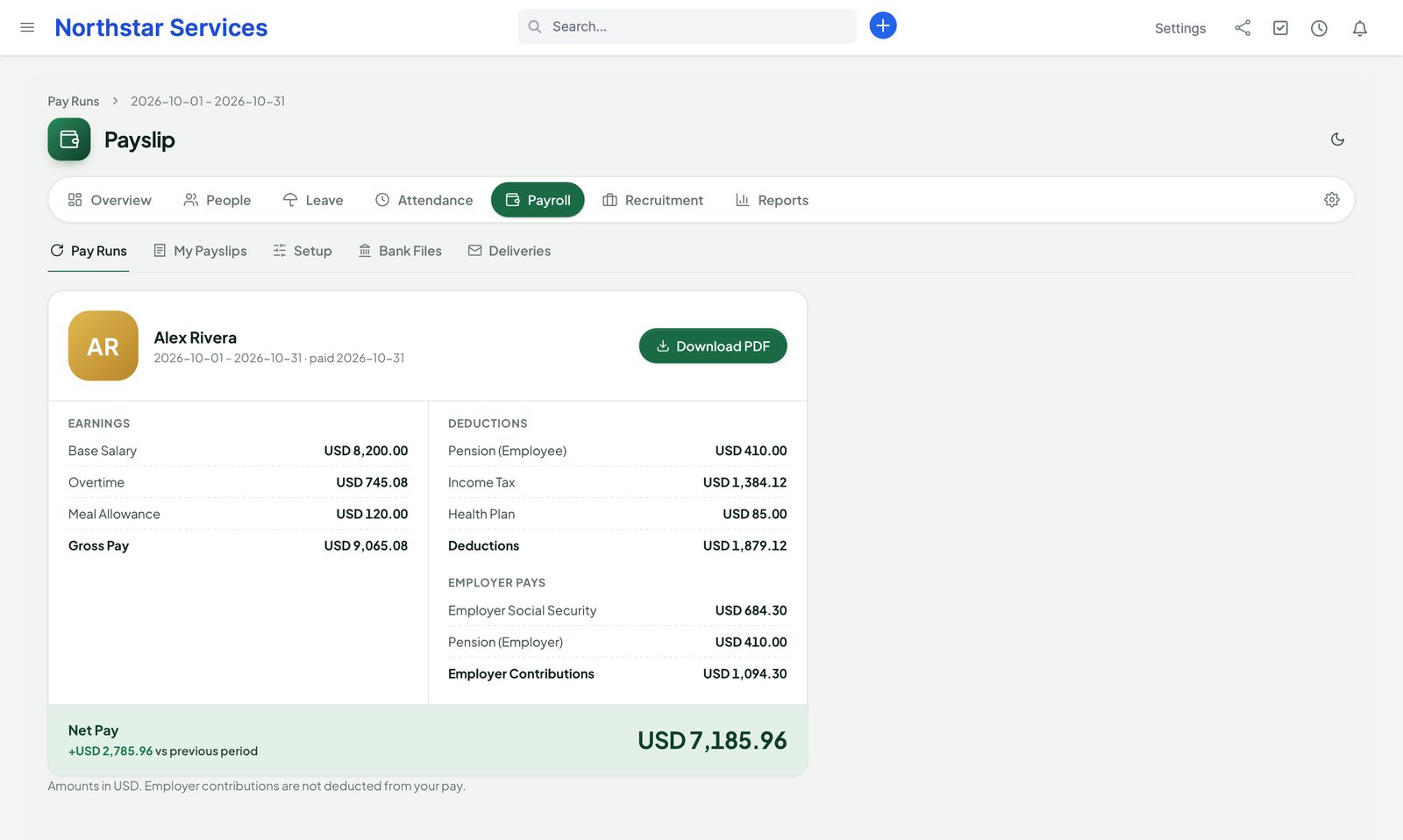
- Employees see only their own locked payslips, in My Payslips. Payroll staff can open the payslips they are allowed to see. Each payslip has a PDF; with Perfex Document Studio active, a Document Studio template can be used.
- Payslip e-mail is off by default. A payroll administrator switches it on after checking Perfex's e-mail settings. Payslips are sent from a queue to the employee's current Perfex account e-mail — never to an address typed in a form, and never with a BCC.
- Deliveries shows each send. If the mail server's answer was uncertain, the payslip may already have arrived: check the server, mark it sent or not sent, and retry only when needed. People never retries an uncertain send by itself.
Bank files
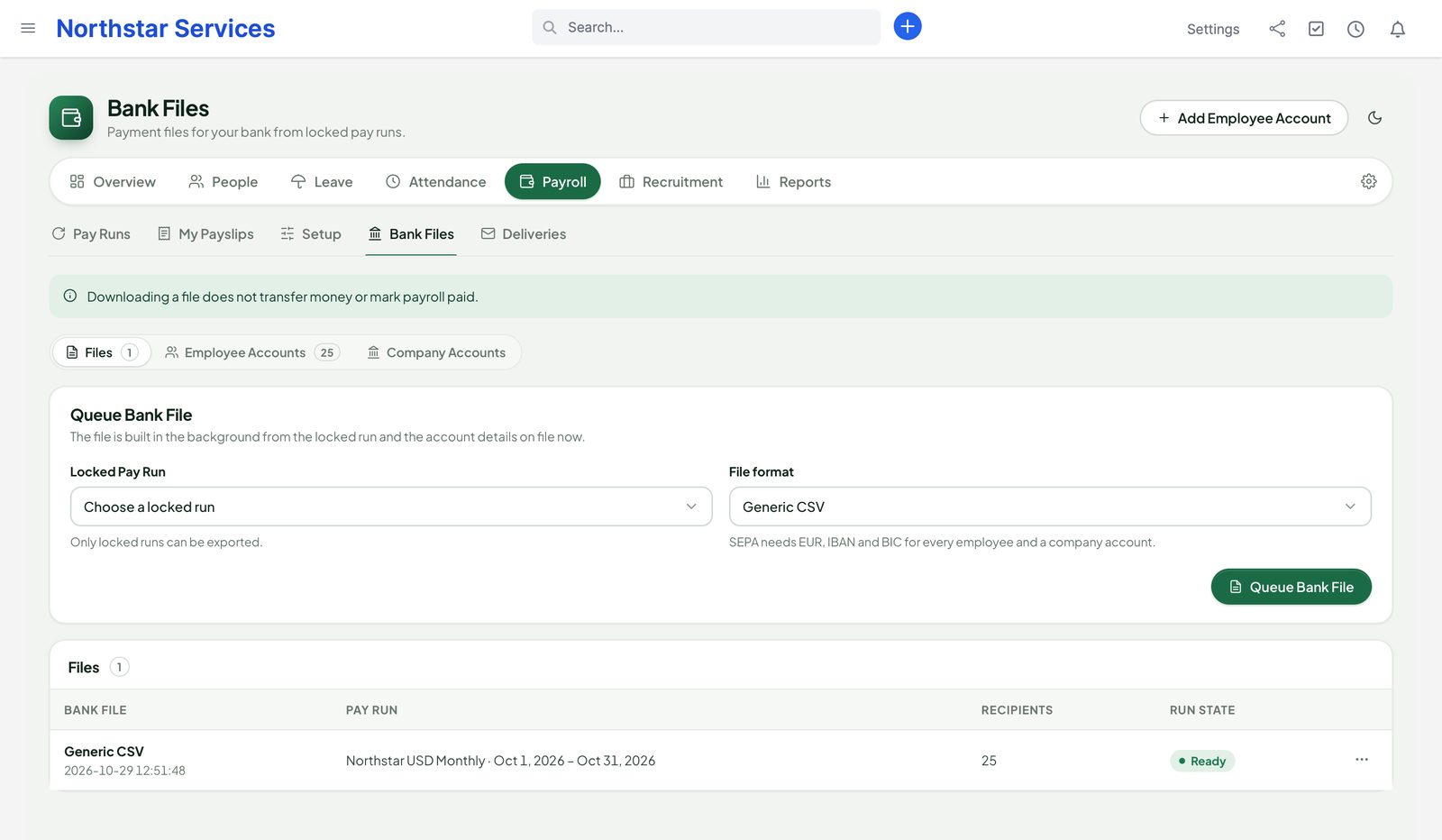
- Enter the employees' bank accounts (Payroll › Bank Files › Employee Accounts) and the paying company account per pay group (Company Accounts). Both are encrypted.
- Pick a locked run and a format — Generic CSV or SEPA pain.001 — and click Queue Bank File. The payment data is frozen and the file is built in the background.
- Download the file and approve it in your bank as usual.
- CSV files are formula-safe. SEPA needs EUR and a valid IBAN and BIC for every employee and the company account, and the file is checked against the schema. People never converts currencies.
- For an adjustment run, only positive corrections go into the file. Pay reductions are listed under Recover Outside the Bank File — recover those amounts yourself. If a correction only reduces pay, there is no file to make.
- Downloading a file does not send money and does not mark anyone as paid.
- Erasing an employee's data invalidates prepared bank files that contained them.
Posting to Perfex Books
With Perfex Books active, locked runs can post to the Books ledger. On Payroll › Pay Runs, under Books Posting, click Choose Accounts and map the five account roles — Gross Pay Expense, Employer Contribution Expense, Deductions Payable, Net Pay Payable and Employer Contributions Payable — to Books accounts in the run's currency. From then on, each locked run posts one balanced journal through Books' public posting API, on an open posting date:
- debit gross pay and employer costs; credit deductions payable, net pay payable and employer contributions payable;
- only the anonymous totals of the run cross to Books — no employee names, salaries or bank details;
- an adjustment run posts its own journal with the differences; a reduction posts with every side reversed;
- posting the same run again never creates a second journal. Each run shows its state and the Books receipt; a failed post can be retried.
Runs locked before you enabled posting need an explicit backfill. Without an active Books, the state stays unavailable; nothing is posted or faked.
Example templates
Under Start From an Example, People shows three neutral examples. They make no legal or tax compliance claim and install nothing on their own: you review them, create the components you want and add employee values.
- Fixed monthly pay:
base * paid_days / period_days. Base 3000 for a full 31-day month is 3000.00; a joiner employed 17 days gets 1645.16. - Hourly pay with overtime: regular
(worked_hours - overtime_hours) * hourly_rate, overtimeovertime_hours * hourly_rate * overtime_multiplier. 176 approved hours with 16 overtime hours at rate 20 and multiplier 1.5 give 3200 + 480 = 3680.00. - Monthly pay with commission: base as above plus
commission_sales * commission_rate / 100. Sales 20000 at 2% add 400. People does not read commission data from other modules; enter reviewed figures.
Recruitment
- Setup: set the consent text and its version, the retention period and the CV storage limit; rename or reorder the stages.
- Openings: save a job privately, review its description, location and closing date, then publish it.
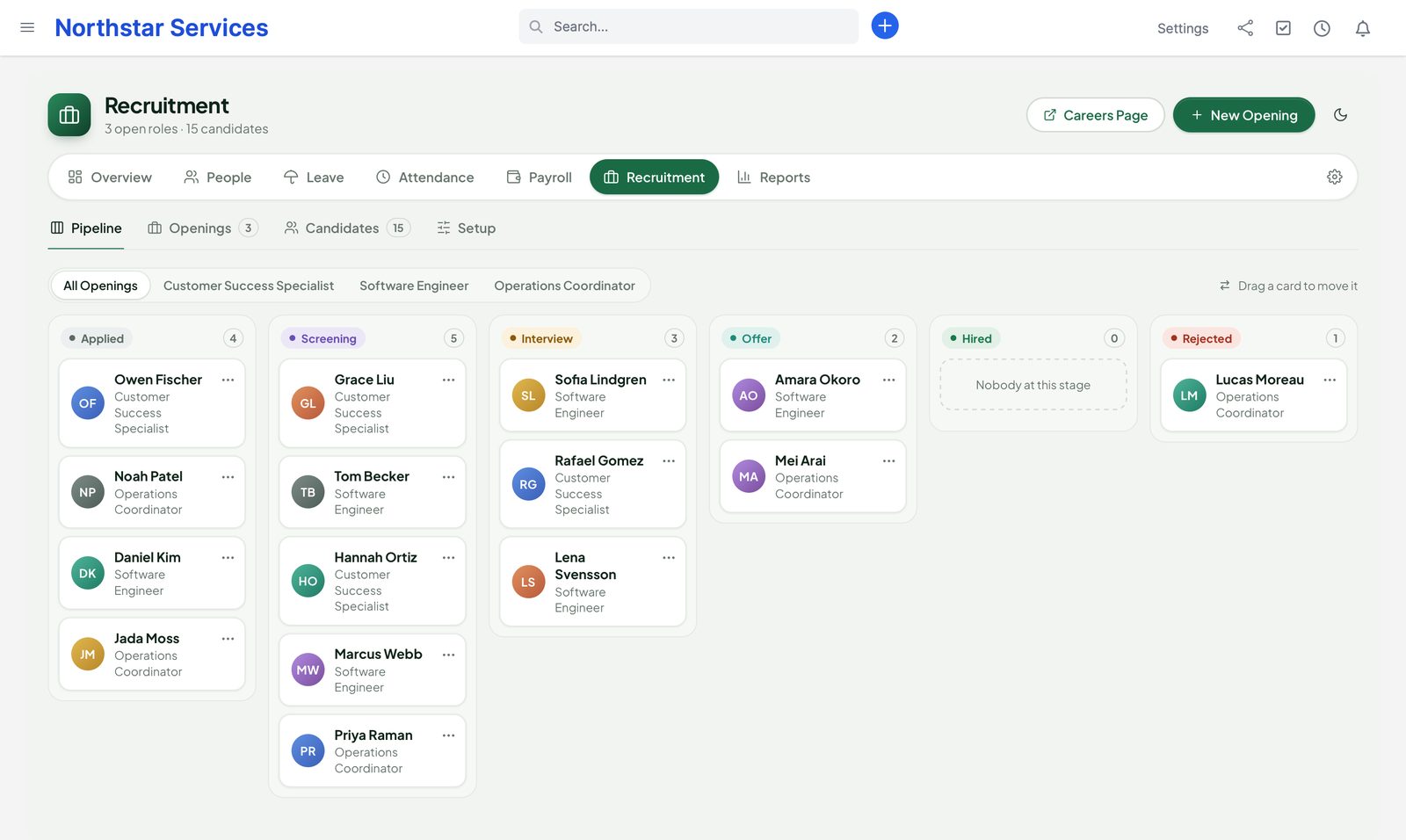
- Pipeline: candidates move across stages on a kanban board; drag a card or use Move Candidate. Changes made by two people at once are caught.
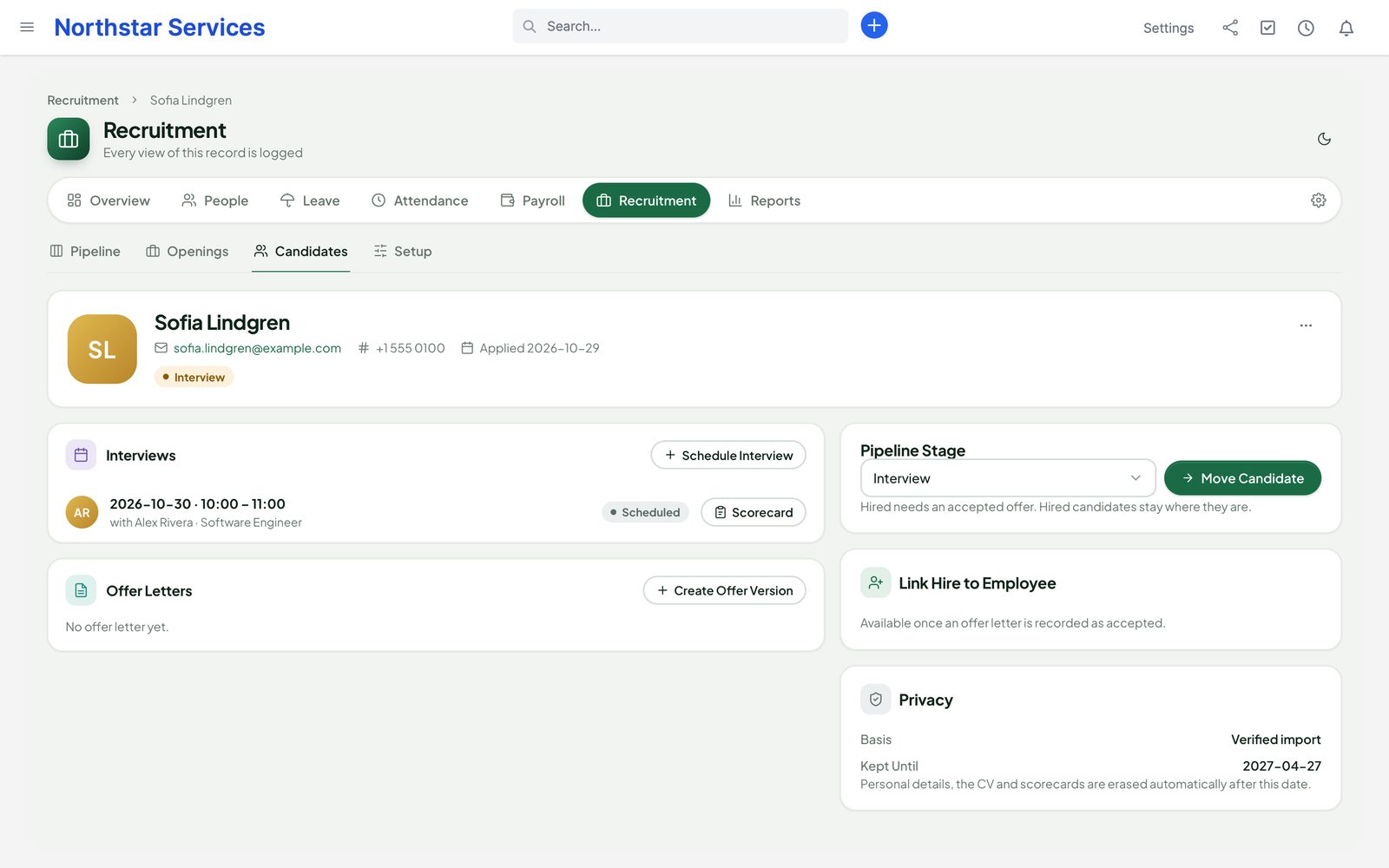
- Interviews are scheduled in the intended time zone with a named interviewer, who fills in a scorecard. Interviewers see only their own interviews and never the offer salary.
- Offers: someone with the Salary right writes the offer, marks it sent and records the answer.
- Hire: after an accepted offer, link the candidate to the existing Perfex staff account. People does not create logins. Set the contract start before payroll.
Careers page
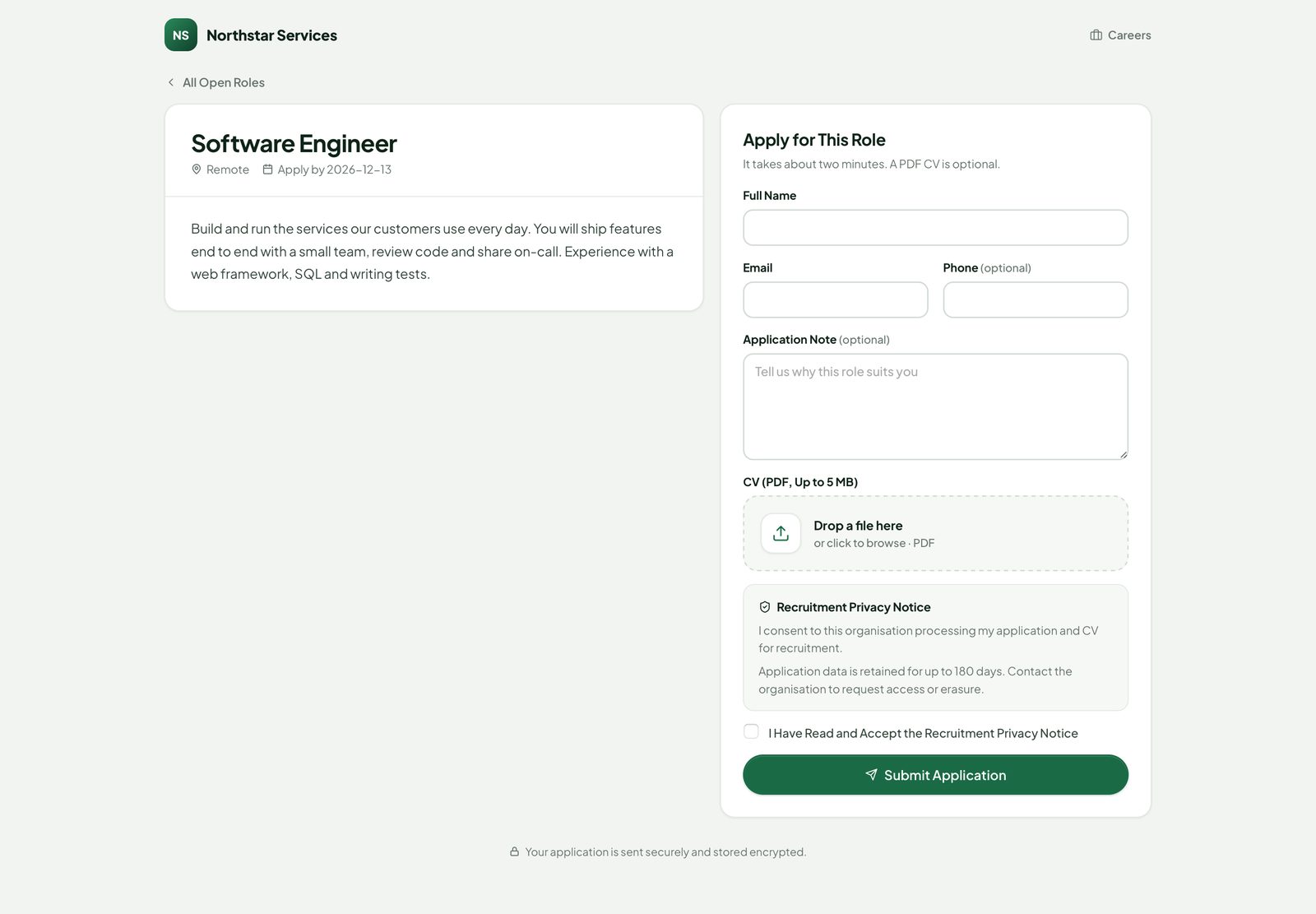
Published openings appear on your public careers page at /perfex_people/careers on your CRM address, each with an apply form: name, e-mail, optional phone and note, an optional PDF CV and the consent checkbox. The form has CSRF protection, a short-lived one-time token, a quick-submit and honeypot check and a limit per visitor; only PDF files within the size and storage limits are accepted. Submitting the same application twice creates one candidate. Applications are stored encrypted.
Retention
Each candidate shows the date their data is kept until. After that date, cron deletes the candidate — CV, interviews, scorecards, offers and search data — in batches; a content-free audit entry records it. An authorised person can export or erase a candidate at any time.
On- and offboarding
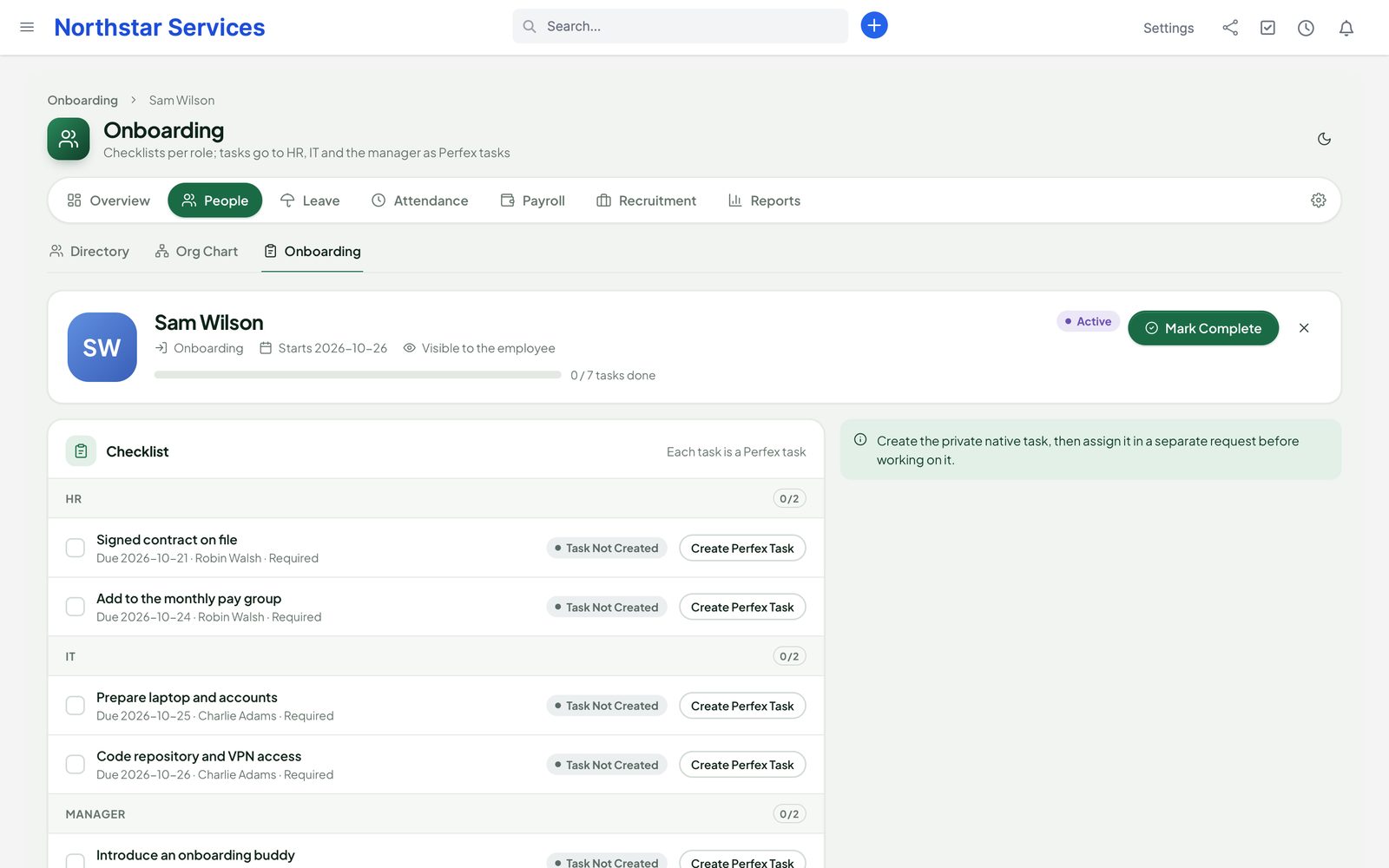
- Templates per role list the items with a responsible role (HR, IT, manager or employee), whether they are required and a due date relative to the start or last day.
- Start Checklist for an employee, confirm who does the HR, IT and manager items, and choose whether the employee sees the checklist.
- Each item becomes a Perfex task when the named person creates it, so the work shows up where your team already looks. Repeating the action never creates a duplicate task. Keep task texts generic — no salary or confidential notes.
- Required items must be done before the checklist can be completed.
- Offboarding can record an encrypted exit interview. A final settlement needs a separate approval and a pay period; it goes into that period's run and stays linked to it once locked. Completing offboarding does not deactivate the staff account — do that in Perfex.
Reports
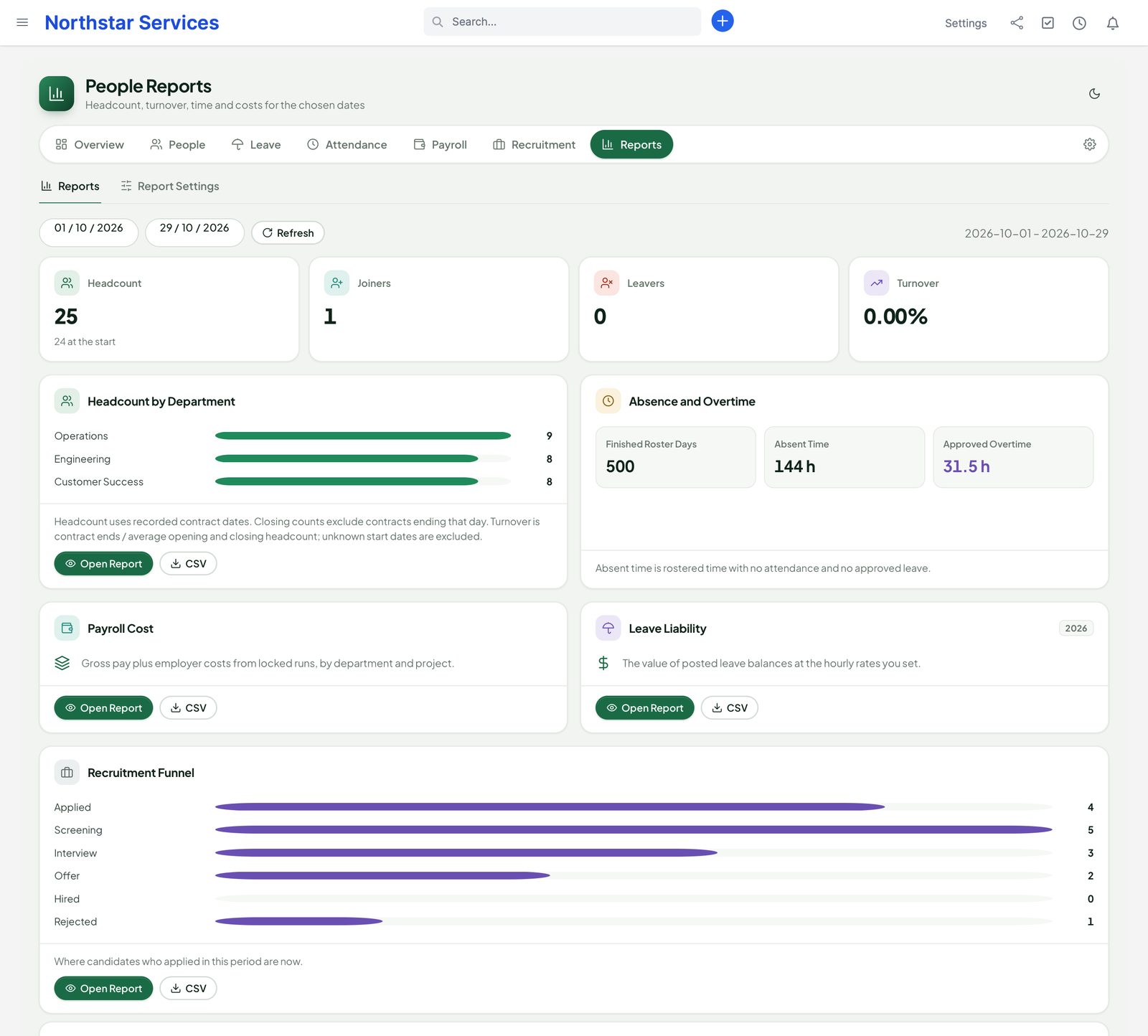
Reports shows headcount, joiners, leavers and turnover, headcount by department, absence and overtime, payroll cost, leave liability and the recruitment funnel for the dates you choose.
- Headcount and turnover use the saved contract dates; missing start dates are shown as unknown.
- Absence and overtime come from completed rosters, approved work and approved leave — or from TeamPulse when it is the time source.
- Payroll cost is gross pay plus employer contributions from locked runs, by department and project; currencies stay separate and no exchange rate is invented. It needs Salary and a payroll right.
- Leave liability values the posted balances at the hourly rates you set in Report Settings; it is not a statutory calculation.
- The recruitment funnel shows where the candidates of the period are now.
- CSV exports are formula-safe in headings and values, and need the export right.
Switching from another HR module
The settings menu (gear icon) has Import Employees, Import Leave and Import Attendance. They read the data of another HR, payroll, timesheet or recruitment module on the same Perfex installation. The importer is read-only: it never changes or deletes the other module's tables, and the other module does not need to be active.
- Back up and rehearse on a copy of your installation first.
- Find. People looks for the other module's tables and shows what it found with counts. Choose a source and a batch.
- Dry run. A report with counts, fields that have no place in People, conflicts and missing profiles. Resolve status and type mappings, day length, time unit (hours or minutes), time zone and currency. Nothing is written yet, and no salary or bank value is shown.
- Import the batch. Protected values are encrypted on the way in; existing People records are not overwritten. Imported job openings stay private, and for candidates you confirm the retention basis.
- Run it again to check: it must not create duplicates.
- Undo a batch from the batch history if needed. Undo is refused once imported records were changed, approved or used in People afterwards.
Employees and contracts, emergency contacts, leave types, balances and requests, holidays, attendance and shift history, past payslips, openings, candidates and stages can be brought over, as far as the other module has them. Past payslips come in as read-only history: they never create a pay run or a Books posting. Raw device clock events and unclear identities are kept as history for review, never turned into approved paid time.
Integrations
Each integration appears only while the other module is active; People works fully without them. A missing integration shows as unavailable — People never reads another module's tables directly or guesses a result.
| Module | Adds |
|---|---|
| Perfex TeamPulse | TeamPulse 1.2.1 or later: approved hours, first and last activity and overtime for attendance, reports and payroll (see With TeamPulse). Without it, People uses its own clock, rosters and overtime rules. |
| Perfex Books | Locked pay runs posted to the ledger (see Posting to Books). |
| Perfex Brain Pro | HR widgets for dashboards. |
| Perfex AI Staff | Read tools for AI Staff agents that respect the field rights of the person asking. |
| Perfex Flow Studio | Triggers and actions for HR events in workflows (publishing is off until you switch it on). |
| Perfex Connect | Work-profile resources in the REST API, without salary, bank or private fields. |
| Perfex Document Studio | Document types for offer letters and payslips. |
Privacy and GDPR
- Salary, bank, identity, candidate and private workflow data and private documents are encrypted at rest.
- Per-field permissions: salary is visible only to payroll roles and to the employee.
- Protected values never load with the page; Reveal loads them and is audited.
- The audit records every view and export of sensitive fields: who, what and when.
Export
Employees can export their own People data. To export someone else's data you need access to that person and the privacy right; the salary, bank, document, recruitment and payroll rights still apply. The JSON export covers the profile and document list, leave, attendance, pay assignment and payslips, settlements, payslip deliveries, checklists, linked recruitment data and audit entries. Transfer it securely and delete temporary copies.
Erasure
Check the person and get your organisation's approval first; erasure needs the privacy and delete rights. It removes the People profile, private files, leave, attendance, rosters, import links, linked candidate data, checklist links and settlement values, clears individual pay inputs and results, payment details and queued payslip e-mails, and invalidates ready bank files that contained the person. Anonymous locked accounting totals and content-free audit entries stay. Erasure does not delete the Perfex staff login, Perfex tasks, the other module's tables, files already downloaded, e-mails already accepted by a mail server or your backups. Files are deleted in the background through cron, with retries until they are gone.
Deactivate and uninstall
Deactivate in Setup › Modules: People's menu, careers page and background work stop; your data stays. Activating again continues where it stopped.
Do not uninstall to upgrade or to fix a problem. Before an uninstall, make a full database and files backup.
FAQ
Does the payroll comply with my country's tax rules?
People makes no compliance claim for any country. Tax tables and pay components are your data; People ships neutral examples only.
Does People pay my employees?
No. It calculates pay and creates a bank file. You approve the payment in your bank.
Does it change Perfex core files?
No. People uses module hooks and its own tables, and adds nothing to Perfex's staff table.
Which languages are included?
English, Dutch, French, German, Italian, Brazilian Portuguese, Russian, Spanish and Turkish. Light and dark, and phone layouts.
Can I move from my current HR module?
Yes, with the read-only importers: dry run first, then batches you can undo. See Switching.
Do I need Perfex Books or Perfex TeamPulse?
No. They connect when they are active: Books receives locked pay runs; with TeamPulse 1.2.1 or later, approved hours and overtime feed payroll. Without it, People uses its own clock, rosters and overtime rules.
Can customers see anything?
No. People is for staff. The only public part is the careers page with your published openings.
Changelog
Current version 1.1.1 (29 Oct 2026). Release notes of every version, newest first: perfexcrm.app/people/changelog/.
1.1.1 — First release (Perfex People 1.0)
Employee records with encrypted protected fields and documents; leave with accrual, approvals and holidays; attendance with clock in and out, rosters, approvals and TeamPulse time (TeamPulse 1.2.1 or later); country-neutral payroll with formulas, locked runs, adjustment runs, payslips, bank files and Books posting; recruitment with a careers page; onboarding and offboarding; reports; read-only importers; GDPR export and erasure. The full list is in changelog.txt in the download.